To achieve maximum FPS, pinpoint visual tracking, and minimal input latency in Apex Legends on PC, set Display Mode to Full Screen, disable V-Sync, turn Adaptive Resolution FPS Target to 0, switch all shadow options to Low or Disabled, and set NVIDIA Reflex to On + Boost. Pair these with a Texture Streaming Budget matching your VRAM headroom (typically 4GB or 6GB) and lower Effects Detail to Low to keep chaotic ultimate abilities from tanking your frame rate. This baseline eliminates frametime micro-stutters, strips away visual noise like ambient shadow muddiness, and grants an immediate 30% to 55% boost to raw framerates across both budget rigs and high-end battle stations.
The Core Video Configuration for Competitive Low Latency
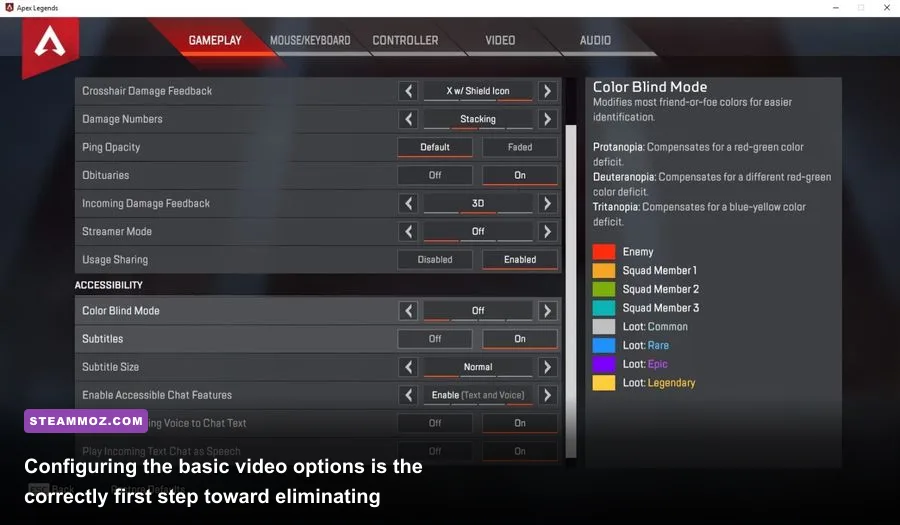
Apex Legends runs on a heavily modified version of Valve's Source engine developed by Respawn Entertainment. While the engine scales remarkably well across older hardware, it harbors notorious quirks: aggressive render queues, strange physics engine jitter at excessive refresh rates, and heavy draw call penalties inside crowded points of interest. Before touching textures or lighting, you need to lock down your baseline display parameters.
Display Mode: Set this strictly to Full Screen. Running Borderless Windowed forces the Windows Desktop Window Manager (DWM) to mediate the presentation pipeline, which introduces at least one frame of inescapable input buffering. Exclusive Full Screen gives the game direct access to the display swap chain.
Aspect Ratio & Resolution: Stick to your monitor's native display resolution—almost always 16:9 at 1920x1080 or 2560x1440. While some players experiment with stretched 16:10 (such as 1680x1050) to widen character hitboxes visually, native resolution delivers the sharpest pixel integrity for spotting head-glitches across distant ridgelines on maps like Broken Moon.
Field of View (FOV): The sweet spot for high-tier ranked and tournament play sits between 104 and 110. A 110 FOV provides unmatched peripheral vision during close-quarters shotgun duels, but it does render more geometry on-screen, costing roughly 4% to 7% of your average FPS compared to the default 90. If your system struggles to hold 144 FPS, dropping your FOV to 100 or 104 provides a noticeable performance cushion without feeling like you are peering through binoculars.
FOV Ability Scaling & Sprint View Shake: Turn FOV Ability Scaling Disabled. When enabled, Bloodhound's Beast of the Hunt or Octane's Stim dynamically shifts your field of view, drastically altering your perceived mouse sensitivity and destroying muscle memory mid-duel. Set Sprint View Shake to Minimal to remove unnecessary camera wobble while sprinting.
NVIDIA Reflex Low Latency: If you are running an NVIDIA GeForce GPU, configure this to On + Boost. As detailed in the NVIDIA Reflex technical documentation, this setting overrides standard driver queues and prevents the GPU from operating at lower clock states during light, CPU-bound combat moments. Much like stabilizing your frametime floor in titles highlighted in our guide on graphics optimization for high frame rates, keeping GPU clocks locked ensures instantaneous click-to-photon delivery.

🎮 FORM
Looking to experience this game? Grab your digital key directly on our store for $14.99.
View on Steammoz Store →In-Game Graphics Settings Breakdown and Impact Matrix
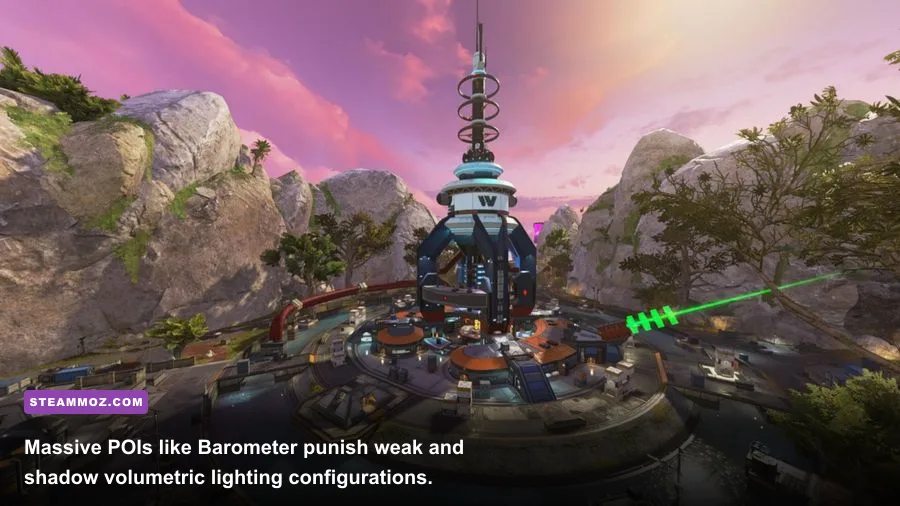
Every graphics setting in Apex Legends on Steam trades raw GPU compute cycles for aesthetic fidelity. In a fast-paced battle royale where spotting a third-party rotating across an open field decides the match, eye candy is actively your enemy. Heavy shadows and dense lighting create visual clutter that conceals dark legend skins in poorly lit indoor spaces.
| Setting | Recommended Value | Performance Cost | Competitive & Visual Impact |
|---|---|---|---|
| V-Sync | Disabled | High Latency Penalty | Eliminates input delay; manage tearing via external caps |
| Adaptive Resolution FPS Target | 0 | Dynamic Blur Hazard | Values above 0 dynamically downscale resolution into a blurry mess |
| Anti-Aliasing | Off or TSAA | Low (2-4%) | Off grants razor-sharp edges; TSAA softens temporal aliasing |
| Texture Streaming Budget | High (4GB) or Very High (6GB) | Negligible (VRAM Bound) | Keeps legend and weapon skins crisp without hitting system RAM |
| Texture Filtering | Anisotropic 4X or 8X | Minimal (1-2%) | Makes floor surfaces and terrain lines distinct at oblique angles |
| Ambient Occlusion Quality | Disabled | Heavy (10-15%) | Removes fake contact shadows that allow enemies to hide in corners |
| Sun Shadow Coverage | Low | Low (2-3%) | Reduces coverage distance of cascading outdoor sun shadows |
| Sun Shadow Detail | Low | Moderate (4-6%) | Softens shadow borders, reducing GPU rasterization load |
| Spot Shadow Detail | Disabled | High (8-12%) | Completely removes dynamic interior lighting calculations |
| Volumetric Lighting | Disabled | Moderate (5-7%) | Removes blinding God rays and heavy air dust scattering |
| Dynamic Spot Shadows | Disabled | Moderate (3-5%) | Prevents moving map lights from casting computational shadows |
| Model Detail | Medium or Low | Low (2-4%) | Low clears visual debris; Medium keeps character silhouettes sharp |
| Effects Detail | Low | Extreme in Fights (15-25%) | Prevents thermite, Bangalore, and Gibraltar ults from freezing your screen |
| Impact Marks | Disabled or Low | Minimal (1%) | Cuts bullet impact decaling on walls during intense firefights |
| Ragdolls | Low | CPU Bound Variance | Minimizes death animation physics calculations on the processor |
Deconstructing the Most Critical Settings
Spot Shadow Detail: This is single-handedly the most damaging visual toggle for your framerate in dense urban drop zones like World's Edge Skyhook or Olympus Estates. Setting Spot Shadow Detail to Disabled strips out dynamic spot illumination from overhead lamps and industrial fixtures. It doesn't just recover up to 12% of your framerate; it drastically improves combat clarity by brightening up dark, shaded stairwells where opponents love to camp.
Texture Streaming Budget: Unlike most titles where texture resolution directly impacts shader performance, Apex Legends uses a dedicated texture streaming pool. If you have an 8GB VRAM card, selecting High (4GB) or Very High (6GB) introduces virtually zero performance penalty because the assets sit preloaded in high-speed video memory. However, setting this to Insane (8GB) on an 8GB card will exhaust your VRAM pool, spilling assets into system RAM and causing violent frame stutters. If you've battled memory management issues in other demanding games like those discussed in our breakdown of PC stability and stutter fixes, you know that keeping a safety buffer in your VRAM is essential.
Effects Detail: Keep this on Low. When three squads converge inside a building and deploy multiple Caustic gas traps, Horizon black holes, and Bangalore rolling thunders, High Effects Detail forces the GPU to render dense alpha particle layers. These particle overlaps cause severe frametime spikes down to the 40–50 FPS range right when your aim needs to be most precise.
Steam Launch Options and Engine-Level Autoexec Optimizations
Tuning the in-game UI is only half the battle. To gain an uncompromising competitive edge, you need to configure your game client's launch pipeline. Right-click Apex Legends in your Steam library, select Properties, and append the following strings directly into the Launch Options field:
+fps_max 0 -novid -dev +cl_showfps 1 +mat_letterbox_aspect_threshold 0
Let's dissect why these specific commands matter:
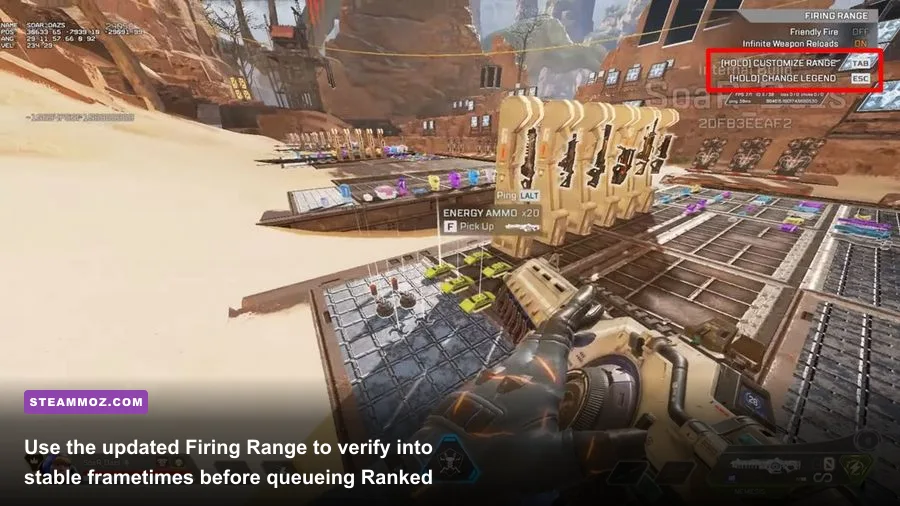
- -novid and -dev: Skips the loud opening Respawn and EA splash cinematics, dumping you immediately onto the "Continue" server selection screen to get you into the firing range faster.
- +fps_max 0: Unlocks the internal engine cap. Historically, Apex suffered from frame pacing micro-stutters when rendering above 144 FPS. Respawn modernized the engine tick-rate handling, allowing clean gameplay up to 240 and 300 FPS. However, if your GPU usage consistently hits 99%, capping your framerate 3 to 4 frames below your monitor's maximum refresh rate using an external utility like RTSS (RivaTuner Statistics Server) keeps system latency significantly lower.
- +mat_letterbox_aspect_threshold 0: Strips black bar constraints if you play on non-standard aspect ratio displays.
Avoid outdated launch options like -high or -threads. Modern Windows versions feature sophisticated thread directors that manage CPU cores far better than forced launch flags. Enforcing -high priority often starves background audio services, Discord, and mouse polling threads, leading to silent footstep bugs and erratic mouse sensor input.
Configuring videoconfig.txt for Pure Competitive Clarity
For players searching for absolute barebones visibility, certain rendering features hidden inside the local configuration files can be adjusted. Navigate to your local AppData folder located at:
C:\Users\[YourUsername]\AppData\Local\Respawn\Apex\local\videoconfig.txt
Open this file in a standard text editor. Here, locate the following lines to make strategic performance tweaks:
"setting.csm_enabled" "0": Setting Cascaded Shadow Maps to 0 disables lingering directional sun shadows across terrain surfaces. While the game world will appear noticeably flatter, player character models pop out against backgrounds with unmatched contrast."setting.r_lod_switch_scale" "0.6": Lowering this value from 1.0 reduces the distance at which high-polygon models transition into low-polygon representations. Do not drop this below 0.5, or enemy outlines at sniper distances may fail to render reliably.
Once edited, save the file. If you notice Apex Legends reverting your settings every time you boot the client, right-click videoconfig.txt, select Properties, and tick the Read-only checkbox. Remember that you must uncheck Read-only whenever you wish to change your resolution or basic audio levels in-game later on.
DirectX 11 vs. DirectX 12 Beta: Which Should You Run?
Respawn maintains a public beta for its modern DirectX 12 rendering path. You can opt into the DX12 renderer by adding the following command to your Steam launch options: -anticheat_settings=anticheat_integrity_tool_to_launch_dx12.json (or using the official DX12 launch parameters provided in current seasonal patch notes).
So, should you switch? The answer depends entirely on your system's hardware configuration:
- Stick with DirectX 11 if: You have an older multi-core processor (such as Intel 9th gen or Ryzen 2000/3000 series) or an entry-level GPU. The legacy DX11 build has heavily matured shader pipelines with virtually zero shader compilation stuttering during initial drop sequences.
- Switch to DirectX 12 if: You run a modern multi-threaded CPU (Intel 12th/13th/14th Gen or AMD Ryzen 5000/7000/9000 with 3D V-Cache) paired with a high-refresh 240Hz+ display. DX12 distributes render draw calls across multiple CPU cores simultaneously rather than jamming them through a single core. This eliminates severe framerate dips when overlooking high-density zones like Fragment East or Barometer.
For players struggling with game stutters or sudden visual hitches during intense particle heavy moments, exploring rendering engines and their crash fixes, much like our troubleshooting in resolving combat performance dips, makes a world of difference in maintaining fluid motion.
Hardware Profiles: Tailored Settings for Every Tier
Not every PC should run identical settings. An esports professional aiming to fully saturate a 360Hz OLED panel requires a completely different tuning philosophy than someone playing on a budget gaming laptop. Use the hardware profile table below to match your machine to its ideal competitive operating target.
| Hardware Profile | Target Resolution & Refresh | Texture Budget | Model / Effects Detail | Recommended Renderer |
|---|---|---|---|---|
| Budget Tier (GTX 1660 / RX 5600 XT) | 1080p @ 144Hz (Locked) | Medium (3GB) | Low / Low | DirectX 11 (Stability Focus) |
| Mid-Range Esports (RTX 3060 / 4060 / RX 6700) | 1080p or 1440p @ 165Hz - 240Hz | High (4GB) | Medium / Low | DirectX 11 or DX12 |
| Enthusiast Pro (RTX 4070 Ti+ / RX 7900 XT+) | 1440p @ 240Hz - 300Hz | Very High (6GB) | High / Low | DirectX 12 (Multi-thread Uncapped) |
Fine-tuning lightweight visual settings to strip input latency while keeping responsiveness instantaneous mirrors the techniques outlined in our deep-dive on squeezing maximum FPS out of competitive engines. Once you strip away dynamic lighting bloat, configure your texture pool within safe hardware limits, and lock down your launch parameters, Apex Legends transitions into an ultra-responsive, visually clean competitive battle royale where every shot lands purely on your own skill.