If Amnesia: The Bunker keeps crashing, hitching, or falling below a playable frame rate on PC, start with the fixes that target the game’s engine and shader workload: verify the Steam installation, update your GPU driver, disable overlays, reset corrupted settings, then use a 1080p performance profile with shadows and ambient occlusion reduced. The biggest gains usually come from lowering resolution scale, shadows, volumetric effects, and post-processing—not texture quality.
Frictional Games’ bunker horror game is unusually sensitive to sudden lighting changes, streaming new rooms, and the Stalker’s real-time activity. That means a PC can report a comfortable average FPS while still producing nasty one-percent-low drops. The goal here isn’t simply to chase a bigger number. It’s to make exploration, generator management, and monster encounters feel consistent.
Check Your PC Before Changing Anything

First, compare your system with the game’s published requirements on the official Steam page. The minimum target is roughly an Intel Core i5-4460 or AMD FX-8350, 8GB of RAM, and a GeForce GTX 960 or Radeon R9 290-class graphics card. Those parts can launch the game, but they don’t guarantee a locked 60 FPS in every bunker room.
Install the game on an SSD if possible. An HDD can still run it, but room transitions, asset streaming, and shader compilation are more likely to create pauses. Also check that Windows is using your dedicated GPU. On laptops, open Windows Settings, search for Graphics settings, add the game executable, and select High performance.
| Component | Minimum-Class Target | Recommended for 60 FPS | Practical Advice |
|---|---|---|---|
| CPU | Core i5-4460 / FX-8350 | Modern 6-core processor | Close browser tabs and CPU-heavy launchers before playing. |
| Memory | 8GB RAM | 16GB RAM | 16GB reduces background paging and traversal hitching. |
| GPU | GTX 960 / Radeon R9 290 class | GTX 1070 / RX Vega 56 class or better | Use 1080p and reduce shadows first on older cards. |
| Storage | 35GB available | SSD with 40GB free | Leave free space for shader caches and Windows updates. |
These are practical performance tiers, not a promise that every system will deliver identical results. Laptop thermals, driver versions, and background software can shift results considerably.

🎮 Amnesia: The Bunker
Looking to experience this game? Grab your digital key directly on our store for $4.99.
View on Steammoz Store →Fix Amnesia The Bunker Crashes First
1. Verify the game files
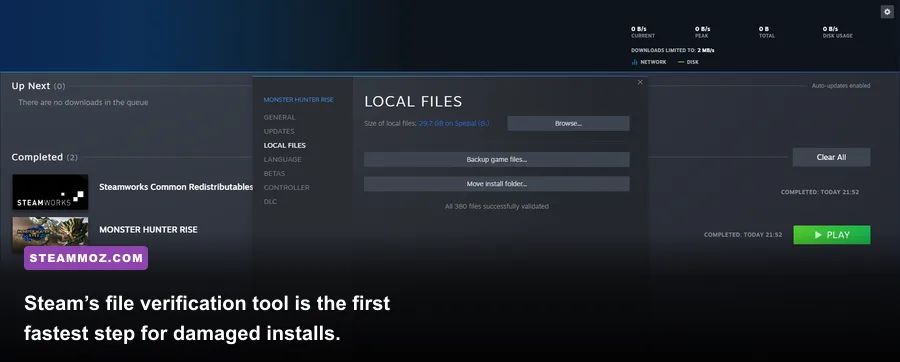
In Steam, right-click Amnesia: The Bunker, choose Properties, open Installed Files, and select Verify integrity of game files. This replaces missing or damaged files without deleting your save. It’s particularly useful after an interrupted update or a mod experiment.
2. Perform a clean GPU driver update
Install the latest stable driver for your NVIDIA, AMD, or Intel GPU. If crashes began immediately after a driver update, try rolling back to the previous stable version instead. Avoid installing optional recording, overlay, or tuning components during troubleshooting if your driver installer allows a custom setup.
3. Turn off every overlay
Disable Steam Overlay, Discord Overlay, GeForce Experience or AMD recording overlays, MSI Afterburner’s RivaTuner overlay, and RGB monitoring utilities. These tools hook into the rendering pipeline. A frame counter is useful, but it isn’t worth keeping enabled while diagnosing a crash.
4. Remove unstable overclocks
Reset GPU overclocks, undervolts, CPU tuning, and aggressive XMP or EXPO profiles temporarily. Horror games are excellent stability tests because they can load the GPU, CPU, storage, and lighting system at the same time. If the game stops crashing at stock settings, reapply tuning gradually rather than blaming the game immediately.
5. Reset damaged configuration data
If the game crashes before reaching the menu or immediately after changing resolution, close Steam and back up your save files. Then use the game’s local configuration folder under your Windows user data and remove only the graphics or settings files, not the entire save directory. Paths can differ by build, so use Windows search for Amnesia The Bunker and check modified dates. Re-launching will create fresh settings.
Don’t blindly delete every folder you find. Save locations and configuration data are separate, and Steam Cloud can restore a broken setting if you delete files without disabling synchronization first. For unusual crashes, consult Frictional Games support and include your crash logs and system specifications.
The Best Low-FPS Settings for 1080p
Start with a clean 1920x1080 profile, then cap the frame rate to a number your PC can actually sustain. A stable 45 FPS is much better than a 60 FPS target that repeatedly falls to 28 during lighting-heavy scenes. Use your GPU driver’s frame limiter or an in-game limiter if available; avoid stacking several limiters at once.
| Setting | Recommended Value | FPS Impact | Visual Trade-Off |
|---|---|---|---|
| Resolution | 1920x1080 | High if reduced | Dropping to 1600x900 is a strong rescue option. |
| Resolution Scale / Upscaling | 90% to 100% | High | Lower values soften fine details but preserve atmosphere. |
| Shadows | Medium | High | Less accurate bunker shadows; usually the best first cut. |
| Ambient Occlusion | Low or Medium | Medium | Corners lose some depth, especially around doors and crates. |
| Volumetric Lighting | Low | Medium to High | Light shafts look simpler, but dark rooms remain convincing. |
| Effects | Medium | Medium | Reduces expensive smoke, sparks, and explosive effects. |
| Textures | High if VRAM allows | Low to Medium | Texture quality mostly affects VRAM, not raw GPU speed. |
| Anti-Aliasing | Medium | Low to Medium | Lowering it can reveal shimmering on grates and wires. |
| Motion Blur / Film Grain | Off | Small | Cleaner image and easier stutter diagnosis. |
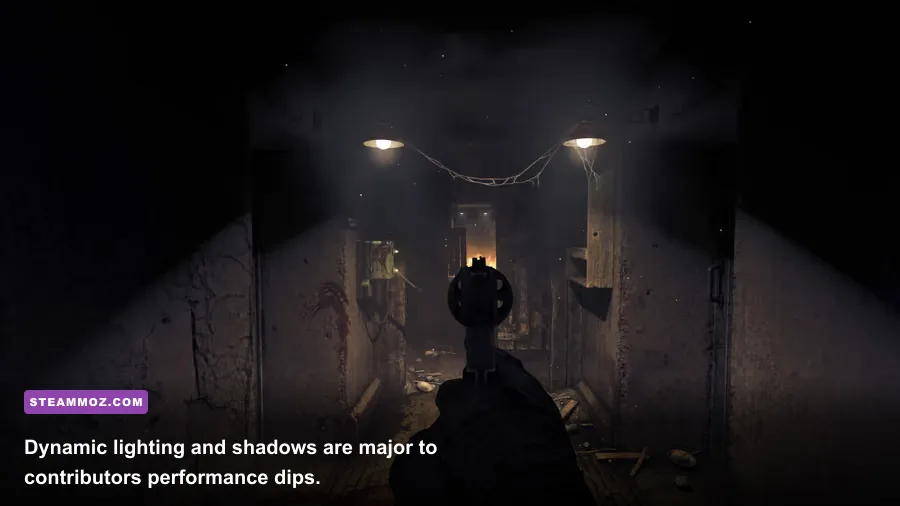
Shadows deserve special attention because the bunker is built around lantern light, electrical lamps, smoke, and deep occlusion. Lowering textures while leaving shadows on Ultra often produces little benefit. If VRAM is the problem, keep textures at Medium; if GPU load is the problem, reduce shadows and volumetric lighting.
For 1440p, begin with 80–90% resolution scale and Medium shadows. For 4K, use a 60–75% scale unless you have a modern high-end GPU. The game’s visual identity comes from contrast and sound design, so a slightly softer image is less damaging than unstable frame pacing.
Stop Stutter During Exploration and Stalker Encounters
Not every hitch is a low-average-FPS problem. Short freezes when entering a room usually point to asset streaming or shader compilation. Let the game sit at the main menu for a minute after a driver change, then play through the same area twice. The first pass may compile or cache effects; the second pass is a better test.
Keep your Windows page file enabled, preferably on the SSD where Windows is installed. Don’t use aggressive “RAM cleaner” utilities. They can evict cached data and make traversal stutter worse. Close Chrome, video editors, virtual machines, and hardware-monitoring dashboards while testing.
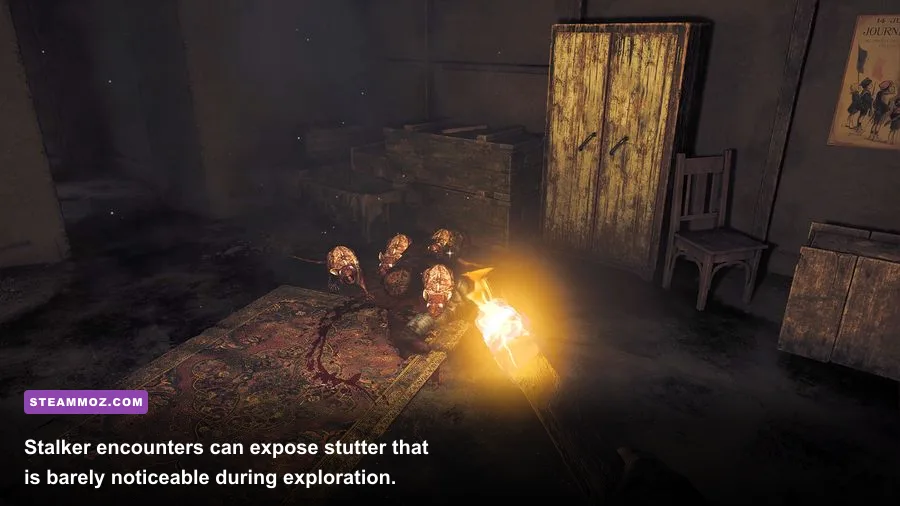
The Stalker can expose CPU and frame-pacing issues because its behavior is active while you’re solving objectives across the bunker. If the game feels smooth until the creature appears, reduce Effects, Shadows, and Volumetric Lighting together. Also test with a fixed 30, 45, or 60 FPS cap. Frame pacing matters more than the peak number when you’re hiding, sprinting, and aiming under pressure.
Use a tool such as CapFrameX or PresentMon to inspect one-percent lows. If GPU utilization stays near 95–99%, lower resolution scale and effects. If GPU utilization is low while FPS collapses, the limit is more likely CPU, streaming, or background software. That distinction saves a lot of pointless setting changes.
A Clean Troubleshooting Order That Actually Works
- Restart the PC and close overlays, browsers, RGB tools, and recording software.
- Verify Steam files, then launch the game without mods or custom injectors.
- Update or roll back the GPU driver based on when the crashes started.
- Reset graphics configuration after backing up saves and checking Steam Cloud.
- Use the 1080p Medium profile: Medium shadows, Low volumetrics, Low or Medium ambient occlusion, and a fixed FPS cap.
- Check temperatures and power behavior. GPU throttling or laptop power-saving mode can look exactly like poor optimization.
- Test a repeatable area, such as the hub and nearby bunker corridors, rather than judging performance during a one-off explosion.
| Symptom | Likely Cause | Best First Fix | Escalation |
|---|---|---|---|
| Crash on startup | Corrupt config, driver conflict, overlay | Disable overlays and reset settings | Clean driver install and support logs |
| Crash after loading a save | Damaged file or unstable overclock | Verify files and return hardware to stock | Try an earlier save |
| Low FPS everywhere | GPU limit or high resolution | Lower scale, shadows, and effects | Check GPU utilization and thermals |
| Hitches entering rooms | Streaming, shader cache, HDD | Move installation to SSD | Keep page file enabled and retest |
| Stutter during monster activity | Frame-pacing or CPU load | Set a lower fixed FPS cap | Inspect one-percent lows |
For broader PC troubleshooting, Steamoz’s guide to fixing crashes and poor performance in Ecognomix covers several useful Windows-side checks. You can also compare your hardware against our modern PC specs guide and Can Your PC Run Far Cry 6 performance breakdown.
When Nothing Else Stops the Crashes
If Amnesia: The Bunker still crashes after file verification, a clean driver installation, stock hardware settings, and a configuration reset, collect the useful evidence instead of repeating the same fixes. Note the exact trigger, whether it happens in DX11 or only after changing resolution, your GPU driver version, Windows version, and the last successful save.
Check the official Steam Community discussions for build-specific reports, and review Frictional Games’ official game page for support and update information. Don’t download random replacement DLL files or unofficial “FPS fix” packs; those are a common source of malware and can make legitimate troubleshooting impossible.
Once the game is stable, raise one setting at a time and retest the same corridor. Keep textures high if your VRAM allows it, leave motion blur off, and spend your performance budget on consistent frame pacing. In Amnesia: The Bunker, a locked 45 or 60 FPS makes the lantern, doors, firearms, and Stalker encounters feel dramatically better than a flashy preset that collapses whenever the bunker gets dangerous.
If you enjoy methodical survival horror, Steamoz’s Daymare: 1998 starting build guide is another useful stop after you’ve got The Bunker running smoothly.