The best Agatha Knife graphics settings are simple: use your monitor’s native resolution, enable V-Sync if the image tears, run fullscreen or borderless fullscreen, and target a locked 60 FPS. Agatha Knife is a hand-drawn 2D point-and-click adventure from Mango Protocol, so lowering shadows, textures, or effects won’t produce the dramatic gains it would in a modern 3D game. The real performance wins come from correct display scaling, avoiding unnecessary supersampling, closing background overlays, and fixing frame pacing when the cursor or dialogue animations feel uneven.
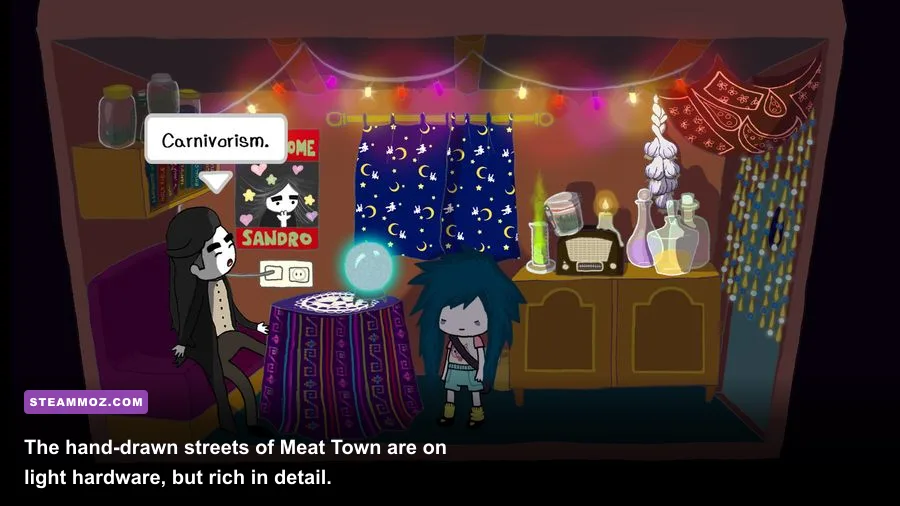
That distinction matters. Agatha Knife is built around illustrated environments, character animation, inventory puzzles, and dialogue scenes rather than GPU-heavy lighting. You’re playing as Agatha, a young girl living above a butcher shop who becomes fascinated with the morality of eating meat. The game’s locations, including the butcher shop, Meat Town, the slaughterhouse, and the bizarre spaces surrounding its carnivorous characters, are visually distinctive but technically modest. This guide focuses on the PC version available through the official Agatha Knife Steam page, while flagging settings that may vary between operating systems and storefront builds.
The Best Agatha Knife Settings at a Glance
Start with the profile below. It prioritizes a stable presentation without blurring the game’s line art. If your copy exposes fewer options than this list, that’s normal: some versions present display controls through a launcher, while others inherit resolution and fullscreen behavior from the operating system.
| Setting | Recommended Value | FPS Impact | Visual Note |
|---|---|---|---|
| Display mode | Fullscreen or borderless fullscreen | Low | Fullscreen usually reduces desktop compositor interference. |
| Resolution | Native monitor resolution | Low to medium | Preserves crisp illustrated edges and readable text. |
| V-Sync | On for tearing; off for lowest latency | Low | On is preferable for a relaxed point-and-click adventure. |
| Frame cap | 60 FPS, or monitor refresh rate | None | A cap helps avoid unnecessary GPU and CPU activity. |
| Texture quality | High or default | Negligible | Texture reduction can make artwork look softer without helping much. |
| Effects and shadows | High or default | Negligible | These are not major performance levers in the 2D presentation. |
| Anti-aliasing | Default or application-controlled | Negligible | Avoid forcing extra driver-level smoothing. |
There’s no reason to chase 144 or 240 FPS here. A steady 60 FPS gives the mouse pointer, scene transitions, and character animation a clean rhythm while keeping power use sensible. If your display is 120 Hz or faster, you can test a 120 FPS cap, but the game’s animation and input feel won’t suddenly become twice as responsive. A stable frame time beats a large number in the corner.

🎮 Agatha Knife
Looking to experience this game? Grab your digital key directly on our store for $5.99.
View on Steammoz Store →Why Resolution Matters More Than Visual Quality
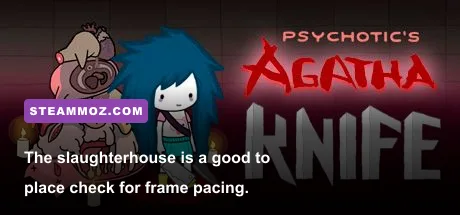
Resolution is the setting most likely to make Agatha Knife look either sharp or oddly mushy. At native 1080p, the game’s illustrated backgrounds and small interface elements retain their intended definition. On a 1440p or 4K monitor, native output is still the cleanest choice if your GPU and display path handle it properly. Dropping a 4K desktop to 1080p can technically reduce rendering work, but it also introduces scaling softness that is much more obvious in static point-and-click scenes than in a fast shooter.
If you need more performance, test 1600x900 before jumping straight to 1280x720 on a 1080p panel. That intermediate step often keeps text and artwork readable while reducing the number of rendered pixels by roughly 30 percent compared with 1080p. On a 4K monitor, 1920x1080 renders one quarter as many pixels as 3840x2160, but the monitor’s scaling quality becomes important.
Use integer scaling when the picture looks soft
Agatha Knife’s 2D artwork can show uneven sharpness when a non-native resolution is stretched across the desktop. If your GPU control panel offers integer scaling, test it with a lower resolution. You may see black bars, but those bars are preferable to a smeared image if you care about the game’s hand-drawn outlines. Keep Windows display scaling at its normal value while troubleshooting, then restart the game after changing resolution. Older Unity-style display handlers don’t always refresh correctly while the game is running.
For laptops with hybrid graphics, also check that the game is using the intended GPU in Windows Graphics settings. It won’t usually matter for raw performance here, but switching between integrated and discrete graphics can cause a short black screen, inconsistent refresh behavior, or an incorrect fullscreen mode.
V-Sync, Frame Caps, and Smooth Frame Pacing
Agatha Knife doesn’t need ultra-low latency, so V-Sync is the sensible default. Turn it on if you see horizontal tearing while moving the cursor across the butcher shop or Meat Town. The trade-off is a small amount of input delay, but that’s barely relevant for selecting hotspots, opening inventory, and moving through dialogue. If V-Sync causes visible stutter, disable it in-game and use a driver-level frame cap instead.
| Target | Best Use | Recommended Cap | What to Watch For |
|---|---|---|---|
| 30 FPS | Very old laptops or battery mode | 30 FPS | Transitions and cursor movement may feel less fluid. |
| 60 FPS | Most desktop and laptop PCs | 60 FPS | The best balance for animation, responsiveness, and power use. |
| 120 FPS | High-refresh displays | 120 FPS | Little practical benefit if the game’s animation is 60-based. |
| Uncapped | Short diagnostic test only | None | Can raise clocks and temperatures without improving the experience. |
Use a frame-time graph rather than trusting the average FPS counter. A reading that jumps between 60 and 144 FPS can feel worse than a locked 60 because presentation timing becomes inconsistent. MSI Afterburner, the Xbox Game Bar, or Steam’s performance overlay can help identify spikes, but disable overlays afterward if they introduce flicker or focus problems.
If you’re playing through Steam, launch the game normally first. Avoid stacking Steam Overlay, Discord Overlay, GPU recording software, and browser hardware acceleration during troubleshooting. This is a tiny game, which means an overlay hook or notification can represent a surprisingly large share of its active workload.
Low-End PC and Steam Deck Profiles
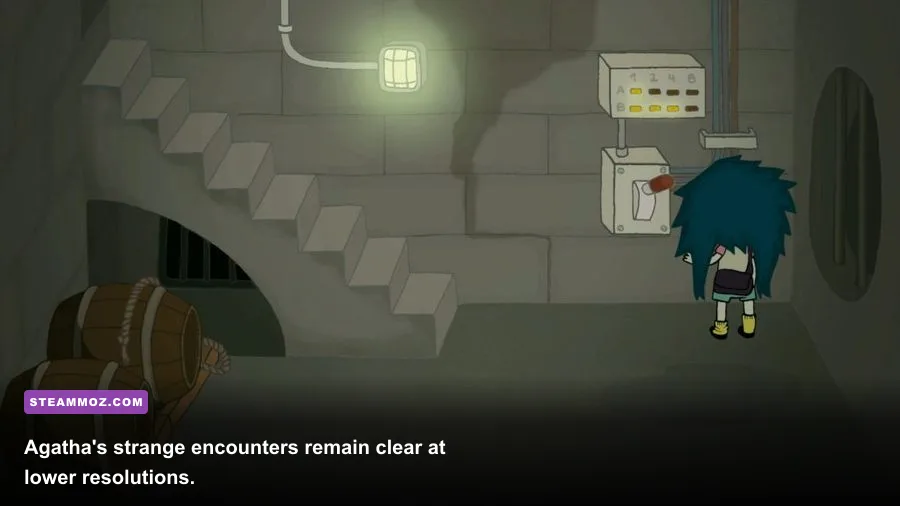
Agatha Knife is forgiving on modest hardware. Its requirements are far below contemporary 3D adventures, and you should expect the limiting factor to be operating-system overhead, display handling, or an unusual driver issue rather than the game exhausting your GPU. The following profiles are practical targets, not official minimum specifications. For the authoritative listing, compare your system against the Steam system requirements section.
| Hardware Profile | Resolution | Sync and Cap | Expected Approach |
|---|---|---|---|
| Older integrated graphics laptop | 1280x720 or 1600x900 | V-Sync on, 30 or 60 FPS | Use fullscreen and close browsers, launchers, and recording tools. |
| Modern integrated graphics | 1920x1080 | V-Sync on, 60 FPS | Keep native resolution and default visual quality. |
| Mainstream gaming PC | Native resolution | V-Sync on, 60 FPS | High/default settings should be effortless. |
| Steam Deck | 1280x800 | 60 FPS cap, V-Sync as needed | Use the native panel resolution and a moderate refresh profile. |
On Steam Deck, start at 1280x800 rather than forcing 1280x720. The game is not demanding enough to justify aggressive resolution cuts, and the extra vertical space helps preserve the original composition. If battery life matters, use a 40 or 45 FPS cap and lower the refresh rate to match. That won’t make the game more responsive, but it can reduce power draw during longer puzzle-solving sessions.
For older Windows laptops, plug in the charger before testing. Many systems drop CPU clocks in battery mode, and that can look like a game performance issue even when the graphics hardware is barely working. If the entire desktop feels sluggish, check Task Manager for Windows Update, cloud-sync clients, browser tabs, and antivirus scans before changing game settings.
Fixing Stutter, Black Screens, and Blurry Art
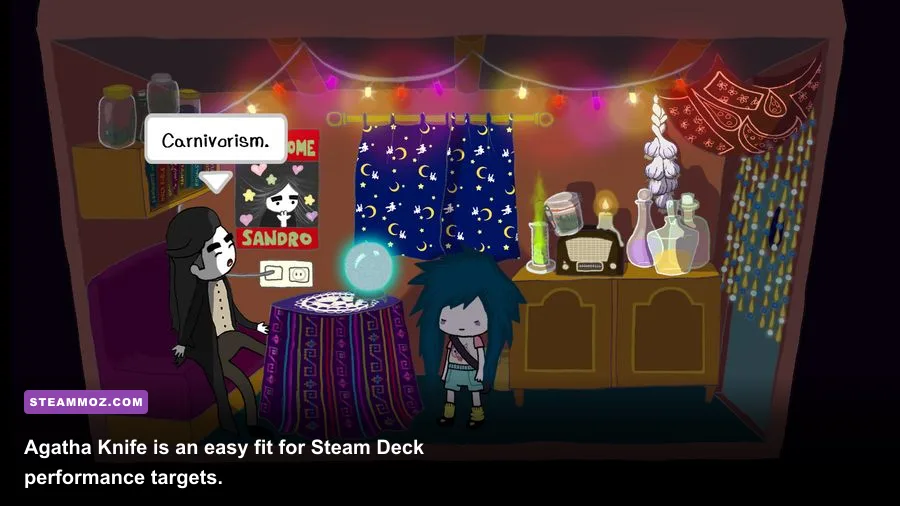
Performance problems in a lightweight 2D game are usually configuration problems. Work through these fixes in order rather than lowering every setting blindly.
1. Reset display mode
Switch from exclusive fullscreen to borderless fullscreen, or vice versa. If the game opens to a black screen, press Alt+Enter once and wait several seconds. Then set the resolution again from the game’s display menu or launcher. A monitor’s unsupported refresh rate can also cause a blank image, so temporarily return Windows to 60 Hz.
2. Verify the installation
Open Agatha Knife in your Steam library, select Properties, choose Installed Files, and run Verify integrity of game files. This is worth doing after a crash, forced shutdown, or interrupted update. Corrupted assets can cause a pause when a new illustrated location loads, including transitions around the butcher shop and slaughterhouse.
3. Disable compatibility troublemakers
Turn off third-party overlays and GPU sharpening first. Don’t force anisotropic filtering, supersampling, or driver-level anti-aliasing; those features target 3D pipelines and can create no visible improvement here. If Windows compatibility settings were manually changed for another title, remove them from Agatha Knife’s executable and test again.
4. Check scaling and fullscreen optimization
Right-click the game executable, open Properties, and inspect Compatibility. Avoid randomly enabling every legacy option. Test Disable fullscreen optimizations only if fullscreen stutters or changes brightness. On high-DPI laptops, compare Application and System scaling modes if the interface is tiny or blurry.
For more general troubleshooting habits, our guides on fixing PC games that crash or run poorly and checking whether your PC can run Children of Morta cover useful Windows-side checks. They apply here even though Agatha Knife is dramatically less demanding.
Keep the Artwork Intact While Maximizing FPS
The best Agatha Knife performance setup isn’t a dramatic low preset. It’s a controlled presentation: native resolution, 60 FPS, sensible synchronization, and no unnecessary software fighting for focus. Preserve texture and artwork quality, because the game’s visual identity comes from its illustrated backgrounds and expressive characters rather than expensive effects. Agatha’s scenes, the grotesque butcher-shop setting, the Carnivorous Plant, and the unsettling humor all land better when the image is sharp.
Use the official Mango Protocol website for developer information and the Mango Protocol Steam developer page for the studio’s catalog. If you’re comparing how other games behave on current hardware, our Drox Operative PC requirements guide and Eternal Threads performance check offer useful points of reference.
Finally, test one change at a time. Set native resolution, enable V-Sync, lock 60 FPS, then walk through several screens and a dialogue sequence. If the frame-time graph stays flat and the artwork remains crisp, you’re done. Agatha Knife has no secret ultra setting waiting to double your frame rate; the smoothest experience comes from leaving its lightweight visuals alone and removing the PC-side friction around them.