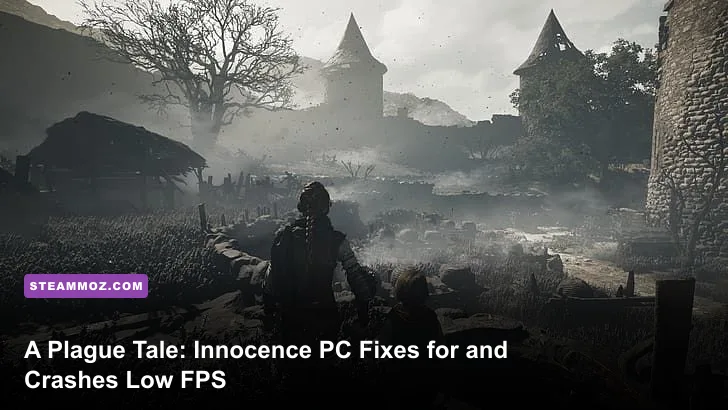
If A Plague Tale: Innocence keeps crashing, stuttering, or running below a playable frame rate on PC, start with a clean graphics profile, verify the Steam files, update your GPU driver, and disable overlays before changing anything exotic. The most reliable low-FPS fix is lowering shadows, ambient occlusion, and resolution scale first; the most reliable crash fix is repairing corrupted files and resetting the game's local configuration.
That order matters. Innocence is an older game, but its dense rat swarms, torch lighting, fog, and tightly packed medieval environments can still produce ugly frame-time spikes. A machine that appears comfortably above the listed requirements may therefore feel inconsistent rather than simply “slow.” Work through the guide below in sequence, testing after every major change instead of applying twenty random fixes at once.

Check Your PC Against the Real Requirements
Before troubleshooting, confirm that the problem isn't a hardware ceiling. The Steam release lists an Intel Core i5-4690 or AMD FX-8300 processor, 8 GB of RAM, and a GeForce GTX 660 or Radeon R7 370 with 2 GB of VRAM as the minimum target. Recommended hardware rises to an Intel Core i7-4770, 16 GB of RAM, and a GTX 780 or Radeon R9 290X.
Those numbers target roughly 1080p gameplay at modest settings, not a guaranteed 60 frames per second in every chapter. The game also benefits from being installed on an SSD. An SSD won't magically increase average FPS, but it can reduce asset-streaming hitches when moving through the university, castle, and forest sections.
| Component | Minimum | Recommended | Practical 1080p target |
|---|---|---|---|
| CPU | Core i5-4690 / FX-8300 | Core i7-4770 | Six modern cores for steadier frame times |
| Memory | 8 GB RAM | 16 GB RAM | 16 GB with background apps closed |
| GPU | GTX 660 / Radeon R7 370, 2 GB | GTX 780 / R9 290X | 4 GB VRAM is much more comfortable |
| Storage | Hard drive supported | SSD preferred | SSD for fewer streaming pauses |
| Operating system | 64-bit Windows | 64-bit Windows | Current Windows build with updated drivers |
If your GPU has only 2 GB of VRAM, don't force ultra textures or a high resolution. Texture memory pressure often appears as hitching, delayed asset loading, or a crash after several chapter transitions rather than an obvious warning. For broader hardware checks, compare your system with Steamoz's PC specs and settings guide.
🎮 A Plague Tale: Innocence
Looking to experience this game? Grab your digital key directly on our store for $7.99.
View on Steammoz Store →Use This Stable Graphics Profile First
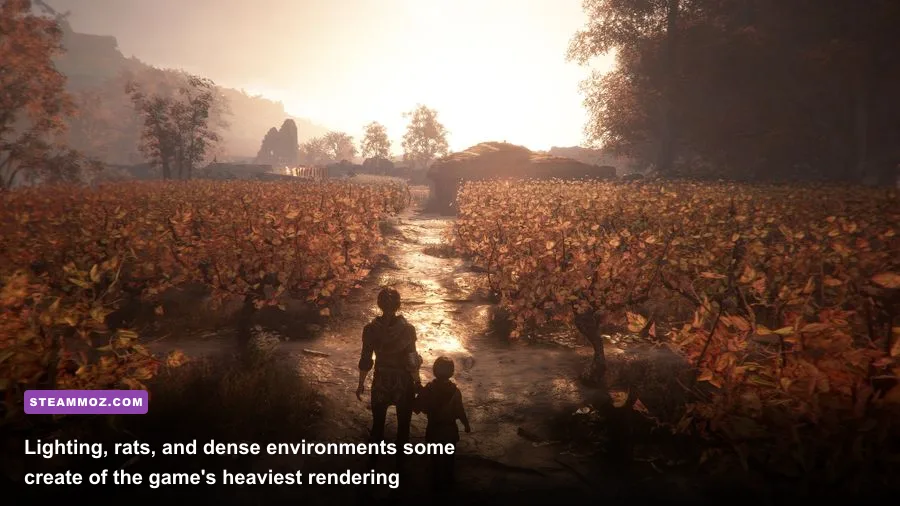
Launch the game and apply a conservative baseline before chasing maximum image quality. Set the display to your monitor's native resolution, use exclusive fullscreen if available, and turn off motion blur while testing. Motion blur doesn't usually cause crashes, but removing it makes judder much easier to identify. Keep vertical sync off initially if you use a frame limiter through your GPU software; otherwise, test V-Sync on to eliminate tearing.
The biggest visual-performance traps are shadows, ambient occlusion, and effects quality. Shadows cover the torches, guards, trees, and rat-lit interiors that make Innocence unusually expensive to render. Ambient occlusion adds convincing contact shading around characters and objects, but it can cause a noticeable GPU hit in cluttered scenes. Drop these before reducing textures, because lower textures damage clarity more than they improve frame rate on a GPU with enough VRAM.
| Setting | Recommended starting value | FPS impact | Visual trade-off |
|---|---|---|---|
| Resolution | Native 1080p, then 1600x900 if needed | Very high | Lower resolution is obvious but highly effective |
| Texture quality | High with 4 GB VRAM; Medium with 2 GB | Low to medium | Medium softens surfaces and character detail |
| Shadow quality | Medium | High | Less detailed torch and environmental shadows |
| Ambient occlusion | Low or Medium | Medium to high | Reduced contact shading around props |
| Effects quality | Medium | Medium | Less expensive fire, smoke, and particles |
| Anti-aliasing | Medium or the game's default | Medium | More shimmer on foliage and geometry |
| Motion blur | Off while testing | Minimal | Sharper camera movement |
| V-Sync | On for tearing; off with a frame limiter | Variable | Can add latency or a 30/60 FPS lock |
Once the game is stable, raise one setting at a time. A good target is a locked 30 FPS with consistent frame times on older hardware, or 60 FPS on a modern mid-range card at 1080p. A fluctuating 45–70 FPS often feels worse than a properly paced 30 or 60, especially during stealth sequences where camera movement makes hitching obvious. Steamoz's guide to PC settings that make every frame count covers the same frame-pacing principle in more detail.
Fix Crashes Before Launch and During Chapters
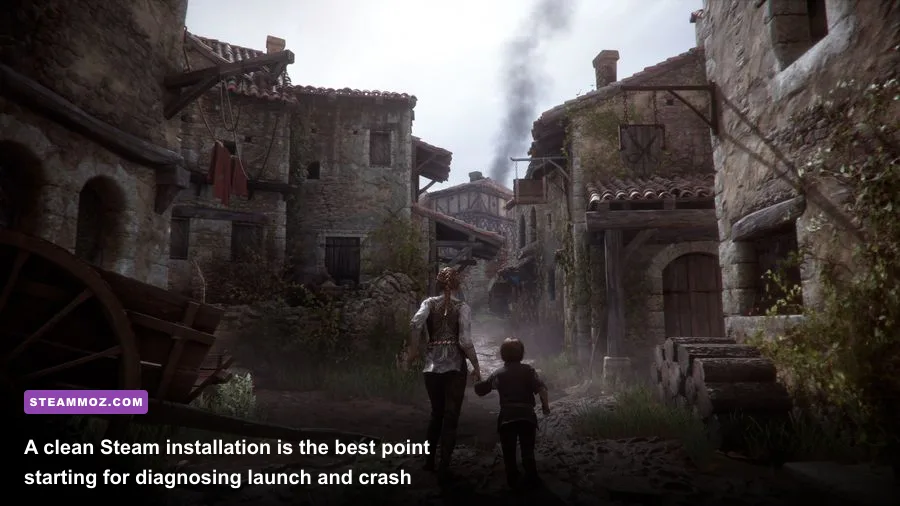
For a crash on startup, begin with Steam's file repair tool. Open your Library, right-click A Plague Tale: Innocence, choose Properties, open Installed Files, and select Verify integrity of game files. Steam will redownload damaged or missing data. This is especially important after moving the installation between drives or interrupting an update.
Next, update the graphics driver directly through NVIDIA, AMD, or Intel rather than relying only on Windows Update. If the crashes began immediately after a driver update, use the manufacturer's clean-install option or roll back to the previous stable driver. Don't run a driver installer while the game, MSI Afterburner, or a browser video stream is active.
Disable every overlay for the first test: Steam Overlay, Discord, Xbox Game Bar, GeForce Experience or AMD recording tools, and MSI Afterburner's on-screen display. Overlays hook into the rendering process, and older DirectX games can be temperamental when several hooks stack together. Also temporarily disable third-party antivirus protection only for a controlled test, or add the game folder as an exception. Restore protection immediately afterward.
If the game crashes after loading a save, test a different chapter or an earlier autosave. A damaged save can mimic a system problem because the crash happens at the same scene every time. Back up your saves before deleting or renaming local files. Don't erase the entire save folder as a first move; you could lose progress without proving anything.
Reset the Local Configuration Safely
A bad resolution, unsupported refresh rate, or corrupted settings file can crash the game before the menu appears. Close Steam, back up the game's configuration and save folders, then rename the configuration folder rather than deleting it. Relaunching forces the game to create fresh defaults. The exact location can vary by Windows account and build, so search File Explorer for “A Plague Tale” inside %USERPROFILE% and %APPDATA%, checking modified dates rather than blindly removing unrelated files.
Run the executable once with Steam and Windows fully updated. Avoid compatibility-mode experiments unless the normal executable fails; forcing Windows 7 compatibility or administrator mode can create permission and overlay conflicts. If Windows reports a missing DLL, reinstall the Microsoft Visual C++ Redistributables supplied with the game or use the official Microsoft installer. Never download individual DLL files from random websites.
For official product information and support links, check the A Plague Tale: Innocence Steam page and the publisher's official game page. If a crash produces a repeatable error, include your GPU model, driver version, Windows build, chapter, and crash pattern in a support report. “It crashes” is hard to diagnose; “it crashes when the rat swarm enters the university courtyard on driver version X” is useful evidence.
Stop Stutter and Low FPS in Rat-Heavy Scenes
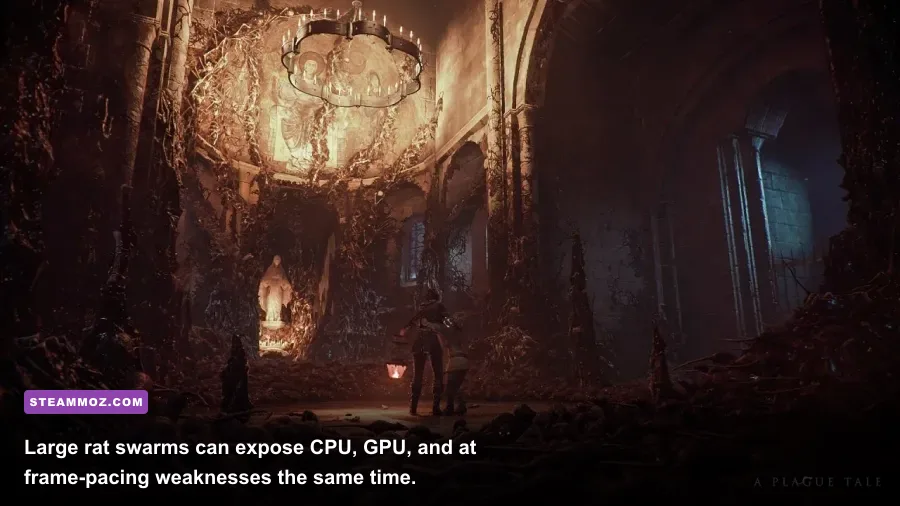
Performance drops in Innocence are often scene-dependent. A quiet path can run smoothly while a torch-lit room full of rats, smoke, fire, and animated characters causes a severe dip. Watch GPU utilization and CPU utilization with a lightweight monitor. If GPU usage is near 99 percent, reduce resolution, shadows, or ambient occlusion. If GPU usage falls during the hitch while one CPU core is busy, lower effects and close background programs instead; you're likely seeing a CPU or streaming bottleneck.
Cap the frame rate slightly below your achievable average. For a monitor running at 60 Hz, a stable 60 FPS cap is ideal, but a stable 45 or 30 can feel much cleaner than an uncapped result that constantly jumps between values. Use the in-game limiter if it behaves properly; otherwise, NVIDIA Control Panel, AMD Adrenalin, or RTSS can provide a steadier cap. Avoid stacking multiple limiters, since double frame pacing can introduce uneven input response.
Windows power management matters too. Select a balanced or high-performance power plan while testing, plug in a laptop, and make sure the game uses the dedicated GPU rather than integrated graphics. In Windows Graphics settings, add the game executable and choose High performance. Check laptop thermals after ten minutes: a CPU or GPU that starts fast and then drops clocks is thermal throttling, not a graphics-setting problem.
| Symptom | Likely cause | First fix | What success looks like |
|---|---|---|---|
| Low FPS everywhere | GPU too weak or resolution too high | Lower resolution and shadows | Higher sustained GPU-limited FPS |
| Large dips near rats and fire | Effects, shadows, or CPU frame-time spikes | Set effects and shadows to Medium | Smaller drops in lit combat areas |
| Micro-stutter while moving | Streaming, overlays, or background load | Use an SSD and disable overlays | Smoother camera and traversal motion |
| FPS starts high, then falls | Thermal throttling or VRAM pressure | Check temperatures and lower textures | Clocks and frame rate remain consistent |
| 30 FPS feels uneven | V-Sync cadence or uncapped frame pacing | Use one limiter and test V-Sync | Consistent frame delivery |
Last-Resort Fixes That Are Actually Worth Trying
If verification, drivers, overlays, and configuration reset fail, perform a clean reinstall. Uninstall the game, restart Windows, remove only leftover configuration files after backing up saves, and reinstall to an SSD with plenty of free space. Install the latest motherboard chipset driver as well, especially on AMD systems, because platform drivers can affect PCIe power management and storage behavior.
For persistent crashes, test Windows Memory Diagnostic or MemTest86, then check drive health with the manufacturer's utility. Unstable RAM and failing storage can appear game-specific because one title happens to read a damaged asset or use a particular memory pattern. Disable overclocks, undervolts, and aggressive XMP or EXPO profiles temporarily. A system that is stable in esports games can still fail during a long cinematic adventure with heavy asset streaming.
Don't expect every modern optimization trick to help. Frame generation, aggressive sharpening, and random launch options aren't official fixes for this game and may introduce new artifacts or crashes. The winning approach is boring but effective: verified files, current drivers, fresh configuration, no overlays, sensible settings, and a frame-rate cap.
The Fastest Order of Operations
Use this checklist when you want the shortest route back into the story:
- Confirm your CPU, GPU, RAM, and available VRAM against the requirements.
- Verify the installation through Steam.
- Update or clean-install the graphics driver.
- Disable Steam, Discord, Xbox, NVIDIA, AMD, and monitoring overlays.
- Reset the local configuration after backing up saves.
- Set 1080p, Medium shadows, Low or Medium ambient occlusion, Medium effects, and appropriate textures.
- Choose one frame limiter and test a stable 30, 45, or 60 FPS target.
- Check dedicated-GPU selection, temperatures, clock speeds, and background CPU load.
- Only then reinstall or investigate RAM, storage, and overclock stability.
That sequence solves the overwhelming majority of A Plague Tale: Innocence crashing and low-FPS problems without sacrificing the game's best visual feature: its dramatic use of darkness and fire. Keep textures reasonably high, spend your performance budget on stable frame pacing, and let shadows and effects take the hit first. If you're troubleshooting several PC games, Steamoz's PC requirements breakdown and hardware performance guide offer useful comparisons for older and newer systems alike.