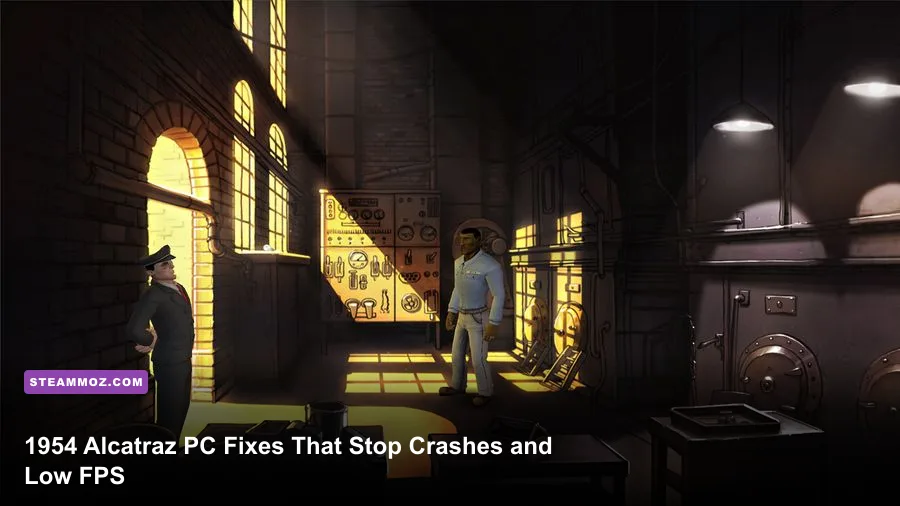
If 1954 Alcatraz crashes on startup, freezes during a scene, or crawls at single-digit frame rates, the most reliable fix is to treat it like an older Unity-era PC game: verify the Steam install, install the legacy DirectX components, disable overlays, force a compatible display mode, and use a capped frame rate. The game is lightweight by modern standards, so persistent low FPS usually points to compatibility, fullscreen scaling, driver behavior, or a broken configuration file rather than weak hardware.
That matters because 1954 Alcatraz is not a demanding modern 3D release. It is a cinematic point-and-click adventure built around pre-rendered-looking environments, character scenes, dialogue choices, and switches between Joe and Jenny. A current gaming PC should run it comfortably. The catch is that older releases can behave badly on Windows 10 and Windows 11, particularly when an old launcher, integrated graphics driver, overlay, or corrupted Unity preference file gets involved.
Before changing anything, check the game’s official Steam page, confirm that Steam is fully updated, and close the game. Then work through the fixes below in order. The early steps are safe and reversible; the later ones target stubborn black screens, launch crashes, and uneven frame pacing.
Start with the fixes that solve most crashes
First, verify the local files. In Steam, right-click 1954 Alcatraz, choose Properties, open Installed Files, and select Verify integrity of game files. This replaces missing or damaged files without deleting your saves. It is particularly worthwhile if the game crashed while saving, Steam recently restored cloud data, or the installation was moved between drives.
Next, reboot Windows rather than simply relaunching Steam. Old video and audio components can remain locked after a crash. Once back at the desktop, launch the game with every overlay disabled: Steam Overlay, Discord Overlay, GeForce Experience or NVIDIA App overlay, AMD Adrenalin overlay, Xbox Game Bar, MSI Afterburner’s OSD, and motherboard utilities such as Armoury Crate or MSI Center. An adventure game has no competitive advantage from an overlay, and these hooks are common causes of a crash before the first menu appears.
Install Microsoft’s DirectX End-User Runtime Web Installer even if DirectX 12 is already installed. Windows 11 includes the modern DirectX runtime, but older games may still request legacy D3DX9, XAudio, or XInput libraries. The web installer adds those side-by-side components; it does not downgrade DirectX 12.
Also install or repair the Microsoft Visual C++ redistributables used by older PC games. The safest approach is to use Microsoft’s latest supported Visual C++ downloads and install both x86 and x64 packages where available. The x86 package matters because a 32-bit game needs 32-bit runtime files even on a 64-bit version of Windows.
| Symptom | Most likely cause | First action |
|---|---|---|
| Nothing happens after pressing Play | Missing legacy runtime or blocked launcher | Install DirectX legacy components, then verify files |
| Black screen with sound | Fullscreen resolution or display handshake | Use windowed mode and a standard 16:9 resolution |
| Crash after a scene loads | Damaged asset, overlay conflict, or driver hook | Verify files and disable every overlay |
| Runs but stays below 30 FPS | Compatibility scaling, integrated GPU, or bad config | Force the dedicated GPU and reset display settings |

🎮 1954 Alcatraz
Looking to experience this game? Grab your digital key directly on our store for $0.99.
View on Steammoz Store →Fix Windows 10 and Windows 11 compatibility problems
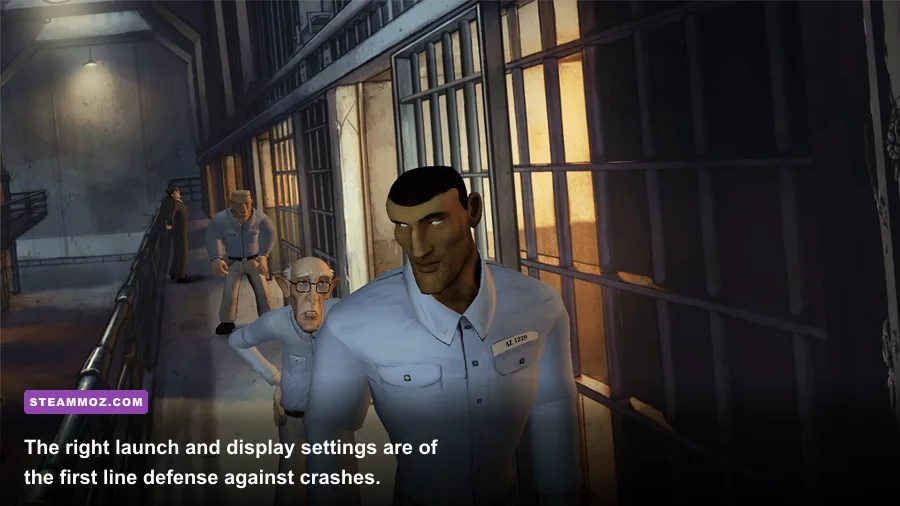
Open the game’s installation folder from Steam’s Installed Files menu and locate the main executable. The filename can vary by build, so use the application file Steam launches rather than guessing. Right-click it, open Properties, select Compatibility, and tick Disable fullscreen optimizations. This is the first compatibility option worth testing because Windows’ fullscreen presentation layer can produce black screens, instant exits, or severe stutter in older games.
Do not immediately enable every compatibility checkbox. Windows 7 compatibility mode can help on one machine and break another by changing window behavior, input, or permissions. Test the game normally with fullscreen optimizations disabled. If the crash remains, try Windows 7 compatibility mode, launch once, and then remove it if it makes the menu or cutscenes worse.
Never run the game as administrator by default. Elevated permissions can create a second set of configuration files and cause confusing save or settings behavior. Use administrator mode only as a short diagnostic test. If it fixes the launch, the real problem is usually a write-permission issue in the game’s folder or user profile, not a need to play every session with elevated privileges.
For a black screen, press Alt+Enter after launching. That commonly switches between fullscreen and windowed presentation. If you reach a menu, select a conservative resolution such as 1920×1080 or 1280×720 and test windowed mode before returning to fullscreen. Avoid unusual ultrawide resolutions, integer scaling modes, and HDR while troubleshooting; older engines may accept those signals badly even when Windows supports them perfectly.
If you use two monitors, temporarily make the gaming display your Windows primary monitor. Disable HDR and variable refresh rate for the test. G-SYNC, FreeSync, Auto HDR, and Windows’ advanced optimizations are useful features, but each adds another layer to an old rendering path. Once 1954 Alcatraz is stable, re-enable them one at a time.
Reset the configuration without losing your progress
A corrupted preference file can cause a crash before the graphics menu appears. Unity games commonly store settings under the user profile rather than beside the executable. Press Win+R, enter %USERPROFILE%, and search for folders containing 1954, Alcatraz, or Daedalic. You can also search %APPDATA% and %LOCALAPPDATA%. Make a backup of any folder you find before changing it.
Do not delete the folder immediately. Rename it to something like 1954 Alcatraz_backup, then launch the game. Renaming forces the game to create fresh preferences while preserving your backup. If the crash disappears, the old display configuration was the culprit. Copy save files back individually only if you can identify them; copying the entire folder may restore the broken setting and bring the crash back.
Steam Cloud can complicate this test. If Steam asks whether to use local or cloud files, choose the newly created local configuration for the first launch. If the old settings return after closing the game, temporarily disable Steam Cloud in the game’s Steam Properties, reset the configuration again, and re-enable cloud synchronization only after confirming that the game launches correctly.
This reset also helps after connecting a new monitor or graphics card. A preference created at 2560×1440, for example, may fail on a television that reports a different supported mode. Starting with a clean 1280×720 or 1920×1080 profile gives the engine a known-good baseline.
Best 1954 Alcatraz settings for stable FPS
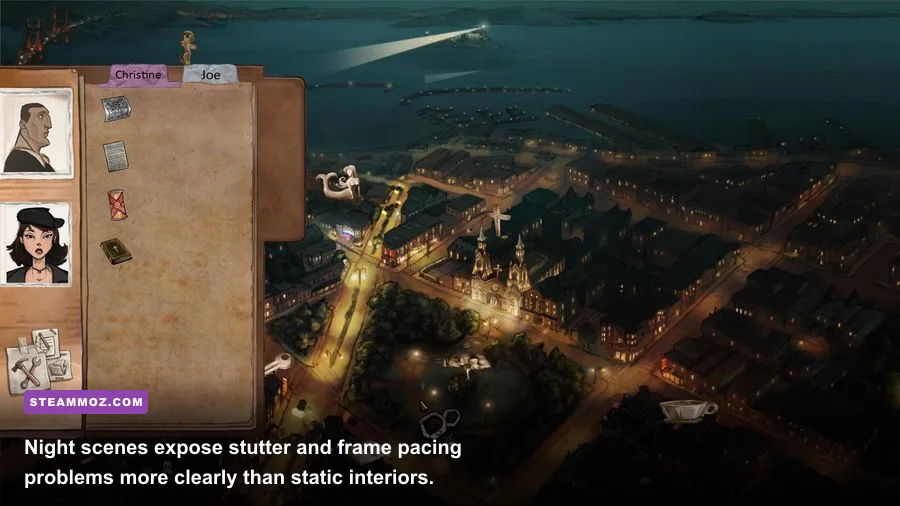
Because 1954 Alcatraz is a story-focused adventure, chasing an unlocked 200 FPS number is pointless. Stable frame pacing is more important than maximum refresh rate, especially during camera transitions and dialogue scenes. Use the highest native resolution your GPU can sustain, then reduce resolution only if the frame rate remains low after forcing the correct GPU and disabling overlays.
If the launcher exposes quality presets, start with High at 1920×1080 on a dedicated GPU. If you are using Intel UHD or an older Radeon integrated chip, begin at 1280×720 with anti-aliasing disabled or set to its lowest option. Anti-aliasing can cost more than expected in older engines because it may be applied across the entire rendered frame rather than selectively to important edges.
Turn off motion blur if the game offers it. It does not usually produce a huge FPS gain, but it makes camera movement look softer and can exaggerate the sensation of stutter. Shadows, ambient occlusion, and post-processing are the first quality options to lower. Texture quality is usually the last setting to reduce because older adventure-game textures rarely saturate a modern GPU’s VRAM.
| Setting or profile | Recommended value | FPS impact | Visual trade-off |
|---|---|---|---|
| Resolution | 1920×1080, then 1280×720 | High if GPU-limited | Lower resolution is softer, especially in text |
| Anti-aliasing | Low or Off for testing | Medium to high | More jagged edges around characters and props |
| Shadows | Medium | Medium | Less contact detail in interiors |
| Ambient occlusion | Off or Low | Low to medium | Flatter corners and object separation |
| Post-processing | Low | Low to medium | Reduced glow and cinematic effects |
| Frame cap | 60 FPS, or 30 FPS on weak hardware | Improves consistency | Lower cap feels less fluid but avoids spikes |
If the game has no internal frame limiter, use your GPU control panel. NVIDIA users can add the executable under Manage 3D settings and set Max Frame Rate to 60. AMD users can apply a per-game frame limit through Adrenalin. A 30 FPS cap is a sensible fallback for integrated graphics if the game oscillates between 25 and 55 FPS; a locked 30 often looks better than constantly missing 60.
Stop low FPS caused by the wrong GPU
Laptop owners should check this before lowering every setting. Windows may assign an older adventure game to the integrated GPU even when an NVIDIA or AMD chip is installed. Go to Settings > System > Display > Graphics, add the game executable, choose Options, select High performance, and save. In NVIDIA Control Panel, use Manage 3D settings > Program Settings; in AMD Software, add the game to the gaming list and select the performance profile.
Play while connected to AC power, set Windows to a balanced or high-performance power mode, and check that the laptop is not using a silent profile. Watch GPU utilization with Task Manager or your driver overlay. If GPU usage sits near 0–20 percent while the frame rate is poor, the problem is probably the wrong adapter, a CPU bottleneck, a frame limiter, or a compatibility layer. If GPU usage is pinned near 100 percent, lower resolution and anti-aliasing first.
Update your graphics driver if the current installation is several releases old, but don’t assume “newest” always means “best.” If crashes began immediately after a driver update, use the driver’s clean-install option or roll back to the previous stable release. Remove unofficial DLL injectors, ReShade presets, frame-generation tools, and aggressive overclocking while testing. 1954 Alcatraz gains nothing from modern frame generation, and injected rendering tools can make a small older title less stable.
What to do if the crash survives every fix
Check Windows Event Viewer after the failure. Open Event Viewer > Windows Logs > Application, find the error at the crash time, and note the faulting module. A reference to a graphics driver points toward the display stack; a missing runtime DLL suggests DirectX or Visual C++; an application-only fault after a specific scene may indicate a damaged game file or an engine compatibility bug.
Run Windows Update, restart, and verify the game again after any system repair. If antivirus software quarantined an executable or asset, restore it only if the file came from Steam and then add the installation folder as an exception temporarily. Don’t download replacement DLLs from random websites. They are a security risk and often create a second, harder-to-diagnose problem.
For save-related crashes, back up your save folder before testing older saves. If one particular save crashes while a new game works, the issue may be isolated to that save’s scene state. Try loading an earlier save, avoid rapidly skipping dialogue during the transition, and let each scene finish loading before clicking through. That is not a guaranteed engine fix, but it can bypass a damaged transition state.
Steam’s official troubleshooting guidance is useful for launch failures, while Steam’s crash and performance support page covers broader client checks. For comparison, our guides on ELEX PC crash fixes and Edna & Harvey PC compatibility use the same principle: fix runtimes and presentation mode before blaming hardware.
The fastest stable setup to try first
For most Windows 10 and Windows 11 systems, the cleanest starting profile is 1920×1080 windowed or borderless if available, High quality, low anti-aliasing, motion blur off, overlays disabled, Steam files verified, and a 60 FPS cap. Laptop users should force the dedicated GPU and play on AC power. If that profile still crashes, reset the Unity preference folder and install the legacy DirectX and Visual C++ components before experimenting with compatibility mode.
Don’t lower every setting blindly. 1954 Alcatraz is old enough that the real enemy is usually an awkward handoff between the game and modern Windows—not a lack of rendering power. Once you identify whether the failure happens before launch, during a display-mode switch, or only in a particular scene, the fix becomes much more targeted. That approach keeps the game’s atmospheric backgrounds intact while delivering the smooth, stable story experience it deserves.
If you’re troubleshooting other older PC releases, Steamoz’s Far Cry 2 PC performance guide and Everspace 2 crash and FPS fixes offer useful examples of diagnosing drivers, overlays, and frame pacing without resorting to dubious downloads.