If you want maximum FPS and smoother performance in XCOM 2 on PC, start with a 1080p or 1440p resolution, turn Screen Space Reflections and Ambient Occlusion down first, use FXAA instead of heavier anti-aliasing, and cap the game at a frame rate your system can hold consistently. Keep Texture Quality high if your graphics card has 4GB or more of VRAM, but lower shadows, effects, and view distance on older hardware. XCOM 2 is turn-based, yet its camera pans, soldier animations, explosions, and strategy-layer transitions expose uneven frame pacing immediately.
This guide covers the original XCOM 2 and War of the Chosen, with separate profiles for entry-level, mid-range, and high-end PCs. The goal isn't a meaningless peak FPS number. A locked 60 fps with fewer stutters feels considerably better than a counter jumping between 42 and 90 during every reinforcement drop.
Use These XCOM 2 PC Settings First
Before changing individual options, make three basic decisions: choose a sensible resolution, decide whether you prefer image quality or headroom, and establish a frame-rate cap. XCOM 2 uses Unreal Engine 3, so the game can look sharp while still leaning heavily on the CPU during large tactical scenes. The GPU usually handles resolution, textures, shadows, and post-processing; the CPU often becomes the problem when several aliens, civilians, fire effects, and destructible objects are active.
For most players, 1080p at 60 fps is the sweet spot. At 1440p, a GeForce RTX 3060, RTX 4060, Radeon RX 6600, or faster card can generally target 60 fps with sensible compromises. 4K is possible on modern hardware, but it magnifies the game's inconsistent frame pacing and puts extra pressure on VRAM and shader effects. If your display supports G-Sync or FreeSync, cap a few frames below its refresh rate. A 60Hz display should use a 58-60 fps cap; a 144Hz display can use 72 or 90 fps if your system cannot maintain 120 or 144 consistently.
| Target | Resolution | Recommended Profile | Expected Experience |
|---|---|---|---|
| Entry-level laptop | 1280x720 or 1600x900 | Low preset, high textures if VRAM allows | 30-45 fps with occasional tactical dips |
| Mainstream PC | 1920x1080 | High textures, medium shadows, low reflections | 45-75 fps and the best overall balance |
| Modern mid-range PC | 2560x1440 | High preset, reduced effects and reflections | 60 fps in most missions with busy-scene dips |
| High-end PC | 2560x1440 or 3840x2160 | High textures, high detail, selective post-processing | Sharper image, but CPU limits can still appear |
Those estimates assume a current Windows installation, updated GPU drivers, and no enormous mod collection. Heavy cosmetic packs and overhaul mods can increase loading times, memory use, and hitching even when the base game runs well. If you're also fighting crashes in another Unreal Engine title, Steamoz's ELEX PC fixes explain several useful driver and launch-option checks.

🎮 FORM
Looking to experience this game? Grab your digital key directly on our store for $14.99.
View on Steammoz Store →The Best Graphics Settings for Max FPS
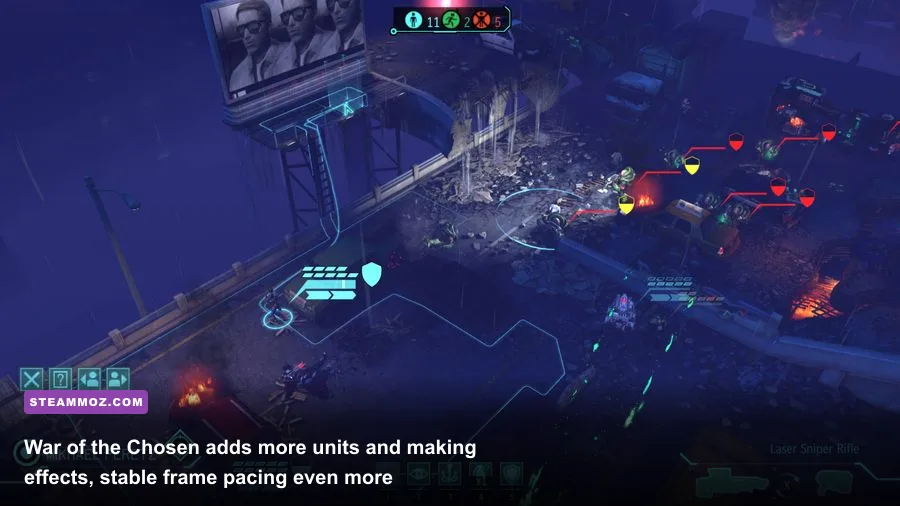
XCOM 2's in-game presets aren't useless, but they leave performance on the table. The following configuration is the strongest starting point because it protects the settings that make the game readable while cutting expensive effects that add little during a tactical turn.
| Setting | Recommended Value | FPS Impact | Visual Note |
|---|---|---|---|
| Resolution | Native 1080p or 1440p | Very high | Lower only if the GPU is consistently below target FPS |
| Texture Quality | High | Low to medium | Improves armor, weapons, and terrain detail; needs VRAM |
| Shadow Quality | Medium | Medium to high | Low removes soft shadow definition with a worthwhile gain |
| Anti-Aliasing | FXAA | Low | Reduces jagged edges without the cost of heavier modes |
| Screen Space Reflections | Off or Low | High | One of the easiest cuts on wet maps and city streets |
| Ambient Occlusion | Off or Low | Medium | Darkens contact areas but isn't vital to tactical clarity |
| Effects Quality | Medium | Medium to high | Affects smoke, fire, explosions, and ability visuals |
| View Distance | High on desktop, Medium on laptop | Medium | Lowering it can help dense maps and CPU-limited systems |
| Depth of Field | Off | Low to medium | Removes cinematic blur during camera movement |
| Bloom | Off or Low | Low | Cleaner image and slightly less post-processing |
| V-Sync | Off with VRR, On without VRR | Variable | Use a frame cap to prevent tearing and wild frame swings |
Texture Quality is the setting most players lower too early. It mainly consumes VRAM rather than raw rendering power. If your card has 4GB or more and you're playing at 1080p, High textures usually make sense. Cards with 2GB can hitch when the game streams armor, faces, and map assets, so Medium may actually feel smoother even when the average FPS looks similar.
Screen Space Reflections deserve special attention. They look attractive on rain-slick surfaces, but the effect can become costly when a mission includes fire, smoke, multiple glass surfaces, and destructible buildings. Turning reflections off typically produces a bigger practical improvement than dropping textures from High to Medium. Ambient Occlusion is another safe cut: the game loses some grounding around feet and cover objects, but tiles, line-of-sight indicators, and squad silhouettes remain clear.
1080p, 1440p, and Low-End Performance Profiles
1080p 60 FPS profile
Use native 1920x1080, High textures, Medium shadows, FXAA, Medium effects, High view distance, and Screen Space Reflections Off. Keep Ambient Occlusion Low if your GPU has headroom. This profile suits a GTX 1660 Super, GTX 1070, RX 580, RX 6600, RTX 2060, or similar hardware. On the CPU side, a Core i5-8400, Ryzen 5 2600, or newer processor should handle ordinary missions comfortably, although Lost Towers and late-game retaliation missions may still dip during cinematic camera moves.
1440p quality-balanced profile
At 2560x1440, keep textures High but set shadows Medium, effects Medium, reflections Off, Ambient Occlusion Off, and Depth of Field Off. A Radeon RX 6700 XT, RTX 3060 Ti, RTX 4060 Ti, or better is a sensible target. Don't chase 120 fps here unless your CPU is also strong; the game frequently becomes processor-limited before a modern GPU is fully loaded.
Low-end laptop profile
Use 1600x900 or 1280x720, Medium textures, Low shadows, FXAA, Low effects, Low view distance, reflections Off, Ambient Occlusion Off, and every cinematic blur effect disabled. Target 30 fps rather than leaving the game uncapped. A stable 30 makes soldier movement and camera transitions predictable, while an uncapped laptop can bounce from 50 to the low 20s and feel worse.
| Hardware Class | Resolution | Key Settings | Practical FPS Target |
|---|---|---|---|
| Integrated graphics | 720p | Low settings, reflections and AO off | 30 fps cap |
| GTX 1650 or RX 570 | 1080p | Medium textures, low shadows and effects | 40-60 fps |
| GTX 1660 Super or RX 6600 | 1080p | High textures, medium effects, reflections off | 60 fps cap |
| RTX 3060 Ti or RX 6700 XT | 1440p | High textures, medium shadows and effects | 60-90 fps |
| RTX 4070 or RX 7800 XT | 1440p/4K | High settings with selective post-processing cuts | 60-120 fps, CPU dependent |
There is no DLSS or FSR option in the standard XCOM 2 graphics menu, so don't waste time searching for an upscaler that isn't there. If you need more performance, lower the output resolution or use your GPU driver's scaling feature. Make sure sharpening isn't excessive; overly sharp scaling makes the game's thin line-of-sight and cover edges shimmer.
Why XCOM 2 Stutters Even at High FPS
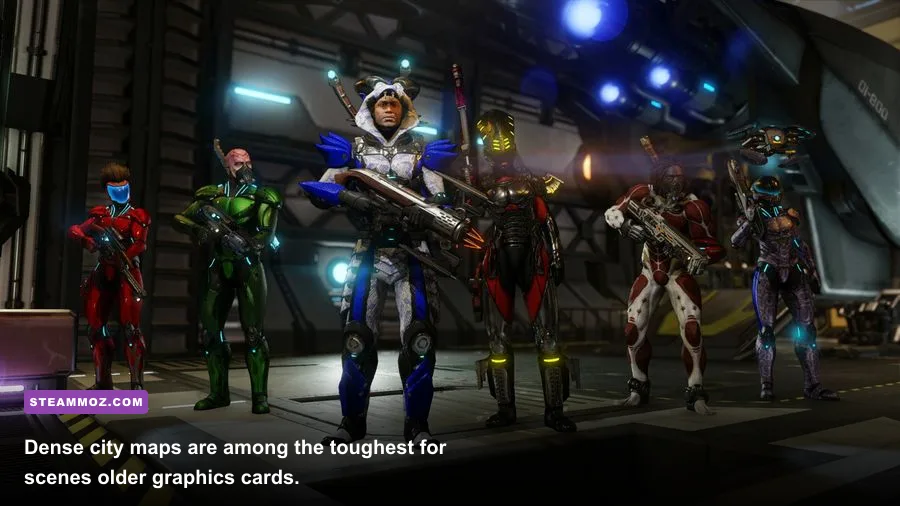
Average FPS doesn't tell the whole story in XCOM 2. The game can show 70 fps and still hitch when the camera snaps toward a Sectopod, when a Chosen enters a mission, or when a pod activates. These moments are often CPU, asset-streaming, or shader-compilation problems rather than a simple lack of GPU power.
The first fix is to close background software that injects overlays. Disable unnecessary Steam, Discord, GeForce Experience, Radeon, Xbox Game Bar, and RGB overlays one at a time and test the game. Overlays don't always cause trouble, but XCOM 2's older engine is less tolerant of hooks than newer releases. Keep the game on an SSD if possible. Moving it from a hard drive reduces campaign loading and can lessen pauses when the game streams tactical assets.
Mods are the second major suspect. War of the Chosen has a large mod ecosystem, and outdated mods can create longer turns, broken animations, or repeated log errors. Test with a clean profile before blaming graphics settings. The Alternative Mod Launcher can help identify conflicts, but don't blindly enable every compatibility patch. Start with the base game, then add cosmetic packs and gameplay mods in small groups.
CPU affinity tweaks and launch commands are frequently recommended online, but they aren't magic. Avoid random commands copied from old forum posts. First verify files through the official XCOM 2 Steam page, update your chipset and graphics drivers, and let Windows use the High performance power profile while plugged in. Laptop users should also confirm that XCOM 2 is assigned to the dedicated GPU rather than integrated graphics.
For Nvidia users, set Power management mode to Prefer maximum performance for the game's profile, not globally. For AMD users, use a per-game profile and avoid stacking Radeon Chill with an external frame limiter until you've tested frame pacing. If you cap the frame rate, use only one limiter at first. Two competing caps can create uneven pacing and input delay.
CPU, GPU, VRAM, and Frame-Time Checks
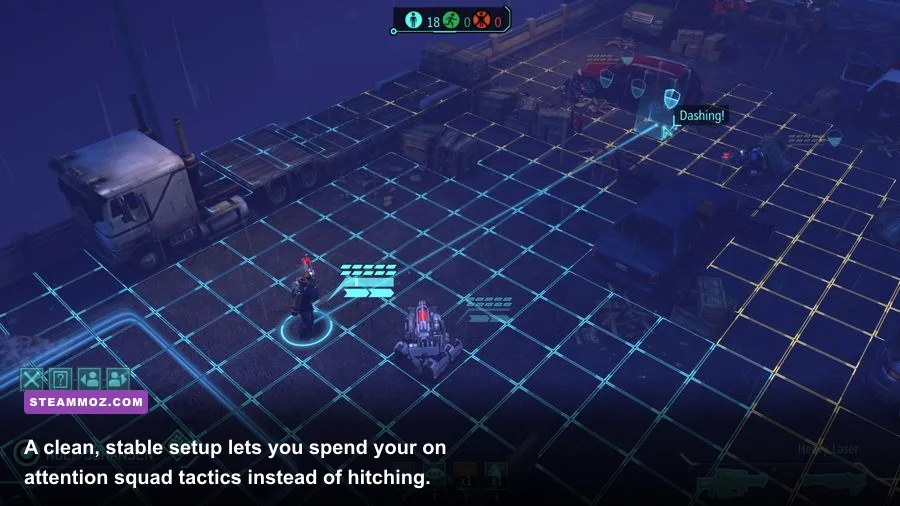
Use an overlay such as MSI Afterburner with RTSS to watch GPU usage, VRAM, CPU thread load, and frame time. If GPU usage sits near 95-99 percent while frame time spikes, lower resolution, reflections, effects, or shadows. If GPU usage is only 50-70 percent but one or two CPU threads are saturated, lowering resolution won't help much. Reduce view distance, effects, background applications, and mod complexity instead.
XCOM 2's minimum PC requirements are modest by modern standards: the official listing calls for a 64-bit operating system, a Core 2 Duo E7300 or Athlon 64 X2 6000+, 4GB of RAM, and graphics hardware around a GeForce GTX 460 or Radeon HD 5870. Those specifications can launch the game, but they are not a reliable 60 fps target, especially with War of the Chosen. A modern 6-core processor and 16GB of RAM are much more comfortable for a heavily modded campaign.
| Component | Official Minimum | Recommended for 60 FPS | Why It Matters |
|---|---|---|---|
| CPU | Core 2 Duo E7300 class | Core i5-8400 or Ryzen 5 2600 | Handles AI turns, camera logic, and battlefield simulation |
| Memory | 4GB RAM | 16GB RAM | Provides room for War of the Chosen and mods |
| GPU | GTX 460 or Radeon HD 5870 class | GTX 1660 Super or RX 6600 | Drives resolution, shadows, effects, and reflections |
| VRAM | 1GB class | 4-8GB | Reduces texture-streaming pauses at 1080p and above |
| Storage | Hard drive supported | SSD | Shortens loads and improves asset streaming |
Watch the 1% low frame rate, not just the average. A 60 fps average with 1% lows near 25 fps will feel rough during explosions and alien reveals. A locked 45 or 50 fps with 1% lows around 38 can feel substantially cleaner. That is especially true in XCOM 2 because the camera often makes abrupt, automated movements that expose every hitch.
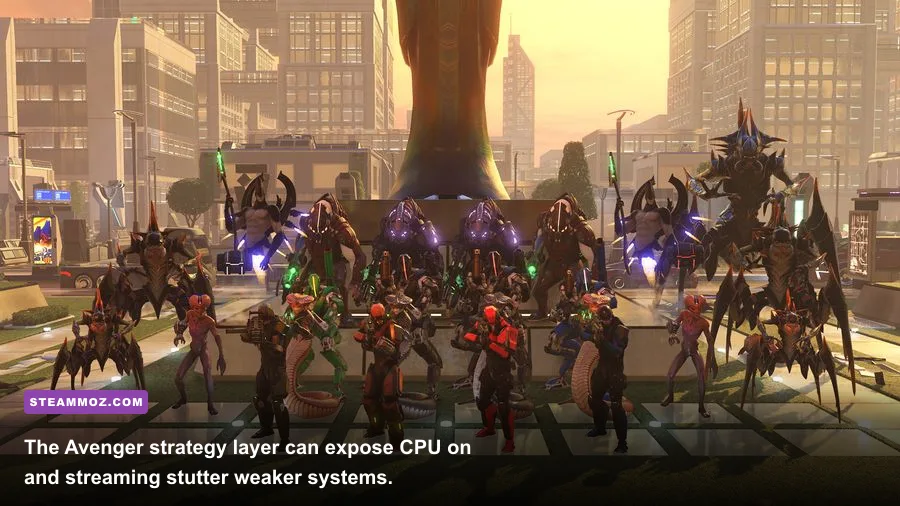
War of the Chosen adds the Reapers, Skirmishers, Templars, Chosen strongholds, Resistance Orders, and Lost swarms. Those systems add more simulation and visual activity than the base campaign. If your base game runs well but the expansion stutters, lower Effects Quality and View Distance before Texture Quality. Also consider reducing mod count. The expansion itself is not a reason to accept unstable performance, but its busiest missions reveal weak hardware more quickly.
Final Smooth-Performance Checklist
Start by selecting native 1080p or 1440p and apply the balanced settings rather than blindly choosing Ultra. Set Texture Quality to High when VRAM permits, then disable Screen Space Reflections and Ambient Occlusion. Use Medium shadows and effects, turn Depth of Field off, and cap the frame rate to a number your system can actually sustain. That combination preserves the details that matter—soldier armor, weapon models, cover, terrain, and enemy silhouettes—while cutting expensive decoration.
- Install XCOM 2 on an SSD and update your GPU driver.
- Use the dedicated GPU on a gaming laptop and keep the charger connected.
- Choose a 30, 45, 60, or 90 fps cap based on your measured 1% lows.
- Lower reflections, shadows, effects, and view distance before lowering textures.
- Disable overlays and test the unmodded game if stutters continue.
- Verify game files through Steam after a crash, update, or mod removal.
- Test demanding scenes such as ADVENT city maps, Chosen encounters, and Lost missions.
For a broader PC optimization reference, Steamoz's guide to Far Cry 6 performance settings covers the same useful process of isolating GPU-heavy options instead of randomly dropping every slider. If your issue is specifically a crash rather than low FPS, compare your symptoms with the troubleshooting approach in the EscapeVR crashing and low-FPS guide.
Finally, remember that XCOM 2's best performance setting is consistency. A perfectly smooth 144 fps is unnecessary for a game built around careful movement, cover percentages, and overwatch traps. A stable cap, clean frame times, and readable image will make every turn feel faster—and will keep a Sectopod reveal from turning a tense tactical decision into a slideshow.
For official technical information, check the 2K Support portal and the official XCOM website before applying unofficial fixes. Save your settings profile, test one change at a time, and you'll quickly find the best XCOM 2 PC graphics settings for your own hardware.