Before you start playing Xbox PC Game Pass, understand three things: the catalog changes, many games use the Xbox app and Microsoft Store infrastructure, and your subscription does not mean every Xbox game runs on PC. PC Game Pass is excellent value when you treat it as a rotating library rather than a permanent collection, prepare your Windows setup, and check each game’s requirements before downloading.
The service can feel wonderfully frictionless once it is configured. Open the Xbox app, choose a game, install it, and your save usually follows you across compatible devices. But the first installation can also expose the rough edges: Windows updates, Gaming Services errors, locked folders, enormous downloads, launcher requirements, and games leaving the catalog. Here’s what actually matters before you commit your first weekend to it.
Know Which Game Pass Plan You’re Buying
For PC players, the key subscription is PC Game Pass. It generally includes the PC catalog, day-one releases from Xbox Game Studios and participating partners, EA Play on PC, member discounts, and Riot Games benefits such as League of Legends champion access. Xbox Game Pass Ultimate adds console access, cloud gaming, and broader perks, but those extras only matter if you also play on Xbox or use supported cloud devices.
Do not assume the cheapest-looking promotion tells the whole story. Introductory offers can be limited to new or returning subscribers, renew automatically unless you cancel, and may change by region. The safest move is to check the current benefits and price on the official PC Game Pass page before paying. Microsoft also changes plan names and entitlements, so old videos can be misleading.
| Plan | What PC Players Get | Who Should Choose It |
|---|---|---|
| PC Game Pass | PC catalog, PC day-one releases, EA Play, member discounts, Riot benefits | Players who primarily game on Windows |
| Game Pass Ultimate | PC catalog plus console benefits, cloud gaming, broader partner perks | Players using PC, Xbox, and supported mobile or TV devices |
| Console-focused plans | Console access varies; PC catalog and PC features are not guaranteed | Xbox console owners who do not need PC access |
There’s another practical distinction: a Game Pass subscription grants access while you remain subscribed and while the game remains included. Buying a game permanently is different. If a title leaves the service, you normally need to purchase it to continue playing, although members may receive a discount before removal. Think of Game Pass as a library card, not ownership.
The Xbox App Is Only Part of the Installation Puzzle

The Xbox app is your storefront and library, but PC Game Pass also relies on Microsoft Store components and the Gaming Services package. You’ll need a supported Windows installation, an Xbox account, and a Microsoft account that can process the subscription. Sign into the Xbox app with the account that owns Game Pass; using a different Microsoft Store account can create confusing license and installation errors.
Before downloading anything, update Windows through Settings, update the Xbox app through Microsoft Store, and launch the app once after rebooting. If the install button is missing or games sit at 0 percent, open Microsoft Store and update Gaming Services, Xbox, and Xbox Identity Provider if available. Microsoft’s official PC Game Pass support documentation is worth bookmarking because error codes often point to account or service issues rather than the game itself.
Installation permissions are a major difference from Steam. Some Xbox app games use protected WindowsApps directories and can be awkward to mod or move. Newer titles may support a more flexible installation folder, but not every game does. If modding is important to you, check the game’s Xbox app page and community documentation before assuming Nexus Mods, manual DLL replacement, or script extenders will work.
For troubleshooting, reset the Xbox app from Windows Settings only after trying updates and a reboot. Resetting can sign you out and clear local app data. If another PC game is crashing or losing frames, Steamoz’s guides on Elex crash fixes and EscapeVR performance problems cover the same fundamentals: drivers, overlays, storage health, and clean configuration files.
Check PC Requirements Before You Spend the Download
Game Pass makes experimentation cheap, but downloading a 120 GB game just to discover that your four-core laptop cannot maintain 30 frames per second is still a waste of time. Read the minimum and recommended requirements on the Xbox app listing, then compare the target resolution you actually want. Minimum specifications usually describe playable 720p or 1080p at modest settings, not a locked 60 fps experience.
| Component | Minimum Sensible Target | Recommended for Modern AAA Games | Why It Matters |
|---|---|---|---|
| Operating system | Updated Windows 10 or Windows 11 64-bit | Current Windows 11 build | Xbox app and Gaming Services depend on current system components |
| Memory | 16 GB RAM | 32 GB RAM | Open-world games and background apps can exceed 16 GB |
| Storage | SSD with 100 GB free | NVMe SSD with 150 GB or more free | Reduces loading stalls and leaves room for patches |
| Graphics | DirectX 12 GPU with 6 GB VRAM | 8 GB-plus VRAM GPU | Texture quality and frame pacing suffer when VRAM runs out |
| Processor | Six modern CPU cores | Recent six- or eight-core CPU | Helps with simulation, shader compilation, and open-world streaming |
Free space needs are larger than the number shown on the store page. A 90 GB game can require additional room for decompression, updates, shader caches, and temporary files. Keep at least 15 to 20 percent of an SSD free when possible. Installing an enormous title on a nearly full mechanical hard drive can turn every loading screen into a small endurance test.
Use the game’s graphics menu before reaching for third-party tweaks. For most modern releases, lower shadows, volumetric effects, screen-space reflections, and crowd density before dropping texture quality. Textures mainly consume VRAM, while shadows and volumetrics often hit the GPU every frame. Disable motion blur if you dislike smeary camera movement, but don’t confuse it with performance optimization; it usually has a small frame-rate impact.
Cloud Saves Are Powerful, But They Aren’t Magic
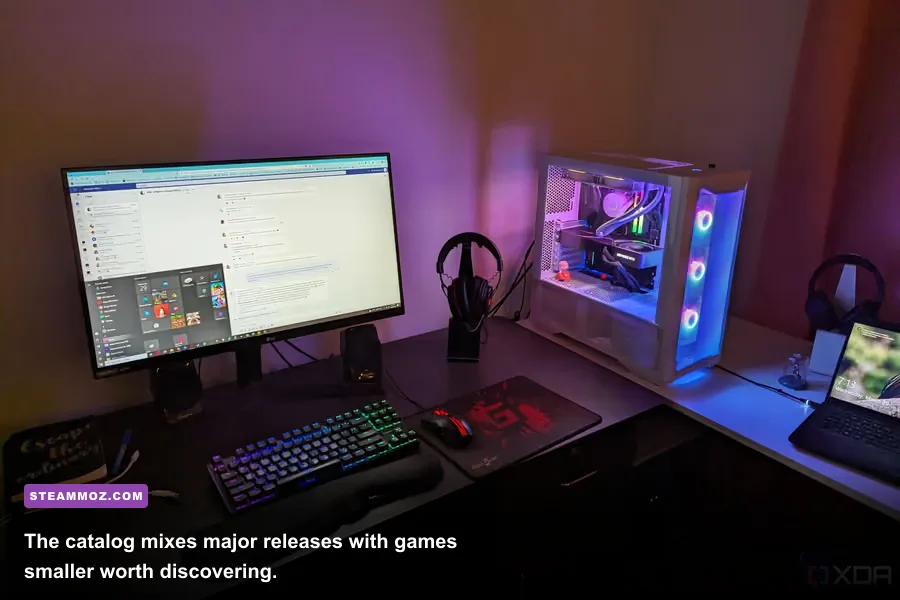
Compatible Xbox PC Game Pass games normally synchronize saves through Xbox network services. That makes it possible to move from a desktop to a laptop without manually copying a folder. The catch is that synchronization needs time. Always quit through the game’s menu, wait for the Xbox app to finish updating, and avoid launching the same title on two machines while one is offline.
Cloud saves also don’t guarantee compatibility between every version. A PC edition may share progress with Xbox consoles, may share only achievements, or may use a separate save system entirely. Play Anywhere titles are the safest bet for cross-device continuity, but each game’s store listing should be treated as the final authority. Do not delete local saves while troubleshooting until you know the cloud copy is current.
Modded saves deserve extra caution. A cosmetic reshade rarely changes save structure, but total-conversion mods, debug commands, and unofficial patches can. Keep a manual backup of important saves before switching between modded and unmodded installs. If you enjoy hunting optional content, our guides to Eternal Destiny’s hidden rewards and Everspace 2 secret locations show why a clean backup matters when experimenting.
Understand What Happens When Games Leave
The Game Pass catalog is curated, licensed, and constantly moving. Some games stay for years; others leave after a relatively short run. Microsoft usually highlights upcoming departures in the Xbox app, and members may get a discount on games leaving soon. If you are halfway through a long RPG, check its status before assuming you have unlimited time.
Installed games don’t become permanent simply because they remain on your drive. Once the license is removed or your subscription expires, the game can stop launching. Your save normally remains on the PC or in the cloud, so buying the game later may let you continue, but this depends on the edition and account used. That’s one reason to avoid mixing a Game Pass installation with a separately purchased version from another launcher without checking save locations first.
| Situation | What Usually Happens | Best Move |
|---|---|---|
| Game is leaving soon | Access ends after the catalog removal date | Finish it or buy it at the available member discount |
| Subscription expires | Installed games generally stop launching | Renew or purchase the title outright |
| Game is purchased later | Save continuity may work if the edition and account match | Back up saves before changing versions |
| Game receives a major update | Large download and possible new storage demand | Keep free SSD space and pause other downloads |
Catalog rotation is still a strength if you use it deliberately. Treat the first few hours as a tryout: test the controls, confirm performance, and decide whether the game deserves a purchase or a full completion run. That mindset is especially useful for massive games such as Dragon Ball Z: Kakarot, where a casual install can become a 60-hour commitment.
Get Better Value From the First Week
Start by installing one large game and one compact game rather than filling the drive immediately. This lets you test download speeds, controller support, cloud saves, and frame pacing before committing to a giant backlog. Use the Xbox app’s install location settings to select your fastest suitable SSD, and leave room for patches. A fast connection can still feel slow if the destination drive is nearly full or busy unpacking files.
Controller support varies more than the branding suggests. Xbox Wireless controllers usually work cleanly, while DualSense features such as adaptive triggers may require native support or a compatibility layer. Check the input icons in the store listing and test remapping inside the game. For keyboard and mouse players, turn off controller vibration only if it causes unwanted input behavior; it doesn’t improve frame rate.
Expect separate launchers in some cases. EA Play games can involve the EA app, Ubisoft titles may require Ubisoft Connect, and a publisher account can be mandatory even when you started through Xbox. Link accounts before launch day rather than during a server outage. If you mainly want a particular EA title, verify that its included edition is the one you need; deluxe DLC and premium currency are not automatically included just because the base game is.
Finally, watch for overlapping subscriptions. PC Game Pass is already the central PC benefit, while Ultimate makes more sense for players who use cloud or console access. Don’t pay for a second service just to access one launcher unless the game library and perks justify it. Microsoft’s current Game Pass catalog page and the PC membership details should be your final check before renewing.
Once your Windows updates are current, your accounts are aligned, and your SSD has breathing room, PC Game Pass becomes exactly what it promises: a low-risk way to sample an enormous range of games. The smart approach is not to download everything. Pick games with enough time to enjoy them, keep an eye on departures, protect your saves, and treat the Xbox app as a service that occasionally needs maintenance. Do that, and the subscription’s biggest advantage—instant access to games you might never buy blind—really shines.