The best essential mods for Forza Horizon 5 on PC are visual and single-player tools rather than online unlockers: start with ReShade for image quality, a sensible frame-rate profile, a camera or telemetry overlay for driving practice, and a disciplined backup routine. FH5 has no official Steam Workshop, and anything that alters credits, cars, wheelspins, leaderboards, or online matchmaking can put your account at risk. Treat online legality as the first mod requirement, not an afterthought.
That limitation sounds restrictive, but it still leaves plenty of room to transform how the game feels. You can make Mexico sharper without destroying performance, improve cockpit visibility, create a better replay and photography workflow, and build a separate offline sandbox for experiments. The trick is knowing which tools genuinely improve the experience and which ones are just ban magnets wearing a friendly download button.
What counts as a safe FH5 PC mod?
Forza Horizon 5 is built around Xbox services, shared progression, auctions, seasonal events, leaderboards, and online verification. That makes it very different from a moddable single-player racer such as Assetto Corsa. There is no official mod browser, and Playground Games does not provide a supported path for replacing car files, adding community vehicles, or editing your live garage.
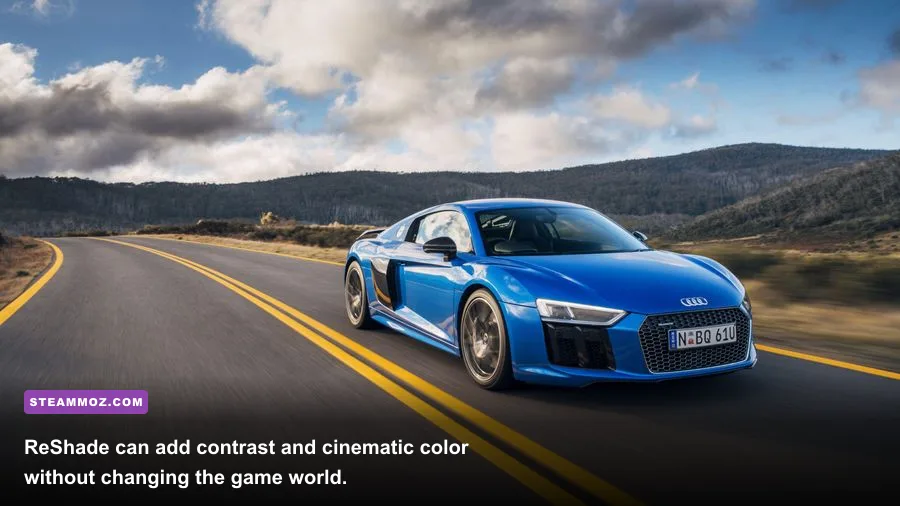
In practical terms, the safest category is a non-invasive visual overlay. ReShade changes the final image after FH5 has rendered it. It can adjust contrast, color temperature, sharpening, bloom, ambient light, and film effects without handing you extra cars or credits. Even then, you should disable it before competitive online play if you want the lowest possible risk and the cleanest troubleshooting path.
The next category is an external tool that reads information rather than changing progression. A telemetry overlay can show speed, throttle, brake pressure, steering angle, gear, and sometimes suspension behavior. That is useful when tuning a 1991 BMW M3 or testing whether your 2018 Porsche 911 GT2 RS is understeering because of front tire pressure, aero balance, or simply too much entry speed.
Be much more cautious with save editors, unlockers, trainers, modified DLL files, and “all cars/all credits” packages. Even if a tool appears to work in free roam, it may corrupt your save or trigger automated detection later. The official Forza Support portal is the right place to check enforcement and account guidance, while the official Forza Horizon page remains the source for current game information.
| Tool Type | What It Changes | Risk Level | Best Use |
|---|---|---|---|
| ReShade | Post-processing image effects | Low, with caution | Offline driving, screenshots |
| Telemetry overlay | On-screen driving data | Low to medium | Practice and tuning |
| Camera utility | Field of view or capture behavior | Medium | Replay and photography work |
| Save editor | Credits, cars, progression | High | Not recommended on a live profile |
| DLL unlocker or trainer | Game memory or gameplay rules | Very high | Avoid, especially online |

🎮 FORM
Looking to experience this game? Grab your digital key directly on our store for $14.99.
View on Steammoz Store →ReShade is the best visual upgrade for FH5

If you install only one FH5 PC mod, make it ReShade from the official ReShade website. It does not add a fake “ultra” preset to the graphics menu; it gives you control over the final picture. That matters because Horizon 5 already has strong lighting, but its default image can look soft at 1080p or overly bright in desert scenes.
During installation, select the FH5 executable rather than guessing from a shortcut. The Microsoft Store and Steam versions can use different folder paths, so confirm the location through your launcher. Choose DirectX 12 when ReShade asks for the rendering API. Start with a small set of effects instead of loading every shader in the package.
A clean everyday stack is CAS or LumaSharpen for detail, Curves for contrast, Vibrance for restrained color, and Tonemap for exposure control. Add MXAO only if your GPU has headroom; ambient-occlusion effects can make rocks, fences, and car interiors feel richer, but they also cost performance and may produce halos around vegetation. Bloom and depth-of-field are better kept for screenshots because they can blur brake markers and apexes during a race.
Use ReShade to solve specific problems. If the image is washed out, lower exposure and raise contrast slightly. If distant foliage shimmers, avoid aggressive sharpening and check your temporal anti-aliasing first. If night races look crushed, lift shadows instead of increasing brightness globally. Save two presets: “Race Clean” for normal driving and “Photo Moody” for EventLab scenes, replays, and the in-game Photo Mode.
ReShade is not a substitute for resolution scaling. At 1080p, a 100 percent render scale with modest sharpening usually looks better than a heavily sharpened 75 percent image. At 1440p and 4K, DLSS, FSR 2, or XeSS can provide a better performance-to-clarity trade than dropping the entire output resolution.
| ReShade Effect | Recommended Starting Point | Performance Cost | Why Use It |
|---|---|---|---|
| CAS or LumaSharpen | Low to moderate strength | Low | Restores fine detail after upscaling |
| Curves | Small contrast adjustment | Very low | Adds definition without oversaturating |
| Vibrance | Subtle increase | Very low | Stops desert and jungle colors looking flat |
| MXAO | Low radius and intensity | Medium to high | Deepens contact shadows around cars and scenery |
| Depth of Field | Photo Mode only | Medium | Creates cinematic stills but harms racing clarity |
Build a graphics profile that holds its frame rate
A visual mod cannot rescue unstable frame times, so tune FH5 before stacking effects on top. The PC edition supports DirectX 12, ray tracing in supported modes, DLSS on compatible Nvidia hardware, FSR 2, XeSS, and a wide range of granular settings. A locked 60 fps feels better than a graphically richer 85-to-48 fps swing, especially when you are correcting a slide through Guanajuato.
Start with the built-in benchmark, then drive the same route through a busy area. The Horizon Festival site, Guanajuato streets, and jungle roads are more useful than staring at an empty runway because they stress crowds, geometry, reflections, and foliage. Watch one-percent lows if your overlay supports them. Average FPS can look excellent while stutters still ruin corner entry.
For an RTX 3060-class or RX 6700 XT-class system at 1440p, use High or Ultra textures, High environment geometry, High shader quality, and medium-to-high reflections. Disable ray-traced local reflections unless you have abundant GPU headroom. On an RTX 4070 or RX 7800 XT, Ultra textures and higher reflections are reasonable, while DLSS Quality or FSR 2 Quality can help maintain a locked 120 fps target.
Do not automatically set every option to Ultra. Texture quality mostly depends on VRAM, while shadow quality and reflection quality hit the GPU more directly. World car detail can affect CPU workload in crowded races. Motion blur is personal, but disabling it makes braking points and roadside detail easier to read. Anisotropic filtering at 16x is usually a cheap clarity win for roads and terrain.
| Setting | Recommended Value | FPS Impact | Visual Note |
|---|---|---|---|
| Resolution Scale | 100%; Quality upscaling if needed | Very high | Primary image-quality control |
| Shadow Quality | High | Medium | Ultra adds detail but costs frames in cities |
| Reflection Quality | High | Medium to high | Important for wet roads and car paint |
| Ray-Traced Local Reflections | Off for high-refresh racing | High | Best reserved for screenshots or powerful GPUs |
| Environment Texture Quality | High or Ultra with 8GB-plus VRAM | Medium VRAM use | Improves rocks, buildings, and distant scenery |
| MSAA | 2x or 4x | Medium | Higher values can be expensive at 1440p |
| Motion Blur | Off for racing | Minimal | Sharper braking and apex visibility |
| Anisotropic Filtering | 16x | Low | Keeps road textures crisp at distance |
For more general PC troubleshooting, Steamoz’s PC crash and FPS fixes are useful background reading, even though the game is different. The same basics apply: update the GPU driver, remove conflicting overlays, verify files, and test one change at a time.
Telemetry and camera tools make driving more serious
FH5 is an arcade-leaning open-world racer, but telemetry can still expose why a build feels wrong. A lightweight telemetry overlay can show throttle, brake, steering, speed, gear, and lateral or longitudinal G-force. Those numbers turn “the car feels loose” into something actionable. If the rear repeatedly reaches the limit under trail braking, you can test rear toe, differential coast lock, brake balance, or tire compound instead of randomly changing power.
Use telemetry in a controlled test. Take the 2018 Porsche 911 GT2 RS to a familiar circuit or road route, run three clean laps, and note minimum speed at the same corner. Then change one tuning variable. For a RWD car, reducing acceleration differential lock can calm corner-exit snap, while adding rear downforce can stabilize high-speed transitions at the cost of top speed. For an AWD launch build, monitor wheelspin and shift timing rather than chasing a larger horsepower number.
Camera utilities are more situational. A wider field of view helps cockpit players see a little more of the road, but too much FOV makes speed look slower and shrinks apexes. Increase it in small steps, then test braking references. A camera tool that only changes presentation is less dangerous than one that modifies physics or collision, but you should still remove it when troubleshooting multiplayer problems.
For replay and photography, use FH5’s native Photo Mode before installing anything complicated. Its shutter speed, focus, exposure, contrast, and color controls already produce excellent results. A camera add-on is worthwhile only if you specifically need a freer camera, unusual angles, or repeatable shot composition. Never use an altered camera to gain visibility advantages in ranked or competitive contexts.
| Driving Goal | Useful Data | Test Procedure | Likely Tuning Response |
|---|---|---|---|
| Reduce corner-entry understeer | Steering angle, front G-force | Compare minimum speed and tire behavior | Brake balance, front grip, alignment |
| Stop exit oversteer | Throttle, rear G-force, wheelspin | Hold the same throttle point on exit | Differential lock, rear aero, throttle control |
| Improve launches | RPM, speed, wheelspin | Repeat launches on identical surface | Gear ratios, tire compound, AWD balance |
| Find late braking limit | Brake pressure, speed, distance | Move braking marker by small increments | Brake balance and ABS choice |
Use offline experimentation without risking your profile
The smartest “modded” FH5 setup is actually two separate environments: a clean live installation for Xbox services and a backed-up test setup for visual experiments. Before changing files, close the game, copy your save-related data where appropriate, and record your graphics settings. Do not assume cloud synchronization is a perfect undo button. A bad save edit or damaged profile can sync before you notice the problem.
Keep a text file listing every installed overlay, preset, executable, and date. If FH5 crashes after an update, you can remove the newest change instead of reinstalling blindly. Verify game files through Steam or the Xbox app when necessary. Also check Windows Security and your antivirus history before trusting a download; “mod menus” are a common disguise for credential stealers and miners.
Never download a package promising free credits, every DLC car, instant Super Wheelspins, or impossible leaderboard times. Those files are not essential mods. They are account and malware risks. FH5’s progression is generous enough that a clean profile, seasonal events, Wheelspins earned legitimately, and the Autoshow are a far better long-term investment than losing access to online features.
If you want extra visual variety, concentrate on legal in-game systems. EventLab lets you create routes and rule sets, while the livery and tuning shops give you a huge amount of customization without replacing game files. Community-made tunes for cars such as the 1995 Mitsubishi Eclipse GSX, 2013 Lamborghini Veneno, or 1990 Mazda Savanna RX-7 can radically change the driving experience while remaining inside the supported ecosystem. The Xbox support page for Forza Horizon 5 is also worth checking after major updates.
The best FH5 PC mod setup for different players
There is no single best loadout. A screenshot-focused player needs a different stack from someone chasing clean Rivals laps. The common thread is restraint: use one visual preset, one performance target, and only the overlays that answer a real driving question.
| Player Type | Recommended Setup | Target | What to Avoid |
|---|---|---|---|
| Competitive racer | Clean game, 120 fps cap, motion blur off | Stable frame times | Heavy ReShade, camera advantages |
| Visual enthusiast | ReShade Race Clean plus Photo Mode preset | Sharp, balanced image | Excessive sharpening and bloom |
| Wheel learner | Telemetry overlay, cockpit camera, consistent FOV | Repeatable feedback | Changing multiple tuning variables at once |
| Low-end PC player | Quality upscaling, High textures, reduced shadows | Locked 60 fps | Ray tracing and Ultra reflections |
| EventLab creator | Photo preset, replay tools, clean backup | Reliable capture workflow | Unverified DLL packs |
My preferred daily profile is simple: 1440p output, Quality upscaling if necessary, High shadows, High reflections, 16x anisotropic filtering, motion blur off, and a restrained ReShade preset using sharpening, Curves, and Vibrance. For practice, I add telemetry and remove it for normal festival play. For screenshots, I switch to the cinematic preset and enable heavier effects only after the car is parked.
That approach gives you the transformation people actually want from Forza Horizon 5 PC mods: a cleaner picture, better feedback, more control over captures, and fewer performance surprises. Keep the live profile untouched, treat every progression-changing tool as unsafe, and let FH5’s tuning, EventLab, liveries, and enormous car roster provide the legitimate experimentation. Mexico is already a superb playground; these tools simply make it easier to see, study, and enjoy every corner.
For more PC-focused optimization ideas, you can also browse Steamoz’s settings guide for higher FPS and its performance tuning advice. The games differ, but the principle remains the same: stable frame pacing beats a flashy benchmark number every time.