If you’re searching for the best essential mods to transform your experience in Tower of Fantasy, the safest answer is not a damage hack or an unofficial client patch: it’s a carefully tuned mix of in-game graphics settings, legitimate PC-side optimizations, optional visual filters, and stronger weapon-and-matrix planning. Tower of Fantasy does not have a broadly supported official mod ecosystem, and anything that edits game files, injects code, automates inputs, or changes combat values can trigger anti-cheat warnings or a ban.
That distinction matters. In a single-player RPG, a texture replacement or quality-of-life script may be harmless fun. Tower of Fantasy is an always-online action RPG with competitive modes, co-op content, account progression, and live-service updates. A supposed “FPS mod” bundled with a DLL, an executable, or a launcher bypass is not an essential mod; it’s an account-security gamble. This guide focuses on the upgrades that genuinely improve play without putting your account, PC, or install at unnecessary risk.
What Counts as a Safe Tower of Fantasy Mod?
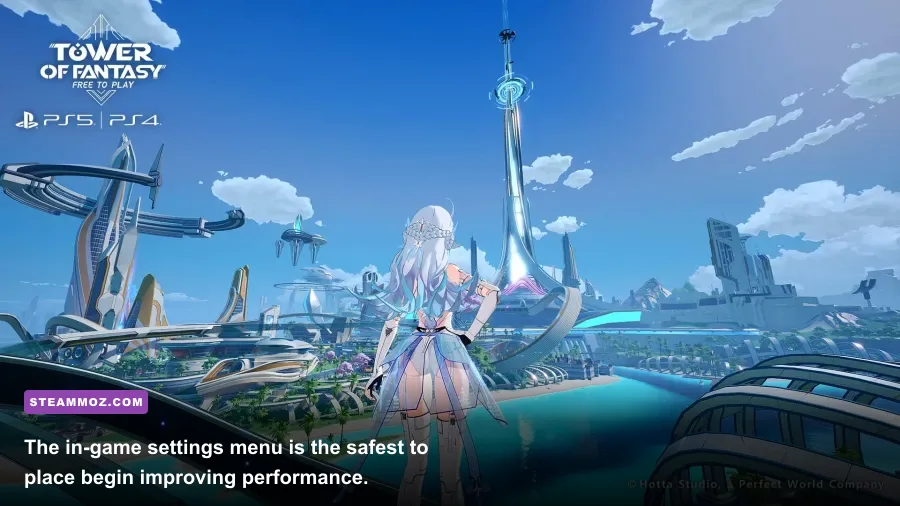
Start by separating four very different things that are often thrown into the same “mods” category. First are official settings inside the game client: resolution scale, anti-aliasing, shadow quality, vegetation detail, texture quality, motion blur, and frame-rate limits. These are completely legitimate and should be your first stop.
Second are operating-system and driver adjustments. A clean GPU driver installation, a sensible Windows power mode, an SSD install, and an appropriate frame cap can make the game feel dramatically better without touching Tower of Fantasy’s files. Third are display-layer filters such as ReShade. These may alter color, contrast, sharpening, or ambient presentation without changing combat or player data, but they still deserve caution because online games can change their enforcement policies.
Finally, there are prohibited or high-risk modifications. Damage multipliers, stamina edits, teleport tools, auto-looters, recoil-style automation, speed hacks, unlocked cosmetics, altered gacha data, and modified network traffic all belong in that category. So do “performance packs” that replace executable files or ask you to disable security software. The fact that a download has thousands of views does not make it safe.
| Modification Type | What It Changes | Risk Level | Recommendation |
|---|---|---|---|
| In-game graphics settings | Rendering quality and frame rate | None | Use freely |
| GPU driver profile | Power, latency, and frame pacing | None | Recommended |
| ReShade-style visual filter | Color, contrast, and sharpening | Low to medium | Use only after checking current policy |
| Texture or executable replacement | Game files and assets | High | Avoid in the live client |
| Automation or combat edits | Inputs, damage, movement, or network data | Extreme | Never use |
Keep the official Steam listing for Tower of Fantasy bookmarked, and check the developer’s official Tower of Fantasy site for policy and client updates. Patch-day compatibility is not a minor detail: a harmless overlay or filter can behave differently after an anti-cheat update.

🎮 FORM
Looking to experience this game? Grab your digital key directly on our store for $14.99.
View on Steammoz Store →The Essential Performance Setup for a Smoother Client
The most transformative “mod” is usually a stable frame-time profile. Tower of Fantasy’s combat relies on short animation windows, dodge timing, aerial attacks, weapon swaps, and discharge skills. A system that jumps between 90 and 45 frames per second can feel worse than a locked 60, even if the average number looks impressive.
Begin with a sensible target. On a 60 Hz monitor, cap the game at 60 FPS and judge consistency rather than chasing a fluctuating 100. On a 120 or 144 Hz display, test 90 or 120 FPS only if your GPU can hold that level in crowded areas such as Mirroria, Vera city hubs, and busy world-boss encounters. If the frame rate falls below the cap regularly, step down to a stable target.
Resolution scale is usually the strongest performance lever. Keep textures high if your graphics memory allows it, then reduce shadows, vegetation, and effects before making the whole image blurry. Texture quality mostly affects VRAM capacity, while shadows and effects often affect the GPU during combat. Motion blur should be disabled for clearer camera movement, especially when fighting fast enemies or scanning the screen for telegraphs.
| Setting | Recommended Value | Typical FPS Impact | Visual Trade-Off |
|---|---|---|---|
| Resolution scale | 90–100% | High if reduced | Lower values soften the entire image |
| Texture quality | High, if VRAM permits | Low to medium | Primarily affects surface detail and memory use |
| Shadow quality | Medium | Medium to high | Softens character and environment shadows |
| Effects quality | Medium or High | Medium | Lower values reduce combat spectacle |
| Vegetation detail | Medium | Medium outdoors | Less foliage density in Aesperia and Vera |
| Motion blur | Off | Negligible | Cleaner movement and camera tracking |
| Frame-rate limit | 60, 90, or 120 locked | Stability benefit | Avoids uneven frame pacing |
For laptops, plug in the charger, select the dedicated GPU, and avoid testing performance immediately after a cold boot if Windows is still compiling updates or indexing files. Install the game on an SSD with breathing room rather than a nearly full mechanical drive. Close browser tabs with video playback, hardware monitoring tools that poll too aggressively, and RGB utilities that hook into every running process.
For Nvidia users, a good starting point is “Prefer maximum performance” only for the Tower of Fantasy profile rather than globally. Keep shader cache enabled, avoid forcing driver-level sharpening on top of an in-game sharpening option, and test one variable at a time. AMD users should take the same approach with Radeon Anti-Lag and image sharpening: useful tools, but not magic fixes. If your machine suffers from crashes rather than low FPS, our PC crash and FPS troubleshooting guide covers the same clean-driver principles.
Safe Visual Enhancements Without Breaking the Client
A restrained visual filter can make Tower of Fantasy’s art direction pop, particularly in the blue-green landscapes of Aesperia, the neon architecture of Mirroria, and the orange deserts of Vera. The trick is restraint. Heavy sharpening creates white halos around buildings, excessive saturation destroys the game’s carefully tuned skies, and aggressive ambient-occlusion filters can make character outlines look dirty.
If you use a display-layer filter such as ReShade, install it only from the project’s official ReShade website. Never download a random “preconfigured Tower of Fantasy unlocker” that arrives with a replacement launcher or asks for administrator access without a clear explanation. Keep a backup of your configuration, document what you installed, and remove it immediately if the game’s support channels or anti-cheat notices classify it as unsupported.
A conservative profile usually needs only three ideas: mild contrast, a small amount of sharpening, and optional color correction. Avoid depth-of-field, cinematic black bars, fake HDR, aggressive bloom, and filters that alter visibility in competitive situations. A screenshot preset that looks gorgeous in a quiet field can make Vera’s dark interiors harder to read and can hide enemy attack cues.
| Visual Adjustment | Useful Range | Best Use | Warning |
|---|---|---|---|
| Sharpening | Low | Recovering clarity at 90% resolution scale | Too much creates halos and shimmering |
| Contrast | Small increase | Making distant structures easier to read | Crushes shadow detail when overdone |
| Saturation | Neutral or slight increase | Brightening outdoor regions | Can distort the intended art palette |
| Bloom | Default or reduced | Preserving weapon and city lighting | High values obscure combat effects |
| Depth of field | Off during combat | Cinematic screenshots only | Blurs enemy telegraphs and menus |
There’s also a simpler alternative: calibrate your monitor. Set the display to its standard color mode, disable forced “game enhancer” filters, and adjust brightness until dark details are visible without turning black areas gray. This costs nothing and avoids the compatibility question entirely.
Weapon Builds Beat Gameplay Mods Every Time
If the real goal is faster clears, smoother exploration, or more satisfying combat, build optimization delivers more than any questionable mod. Tower of Fantasy’s weapon system revolves around three equipped weapons, weapon resonance, discharge skills, advancement stars, and matrices. Your rotation should have a job for every slot instead of treating three weapons as interchangeable damage sticks.
Samir’s Dual EM Stars remains a useful example of an on-field damage weapon. Its paired pistols reward sustained attacks and aerial pressure, while Electroshock and the weapon’s discharge can punish enemies during vulnerability windows. Pair it with a shield-breaker such as King’s Scythe of the Crow when an enemy’s shield is close to breaking, then use a support or buff-oriented third weapon to improve the next damage cycle.
For a more forgiving setup, Huma’s Molten Shield V2 provides defensive utility and strong shield-breaking behavior, although its stance and attack patterns demand more deliberate positioning. Meryl’s Rosy Edge is another shield-focused option with wide attacks and useful control, but its slower feel can punish careless stamina management. Nemesis’s Venus offers ranged support and healing-oriented utility, while Cocoritter’s Absolute Zero can provide stronger sustain when your team is learning difficult content.
| Weapon | Role | Why It Works | Best Partner |
|---|---|---|---|
| Samir – Dual EM Stars | On-field damage | Reliable sustained attacks and aerial pressure | King or Huma |
| King – Scythe of the Crow | Shield breaking | Wide attacks and strong burst during shield windows | Samir or Nemesis |
| Huma – Molten Shield V2 | Defense and breaking | Stance changes give the kit flexibility | Samir or a support weapon |
| Meryl – Rosy Edge | Control and breaking | Large hit zones and durable close-range presence | Nemesis or Samir |
| Nemesis – Venus | Support and ranged damage | Comfortable distance play with sustain utility | King or Meryl |
A practical three-weapon rotation
Open with your support or buff weapon if it has a useful discharge effect, swap to the shield-breaker as the enemy shield approaches its vulnerable state, and spend the resulting opening on your main damage weapon. Don’t discharge simply because the icon lights up. Watch the boss’s attack animation, shield meter, and elemental resistance first.
For a simple Samir-centered rotation, build charge with Dual EM Stars, switch to King when the shield is nearly depleted, trigger the break, then return to Samir for sustained damage while the enemy is exposed. Against an enemy resistant to Volt, don’t stubbornly force an elemental composition just because the numbers look good on a target dummy. The right weapon for the encounter often beats a theoretically stronger but resisted setup.
Weapon resonance also changes the answer. Two weapons sharing a damage orientation can push a dedicated DPS setup, while a mixed composition can provide better survival and flexibility. Check current resonance descriptions in your client because balance values and weapon rankings shift with live-service updates.
Matrices, Advancement, and Progression That Actually Matter
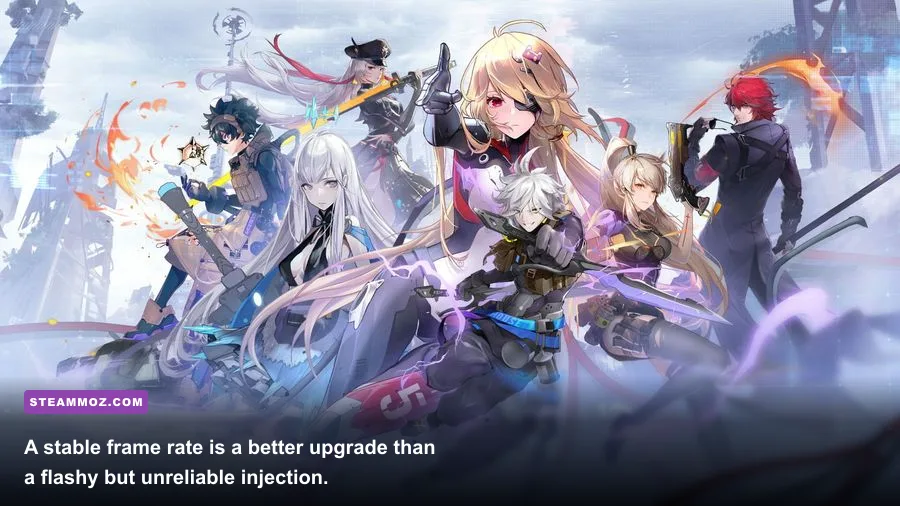
Matrices are where many players can find the “modded” feeling they’re chasing: a build that suddenly has a clear identity. A complete set can improve a weapon’s damage pattern, survivability, or uptime, but mismatched high-level matrices are not automatically better than a coherent lower-rarity set.
Prioritize matrices that match the weapon’s job. An on-field DPS weapon wants effects that reward staying active, normal attacks, aerial attacks, or damage during the window when your rotation is actually happening. A support weapon benefits more from cooldown, healing, team buffs, or discharge-oriented effects. Read the trigger conditions carefully. A bonus that activates only below a health threshold may look powerful but provide little value if you play safely and never meet that condition.
| Progression Area | Priority | What to Check | Common Mistake |
|---|---|---|---|
| Weapon level | High | Keep your primary rotation weapons current | Spreading materials across every weapon |
| Weapon advancement | Build-dependent | Read the exact star effect before investing | Chasing stars without a usable team |
| Matrices | High after core weapons | Set effect, slot level, and stat compatibility | Equipping random pieces for rarity alone |
| Suppressor and gear | Steady priority | Upgrade when materials and level allow | Ignoring exploration and weekly sources |
| Elemental resistance | Encounter-specific | Inspect the target before committing | Forcing one element everywhere |
Do daily activities, exploration objectives, events, and weekly content before spending scarce upgrade resources. Exploration in Aesperia, Banges, Navia, Crown, and later Vera zones can provide useful currencies and upgrade materials, while supply pods and world activities make progression feel less dependent on one lucky pull. Don’t burn every resource chasing a perfect matrix set if your weapon levels, gear pieces, or suppressor upgrades are lagging behind.
Gear rolls are another quiet performance multiplier. A better attack roll, elemental damage bonus, or useful resistance can improve real-world damage more reliably than a dramatic visual tweak. The best build is the one you can maintain through the entire encounter, not the one that wins a ten-second test while leaving you out of stamina, cooldowns, or healing.
What to Avoid, and How to Test Your Setup
Avoid any download promising unlimited Dark Crystals, free SSR weapons, instant level boosts, “undetected” damage, or a one-click FPS unlocker that modifies the client. These offers commonly lead to phishing pages, credential theft, bundled malware, or account penalties. Never enter your Tower of Fantasy login details into a third-party launcher or connect your account to an unverified site for a supposed cosmetic mod.
Before changing anything, record your baseline. Use the same region, the same graphics preset, and the same short route for two or three runs. A useful test route might include a populated hub, outdoor traversal, and a combat encounter with several effects on screen. Note average FPS, the lowest sustained frame rate, GPU utilization, CPU utilization, and whether frame delivery feels smooth. A high average with constant hitching is not a successful tweak.
Change one setting at a time. If you lower shadows, add sharpening, update drivers, and install an overlay simultaneously, you won’t know which change helped or caused the crash. Keep screenshots of your original settings. If the client begins crashing after an update, remove third-party filters first, verify the game files through Steam, and reinstall from the official launcher only if verification does not help.
| Test Stage | Action | Success Measure | Rollback Trigger |
|---|---|---|---|
| Baseline | Run the same scene at default settings | Record FPS and frame-time feel | Unexpected stutter before changes |
| Graphics pass | Adjust shadows, effects, and scale | Stable target FPS in hubs and combat | Blur, shimmering, or severe drops |
| Driver pass | Apply a per-game GPU profile | Better consistency without heat spikes | Crashes, flicker, or fan throttling |
| Visual pass | Test a conservative filter if permitted | Improved clarity without obscuring effects | Anti-cheat warning or client instability |
| Final check | Play co-op and a busy world event | Reliable performance under load | Any account or security concern |
If you regularly troubleshoot demanding PC releases, the same habits apply to crash and low-FPS fixes and our guide to performance-focused graphics settings. The principle is simple: stabilize the client first, then improve the picture.
The strongest Tower of Fantasy setup is therefore not a dramatic mod pack. It’s a stable frame-rate target, sensible graphics profile, cautious visual customization, and a weapon rotation built around real shield, discharge, and elemental interactions. Keep third-party code away from combat and account data, use official channels for updates, and invest your in-game resources into weapons, matrices, gear, and exploration. You’ll get a cleaner, faster, more reliable experience—and you won’t have to wonder whether the next patch will turn your favorite “mod” into a ban notice.