The best way to transform Call of Duty Vanguard on PC is not to install a random weapon pack or inject a flashy cheat-adjacent tool. Vanguard has no official mod support, no Steam Workshop, and an online anti-cheat system that makes unsupported file edits a terrible gamble. The genuinely essential upgrades are safe configuration tweaks, a clean performance profile, carefully isolated visual tools for offline play, and a disciplined backup routine that keeps Battle.net multiplayer untouched.
That distinction matters. A texture replacement that looks harmless in a campaign screenshot can still modify files shared by the live client. A DLL injector that promises better colors can trigger security software or an account sanction. Activision's official Vanguard support hub and the Call of Duty official site are the places to check before changing anything after a major update.
What counts as a safe Vanguard PC mod?
For this game, “mod” needs a narrower definition than it does in Skyrim or Fallout 4. Vanguard shipped without a public mod kit, developer scripting tools, or an approved community content pipeline. That means there is no reliable, official collection of new maps, operators, weapons, campaigns, or Zombies quests to recommend. Any website claiming an official Vanguard mod browser is selling you something that does not exist.
The safest category is a user-side configuration change. Vanguard's graphics menu and configuration files can alter resolution scaling, texture quality, field of view, shadow detail, streaming behavior, and controller response without adding executable code. These changes are still worth backing up, especially after a patch, but they are fundamentally different from an injected trainer or modified multiplayer asset.
The next category is a color or image-processing overlay. NVIDIA Freestyle, AMD's driver-level color controls, and ReShade can make the image brighter or less washed out, but online use deserves caution. ReShade's compatibility varies between games and updates, and a tool that was safe last season may not be safe after an anti-cheat change. Treat these as campaign-only experiments unless the current official support guidance clearly says otherwise.
| Tier | Upgrade | Use online? | Why it ranks here |
|---|---|---|---|
| S-Tier | In-game graphics, FOV, audio, and input settings | Yes | Supported by the client and easy to reverse |
| S-Tier | GPU driver update, shader-cache reset, clean installation | Yes | Improves stability without modifying game assets |
| A-Tier | Config backup and launch-profile management | Yes, if untouched during play | Preserves tuned settings after patches |
| B-Tier | ReShade or visual overlays | Campaign only | Useful visually, but compatibility is not guaranteed |
| F-Tier | DLL injectors, trainers, weapon unlockers, modified online files | No | Ban, malware, crash, and account-security risk |
That last row is not me being dramatic. Vanguard's online progression, matchmaking, weapons, and operators are server-connected systems. A so-called unlock tool cannot legitimately grant you a safe shortcut. Downloading one is more likely to deliver a credential stealer than a better STG44 blueprint.

🎮 FORM
Looking to experience this game? Grab your digital key directly on our store for $14.99.
View on Steammoz Store →Build the S-Tier performance profile first
Before installing anything, make the game feel consistent. A locked 90 frames per second is better than a wildly fluctuating 150 that collapses to 55 whenever smoke, destructible cover, and several operators fill the screen. Vanguard's World War II environments can be visually dense, while Zombies throws additional effects and enemies into the same frame. Smooth frame delivery is the real transformation.
Start with the render resolution that matches your monitor, then use the game's resolution scaling or FidelityFX CAS option to recover performance. On a 1080p display, a 90 to 100 percent render scale usually preserves the sharpness of weapon sights. At 1440p, dropping to 85 or 90 percent can be a sensible compromise, especially with a mid-range RTX 3060, RX 6600 XT, or similar card. Avoid immediately choosing the lowest resolution: blurry ironsights make target identification harder and can erase the benefit of a higher refresh rate.
Texture quality is primarily a VRAM decision. High textures can look excellent on a card with 8GB or more, but texture streaming may cause hitching if the game is competing for memory with browsers, recording software, or a high-resolution desktop. Set texture resolution to Normal or High, close background applications, and test a full match rather than trusting the opening menu.
| Setting | Recommended value | FPS impact | Visual and competitive note |
|---|---|---|---|
| Display mode | Fullscreen or exclusive fullscreen if available | Low | Usually produces the most predictable latency |
| Render resolution | 90–100% at 1080p; 85–100% at 1440p | Very high | Biggest performance lever, but lower values soften sights |
| Texture resolution | Normal on 6GB VRAM; High on 8GB+ | Low to medium | Watch for streaming hitching, not just average FPS |
| Shadow quality | Low or Medium | Medium to high | Frees GPU time with a modest visual sacrifice |
| Screen-space reflections | Low or Off | Medium | Reduces distracting shimmer on wet and polished surfaces |
| Particle quality | Low or Medium | Medium | Helps during explosions, fire, and Zombies objectives |
| Depth of field | Off | Low | Keeps distant targets and weapon handling clearer |
| Motion blur | Off for gameplay; optional in campaign | Low | Improves visual clarity during fast turns |
| FidelityFX CAS | On, moderate sharpening | Negligible | Restores edge definition after resolution scaling |
| V-Sync | Off for competitive play | Variable | Reduces latency, but use a frame cap if tearing is severe |
Cap your frame rate below the point where the GPU stays pinned at 99 percent. A 141 FPS cap on a 144Hz screen or a 237 FPS cap on 240Hz can leave a little rendering headroom and make frame times more stable. If your monitor supports variable refresh, enable FreeSync or G-SYNC and keep the cap inside the display's range.
For troubleshooting, check Steamoz's PC crash and FPS fixes and low-FPS troubleshooting guide. The games differ, but the useful habits are the same: verify files, update drivers, remove overlays one at a time, and test after every change.
The best visual mods belong in campaign mode
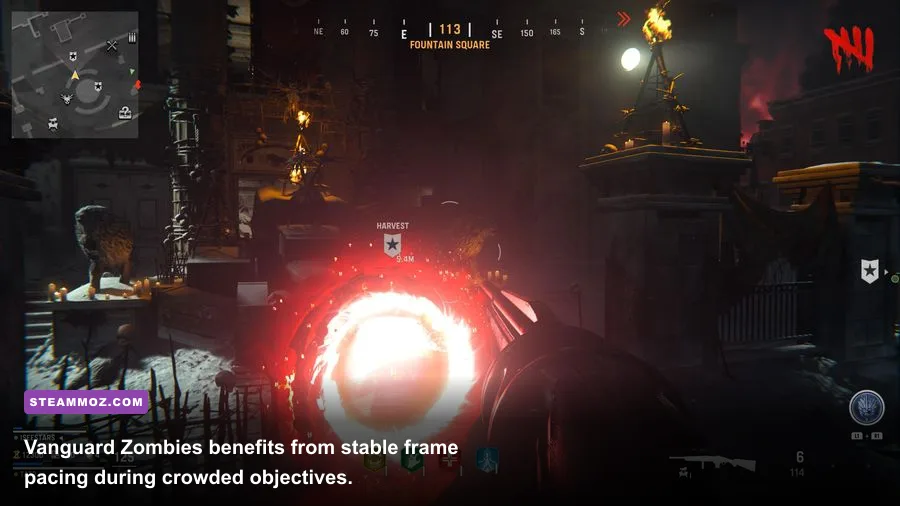
If you want an actual mod-like visual makeover, keep it offline and reversible. A restrained ReShade profile can add contrast and reduce the gray haze that affects some Vanguard scenes. Start with simple color correction, curves, and mild sharpening. Skip cinematic depth-of-field presets, heavy bloom, chromatic aberration, and aggressive HDR emulation; they may look impressive in a screenshot but make movement and enemy silhouettes harder to read.
Install any visual tool only from its official distribution channel, create a restore point or backup, and never place a downloaded executable from an anonymous “mod menu” site into the Vanguard folder. More importantly, do not assume campaign safety automatically transfers to Zombies or local multiplayer. Those modes may still initialize components shared with the online client, and an update can change the risk profile overnight.
A good offline visual profile uses three principles. First, keep sharpening below the point where film grain turns into crawling white noise. Second, raise contrast gently so dark interiors remain readable instead of becoming black blocks. Third, compare the profile against the unmodified game at the same brightness. If the effect is only attractive because it is brighter, adjust the monitor or in-game brightness instead of stacking filters.
Vanguard's campaign gives you a particularly good testing environment. Arthur Kingsley's missions, Polina Petrova's snowy sections, Lucas Riggs' desert combat, and Wade Jackson's aerial sequences stress different parts of the renderer. Snow can expose over-sharpening, smoke exposes particle settings, and large outdoor scenes reveal streaming stutter. Test all four character-focused storylines before deciding a preset is genuinely better.
Keep a clean profile named something like “Vanguard-vanilla” and store visual experiments in a separate folder outside the installation directory. If Battle.net begins repairing files, remove the experiment, restore the backup, and let the launcher complete its scan. The official Activision support site should be your next stop if the client reports corrupted data or account warnings.
Input, audio, and HUD tweaks beat flashy downloads
The most powerful “mod” for Vanguard gunfights is a clean input setup. Set mouse acceleration off in Windows, use a polling rate your system handles consistently, and avoid running multiple controller remappers at the same time. If you play mouse and keyboard, choose a sensitivity that lets you turn quickly without making micro-corrections impossible. There is no magic number, but a repeatable eDPI is more valuable than copying a professional player's settings.
Field of view changes are equally important. A higher FOV shows more peripheral action and makes close-range movement feel less claustrophobic, but it also makes distant targets appear smaller. At 16:9, start around 100 to 105, then test 110 if you spend most of your time rushing with an MP-40 or combat shotgun. Players who favor the STG44, Automaton, or other mid-range rifles may prefer a lower value because sight pictures occupy more of the screen.
Use affected FOV if the option is available and you want a consistent weapon relationship while sprinting. Experiment with weapon FOV only after your core view is comfortable. A wider weapon view can make the gun feel less obstructive, but it does not change the underlying bullet behavior or turn an inaccurate build into a laser.
Audio deserves the same attention. Dynamic range settings that compress explosions can make footsteps easier to hear, though headphones and room acoustics matter more than a supposed “enemy footstep mod.” Lower music during multiplayer, keep dialogue high enough for callouts, and avoid third-party equalizers that inject into the game process. In Zombies, distinctive audio cues around objectives and enemy attacks are useful, so do not crush the entire mix chasing one frequency.
| Area | Recommended starting point | Why it helps | Trade-off |
|---|---|---|---|
| FOV | 100–105, then test 110 | Balances peripheral vision and target size | Higher values make distant enemies smaller |
| Weapon FOV | Default or Wide after testing | Can reduce visual obstruction | Changes presentation, not weapon accuracy |
| Motion blur | Off | Cleaner tracking during turns | Campaign camera movement looks less cinematic |
| Film grain | Minimum or Off | Less noise over distant textures | Removes some of Vanguard's intended filmic look |
| Music | Low in multiplayer | Leaves more room for gameplay audio | Reduces dramatic atmosphere |
| Controller dead zone | Lowest value without drift | Faster response around the stick center | Too low causes unwanted camera movement |
HUD changes are easy to overlook. Reduce clutter, choose a readable minimap scale, and place important information where your eyes naturally rest. Do not hide hit markers or damage feedback while learning a new weapon. Vanguard's assault rifles can feel similar until you pay attention to recoil, hit confirmation, and effective range; the HUD helps you understand whether a miss came from aim, spacing, or weapon choice.
What to avoid, and how to keep Vanguard stable
Never download “Vanguard mod menus,” free CP generators, weapon unlockers, recoil scripts, wallhacks, or files promising private Zombies maps. They are not essential mods; they are security and account risks. Even a tool marketed as a single-player trainer can contain a loader that touches the live executable. Do not disable anti-virus protection to make a mod launch, and do not sign into Battle.net through a third-party launcher.
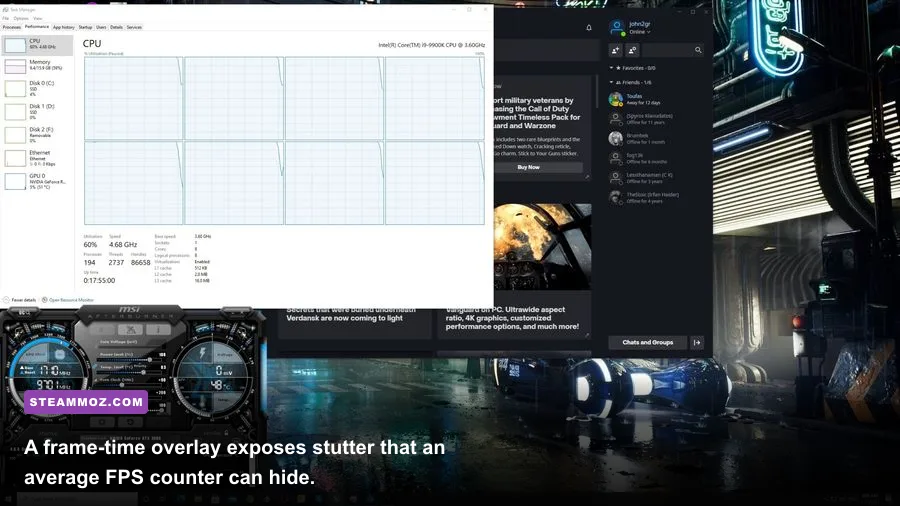
Before experimenting, back up your configuration, record your graphics settings, and note your driver version. Change one variable at a time. If the game crashes, remove overlays first, then verify the installation through Battle.net, clear shader caches if your driver vendor recommends it, and reboot before declaring the game broken. If you use OBS, Discord, MSI Afterburner, or a GPU overlay, test each independently because several hooks running together can create conflicts.
Keep at least 15 percent free space on the drive containing Vanguard and the shader cache. A nearly full SSD can turn routine streaming into stutter, especially when high-resolution assets are being downloaded or rebuilt. Install the game on an SSD rather than a hard drive where possible. You do not need a top-tier CPU to play well, but background recording, browser tabs, RGB utilities, and hardware monitoring can steal enough CPU time to disturb frame pacing.
For a broader example of this maintenance mindset, Steamoz's Far Cry 6 max-FPS settings guide covers the same kind of trade-offs between fidelity and consistency. The useful lesson is simple: optimize the bottleneck you can measure, not the setting that sounds most impressive.
Finally, maintain two mental profiles. Your online profile is vanilla: official files, standard overlays only, conservative driver settings, and no injectors. Your offline profile can contain carefully tested color adjustments, provided the tools are removed before returning to the live client. This separation is more important than any visual improvement a preset promises.
The final ranking for a transformed PC experience
After testing Vanguard across multiplayer, Zombies, and campaign, the ranking is clear. In-game settings are the S-Tier answer because they improve clarity, latency, and stability without putting your account at risk. A backed-up configuration is also S-Tier practical maintenance. Offline color filters are A-Tier: they can make the campaign moodier and cleaner, but they are optional and must stay isolated. Full asset replacements are B-Tier at best because there is no official support, updates can break them, and their benefit is usually cosmetic.
| Rank | Essential upgrade | Best mode | Veteran verdict |
|---|---|---|---|
| S-Tier | 90–100% render scale with moderate CAS | All modes | Best clarity-to-performance improvement |
| S-Tier | Low shadows, reflections, particles, and off motion blur | Multiplayer and Zombies | Protects frame time during visual chaos |
| S-Tier | FOV, dead-zone, audio, and HUD tuning | Multiplayer | Improves information and response without file edits |
| A-Tier | Driver-level color adjustment | Campaign | Low-risk when it does not inject into the game |
| A-Tier | ReShade with a minimal offline preset | Campaign only | Fun experiment, never worth risking live play |
| B-Tier | Texture and asset replacements | Offline only | Unsupported, fragile, and difficult to justify |
| F-Tier | Unlockers, trainers, injectors, and scripts | None | Delete them; the risk overwhelms any benefit |
Vanguard does not need a dangerous mod stack to feel better on PC. It needs a stable frame-time target, a clear image, responsive controls, and enough discipline to keep experimentation away from the live client. Tune the renderer first, test FOV and audio with a real match, use visual filters only in campaign, and treat every executable download as guilty until proven safe.
That approach will not give you a custom Zombies map or a new operator, because Vanguard was never built around official modding. It does give you something more useful: sharper target visibility, fewer hitches, lower input delay, and a PC installation you can trust after the next patch. For this particular Call of Duty, those are the essential mods that actually transform the experience.