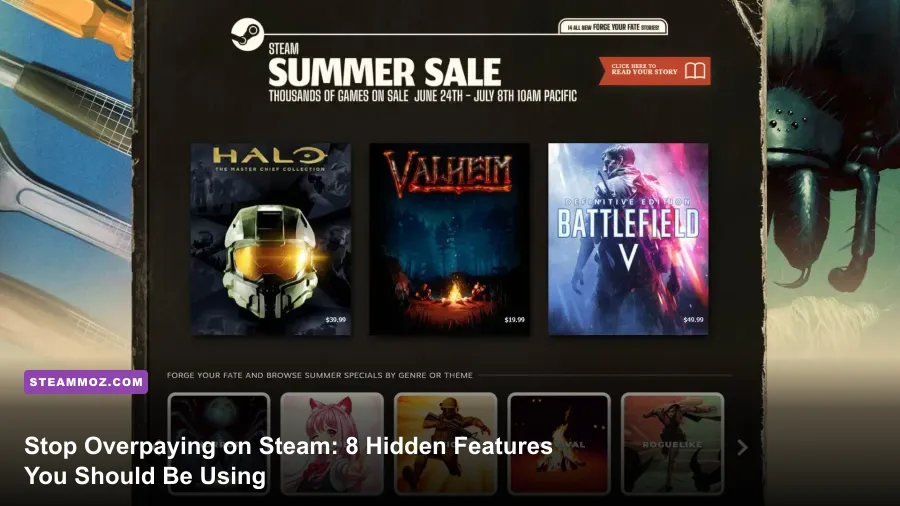
Steam dumps more than 14,000 games onto its servers every year, and if you simply scroll through the featured carousel and click buy, you are paying too much and playing the wrong games. Getting the most out of the Steam Store means ditching the default front-page algorithm, exploiting dynamic bundle pricing math, cross-referencing price histories to avoid fake sales, and tuning hidden store filters so the storefront shows what you actually want to play. Valve gives you an absurd amount of control over your purchasing pipeline, but most of those tools are buried behind menus you probably never knew existed.
Taming the Algorithm with Steam Labs and Tag Exclusion

The standard Steam front page is designed to sell whatever is generating the highest gross revenue right now, which means massive live-service titles and trending viral releases crowd out everything else. If you want games matched to your exact taste rather than Valve’s marketing metrics, you need to dig into Steam Labs. Experiment 008 (Next in Queue) and Experiment 010 (Browse by Tag) are goldmines, but the undisputed powerhouse is the Interactive Recommender. This tool uses machine learning trained on your actual playtime data—ignoring games you bought and bounced off after 30 minutes—and gives you two crucial physical sliders: Popularity and Time Window.
Dragging the Popularity slider all the way to the left shifts the algorithm away from mainstream hits and surfaces niche masterworks that share mechanical DNA with your most-played titles. If you’ve logged 200 hours in tactical roguelikes, pushing the slider toward "Niche" reveals buried indie gems with 95% positive reviews that Valve's front page would never dare show you. Combine this with Steam’s Global Tag Exclusion settings. Head to your Account Preferences and blacklist broad tags you detest—like "Visual Novel," "Anime," or "Early Access"—and Steam scrubs them from every discovery queue and search list across the store. It immediately turns a cluttered digital junk drawer into a bespoke boutique tailored entirely to your gaming habits.
Tracking Historical Lows and Beating Sale Traps
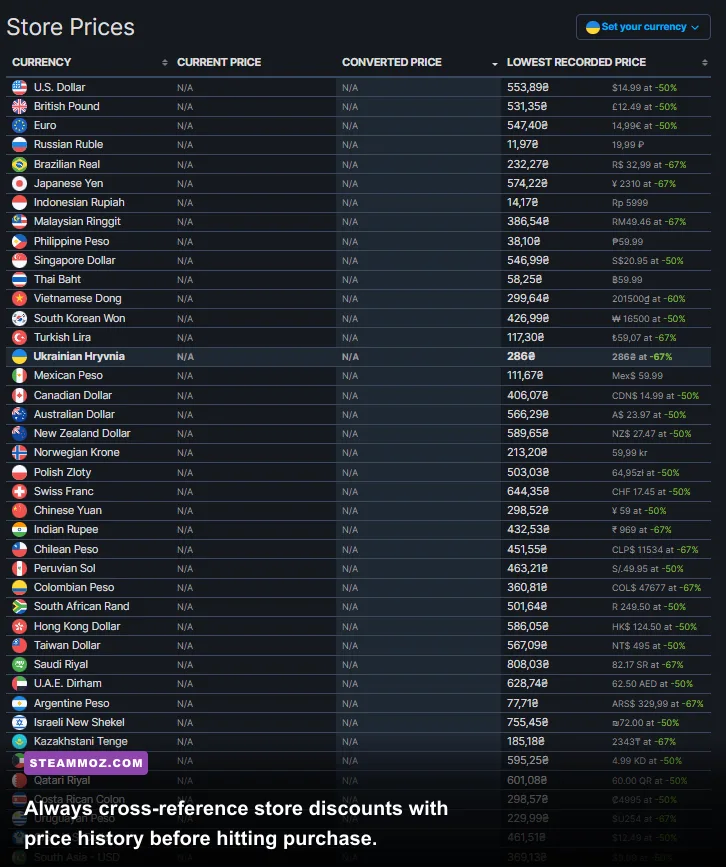
Publishers play mind games during Steam’s four seasonal sales (Spring, Summer, Autumn, and Winter). A glowing green "-50%" tag looks appealing until you realize the publisher bumped the base price three months prior, or that the game sat at 75% off during the previous autumn blowout. You should never purchase a title over ten dollars without auditing its pricing record via SteamDB or running the Augmented Steam browser extension. These external tools embed historical price floors directly into the store interface, showing you the all-time lowest price, how often the game goes on sale, and regional pricing disparities.
Another overlooked weapon is the customized Wishlist filter. Most players dump titles into their wishlist and wait for automated email blasts, but sorting your wishlist by "Discount" or "Price to Historical Low" during a major festival lets you execute surgical purchases. You can also filter by review score (e.g., Only Overwhelmingly Positive) and price ceiling (Under $5 or Under $10), instantly filtering out mediocre filler so your budget goes strictly toward undisputed classics.
| Store Feature / External Tool | Primary Function | Best Use Case | Value Impact |
|---|---|---|---|
| Steam Labs Recommender | Neural network game suggestions | Finding deep-cut indie titles based on actual playtime | High discovery efficiency |
| Augmented Steam (Extension) | Direct store UI enhancement | Viewing all-time low prices and DRM warnings on-page | Prevents overpaying on "fake" sales |
| SteamDB Price Tracker | Full historical sale price database | Verifying if a discount matches historic seasonal lows | Guarantees true bottom-dollar purchases |
| Wishlist Custom Filters | Automated price and rating sorting | Targeting games with >75% discounts and positive ratings | Eliminates impulse purchases |
| Global Tag Exclusions | Universal genre/mechanic filter | Permanently hiding hated genres from discovery queues | Saves hours of storefront browsing |
Exploiting Dynamic Bundles and Complete Your Collection Math
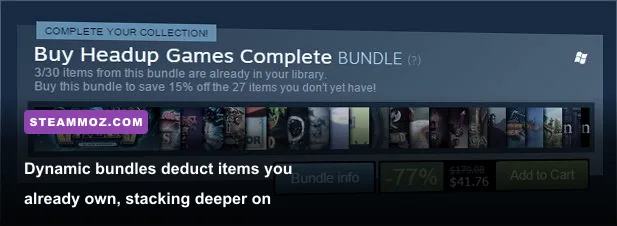
One of Steam’s most consumer-friendly backend systems is the "Complete Your Collection" dynamic bundle mechanism, yet thousands of buyers bypass it by purchasing individual DLC items. When a developer packages their software as a dynamic bundle (identified by the label "BUNDLE" rather than "PACKAGE" or "SUB"), Steam automatically deducts the cost of any items you already own from the total package, while retaining the overall package discount percentage across the remaining items. This stacks compounding savings on expansions, soundtracks, and spinoffs.
Smart buyers use this to game seasonal sales. If a publisher runs a franchise sale, check whether the entire franchise is wrapped in a dynamic bundle. Often, buying a base game for $3 first will unlock an additional 20% off an entire $40 collection bundle, saving you net cash overall. It's the exact same tactical investment logic you’d apply when weighing whether an expansion pack is actually worth your credits—like evaluating the Everspace deluxe upgrade weapons guide—or when deciding if an upgraded pass delivers enough raw gameplay to justify the leap, similar to our breakdown in the Far Cry 6 GOTY upgrade pass settings and value. Always check the bundle sub-total before hitting buy on standalone DLC.
Funding Your Cart with Steam Market Inventory and Trading Cards
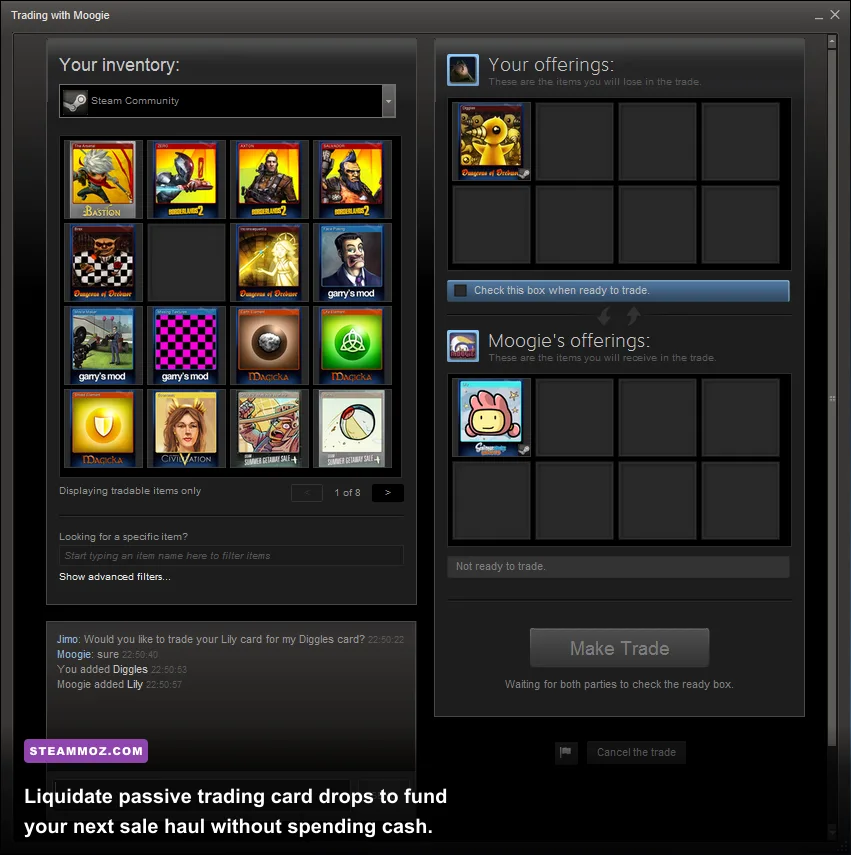
Your Steam inventory is probably sitting on several dollars worth of digital currency right now. Whenever you play games on Steam, the client passively drops Steam Trading Cards into your inventory until you hit that title's drop limit (typically half of the full badge set). Most gamers completely ignore these notification badges, letting them sit idle for years. Those cards have real monetary value on the Steam Community Market.
During the two weeks leading up to a massive sale, hop into your inventory, filter by Steam items, and check the market value of your cards, foil drops, and cosmetic crates from games like Counter-Strike 2 or Team Fortress 2. Using community market batch-selling tools or quick-listing cards at one cent below the current market median will turn idle digital cardboard into liquid Steam Wallet funds within hours. It feels just like running a calculated economy build in an RPG—comparable to the cash-generating strategies we broke down in our Kakarot Master Edition zeni farming guide. A library with 150 played games can easily yield $15 to $30 in wallet cash, completely covering an indie game or two during the sale without touching your debit card.
Hardware Reality Checks: Deck Badges and the Two-Hour Safety Net
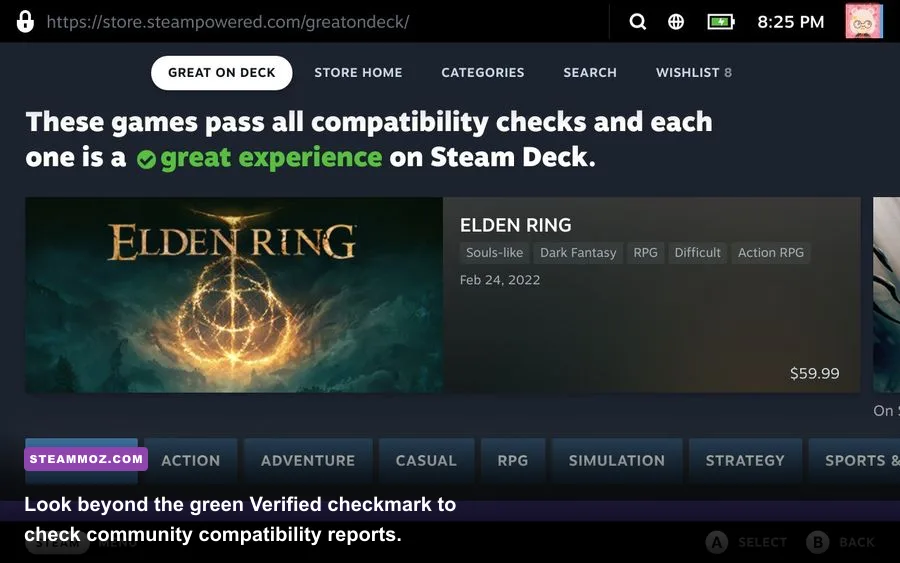
The green "Steam Deck Verified" checkmark is one of the most misleading marketing tags on the store. Valve’s internal testing criteria for verified status merely requires that a game hits default graphical configurations, shows controller glyphs, and runs at an acceptable baseline. It does not guarantee a locked 60 FPS, nor does it ensure the text is legible on an eight-inch screen without squinting. Never buy a game solely because of the green checkmark. Instead, look to community-run databases like ProtonDB, where real Deck owners report exact frame drops, launch commands, and power draw metrics.
This hardware reality check extends to desktop gaming as well. Before you drop cash on demanding releases, make sure your rig can actually shoulder the load, just as you would verify specifications in our Far Cry 2 PC specs breakdown or when troubleshooting performance hitches like those covered in our Elex PC fixes for crashes and frame drops. If a game turns out to be an unoptimized mess on your hardware, fall back on Valve’s official Steam Support refund policy. The rule is bulletproof: you can get an automatic, unconditional refund on any game played for fewer than 2 hours and owned for fewer than 14 days. Treat that two-hour window like an interactive benchmark. Boot the game, skip the lengthy cutscenes, jump straight into gameplay, and test heavy combat scenarios. If your frame rate stutters unacceptably or crashes occur, pull the plug and get your money back before the 120-minute timer expires.
| Store Setting / System | Default Valve Setting | Optimized Power-User Setting | Why It Matters |
|---|---|---|---|
| Steam Families Sharing | Disabled / Standalone | Enabled (Beta/Family Group) | Allows simultaneous play of different games from a shared pool |
| Steam Client Startup Page | Store Featured Page | Library / Downloads | Saves system RAM and stops impulse store browsing |
| Deck Compatibility Check | Storefront Badges Only | ProtonDB Badge Integration | Exposes true frame rates, battery drain, and crash bugs |
| Refund Tracking Clock | Passive timer | Active 90-Minute Hardware Alarm | Guarantees testing never accidentally crosses the 120-minute cutoff |
| Store Video Autoplay | Enabled (with audio) | Disabled | Speeds up store browsing and eliminates blaring trailer noise |
Getting the most out of the Steam Store isn't about waiting for an automated holiday email and hoping for the best. It's about approaching Valve's platform with a buyer's strategy: filtering out algorithmic bloat with Steam Labs, verifying prices through external tracking, milking dynamic bundles for compounding percentage discounts, and funding your cart through passive inventory sales. Set up your filters once, clean out your digital inventory, and let the storefront work for your wallet instead of the other way around.