For most Star Wars PC games, the fastest route to smooth performance is simple: use your monitor's native resolution, enable DLSS or FSR on Quality, cut ray tracing first, keep textures high if your GPU has enough VRAM, and cap FPS just below your display's refresh rate. That combination works particularly well in Star Wars Jedi: Survivor, Battlefront II, Squadrons, and Outlaws because it protects image clarity while attacking the settings that cause the biggest frame-time spikes.
The trick is not blindly selecting Low. Star Wars games often hide their worst performance costs in foliage, shadows, volumetrics, reflections, and traversal-heavy areas. A clean 60 fps lock feels dramatically better than a counter bouncing between 48 and 82 fps, especially during lightsaber parries or large-scale Galactic Assault matches. Here are tested, practical profiles for both older and newer Star Wars PC releases.
Start With the Right FPS Target
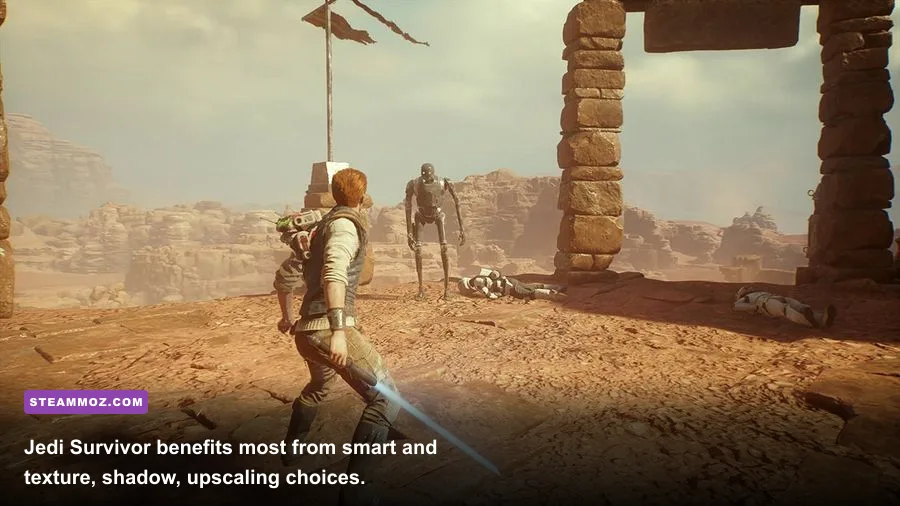
Before changing a slider, decide what “smooth” means for your monitor and hardware. A 60 Hz display should generally target 60 fps, while a 120 Hz screen feels best around 90–117 fps if your GPU can hold it. Don’t chase 144 fps in Jedi: Survivor just because your monitor supports it; its open-world traversal and shader compilation can produce uneven frame times even on powerful systems.
Use an FPS cap inside the game when available. If the cap is unreliable, Radeon Software, NVIDIA App, or RTSS can enforce one. With G-SYNC or FreeSync, cap three frames below refresh rate: 57 fps for 60 Hz, 117 for 120 Hz, and 141 for 144 Hz. That leaves a little VRR headroom and reduces the latency spikes caused by hitting the panel's ceiling.
| Display | Recommended Cap | Best Use Case | Why It Works |
|---|---|---|---|
| 60 Hz | 60 fps or 58 fps with VRR | Older GPUs and cinematic games | Prioritizes consistency over unused frames |
| 120 Hz | 90–117 fps | Battlefront II and Squadrons | Balances responsiveness and GPU load |
| 144 Hz | 120–141 fps | Competitive Battlefront II | Reduces input latency without unstable peaks |
| 165 Hz | 120–162 fps | High-end GPUs at 1080p | Leaves room for sudden firefights |
Check the bottleneck before lowering settings
If GPU usage sits between 95 and 99 percent, lower resolution-heavy options: ray tracing, volumetric effects, reflections, and the internal resolution scale. If GPU usage is only 60–75 percent while the frame rate refuses to rise, you are probably CPU-limited. That is common in 40-player Battlefront II matches, dense areas of Koboh, and open-world traversal in Outlaws.
Close browser tabs, RGB utilities, recording software, and overlays before testing. Steam's overlay is usually harmless, but multiple monitoring layers can add stutter. If another PC title is also crashing or hitching, Steamoz's Elex crash and FPS fixes cover several useful Windows and driver checks.

🎮 FORM
Looking to experience this game? Grab your digital key directly on our store for $14.99.
View on Steammoz Store →The Best Universal Graphics Profile
This is the profile I would start with on a modern 8 GB VRAM GPU such as an RTX 3060 Ti, RTX 4060, RX 6700 XT, or better. It aims for 1080p or 1440p Quality upscaling while preserving the sharp armor, glowing blades, and distant planet detail that make Star Wars games look special.
| Setting | Recommended Value | FPS Impact | Visual Note |
|---|---|---|---|
| Resolution | Native 1080p or 1440p | Very high | Keep native output; use upscaling instead of a blurry lower resolution |
| Upscaler | DLSS Quality or FSR 2 Quality | Large gain | Quality mode retains lightsaber and foliage detail |
| Ray Tracing | Off | Very high | Biggest win in Jedi: Survivor and Outlaws |
| Textures | High | Low to medium | Needs VRAM; lowering it makes surfaces visibly muddy |
| Shadows | Medium or High | Medium | Medium is a strong compromise in open areas |
| Volumetrics | Medium | Medium to high | Reduces fog and dust spikes with modest visual loss |
| Reflections | Medium | Medium | Lower first in rain, water, and neon-heavy scenes |
| Foliage and View Distance | High | Medium | Keep high unless traversal causes CPU dips |
| Motion Blur | Off | None | Improves clarity during camera turns |
| Film Grain and Chromatic Aberration | Off | None | Cleaner image, especially with upscaling |
Textures are the setting people lower too quickly. They rarely deliver a major FPS improvement unless your VRAM is full, but they can make Cal Kestis's poncho, stormtrooper armor, and rock surfaces look soft. On a 6 GB card, use Medium textures at 1440p; on an 8 GB card, High is normally safe; 12 GB or more lets you use Ultra texture options where the game provides them.
Ray tracing is different. In Jedi: Survivor, reflections and global illumination can hammer performance in water-rich or densely lit areas. In Outlaws, ray-traced effects add atmosphere but are difficult to justify when you are fighting traversal stutter. Turn RT back on only after you have established a stable non-RT baseline.
Game-Specific Settings That Actually Matter
Jedi: Survivor
On PC, Jedi: Survivor is unusually sensitive to traversal and shader behavior. Start with the latest game patch and GPU driver, then use DLSS Quality on NVIDIA hardware or FSR 2 Quality on AMD hardware. Set View Distance and Foliage to High, Shadows to Medium, and Volumetric Effects to Medium. Disable Ray Tracing first, not textures.
Koboh is the real test. Walk from Pyloon's Saloon toward the open settlement, then ride through a populated area while rotating the camera. If frame time spikes there but indoor combat is smooth, lowering shadows and foliage may help, but do not expect a setting change to erase every traversal hitch. A stable 60 fps cap is often more enjoyable than an uncapped 70–90 fps that drops hard during streaming.
Battlefront II
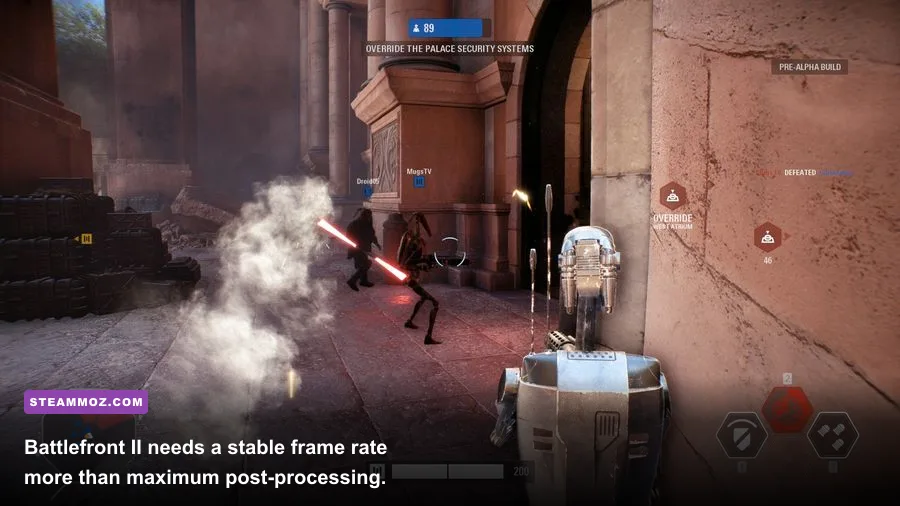
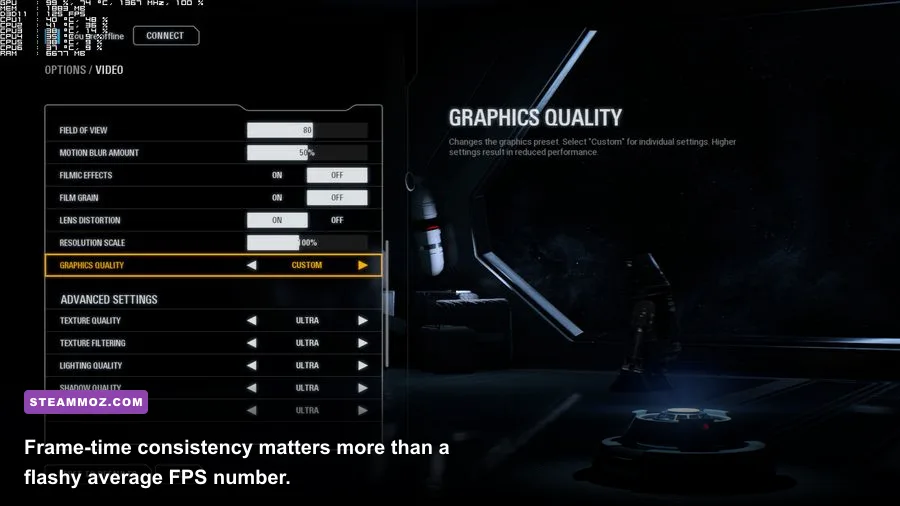
Battlefront II is much easier to run. At 1080p, most mid-range GPUs can use High or Ultra settings, but large Galactic Assault battles expose CPU limits. Keep Texture Quality and Texture Filtering high, lower Shadows to High or Medium, and disable Motion Blur. Effects Quality controls explosions, smoke, and ability clutter; Medium can improve visibility in crowded fights without making the maps look flat.
For competitive play, use DirectX 11 if DX12 produces hitching on your system, and cap the frame rate to a number your CPU can sustain. The game feels better at a locked 120 than at 160 with dips into double digits. If you mainly play Heroes vs Villains, prioritize a clean frame time over extra foliage and post-processing.
Squadrons
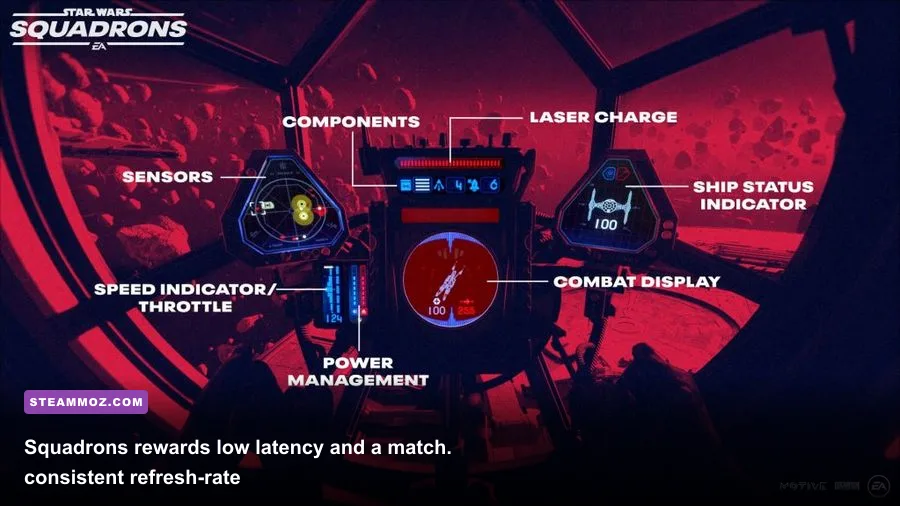
Star Wars: Squadrons is less demanding, but VR changes the target completely. Start with High settings, disable Motion Blur, and use a fixed refresh-rate target that your headset can maintain. A consistent 90 Hz mode is preferable to unstable 120 Hz reprojection. Lower Volumetrics, Shadows, and Screen-Space Reflections before reducing cockpit textures; instrument readability matters during dogfights.
Outlaws
Star Wars Outlaws benefits from a more conservative profile. Use DLSS Quality or FSR Quality, keep Textures at High if VRAM allows, set Shadows and Volumetrics to Medium, and disable RT until you have tested performance in Toshara's open desert. Hair and foliage can be expensive, especially while riding through changing scenery. If the game offers a frame-generation option, enable it only after base FPS is comfortably above 60; generated frames cannot repair poor input latency or a 40 fps foundation.
For broader troubleshooting, Steamoz's Far Cry 6 max-FPS settings guide has useful parallels for open-world streaming, while the low-FPS and crashing checklist is helpful for isolating background software problems.
Upscaling, Frame Generation, and Image Quality
DLSS Quality and FSR 2 Quality are not magic “free FPS” buttons; they render internally below native resolution and reconstruct the final image. At 1440p, Quality usually looks convincing. At 1080p, Balanced can introduce shimmer around foliage, thin cables, and holographic effects, so use it only when Quality cannot hit your target.
| Technology | Use It When | Avoid It When | Recommended Mode |
|---|---|---|---|
| DLSS | You own an RTX GPU | Fine detail already shimmers | Quality first, Balanced if necessary |
| FSR 2 | You use AMD or non-RTX hardware | Thin foliage looks unstable | Quality at 1440p, native at 1080p if possible |
| XeSS | Available on Intel or mixed hardware | Its sharper mode creates halos | Quality or the game's default Quality preset |
| Frame Generation | Base FPS is 60 or higher | Base FPS is below 50 | On only after latency feels responsive |
Frame generation deserves special caution in lightsaber games. It can raise the displayed FPS dramatically, but the controls still respond according to the underlying rendered frames. If Cal's parry timing feels delayed, turn it off and lower RT or volumetrics instead. In a cinematic single-player adventure, frame generation can be worthwhile; in Battlefront II, native responsiveness is usually the better trade.
Sharpening should be subtle. Excessive sharpening creates bright outlines around stormtroopers and noisy foliage. Start around 10–20 percent if the game exposes a slider. Also turn off film grain and chromatic aberration. Those effects may suit a movie camera, but they obscure enemy silhouettes and make upscaled images look rougher.
Windows, Drivers, and Shader Stutter
Install the current Game Ready or Adrenalin driver, but do not assume the newest driver automatically fixes every game. If stutter begins immediately after an update, use a clean installation or roll back to the last stable package. Keep the game on an SSD; streaming-heavy titles such as Jedi: Survivor and Outlaws can hitch when installed on a crowded hard drive.
Windows Game Mode can stay enabled. Test Hardware-Accelerated GPU Scheduling rather than treating it as universally good or bad. Disable overlays one at a time: Discord, Xbox Game Bar, NVIDIA overlay, AMD overlay, and third-party FPS counters. This makes it easier to identify the culprit instead of changing five variables together.
Shader compilation is another major source of first-run stutter. Let a game sit at its main menu after a driver change, and play the same route for several minutes before judging performance. Some engines build caches as you move through new locations. Clearing shader caches repeatedly can make the next session worse because the game has to rebuild them.
Use the official Jedi: Survivor Steam page for current requirements and patch notes, and check EA's official Jedi: Survivor site for supported features. For Battlefront II, the official EA game page remains the safest source for platform and update information.
Build a Stable Profile, Then Tune One Setting
Do not change every slider at once. Apply the universal profile, restart the game if it requests it, and test a repeatable scene. For Battlefront II, use the same map and mode. For Jedi: Survivor, test Koboh outdoors and a combat encounter indoors. For Squadrons, test a busy fleet battle rather than an empty hangar.
Record average FPS and the one-percent-low result if your overlay supports it. A move from 72 average with 42 one-percent lows to 60 average with 56 one-percent lows is a genuine upgrade. The second profile has less hitching, steadier aim, and more reliable parry timing even though the headline FPS number is lower.
| Hardware Class | Resolution | Upscaling | RT | Target |
|---|---|---|---|---|
| GTX 1660 / RX 5600 XT | 1080p | FSR Quality or native | Off | 60 fps |
| RTX 3060 / RX 6600 XT | 1080p | Quality | Off | 60–90 fps |
| RTX 4060 Ti / RX 6700 XT | 1440p | DLSS or FSR Quality | Off | 60–100 fps |
| RTX 4070 / RX 7800 XT | 1440p | Quality | Off or selective | 90–120 fps |
| RTX 4080 / RX 7900 XTX | 1440p or 4K | Quality or Balanced at 4K | Test per game | 60–144 fps |
If a setting causes trouble, revert it and change only the next largest cost: RT, volumetrics, reflections, shadows, then foliage. Keep textures high until VRAM usage proves they are the problem. That order preserves the cinematic Star Wars look while removing the expensive effects that actually damage smoothness.
Finally, keep expectations realistic. A well-tuned profile can eliminate unnecessary GPU load, reduce input latency, and make frame pacing far more consistent, but it cannot completely cure every engine-level traversal hitch. The best Star Wars PC setup is the one that holds its chosen target through the worst scene—not the one that posts the biggest number while staring at an empty corridor.