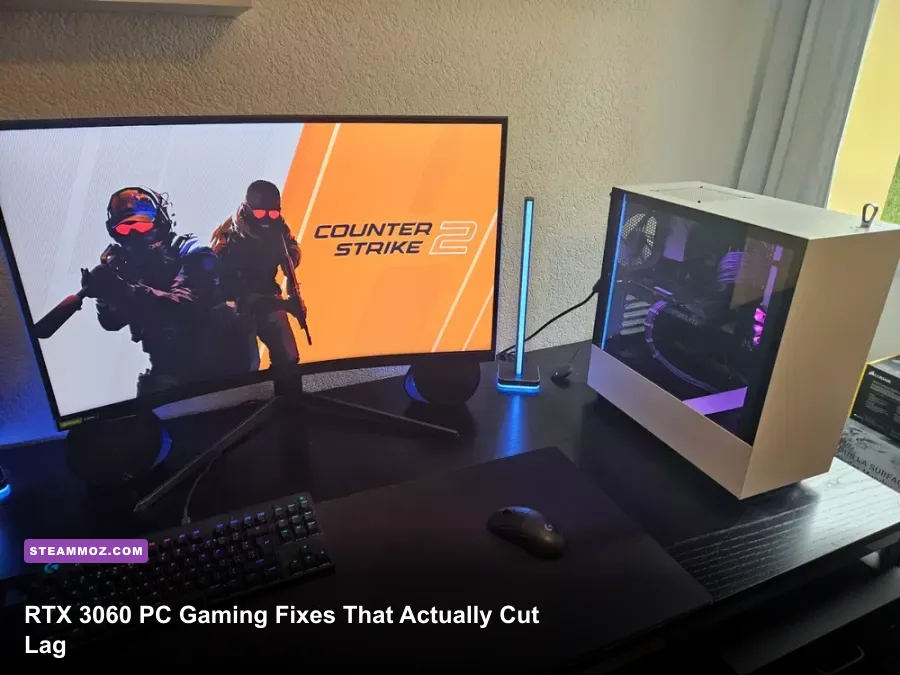
If your PC gamer RTX 3060 setup feels sluggish, stutters, or delivers less FPS than expected, start with a clean NVIDIA driver installation, enable the monitor's highest refresh rate, use DLSS Quality where available, and cap FPS just below your display's refresh rate. Those four changes fix a surprising number of crashes, frame-time spikes, and latency problems before you touch an overclock.
The GeForce RTX 3060 remains a very capable 1080p card and a sensible 1440p option. Its 12GB of GDDR6 VRAM prevents the texture-streaming problems that hit smaller cards, while its 3,584 CUDA cores, 170W board power, and hardware support for DLSS, ray tracing, and Reflex give it plenty of flexibility. The catch is that poor settings, unstable drivers, single-channel memory, and CPU limits can make a healthy RTX 3060 look broken.
Start With the Settings That Matter Most
Before troubleshooting individual games, confirm the basics. Plug the monitor into the RTX 3060 rather than the motherboard's video output, then open Windows display settings and select the panel's maximum refresh rate. A 144Hz monitor stuck at 60Hz makes every latency test feel worse, even when the game is rendering 144 frames per second.
Download the current Game Ready driver from the official NVIDIA driver page. Choose Custom installation and tick Perform a clean installation if you have recently changed GPUs, experienced black screens, or installed several driver branches. You don't need to wipe drivers after every update, but it is a smart reset after corrupted shader caches or persistent crashes.
| Component or Setting | Recommended Baseline | Why It Helps |
|---|---|---|
| GPU driver | Latest Game Ready driver | Fixes game profiles, shader bugs, and new-release compatibility |
| Windows power mode | Best performance while gaming | Reduces aggressive CPU and PCIe power-state changes |
| GPU power mode | Prefer maximum performance per game | Stops clock swings in demanding or poorly optimized titles |
| Display refresh rate | Highest available value | Reduces perceived input delay and improves motion clarity |
| Texture quality | High at 1080p; High or Ultra at 1440p | Uses the 3060's 12GB VRAM without needlessly taxing the GPU |
In NVIDIA Control Panel, select Manage 3D settings, then create a profile for the affected game instead of changing every global option. Set Power management mode to Prefer maximum performance, Shader Cache Size to Driver Default or 10GB, and Low Latency Mode to Off when the game supports NVIDIA Reflex. Reflex replaces the older driver-side queue reduction with a more accurate in-game system.
Also disable overlays temporarily. Steam, Discord, Xbox Game Bar, NVIDIA App, RGB utilities, and motherboard monitoring software can all hook into a game. Overlay conflicts are a common reason for sudden crashes after an otherwise harmless driver update. If this sounds familiar, our guide to PC crash and FPS fixes covers the same cleanup process in more detail.
The Best RTX 3060 Graphics Profile for FPS

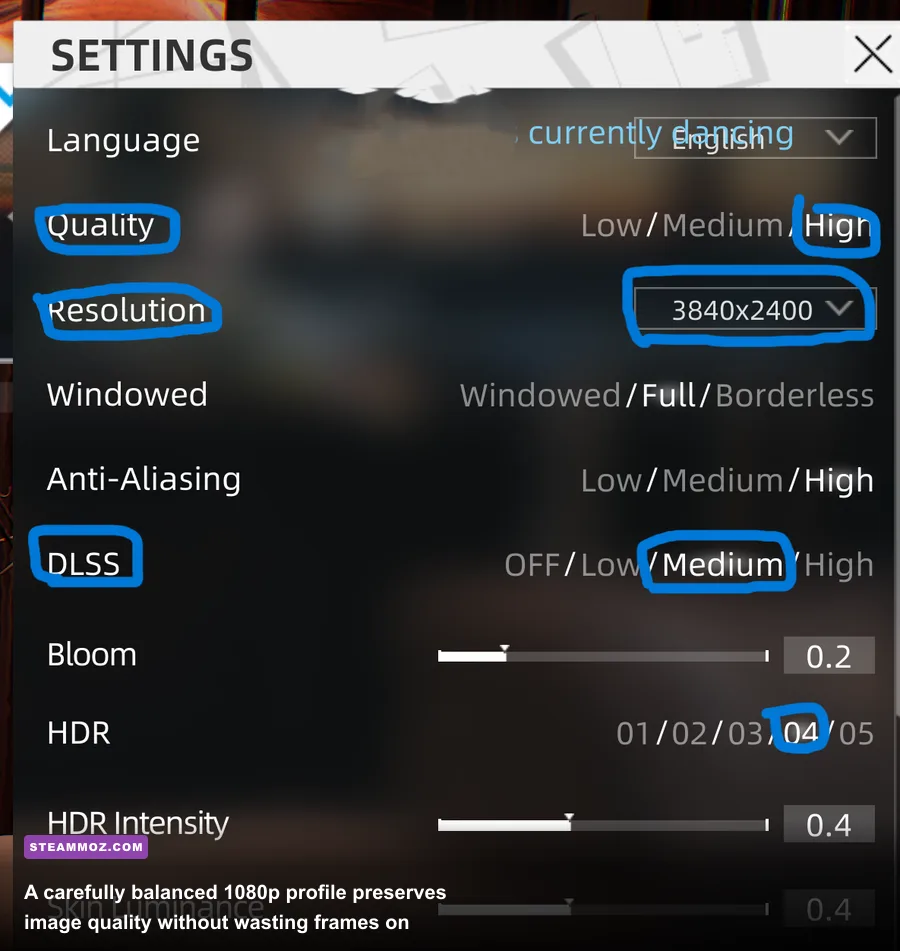
Don't turn every option to Low and assume the RTX 3060 will feel faster. Some settings barely improve performance while making the image look muddy; others, especially volumetric lighting, shadows, reflections, and ray tracing, can consume a large portion of the frame budget. Start at 1080p with a sensible mix, then adjust one setting at a time.
| Graphics Setting | RTX 3060 Recommendation | Typical FPS Impact | Visual Trade-Off |
|---|---|---|---|
| Resolution | 1920x1080; 2560x1440 with DLSS | Very high | Lower resolution is the fastest performance lever |
| Upscaling | DLSS Quality, then Balanced | High positive | Quality is sharper; Balanced can soften fine detail |
| Ray tracing | Off for competitive games; Low or Medium for single-player | Very high negative | Reflections and shadows improve, but frame times rise sharply |
| Shadows | High, not Ultra | Medium negative | Ultra shadows rarely justify their GPU cost |
| Volumetrics and fog | Medium | Medium negative | Reduces heavy scenes and smoke-related dips |
| Screen-space reflections | High or Medium | Low to medium negative | Medium is usually difficult to distinguish during play |
| Textures | High or Ultra | Low if VRAM is sufficient | The 12GB framebuffer handles high-resolution textures well |
| Motion blur and film grain | Off | Small positive | Cleaner image and easier target tracking |
For games such as Cyberpunk 2077, Hogwarts Legacy, or Alan Wake 2, ray tracing is the first feature to cut. The RTX 3060 can run RT effects, but the performance cost is substantial at 1080p and its 12GB VRAM does not change the underlying ray-tracing workload. Use DLSS Quality at 1080p or Balanced at 1440p, and enable Frame Generation only if the game and GPU support it; the RTX 3060 does not support NVIDIA DLSS Frame Generation.
For esports titles such as Counter-Strike 2, Valorant, and Overwatch 2, prioritize consistent frame time over maximum visual quality. Use a competitive preset, keep textures at High, lower shadows and effects, and cap the frame rate. If you want a useful comparison point, Steamoz's Far Cry 6 settings guide demonstrates how to trim expensive effects without destroying image quality.
Fix Stuttering, Crashes, and Sudden FPS Drops
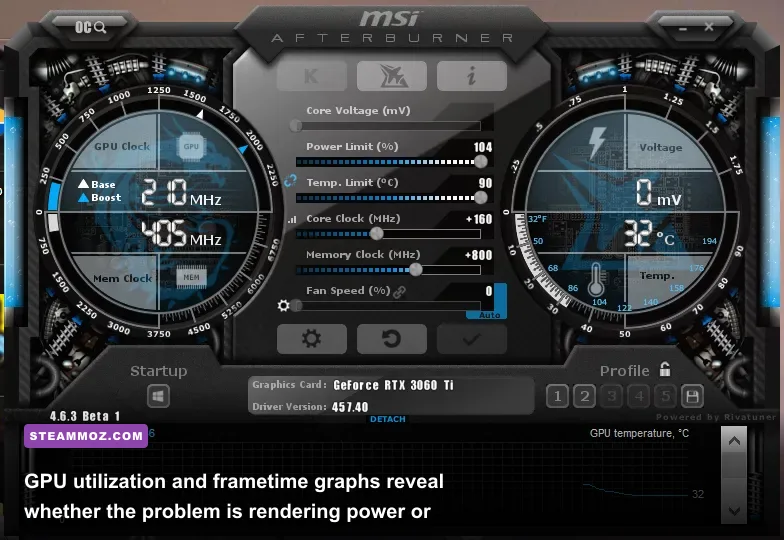
Stutter is not the same as low average FPS. A game showing 90 FPS can still feel awful if frame times jump from 11 milliseconds to 40ms every few seconds. Use NVIDIA's performance overlay or MSI Afterburner with RivaTuner Statistics Server to watch GPU usage, VRAM, CPU threads, temperatures, and frametime. The pattern usually identifies the culprit.
Read the symptoms correctly
If GPU usage sits between 95 and 99 percent and the GPU temperature is below roughly 83 degrees Celsius, the card is working normally; lower shadows, resolution, or ray tracing. If GPU usage drops while one CPU thread is pinned near 100 percent, you're CPU-limited. Lowering graphics settings won't solve that. Close browser tabs, remove background recording, and check that your memory is running in dual-channel mode.
For shader-related hitching, clear the DirectX shader cache in Windows Settings > System > Storage > Temporary files, then let the game rebuild shaders. The first launch afterward may stutter while compiling, but repeated hitching should improve. Never delete the cache while the game is running.
Verify game files through Steam before reinstalling. Right-click the game, choose Properties, Installed Files, and Verify integrity of game files. Disable mods, Reshade, and third-party overlays during testing. If the problem began after a patch, check the game's official news page and the Steam client support resources before assuming the RTX 3060 is at fault.
| Symptom | Likely Cause | First Fix | Confirm With |
|---|---|---|---|
| Black screen during launch | Driver conflict or bad fullscreen mode | Clean-install driver and try borderless window | Launch with overlays disabled |
| Brief hitch every few seconds | Shader compilation or background process | Clear shader cache and close capture tools | Frametime graph |
| Low GPU usage and low FPS | CPU bottleneck, cap, or power setting | Check CPU thread load and remove frame caps | GPU utilization overlay |
| Textures pop in despite 12GB VRAM | Streaming bug, slow drive, or insufficient system RAM | Install game on SSD and update chipset drivers | Disk usage during the hitch |
| Driver timeout under load | Overclock instability or heat | Return GPU and RAM to stock settings | Reliability Monitor |
Overclocks deserve special suspicion. A factory-overclocked RTX 3060 can appear stable in a benchmark and still crash in one specific game. Reset the GPU to stock in MSI Afterburner, remove undervolts temporarily, and test again. If the issue disappears, reduce the core clock by 30 to 50MHz or increase the voltage curve carefully rather than chasing a tiny benchmark score.
Cut Input Latency Without Making FPS Unstable
Latency is the complete path from mouse click to visible response: device polling, CPU simulation, render queue, GPU work, display scanout, and network delay. More FPS usually helps, but an uncapped GPU running at 99 percent can create a deep render queue and make aiming feel heavy.
In games with NVIDIA Reflex, enable Reflex On. Use On + Boost only if GPU clocks repeatedly drop during play; Boost keeps the GPU at higher clocks and can add a little power and heat. If Reflex is unavailable, NVIDIA Control Panel Low Latency Mode set to On is a reasonable fallback. Ultra can help older DX9 or DX11 games, but it may cause uneven frame pacing when the CPU is already struggling.
For G-SYNC or Adaptive-Sync displays, enable G-SYNC in NVIDIA Control Panel, enable V-Sync in the NVIDIA profile, disable in-game V-Sync, and cap the game three frames below the monitor's maximum refresh. A 144Hz panel should generally use 141 FPS; 165Hz should use 162 FPS; 240Hz should use 237 FPS. This keeps the game inside the variable-refresh window and avoids the lag spike caused by hitting the ceiling.
| Monitor Refresh | Suggested FPS Cap | Reflex Setting | Best Use |
|---|---|---|---|
| 60Hz | 58-60 FPS | On where available | Single-player and budget displays |
| 144Hz | 141 FPS | On | Best general competitive profile |
| 165Hz | 162 FPS | On | High-refresh 1080p gaming |
| 240Hz | 237 FPS if achievable | On + Boost when clocks fluctuate | Competitive games at reduced settings |
Use a wired Ethernet connection when possible. Wi-Fi can be perfectly playable, but interference creates packet loss and jitter that no GPU setting can repair. Network latency is also separate from input latency: a perfect 2ms render path won't fix a server ping that jumps from 35ms to 180ms.
Game-Specific Profiles and Hardware Checks
Once the card is stable, make profiles for the games you actually play. A 1080p competitive profile, a high-quality single-player profile, and a 1440p DLSS profile are more useful than one global preset. Keep a note of your working settings so a driver update or game patch doesn't force you to rediscover them.
| Use Case | Resolution | Core Settings | Expected RTX 3060 Target |
|---|---|---|---|
| Competitive FPS | 1080p native | Low shadows, medium effects, Reflex On, FPS cap | 144-240 FPS depending on CPU and title |
| Modern single-player | 1080p DLSS Quality | High textures, medium shadows, RT Off or Low | 60-100 FPS depending on game |
| 1440p balanced | 1440p DLSS Quality or Balanced | High textures, medium volumetrics, RT Off | 55-90 FPS depending on game |
| Ray-traced showcase | 1080p DLSS Balanced | RT Low, reduced reflections, capped FPS | 35-60 FPS in demanding releases |
Hardware outside the graphics card still matters. The RTX 3060 performs much better with 16GB of dual-channel DDR4 or DDR5 memory than with 8GB single-channel RAM. Install demanding games on an SSD, leave at least 10 to 15 percent free space, and confirm the GPU has both PCIe power connectors firmly seated. A dusty cooler or weak airflow can push boost clocks down even when the temperature has not reached the emergency limit.
Check the card's clock and temperature while gaming, not at the desktop. A healthy RTX 3060 often boosts above its advertised 1,777MHz reference clock when power and temperature allow, but exact clocks vary by model, case airflow, and workload. Avoid comparing your result directly with a different factory-overclocked card. Compare the same game, resolution, driver, and settings instead.
Finally, use official documentation when a fix involves firmware or major hardware changes. NVIDIA's official Reflex guide explains supported games and latency behavior, while the RTX 3060 product page lists the card's core features. For game-specific configuration, Steamoz's crashing and low-FPS troubleshooting guide is a useful companion.
The Fastest Order of Operations
When time matters, follow this order: confirm the monitor refresh rate; update or clean-install the NVIDIA driver; disable overlays; verify game files; reset all overclocks; enable Reflex or cap FPS; then tune ray tracing, shadows, volumetrics, and upscaling. Change one variable at a time and record the result in a frametime graph.
That process separates a genuine RTX 3060 performance limit from a software conflict or CPU bottleneck. In most 1080p games, High textures and DLSS Quality provide the sweet spot. In competitive shooters, stable frame times beat cinematic effects. In demanding ray-traced releases, turning RT off is not failure; it is the practical setting that lets this 170W card deliver a consistently responsive experience.
The RTX 3060 won't make every new game run at Ultra, but it shouldn't be stuttering through ordinary 1080p play either. Tune for frame-time consistency, keep the driver and Windows environment clean, and treat latency as a full-system problem rather than a single GPU switch. That's how this card goes from frustrating to properly fast.