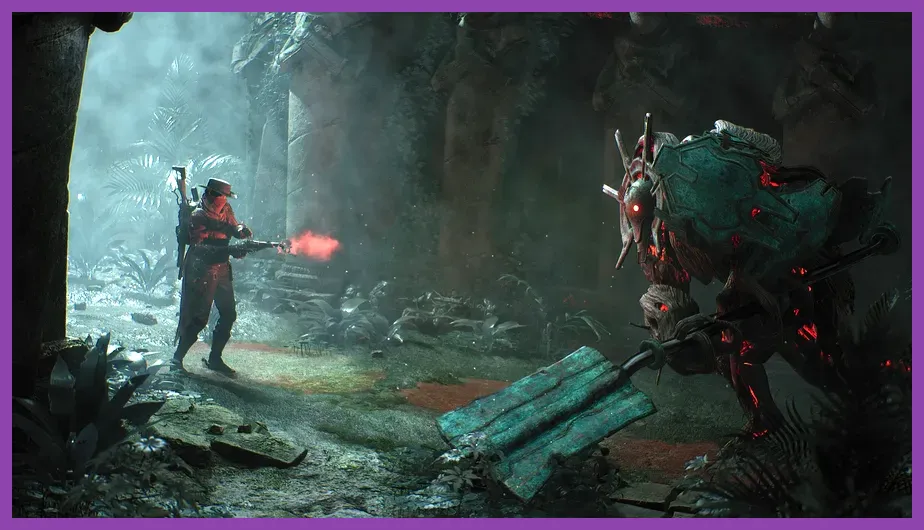
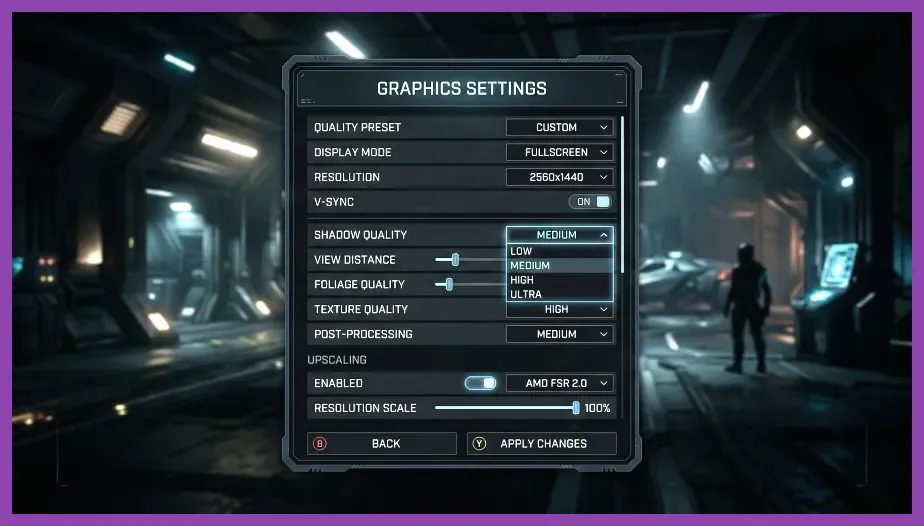
To achieve high and stable frame rates in Remnant 2, you must set Shadow Quality to Medium, Volumetric Fog to Low, and enable DLSS or FSR set to Quality mode. Gunfire Games built this title on Unreal Engine 5, meaning it leans heavily on both your CPU and GPU, making stock Epic presets a recipe for stuttering during chaotic boss encounters in worlds like N'Erud or Losomn.
Understanding the Performance Bottlenecks in Unreal Engine 5
Remnant 2 was infamously designed around upscaling technologies. Without DLSS, FSR, or XeSS active, native resolution rendering severely taxes mid-range hardware. If you are struggling to maintain a stable 60 or 144 FPS, your hardware is likely getting choked by heavy screen-space reflections, high-density foliage, and unoptimized shadow calculations. Before tweaking individual toggles, check out our guide on optimizing lower-end rigs for more universal Unreal Engine tricks.
During intense co-op sessions where multiple players are spamming weapon mods like Nightfall's Dread or Enigma's Chain Lightning, particle effects multiply exponentially. Dropping specific graphics settings prevents these particle-heavy moments from causing micro-stutters right when you need to dodge-roll a fatal attack from bosses like the Corruptor or Annihilation.
The Ultimate Performance Graphics Profile
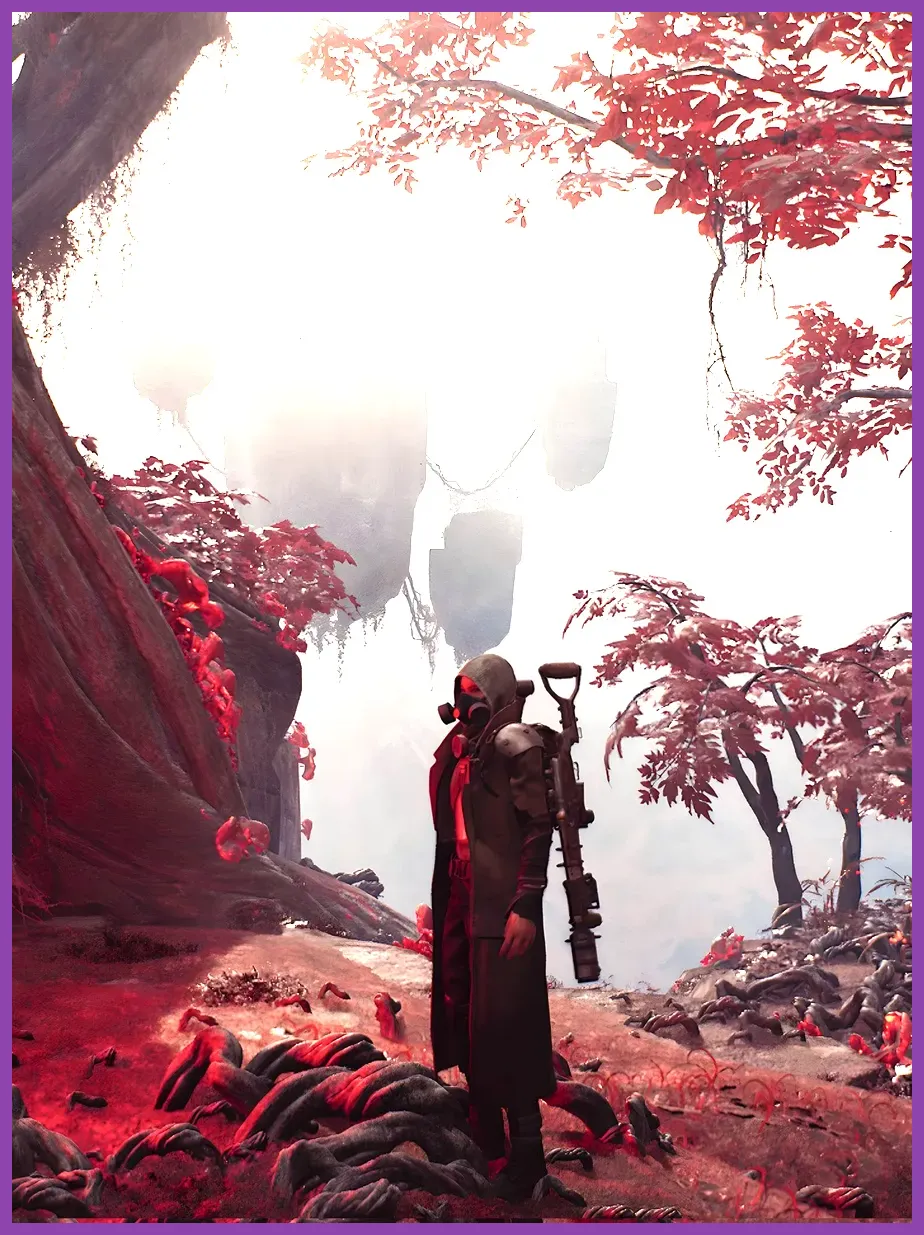
Input these exact values into your video settings menu to balance visual fidelity with maximum frames per second. These recommendations target a stable 1080p/1440p experience on mainstream cards like the RTX 3060 or RX 6700 XT:
- Resolution: Native monitor resolution (Exclusive Fullscreen)
- Vsync: Off (Enable G-Sync or FreeSync via GPU control panel)
- Upscaler: DLSS (NVIDIA), FSR (AMD), or XeSS (Intel)
- Upscaler Quality: Quality (or Balanced if targeting 4K)
- Upscaler Sharpness: 15 to 25 (personal preference)
- Shadow Quality: Medium
- Post Processing: Low
- Foliage Quality: Medium
- Effects Quality: Medium
- View Distance: High
- Volumetric Fog: Low
Shadow Quality and Volumetric Fog are the two biggest frame-rate killers in the game. Dropping Shadows from Ultra to Medium yields an immediate 15% to 20% performance boost with almost zero noticeable visual degradation during active gunfights. Meanwhile, turning Volumetric Fog to Low removes the thick, performance-heavy atmospheric haze that blankets maps like Yaesha, clearing up your visibility significantly.
Mastering Upscaling: DLSS, FSR, and XeSS
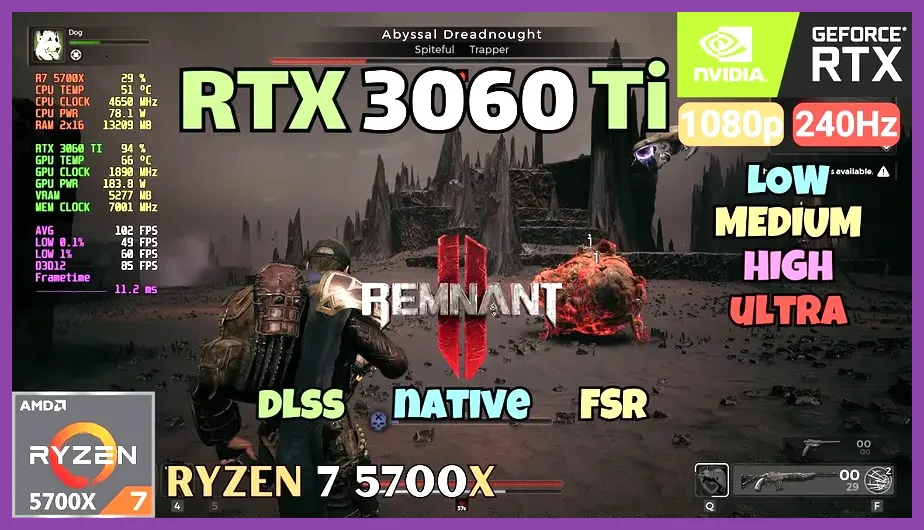
Because Remnant 2 utilizes Temporal Super Resolution (TSR) as its baseline native scaler, running the game without an official hardware upscaler leads to a blurry, shimmering image accompanied by a massive frame rate tax. If you use an NVIDIA RTX card, always select DLSS. It offers the cleanest edge definition and eliminates ghosting on fast-moving targets like the root-infected creatures in Ward 13 or the flying aberrations roaming the Labyrinth.
AMD and older GPU users should rely on FSR 2.2. While FSR can introduce minor shimmering on thin geometry like tree branches in Yaesha, setting the upscale mode to Quality mitigates most artifacts. For troubleshooting additional game optimizations, take a look at how players fine-tune other demanding releases such as managing intensive open-world systems.
Advanced Configuration Tweaks for Low-End CPUs
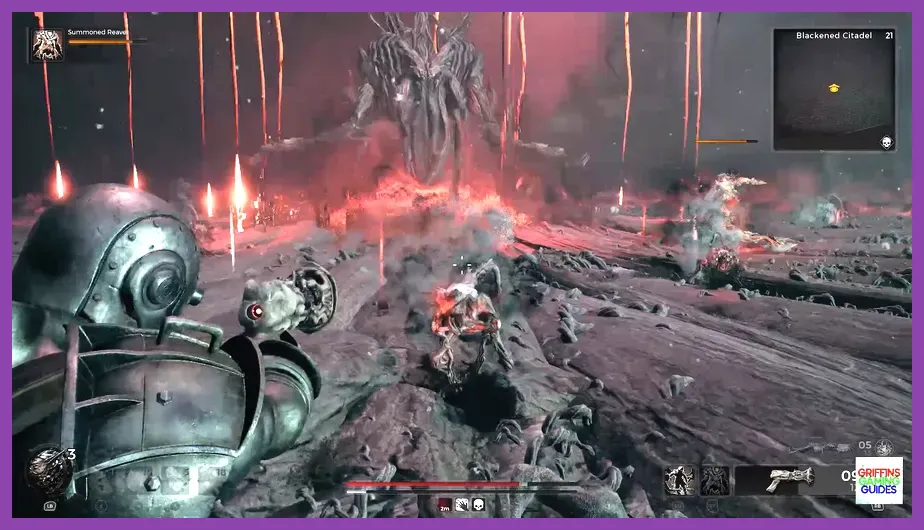
Remnant 2 is notorious for high CPU utilization, particularly in hub areas like Ward 13 or during boss fights featuring numerous spawned adds. If you experience sudden frame drops whenever enemies flood the arena, your processor might be bottlenecking your graphics card. You can alleviate this by editing the engine configuration files directly.
Navigate to your local AppData folder by typing %localappdata%\Remnant2\Saved\Config\Windows in your Windows Run dialog. Open the Engine.ini file with Notepad and append the following lines to the bottom of the document to disable unnecessary motion blur, depth of field, and smooth frame rate caps that can introduce input latency:
[/Script/Engine.RendererSettings]
r.DefaultFeature.MotionBlur=False
r.DepthOfFieldQuality=0
r.Tonemapper.Quality=3
Saving these adjustments strips away post-processing overhead that muddies visual clarity during fast-paced gunplay. For players who enjoy deep character progression and build crafting while maintaining smooth execution, keeping your system responsive is vital, much like organizing efficient loadouts in high-end cooperative action titles.
Balancing Visibility and Combat Responsiveness
Competitive third-person shooters require crisp visual feedback. Turning off Motion Blur and Depth of Field ensures that enemies emerging from dark corners in the Root Earth tunnels remain sharp and clearly identifiable. Furthermore, keeping Effects Quality on Medium rather than Low ensures you can still clearly see telegraphs for boss ground-slam attacks and elemental status puddles.
Pair these in-game settings with updated GPU drivers and ensure your operating system has Hardware-Accelerated GPU Scheduling (HAGS) enabled. By applying these specific optimizations, you will transform Remnant 2 from a stuttering, heavy mess into a fluid, responsive action RPG worthy of the Gunfire Games pedigree.