The fastest MSI PC setup is simple: use MSI Center's Extreme Performance profile, keep the GPU below its thermal limit, enable DLSS or FSR when available, and tune the expensive settings rather than blindly selecting Ultra. On a GeForce RTX MSI system, that combination can turn an inconsistent 55 FPS experience into a much steadier 80-100 FPS result while preserving the settings that actually improve image quality.
That advice covers very different machines, from an MSI Katana 15 B13V with a mobile RTX 4060 to a Raider GE78 HX 13V with an RTX 4080 Laptop GPU or a desktop such as the Aegis RS. Their cooling systems and power limits aren't interchangeable, so the right target isn't one magic preset. It's stable frametime, sensible temperatures, and a frame rate that matches your screen. Here's the profile I use before touching individual games.
Start With MSI's Performance Controls
Open MSI Center, enter User Scenario, and choose Extreme Performance while plugged into AC power. On supported laptops, this raises the CPU and GPU power limits and makes the fan curve more aggressive. Balanced is quieter, but it can leave performance on the table in demanding games. Silent mode is designed for battery life and light workloads, not competitive shooters.
Use Cooler Boost only when the GPU or CPU is actually approaching its thermal ceiling. It can stop clock-speed oscillation, but the fan noise is substantial. For everyday play, Advanced or Auto fan control is usually the better compromise. Keep the rear and underside vents uncovered; placing a Katana or Cyborg directly on a blanket can erase the benefit of a more powerful profile within minutes.
On an MSI desktop, check the physical graphics card connection first. Your monitor cable should be connected to the discrete GPU, not the motherboard's HDMI port. In Windows 11, go to Settings > System > Display > Graphics, add each game executable, and select High performance. This matters on hybrid-graphics laptops, where a game can otherwise launch on the integrated Intel or AMD GPU.
| MSI Control | Recommended Value | Performance Impact | Best Use |
|---|---|---|---|
| User Scenario | Extreme Performance | High positive impact | Plugged-in gaming and benchmarks |
| GPU Switch | Discrete Graphics or MUX mode | 5-15% FPS, lower latency | Competitive games and demanding AAA titles |
| Cooler Boost | Auto first; manual when hot | Protects sustained clocks | Long sessions above 80°C GPU |
| Windows Graphics | High performance | Prevents iGPU launches | Hybrid MSI notebooks |
| Battery Mode | Never for serious gaming | Large negative impact | Only casual or unplugged play |
MSI's official MSI Center page explains that available controls vary by model. That caveat matters: a desktop Aegis may expose CPU overclocking and fan tuning that a thin Modern-series laptop does not.

🎮 FORM
Looking to experience this game? Grab your digital key directly on our store for $14.99.
View on Steammoz Store →Use This High-FPS Graphics Baseline
Before adjusting a game, set the display to its real refresh rate in Windows. A 144Hz panel stuck at 60Hz makes a high-FPS MSI PC feel needlessly sluggish. Then select exclusive fullscreen if the game supports it, disable V-Sync for a latency-focused profile, and turn on the monitor's Adaptive-Sync or G-SYNC-compatible mode.
For a clean baseline, use 1080p on RTX 3050 and RTX 4060 laptops, 1440p on RTX 4070 and RTX 4080 systems, and native 4K only when the desktop GPU has enough headroom. Start with high textures, medium shadows, medium volumetrics, and high model quality. Texture quality mostly consumes VRAM; shadows, reflections, fog, and crowd density usually consume GPU or CPU time every frame.
| Setting | Recommended Value | Typical FPS Impact | Visual Trade-Off |
|---|---|---|---|
| Resolution | Native, then DLSS Quality | Very high | Lower internal resolution can soften detail |
| Texture Quality | High if VRAM allows | Low to medium | Major surface-detail improvement |
| Shadow Quality | Medium or High | Medium to high | Less contact-shadow precision |
| Volumetric Fog | Medium | High in open areas | Less dense lighting and haze |
| Screen-Space Reflections | Medium | Medium | Fewer accurate puddle and metal reflections |
| Ray Tracing | Off or medium | Very high | Less realistic bounce lighting and reflections |
| Ambient Occlusion | SSAO or medium | Low to medium | Subtler grounding around objects |
| Motion Blur | Off | Minimal FPS change | Sharper camera movement |
| Chromatic Aberration | Off | Minimal FPS change | Cleaner image at screen edges |
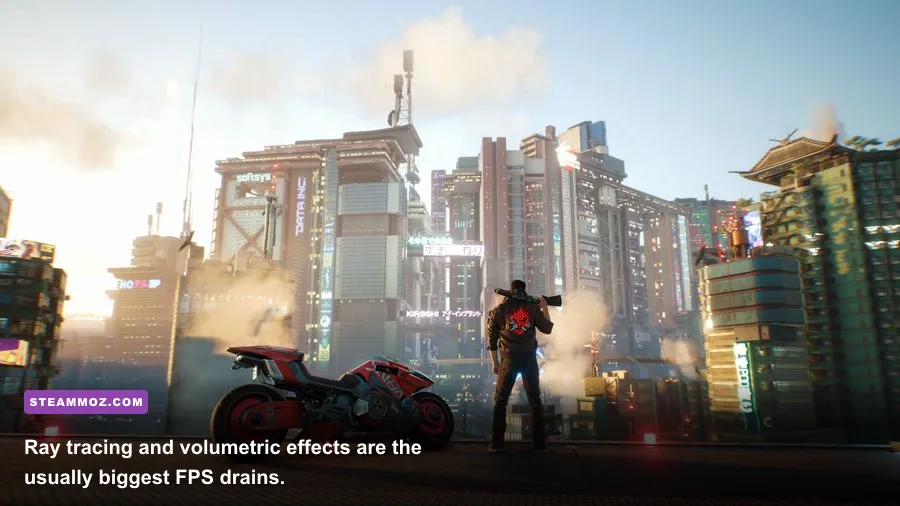
That hierarchy is more useful than a blanket “Low” preset. In Cyberpunk 2077, for example, dropping volumetric fog from Ultra to Medium can produce a noticeable gain in crowded streets, while reducing textures from High to Medium may barely change frame rate but makes walls and clothing look worse. CD Projekt Red's official PC performance guide also confirms that ray tracing is among the most demanding options.
In Hogwarts Legacy, texture streaming and traversal can cause stutter even when the average FPS looks healthy. Keep textures at High only if the GPU has enough VRAM, close background launchers, and use an SSD. For Counter-Strike 2 or Valorant, the priorities flip: use low shadows and effects, keep the render resolution native, and preserve visibility over cinematic detail.
Pick the Right Upscaling and Latency Profile
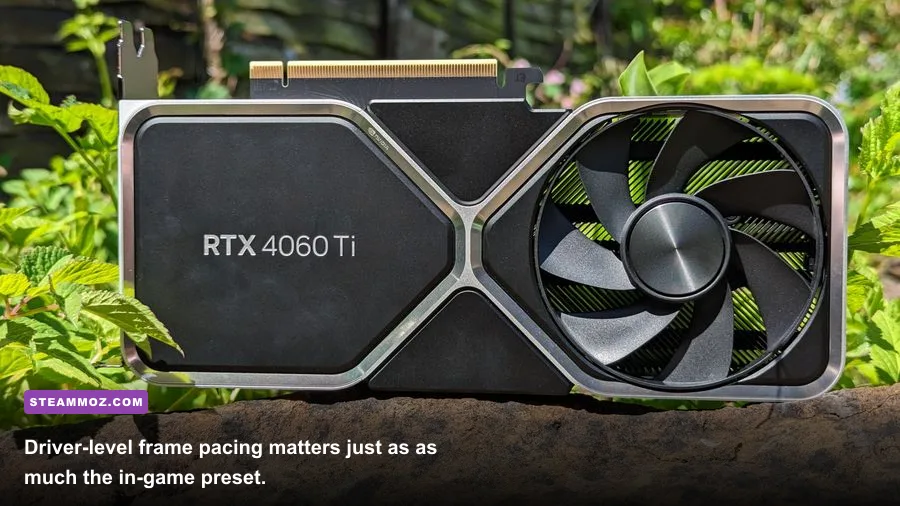
Upscaling is not a free FPS button, but on an RTX-equipped MSI PC it is usually the smartest way to reach a high-refresh target. Select DLSS Quality at 1440p or 4K first. It renders below native resolution and reconstructs the image, often delivering a much better quality-to-performance balance than dropping the entire output resolution. Use DLSS Balanced only when Quality cannot maintain your target.
AMD Radeon MSI systems should start with FSR 2 Quality. Intel Arc systems can use XeSS Quality where supported. Avoid Performance mode at 1080p unless you absolutely need the frames; the reduced input image is more obvious, and fine text can shimmer. In fast games, that shimmering is more distracting than a modestly lower frame rate.
Enable NVIDIA Reflex in games that offer it, particularly Apex Legends, Call of Duty, Overwatch 2, and Fortnite. Choose “On” first. “On + Boost” keeps the GPU at higher clocks, which can reduce latency when the system is lightly loaded, but it creates extra heat and power draw. If your MSI laptop already runs hot, standard On is the sensible choice.
For VRR displays, cap FPS a few frames below the refresh rate: 141 FPS for 144Hz, 162 FPS for 165Hz, and 237 FPS for 240Hz. Use the in-game limiter where possible. This prevents the GPU from slamming into the refresh ceiling and keeps Adaptive-Sync engaged. If you prefer the lowest possible latency in an esports title, disable the cap and V-Sync, but expect more tearing.
| Gaming Target | Upscaler | Latency Setting | Frame Cap |
|---|---|---|---|
| 1080p esports, 144Hz | Off or Quality | Reflex On; V-Sync Off | 141 FPS with VRR |
| 1440p AAA, 165Hz | DLSS Quality or FSR Quality | Reflex On | 162 FPS with VRR |
| 4K ray tracing | DLSS Quality or Balanced | Reflex On + Boost if cool | 117-141 FPS depending on display |
| Battery gaming | Balanced or Performance | Reflex optional | 60 FPS cap |
NVIDIA's official Reflex documentation is worth checking because supported games expose different latency options. Don't force a driver-level low-latency mode while also using Reflex unless the game developer specifically recommends it.
Tune NVIDIA Control Panel Without Creating Stutter
Open NVIDIA Control Panel, select Manage 3D settings, and configure a profile for the game instead of changing every application globally. Set Power management mode to “Prefer maximum performance” only for demanding games. Global maximum performance keeps clocks elevated on the desktop and wastes power.
Set Texture filtering - Quality to Quality, not High performance. The FPS difference is tiny on modern GPUs, while the quality setting preserves cleaner texture filtering. Leave Shader Cache Size at Driver Default or Unlimited if you have spare storage. Clearing the cache after every driver update can make traversal stutter worse while shaders rebuild.
For G-SYNC, enable it for fullscreen and windowed mode if you play borderless games. If a title behaves badly in windowed mode, use fullscreen and enable only fullscreen G-SYNC. V-Sync can remain enabled in the NVIDIA profile with an FPS cap below refresh; this combination usually produces smooth VRR behavior, while the game-level V-Sync toggle can add latency in some engines.
Don't use third-party “FPS booster” utilities that kill random Windows services or overwrite driver profiles. They often break shader compilation, anti-cheat software, or audio devices for a gain you could get by lowering one shadow setting. Our ELEX PC fixes guide covers the same principle: stable drivers and clean configuration beat magical tweaks.
Control Heat, Background Load, and Stutter

Average FPS is only half the story. A game showing 100 FPS can still feel rough if frame time spikes from 10 milliseconds to 40. Use MSI Afterburner with RivaTuner Statistics Server to monitor FPS, frametime, GPU usage, CPU temperature, GPU temperature, VRAM, and RAM. A frametime graph is the quickest way to identify whether the problem is rendering load or asset streaming.
If GPU usage sits between 95 and 99 percent and the frame rate is low, lower resolution, ray tracing, volumetrics, or reflections. If GPU usage falls to 60-80 percent while one CPU core is saturated, reduce crowd density, view distance, simulation quality, and background applications. Lowering graphics quality won't fix a CPU bottleneck; it can actually make the imbalance more obvious.
For sustained sessions, a GPU temperature around 70-85°C is normal for a gaming laptop, although the exact limit varies by model. CPU temperatures can briefly reach the 90s under boost, but repeated thermal throttling means the system is bouncing off its power or temperature ceiling. Raise the laptop's rear edge by a few centimeters, clean dust from the vents, and update BIOS and chipset drivers from MSI's support page.
| Symptom | Likely Cause | First Fix | What Not to Do |
|---|---|---|---|
| Low GPU usage and low FPS | CPU limit or background task | Check per-core usage; lower crowds | Drop texture quality first |
| High average FPS, hitching | Shader or asset streaming | Use SSD; let shaders compile | Repeatedly clear shader cache |
| FPS drops after 20 minutes | Thermal throttling | Improve airflow and fan profile | Play on a soft surface |
| Blurry image at native resolution | Dynamic resolution or upscaler | Use DLSS/FSR Quality; disable excess sharpening | Stack multiple sharpening filters |
| Tearing despite high FPS | VRR or sync mismatch | Enable Adaptive-Sync and cap frames | Chase unlimited FPS on a 60Hz panel |
Close browser tabs playing video, RGB control panels you don't need, and launchers downloading updates. Keep at least 15 percent free space on the game SSD, especially for titles with heavy streaming such as Starfield and Hogwarts Legacy. Windows Game Mode can stay enabled; hardware-accelerated GPU scheduling is worth testing, but compare frametime rather than assuming it helps every driver and game combination.
Three MSI PC Profiles Worth Saving
Save separate presets instead of constantly rebuilding settings. The right profile depends on whether you want a quiet cinematic session, a competitive advantage, or the highest possible image quality. These values are starting points, not promises: an RTX 4060 Laptop GPU at 105 watts will not match a desktop RTX 4060, even though both share a product name.
| Profile | Core Settings | Target Hardware | Expected Result |
|---|---|---|---|
| S-Tier Competitive | 1080p, low shadows, textures high, RT off, Reflex On | RTX 3050/4050/4060 MSI laptops | High FPS and low input latency |
| A-Tier Balanced AAA | Native resolution, textures high, shadows medium, DLSS Quality | RTX 4060/4070 systems | Strong image quality with stable frametime |
| S-Tier Ray Tracing | 1440p or 4K, RT medium, DLSS Quality, frame generation where suitable | RTX 4070/4080/4090 desktops | Excellent visuals with higher latency than native rendering |
| Quiet Session | Balanced mode, 60 FPS cap, medium effects, DLSS Balanced | Any MSI laptop on speakers | Lower noise, heat, and power draw |
Frame Generation deserves a warning. DLSS 3 Frame Generation can make the counter jump from 70 to 110 FPS, but it inserts generated frames between rendered ones; it doesn't make mouse input feel like native 110 FPS. Use it after the base frame rate is already around 60 FPS or higher, especially in single-player games. For competitive shooters, native frames with Reflex usually feel better.
Finally, benchmark in the same repeatable scene for each change. Run a five-minute route through Night City, a busy Hogwarts courtyard, or a fixed multiplayer practice map. Change one setting at a time, record the one-percent low, and keep the option that improves consistency. If a game still crashes or stutters, our low-FPS troubleshooting guide and Far Cry 6 settings breakdown offer useful engine-specific checks.
The short version is this: plug in the MSI PC, select Extreme Performance, use the discrete GPU, keep textures high when VRAM allows, cut volumetrics and ray tracing before image-critical details, and cap FPS just below your monitor's refresh rate. That approach delivers the smooth performance you actually feel, not just a larger number in the corner.
For driver downloads and model-specific BIOS updates, use MSI's official support portal. NVIDIA GPU owners should also install drivers through the official GeForce driver page, then retest your saved profile after every major driver release.