If Forza Horizon 5 on Steam is stuttering, running at low FPS, or crashing, start with a clean driver install, disable every overlay, verify the game files, and use a capped High preset instead of chasing unstable Ultra settings. Then test the game’s built-in benchmark, lower environment-heavy options such as Night Shadows and World Car Level of Detail, and cap your FPS to a number your PC can hold consistently. Those steps solve most PC performance problems without turning Mexico into a blurry wasteland.
Forza Horizon 5 is unusually sensitive to frame-time spikes because it streams a huge open world while handling traffic, weather, physics, reflections, and fast travel at extreme speed. A counter showing 90 FPS can still feel awful if frames arrive unevenly. This guide targets the Steam version specifically, including shader stutter, sudden drops in Guanajuato, crashes after the splash screen, device-removed errors, and performance that deteriorates after playing for an hour.
Run These Five Fixes Before Changing Graphics

Don’t begin by randomly dropping resolution. First remove the common causes that make Forza Horizon 5 unstable even on a powerful machine. Restart Windows after completing the driver step, then test the same race or location so you can tell which change actually helped.
1. Update Windows and perform a clean GPU driver install
Install the current WHQL driver for your graphics card from the official NVIDIA driver page or AMD support page. If stutter began immediately after a driver update, try the previous stable driver instead. For persistent problems, choose Custom Installation and the clean-install option; advanced users can use Display Driver Uninstaller in Windows Safe Mode before reinstalling.
Clean installation matters because old shader caches, profiles, and tuning settings can survive a normal update. Afterward, launch the game and expect a little hitching during the first few minutes while shaders are rebuilt. Repeated stutters across every session are not normal shader compilation, though.
2. Verify Forza Horizon 5’s Steam files
In Steam, right-click Forza Horizon 5, open Properties, select Installed Files, and choose Verify integrity of game files. Let the process finish completely. A damaged or incomplete file can cause a crash during startup, loading, or a particular showcase event. Steam may reacquire several files, so don’t interrupt the download even if the game previously launched.
Keep the game on an SSD with at least 110 GB of free space beyond the installation’s listed size. Forza streams texture and world data constantly; a nearly full SATA SSD or hard drive can turn a short traversal hitch into long pauses and texture pop-in. The official Forza Horizon 5 Steam page lists the baseline PC requirements, but an SSD is the practical recommendation for smooth streaming.
3. Turn off overlays and monitoring hooks
Disable Steam Overlay under the game’s Properties page, then switch off Xbox Game Bar, Discord Overlay, NVIDIA App or GeForce Experience overlay, AMD Adrenalin overlay, MSI Afterburner’s RivaTuner overlay, and RGB utilities that inject into games. These tools aren’t automatically bad, but Forza’s crash behavior can change when multiple overlays hook DirectX at once.
Also close browsers playing hardware-accelerated video, Wallpaper Engine, motherboard control suites, and aggressive antivirus game shields for one test session. Don’t permanently disable security software; use an exclusion only after confirming it is the conflict. Steamoz’s PC crash and FPS troubleshooting guide covers the same overlay and background-process logic in more detail.
4. Clear the DirectX shader cache
Open Windows Settings, choose System > Storage > Temporary files, select DirectX Shader Cache, and remove it. NVIDIA users can also clear the contents of the driver shader cache through Disk Cleanup or the NVIDIA control panel’s shader-cache settings. The next launch may stutter briefly as the cache rebuilds. If the game becomes smoother afterward, the old cache was probably corrupted.
5. Remove unstable overclocks and test memory
Return the GPU, CPU, and RAM to stock settings temporarily. An overclock that passes a synthetic benchmark can still fail during Forza’s combination of streaming, CPU physics, and shader work. If crashes happen after several races rather than immediately, test RAM with Windows Memory Diagnostic or MemTest86 and monitor GPU temperatures. A GPU running near its thermal limit may downclock, producing both low FPS and hitching.
| Symptom | Most Likely Cause | First Action | What Success Looks Like |
|---|---|---|---|
| Crash before the main menu | Driver conflict, overlay, damaged files | Clean driver install, disable overlays, verify files | The game reaches the autoshow reliably |
| Stutter only during the first drive | Shader compilation or world cache rebuild | Play one short session after clearing cache | Hitching reduces on repeated routes |
| FPS drops in cities | CPU load, traffic, world detail | Lower World Car LOD and environment settings | Frame time stays stable in Guanajuato |
| Crashes after long sessions | Heat, unstable tuning, memory pressure | Return hardware to stock and monitor temperatures | No crash after a one-hour race session |
Use a Stable Forza Horizon 5 Graphics Profile
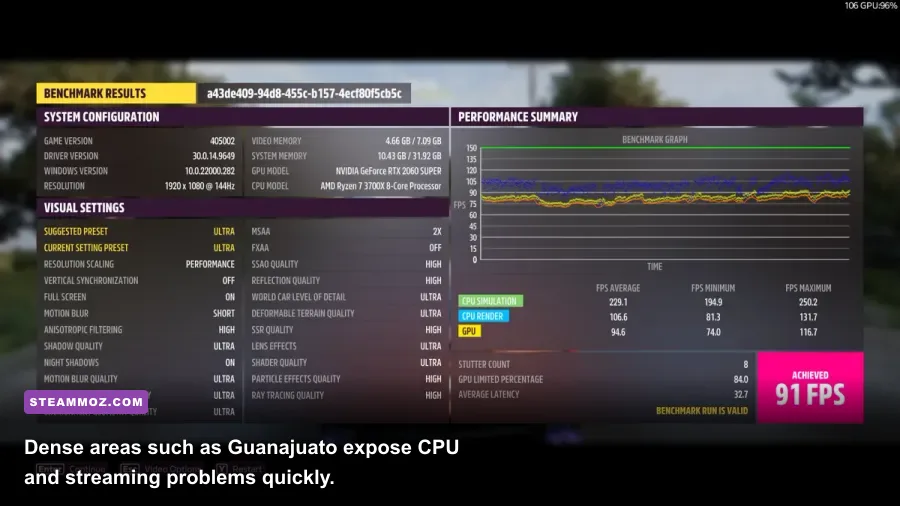
The goal is consistent frame pacing, not the biggest number in an empty benchmark scene. Forza Horizon 5’s built-in benchmark is useful, but it can hide the worst drops because it follows a controlled route. After every change, drive through a city, a forest, and a busy festival site. Guanajuato, Horizon Festival Mexico, and races with heavy traffic are better stress tests than standing still in the desert.
Best starting profile for 1080p and 1440p
Begin with the High preset. Set resolution to your monitor’s native output, use Fullscreen, and select the game’s native resolution scaling rather than an aggressive lower internal resolution. If you have an NVIDIA RTX card, test DLSS Quality; AMD and Intel users can test FSR 2 Quality where available. Upscaling should be a performance tool, not the first response to a CPU bottleneck.
Turn Motion Blur off if you dislike the smeared look, but don’t expect a major FPS gain. Keep Anisotropic Filtering at 16x; it sharpens road and terrain textures with a tiny performance cost. MSAA is much more expensive than it appears, especially at 4x or 8x. Use 2x at 1080p, 4x at 1440p if your GPU has room, and avoid 8x unless you have substantial headroom.
The settings that actually cause big drops
Environment Texture Quality and World Car Level of Detail affect memory use and streaming. Lower World Car LOD first if crowded roads cause dips; lowering it reduces distant vehicle detail without making your car look poor. Shadow Quality, Night Shadows, SSAO Quality, and Reflection Quality can cause large GPU spikes in rain, at night, and near reflective buildings.
Ray tracing is primarily relevant to Forza Vista and certain non-gameplay visual modes, not ordinary driving performance. Keep it disabled while troubleshooting. Deformable Terrain Quality and Shader Quality can also hit frame time during off-road events. Reduce them one step at a time rather than dropping the entire preset to Low.
| Setting | Recommended Value | FPS Impact | Visual Trade-Off |
|---|---|---|---|
| Preset | High | Balanced baseline | Strong image quality without Ultra’s heavy spikes |
| MSAA | 2x at 1080p, 4x at 1440p | Medium to high | Less edge smoothing at lower values |
| World Car Level of Detail | Medium or High | High in traffic | Distant cars are less detailed |
| Shadow Quality | High | Medium | Less precise shadow detail one step lower |
| Night Shadows | Medium | Medium to high at night | Reduced shadow definition after dark |
| Reflection Quality | High or Medium | Medium | Less crisp reflections on wet roads |
| Environment Texture Quality | High | VRAM dependent | Lower texture sharpness on scenery |
| SSAO Quality | Medium | Low to medium | Weaker contact shading around cars and buildings |
| Ray Tracing | Off for troubleshooting | High in supported modes | No ray-traced showcase reflections |
Three practical performance targets
For a 60Hz display, cap the game at 60 FPS and aim for a locked 16.67 ms frame time. For 120Hz or 144Hz screens, 90 or 120 FPS is worthwhile only if your PC holds that figure in cities and storms; an excellent 90 FPS cap feels better than a range of 75 to 120. If you use G-SYNC or FreeSync, cap FPS two or three frames below the panel’s refresh rate with the driver or RTSS, then test whether the game’s own limiter gives smoother results.
Don’t stack multiple limiters at once. Start with the in-game cap, enable your monitor’s variable refresh rate, and only add a driver-level cap if frame pacing remains uneven. V-Sync can eliminate tearing but may add latency; with VRR, use the recommended driver configuration for your display and keep the cap below its maximum refresh.
Fix Low FPS and Stutter That Appears During Driving
If the benchmark looks fine but normal gameplay does not, you’re probably dealing with a CPU, VRAM, or streaming limit. Watch GPU usage, CPU per-core usage, VRAM allocation, and frame time rather than FPS alone. A GPU stuck at 95–99% means lowering GPU-heavy settings can help. A GPU hovering at 60–80% while one CPU thread is saturated points toward traffic, world detail, background tasks, or a CPU limit.
Separate a GPU bottleneck from a CPU bottleneck
Lower the resolution scale by 20 percent as a test. If FPS barely changes, your GPU isn’t the main problem. Lower World Car LOD, traffic-heavy settings, and environment detail next. If FPS rises sharply after lowering resolution or MSAA, keep the CPU-side settings high and reduce resolution, reflections, shadows, and anti-aliasing instead.
Close browsers, launchers, recording tools, and hardware monitoring programs one at a time. Windows power mode should be set to Best performance while testing, and laptops must be plugged in with the manufacturer’s performance profile selected. Avoid forcing a global “Maximum performance” profile permanently if it creates unnecessary heat; use it as a diagnostic step.
Manage VRAM and texture streaming
Forza’s VRAM indicator is a warning, not a perfect measurement. If it is near or beyond your card’s available VRAM, lower Environment Texture Quality, Texture Filtering, and MSAA before lowering resolution. VRAM overflow can cause sudden texture pop-in, hitching when entering new areas, and crashes during fast travel. Restart the game after making major texture changes so its allocation resets cleanly.
Install the game on an SSD, leave Windows’ page file set to System managed, and keep several gigabytes free on the system drive. Do not use third-party “FPS booster” tools that disable the page file or kill Windows services; they often replace a manageable stutter with crashes and longer loading.
Check Windows features and GPU scheduling
Test Hardware-accelerated GPU scheduling under Settings > System > Display > Graphics > Default graphics settings. Some systems feel smoother with it enabled, while others show worse frame pacing after a driver update. Change one option, reboot, and repeat the same route. Windows Game Mode should generally remain enabled, but disable background Xbox capture if you never use it.
Use Settings > System > Display > Graphics to add the game executable and choose High performance on systems with integrated and discrete graphics. This is especially important on gaming laptops. If your laptop still uses the iGPU, the FPS problem is configuration, not a mysterious Forza bug.
Make shader stutter less disruptive
After a driver change, shader stutter can appear on the first pass through new weather, roads, or locations. Let the game sit at the main menu for a minute, then drive a repeatable route. Avoid judging performance during the first race after clearing the DirectX cache. If the same corner hitches every time after several sessions, lower Shader Quality and check the SSD rather than endlessly rebuilding caches.
For more general storage and frame-time troubleshooting, compare the workflow in Steamoz’s crashing and low-FPS fixes guide and settings guide for higher FPS. The games differ, but the diagnostic principle is identical: change one variable, reproduce the same problem, and record the result.
Stop Forza Horizon 5 Crashing on Steam

Crashes are easier to solve when you identify the exact point of failure. A crash before the logos suggests permissions, overlays, drivers, or corrupted files. A crash when loading a save suggests damaged profile data or a memory issue. A crash during races, storms, or long sessions points more toward thermal instability, VRAM pressure, or an overclock.
For crashes before the main menu
Verify Steam files, disable every overlay, and launch Steam as an administrator only as a temporary test. Don’t run the game permanently with elevated permissions unless support specifically recommends it. Check Windows Security’s Controlled Folder Access if the game cannot write settings or saves, and add the Forza executable through Windows’ allowed-app controls rather than disabling protection entirely.
Reset the game’s local configuration only after backing up your save data and settings. Forza Horizon 5 uses Xbox-related services even when purchased through Steam, so make sure Gaming Services, Xbox Identity Provider, and the Xbox app are not disabled by a “debloat” script. Sign out and back into the Microsoft account linked to the game if authentication fails during startup.
For device removed, GPU hung, or graphics crashes
These errors usually mean the graphics driver stopped responding. Remove GPU overclocks, lower MSAA and texture quality, disable ray tracing, and cap FPS. Update chipset drivers and BIOS if your platform has known stability problems, but don’t flash firmware casually. Check Event Viewer under Windows Logs > System for display-driver resets around the crash time.
If the crash remains, try a different driver branch with a clean installation. Disable NVIDIA Instant Replay or AMD recording, Xbox Game Bar capture, and third-party frame generation or sharpening tools. Never combine several upscalers, injectors, and overlays while diagnosing a device-removed error; each adds another moving part.
For crashes after long sessions
Monitor temperatures with a trusted tool and watch whether clocks fall before the crash. Dust-clogged laptop vents, an aging thermal paste application, or an undervolted GPU that is slightly too aggressive can look like a game fault. Run a memory test and a GPU stability test outside Forza. If other demanding games also crash, stop troubleshooting the game and fix the hardware or power delivery first.
Reduce texture quality if VRAM is nearly full, cap FPS, and restart the game after extended sessions. A stable cap reduces heat and prevents the card from repeatedly bouncing against its power or thermal limit. If only one profile crashes, test a fresh Windows user profile or temporarily move configuration files after backing up your data. Don’t delete cloud saves blindly.
| Crash Pattern | Likely Area | Recommended Test | Next Step |
|---|---|---|---|
| Immediately after launch | Overlay, permissions, files | Disable overlays and verify Steam files | Check Gaming Services and security permissions |
| During a specific event | Corrupt asset or VRAM pressure | Lower textures and replay after verification | Test a different route and graphics profile |
| During rain or night races | GPU load or driver timeout | Lower shadows, reflections, MSAA | Clean-install another driver |
| After 30–60 minutes | Heat, RAM, overclock | Run stock settings and monitor temperatures | Test memory, cooling, and other games |
Verify the Fix With a Repeatable Test
Once the game stops crashing, don’t immediately restore Ultra and every overlay. Establish a known-good baseline. Use the built-in benchmark from the video settings menu, record the average FPS and minimum result, then drive the same route for five minutes. A good route starts at Horizon Festival Mexico, passes through the main highway, enters Guanajuato, and includes one event with traffic or changing weather.
Use frame time, not just the FPS counter
At 60 FPS, each frame should arrive about 16.67 milliseconds apart. A spike to 35 or 50 ms is the hitch you feel, even if the FPS counter quickly returns to 60. MSI Afterburner and RivaTuner can display frame time, but keep the overlay disabled during crash testing. Record results after each change in a simple note: driver version, preset, cap, route, average FPS, and whether a hitch occurred.
Change only one or two settings at a time. If you lower the preset, resolution, shadows, and traffic together, you won’t know what fixed the problem. Once you find stability, raise visual settings in this order: texture quality, anisotropic filtering, environment detail, shadows, reflections, and finally MSAA. Stop when the frame-time graph becomes uneven in your hardest test area.
When to contact official support
If clean drivers, verified files, stock hardware, disabled overlays, and a stable High profile still produce repeatable crashes, collect your crash logs, DxDiag report, GPU driver version, Windows build, CPU, GPU, RAM amount, storage type, and exact reproduction steps. Send those details through the official Forza Support portal and check Forza’s official news channels for known issues and hotfixes.
The winning setup for most Steam PCs is deliberately unglamorous: current stable drivers, no injected overlays, an SSD, a locked frame rate, High settings, moderate MSAA, and enough VRAM headroom to survive storms and city traffic. Forza Horizon 5 doesn’t need to run at maximum settings to feel fast. It needs every frame to arrive on time—and these fixes put that feeling back behind the wheel.