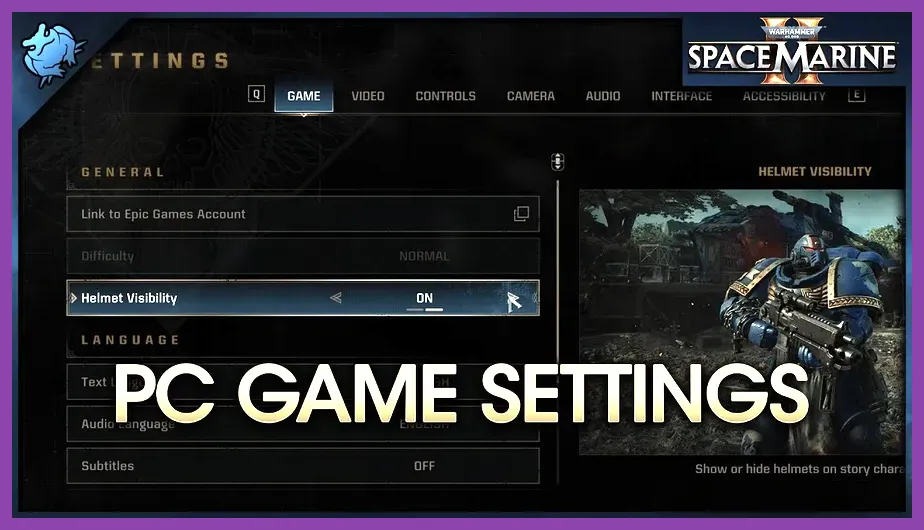
To fix crashing on PC in Warhammer 40K Space Marine 2, you must immediately address unstable high-end CPU clock speeds, lower your in-game volumetric texture settings, and verify your game cache via Steam. Saber Interactive's heavy swarm engine places massive demands on both processor threads and VRAM, frequently triggering fatal DirectX errors, unhandled exception crashes, and unexpected desktop returns during intensive Tyranid or Thousand Sons combat encounters.
Update and Configure Your Graphics Settings for Stability
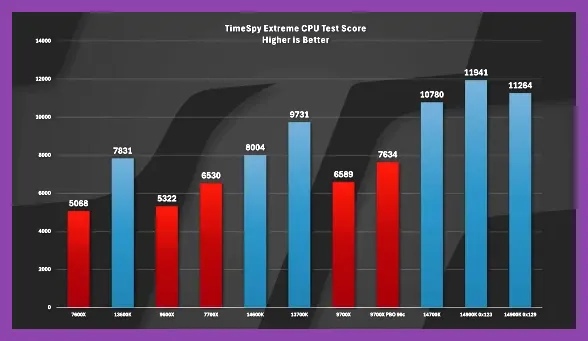
Many desktop crashes in Warhammer 40K Space Marine 2 on Steam are caused by overstressed GPU memory buffers. When facing massive hordes on operations like Inferno or Decapitation, high volumetric fog and shadow resolutions push VRAM usage past safe thresholds. To regain absolute stability, navigate to your video options menu and apply a reliable performance-focused profile.
Start by locking your framerate using a software limiter or your Nvidia Control Panel / AMD Adrenalin software to match your monitor's refresh rate, preventing sudden hardware spikes. Next, apply these specific graphics recommendations:
- Display Mode: Exclusive Fullscreen (Avoid Borderless Windowed to minimize Windows DWM overhead).
- Upscaling: DLSS (Nvidia) or FSR 2 (AMD) set to Quality mode. Avoid native resolution if you experience frame drops.
- Dynamic Resolution: Off.
- Volumetric Fog: Medium (High settings drastically increase CPU and GPU overhead during swarm rendering).
- Shadow Quality: Medium.
- Texture Quality: High (Only set to Ultra if you possess a GPU with 16GB+ VRAM).
- Ambient Occlusion: SSAO.
- Motion Blur & Depth of Field: Off (Improves clarity and reduces rendering artifacts).
For more optimization tips across various demanding titles, check out our guide on maximizing game performance and gathering gear without experiencing system locks.
Address Intel and AMD CPU Instability Issues
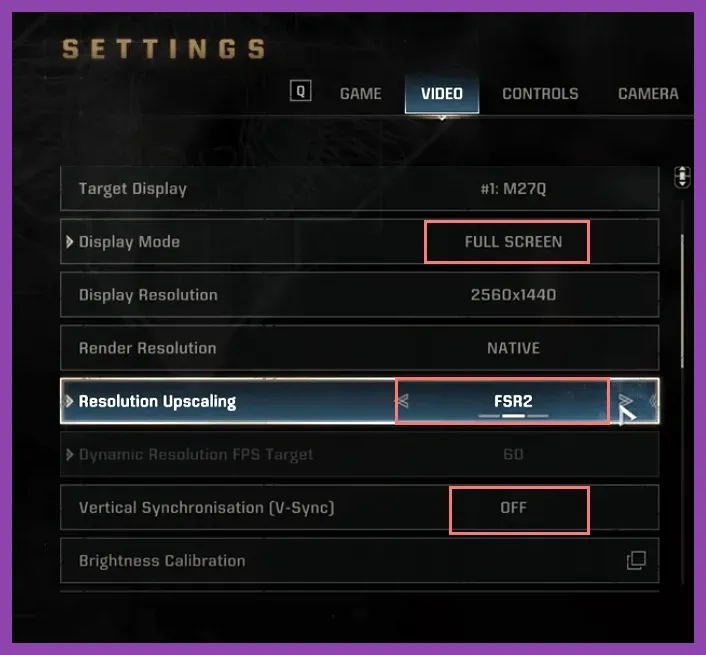
If your game crashes to the desktop with a generic error dump—or freezes entirely while loading the Battle Barge—your processor might be suffering from instability. High-end Intel 13th and 14th Gen processors (such as the i9-13900K or i7-14700K) running on aggressive motherboard power profiles frequently crash during Saber's Swarm Engine processing cycles.
To mitigate this:
- Update your motherboard's BIOS to the absolute latest version featuring Intel's baseline microcode updates.
- Download Intel Extreme Tuning Utility (XTU) or access your BIOS to slightly reduce your Performance Core Ratio multiplier by 1x or 2x.
- Set your processor power limits (PL1 and PL2) strictly to Intel's recommended specifications rather than allowing unlimited motherboard boosting.
- If you run an AMD Ryzen processor, ensure your chipset drivers are fully up to date via the official AMD Support portal and that your RAM's EXPO profile is fully stable under heavy memory stress tests.
If hardware customization interests you, you can also explore our detailed hardware and game setup customization guide to fine-tune your rig.
Verify Game Files and Clear Corrupted DirectX Shaders
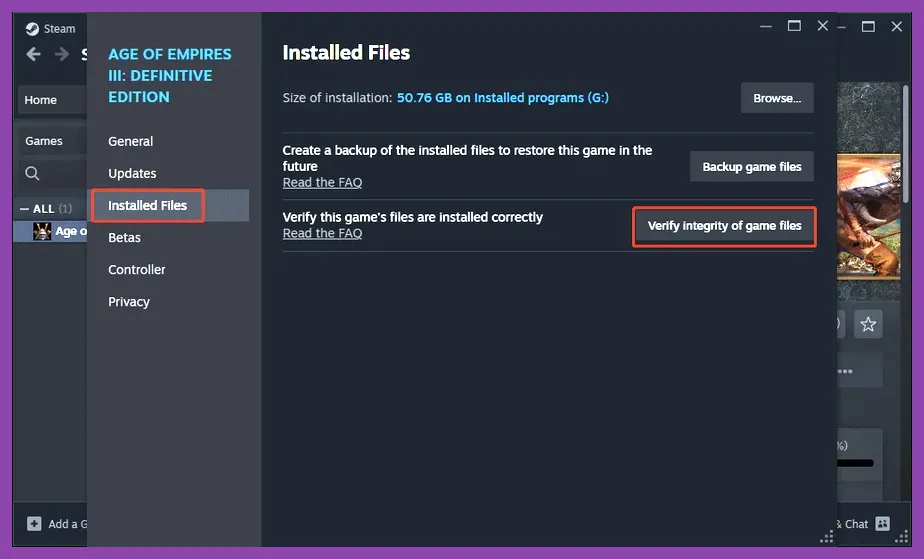
Corrupted installation files or outdated shader caches are notorious for causing hard freezes during loading screens. When Space Marine 2 updates patch weapon balancing or introduce new operations, leftover cache files often conflict with new game assets.
Perform a thorough file verification process through Steam:
- Open your Steam Library, right-click Warhammer 40,000: Space Marine 2, and select Properties.
- Navigate to the Installed Files tab.
- Click Verify integrity of game files and wait for the system to scan and re-download any missing or corrupted .pak files.
- Next, clear your DirectX shader cache by opening the Windows Disk Cleanup utility, checking the DirectX Shader Cache box, and deleting those temporary files.
If you enjoy tactical coordination and team-based shooters where stable performance is essential, take a look at our expert recommendations for optimizing team synergy and squad composition.
Roll Back or Clean Install Graphics Drivers
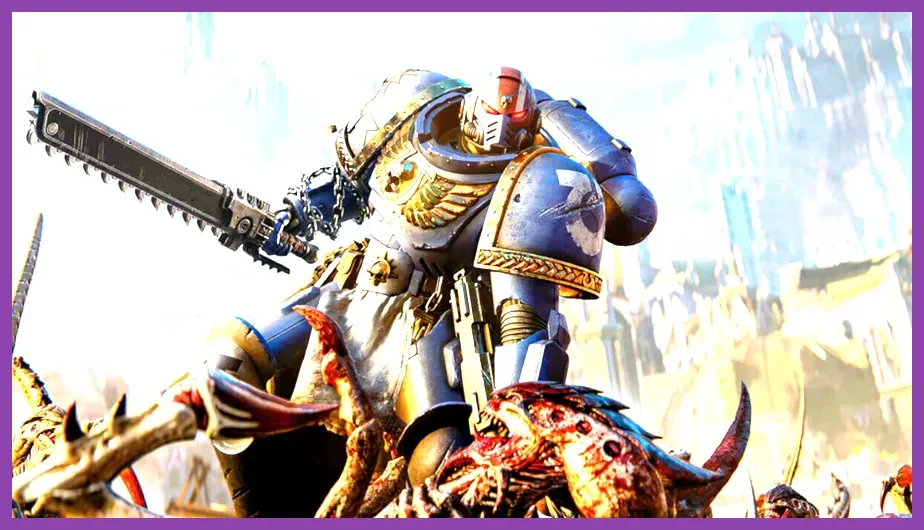
Game-ready drivers do not always guarantee error-free gameplay. If you updated your Nvidia or AMD drivers immediately before experiencing persistent crashing in Space Marine 2, a driver conflict is likely to blame. Perform a clean driver installation using Display Driver Uninstaller (DDU) in Windows Safe Mode.
Download the latest stable driver package directly from the official Nvidia drivers page or AMD equivalent. Once installed, disable third-party overlay software such as Discord Overlay, GeForce Experience In-Game Overlay, MSI Afterburner, and RivaTuner Statistics Server (RTSS). These overlays frequently inject hooks into the game's rendering pipeline, resulting in instant crashes when entering multiplayer co-op sessions.
Adjust Virtual Memory and Page File Settings
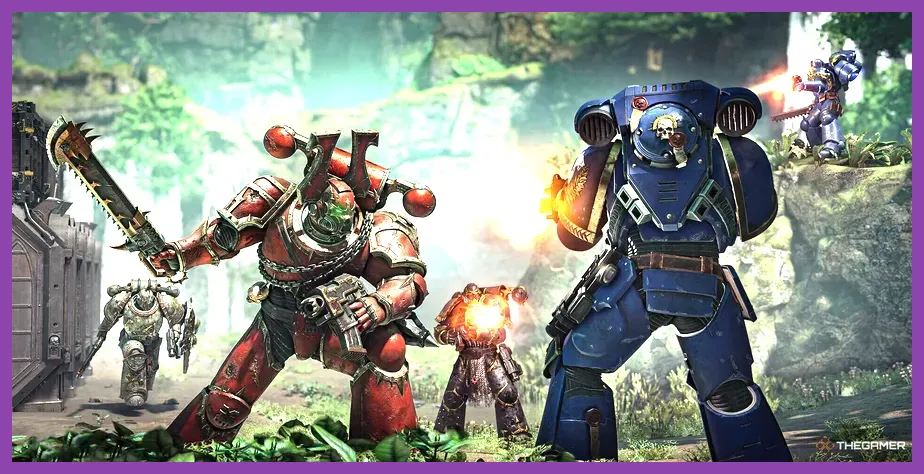
Space Marine 2 demands substantial system memory, particularly when managing high-density particle effects, blood splatters, and dozens of active Tyranid combatants on screen simultaneously. If your PC runs out of physical RAM or VRAM, Windows will rely on your page file. If your page file is disabled or set too low, the game will instantly crash.
To configure your virtual memory correctly:
- Press the Windows Key, type View advanced system settings, and open it.
- Under the Advanced tab, click Settings under the Performance section.
- Go to the Advanced tab again and click Change... under Virtual Memory.
- Uncheck "Automatically manage paging file size for all drives."
- Select your primary fast NVMe SSD drive, choose Custom size, and set the Initial Size to 8192 MB (8GB) and Maximum Size to 16384 MB (16GB) or select System managed size.
- Click Set, then click Apply and restart your computer.
For players diving into different game genres while maintaining their setups, explore our curated guides such as finding the best classes for solo play and unlocking early game progression advantages.
Disable Overclocks and Background Applications
Aggressive GPU or memory overclocks that pass synthetic benchmarks like Time Spy or Cinebench will often fail under the unique computational stress of Warhammer 40K Space Marine 2. If you are experiencing unstable stuttering or sudden crash-to-desktop events, revert all custom core clocks, memory XMP/EXPO profiles, and power limits back to stock manufacturer specifications.
Additionally, shut down resource-heavy background applications before launching the game. Web browsers with hardware acceleration enabled (such as Google Chrome or Microsoft Edge), active screen recording software, and aggressive antivirus real-time scanners can interfere with Saber Interactive's anti-cheat and memory allocation. Add the Space Marine 2 installation folder to your antivirus exclusion list to prevent false-positive interference during gameplay.