To fix crashing on PC in Goddess of Victory: Nikke, you need to address memory leaks, run the executable with administrator privileges, clear the Unity web cache, and bypass unstable frame rate caps introduced by the native launcher. While Shift Up's official Goddess of Victory: Nikke Official Website provides the base installation files, the PC client frequently struggles with memory management during prolonged operations like Simulation Room runs or Union Raids against bosses like Modernia and Chatterbox. Implementing precise stability tweaks will eliminate sudden desktop drops, freeze frames, and black screens without sacrificing visual fidelity.
Run the Executable as Administrator and Disable Fullscreen Optimizations
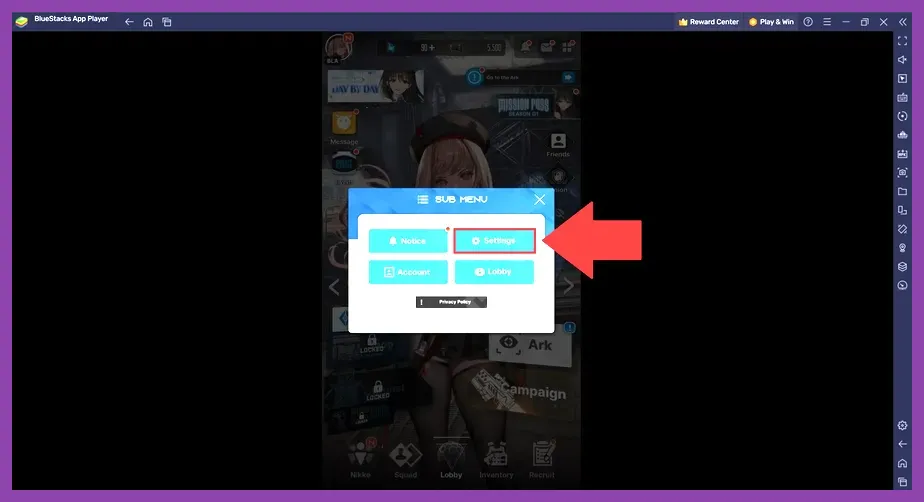
The primary culprit behind sudden desktop crashes during startup or right after the Shift Up logo is insufficient permission delegation for the launcher's embedded Unity engine. Navigate to your installation directory—typically found at C:\\Program Files\\com.gamamobi.nikke.us or your custom Epic Games or standalone launcher path. Locate nikke.exe, right-click the file, and select Properties. Go to the Compatibility tab, check the box labeled Run this program as an administrator, and also check Disable fullscreen optimizations. Click Apply and OK. For related optimization tips on different platforms, check out our guide on top free co-op games on low-end PC setups to understand hardware limits. This simple override prevents Windows Defender and UAC protocols from abruptly terminating background hooks required by anti-cheat systems like ACE (Anti-Cheat Expert).
Clear the Unity Engine Web Cache and Corrupted Files
Corrupted local asset caches often cause the client to crash mid-loading screen when fetching updated character sprites for units like Red Hood, Scarlet: Black Shadow, or Dorothy. To flush the cache completely, press Windows Key + R, type %TEMP%, and press Enter. Locate the folder named Unity or com.gamamobi.nikke.us and delete its contents entirely. Next, open the launcher, click the gear icon for settings, and select Game Repair to verify integrity and replace missing files. If you enjoy optimizing game clients across various genres, take a look at our Subnautica 2 best early skills to unlock breakdown for more technical insights. Running a full file validation ensures that corrupted particle manifests for Burst Skill cutscenes do not force the rendering pipeline to crash.
Adjust Graphics Settings and Cap Your Frame Rate
Uncapped frame rates in Nikke's PC port severely strain CPU threads, leading to thermal throttling and hard system crashes during heavy combat sequences involving multiple Raptures. Launch the game, head to Settings > Graphics, and apply the following stable profile:
- Display Mode: Exclusive Fullscreen (Avoid Borderless Windowed if experiencing VSync stutter)
- Resolution: Match your native desktop resolution (e.g., 1920x1080 or 2560x1440)
- FPS Limit: 60 FPS or 120 FPS (Cap using Nvidia Control Panel / AMD Adrenalin if in-game limiter fails)
- VFX Quality: Medium (Reduces screen clutter during high-particle Burst Skills)
- Shadows: Low or Medium (Dramatically cuts down on GPU overhead)
- Post-Processing: Off (Removes unnecessary bloom and motion blur that obscure telegraphs)
Lowering these values prevents the memory allocation spikes that plague the game during extended farming sessions. For players exploring mobile titles ported to desktop architectures, review our comprehensive list of top free open-world games on low-end PC for additional performance tuning advice.
Configure Anti-Cheat Expert and Firewall Exceptions
Anti-Cheat Expert (ACE) frequently triggers false positives with background monitoring software, third-party overclocking utilities like MSI Afterburner, or overly aggressive antivirus suites. To prevent ACE from crashing your client, open Windows Security, navigate to Virus & threat protection settings, and add an exclusion folder for your entire Nikke installation directory. Additionally, ensure that ACE-Launcher.exe and nikke.exe are allowed through your Windows Defender Firewall. If you play other tactical titles requiring strict anti-cheat synchronization, consult our tactical breakdown in the Tekken 8 best team comp synergy guide for related network and stability protocols. Disabling RivaTuner Statistics Server (RTSS) while the game boots up will also stop immediate hook-related crashes.
Update GPU Drivers and Manage Virtual Memory Allocation
Outdated graphics drivers are a primary catalyst for DirectX 11/12 pipeline crashes within Unity-based applications. Clean install the latest drivers using Nvidia GeForce Experience or AMD Software: Adrenalin Edition. Furthermore, if you encounter out-of-memory errors during Co-op Interception battles, manually adjust your Windows Virtual Memory (Pagefile). Right-click This PC > Properties > Advanced system settings > Performance Settings > Advanced tab > Virtual memory Change. Uncheck 'Automatically manage paging file size for all drives', select your fastest NVMe SSD, and set a custom size with an Initial and Maximum size of at least 8192 MB (8GB). For fans of progression-heavy team builders, check out our guide on The First Descendant best team comp synergy to optimize your squad management strategies. Applying these definitive system tweaks will keep your Nikke PC client running smoothly through every campaign chapter and raid tier.