If Apex Legends is stuttering, dropping below your usual FPS, or crashing on PC, start with a clean GPU-driver installation, disable every overlay, repair the game files, and use a low-latency graphics profile. Then cap FPS to a number your system can hold consistently rather than chasing a headline peak. Most Apex problems come from unstable frame times, shader compilation, background software, overheating, or corrupted Easy Anti-Cheat and game files—not from one magical setting.
This guide targets Apex Legends on Steam and the EA app, including the performance problems players often describe as “Apex Computer” issues. The goal is not simply to make the FPS counter look impressive. A steady 120 FPS feels better than a wildly fluctuating 180 FPS, especially during a close-range fight involving Bangalore smoke, Catalyst walls, Newcastle shields, and several ability effects at once.
First, identify whether the problem is FPS or frame time
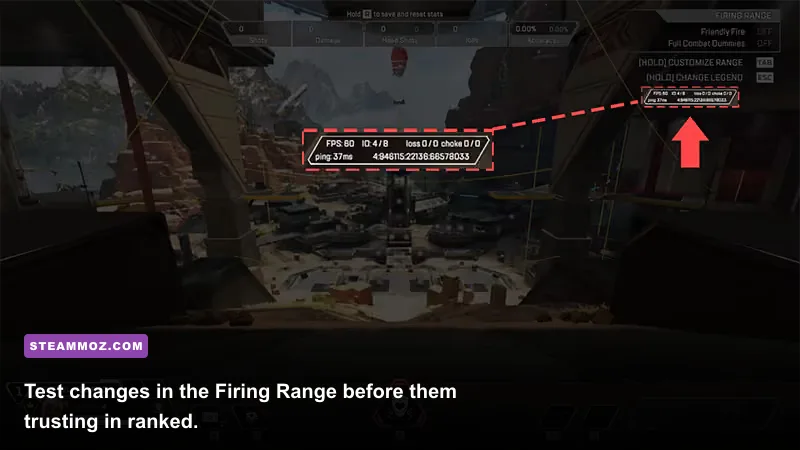
Before changing ten settings at once, turn on Apex’s Performance Display. Open Settings > Gameplay, set Performance Display to On, and watch FPS, latency, and packet loss in the top-right corner. You can also use Steam’s in-game FPS counter, but Apex’s display is more useful because it reveals network symptoms alongside rendering performance.
A low average FPS problem is usually easy to spot: the number stays low in the Firing Range, even when nothing is happening. Stuttering is different. You may see 165 FPS most of the time, followed by a sharp hitch when you slide into Fragment East, open a death box, or enter a fight with multiple ultimates. That hitch is a frame-time spike. It can be caused by shader compilation, asset streaming, CPU scheduling, storage delays, or a background application stealing resources.
| Symptom | Likely Cause | Best First Test | What Success Looks Like |
|---|---|---|---|
| FPS is low everywhere | GPU limit, excessive resolution, thermal throttling | Lower resolution or run the GPU-focused profile | GPU usage remains high and FPS rises |
| Brief hitches during fights | Shaders, overlays, texture streaming, CPU spikes | Disable overlays and complete several Firing Range minutes | Frame time becomes more even |
| Rubber-banding with normal FPS | Packet loss, server congestion, Wi-Fi instability | Check Apex Performance Display and Data Center ping | Packet loss stays at 0% |
| Crash on launch | Corrupt files, anti-cheat conflict, driver problem | Repair files and launch without overlays | Apex reaches the lobby reliably |
Run the same short test after every major change: enter the Firing Range, select the R-301 Carbine and Peacekeeper, use a few movement drills, throw an ability, and rotate through a busy area. The R-301 is a useful test weapon because its muzzle flash, recoil animation, and repeated firing expose inconsistent frame delivery. For a real-match check, play one public match on the map currently in rotation. Do not judge a fix solely from the lobby.
Check temperatures and hardware limits
Use a tool such as HWiNFO or MSI Afterburner to monitor CPU temperature, GPU temperature, clock speed, and usage. If GPU clock speed falls while temperature approaches its thermal limit, Apex is being throttled; lowering settings will help only if it reduces heat. If the GPU sits at 60–80% while one or two CPU cores are saturated, lowering resolution may barely change FPS because the processor is the bottleneck.
Also confirm that Apex is installed on an SSD. A hard drive can run the game, but asset streaming and map transitions are more likely to produce hitching. Close browser tabs, RGB utilities, recording software, motherboard control panels, and launchers you do not need. These programs may consume little average CPU time but still create disruptive scheduling spikes.
Use an Apex graphics profile built for stable FPS
Apex’s competitive settings are not about making the game look as ugly as possible. The useful target is a clean image with predictable frame delivery. Start at your monitor’s native resolution, then reduce resolution only if the GPU cannot maintain your target. At 1080p, a midrange gaming PC should usually prioritize a stable 120 or 144 FPS over expensive visual effects. At 1440p, lowering volumetric and shadow options often gives more benefit than dropping all the way to a blurry resolution.
| Setting | Recommended Value | FPS Impact | Visual Trade-Off |
|---|---|---|---|
| Display Mode | Fullscreen | Low to medium benefit | Can reduce desktop compositor interference |
| Resolution | Native; lower only if GPU-limited | Very high | Lower values look softer |
| V-Sync | Disabled for competitive play | Low | May introduce tearing |
| NVIDIA Reflex | Enabled + Boost on supported NVIDIA GPUs | Small performance cost | Reduces input latency; Boost uses more power |
| Adaptive Resolution FPS Target | 0 to preserve image quality | Variable | Dynamic resolution can look soft |
| Texture Streaming Budget | 2–4 GB below available VRAM | Low to medium | Lower textures can look less detailed |
| Texture Filtering | 4x or 8x | Low | Sharper surfaces at moderate cost |
| Ambient Occlusion Quality | Disabled | Medium | Less contact shadow depth |
| Sun Shadow Coverage | Low | Medium | Less detailed outdoor shadows |
| Sun Shadow Detail | Low | Low to medium | Reduced shadow definition |
| Spot Shadow Detail | Disabled | Low to medium | Fewer localized shadows |
| Volumetric Lighting | Disabled | Medium | Less atmospheric light and haze |
| Dynamic Spot Shadows | Disabled | Low | Reduced moving shadows |
| Model Detail | Medium | Low | Characters and objects lose some detail |
| Effects Detail | Low or medium | Medium | Explosions and ability effects are simpler |
| Impact Marks | Low | Low | Fewer bullet-impact decals |
| Ragdolls | Low | Low | Less physical detail after eliminations |
For NVIDIA cards, test NVIDIA Reflex Enabled + Boost rather than forcing a separate low-latency mode in the driver. Reflex lets Apex manage the render queue. Boost can hold higher GPU clocks, but it also raises power draw and temperature, so disable Boost if your laptop runs hot or your desktop throttles.
AMD users should begin with the native Apex renderer and a sensible FPS cap before experimenting with Radeon Anti-Lag or Radeon Super Resolution. Do not stack multiple latency modes blindly. Anti-Lag, driver frame limits, RTSS, V-Sync, and third-party optimizers can interact in ways that create worse frame pacing. Change one layer at a time.
Cap the frame rate below the point where your PC regularly dips. A 144 Hz monitor does not require an unstable 200 FPS. If your system swings between 155 and 210 FPS, try a 144 or 160 FPS cap and compare the mouse response. Competitive players may use launch options such as +fps_max 144, but the correct value depends on the refresh rate and the frame rate your hardware can actually sustain. Remove old launch options copied from outdated guides; several commonly circulated flags no longer provide a reliable benefit.
Stop stuttering caused by drivers, shaders, and overlays
Apex can stutter after a major game update or GPU-driver change while shaders and assets settle. Give the game several minutes in the Firing Range and play a few normal matches before deciding the update ruined performance. If the problem continues, perform a clean graphics-driver install. In the NVIDIA installer, choose Custom installation and select a clean installation. AMD users can use AMD Cleanup Utility before reinstalling Adrenalin. Download drivers only from the official NVIDIA driver page or official AMD support page.
Clear shader caches only when a cache is clearly corrupted or stuttering began immediately after a driver update. Windows Disk Cleanup can remove DirectX Shader Cache. NVIDIA users can also manage shader cache through the NVIDIA Control Panel; AMD provides shader-cache controls in Adrenalin. The first launch afterward may hitch more because shaders need to rebuild. That is expected. Do not repeatedly delete the cache before every session.
Disable overlays one by one: Steam Overlay, EA in-game overlay, Discord overlay, GeForce Experience or NVIDIA App overlay, Xbox Game Bar, AMD metrics overlay, MSI Afterburner’s on-screen display, and capture software. An overlay can hook into DirectX, consume VRAM, or conflict with Easy Anti-Cheat. Keep the performance display you actually need, but avoid running several counters simultaneously.
| Software Layer | Test Action | Why It Can Hurt Apex | Keep It? |
|---|---|---|---|
| Steam Overlay | Disable for Apex Properties | Injects an overlay into the game | Re-enable if no difference |
| Discord Overlay | Disable for Apex | Can spike CPU or conflict with capture | Usually safe to leave off |
| EA App Overlay | Turn off in EA settings | Extra hook during launch and gameplay | Test both states |
| Recording software | Stop background capture | Uses CPU, GPU encoding, and disk bandwidth | Use hardware encoding if needed |
| RGB and hardware utilities | Exit temporarily | Polling can create periodic frame spikes | Close while troubleshooting |
Windows Game Mode can remain enabled, but test Hardware-accelerated GPU scheduling if stutter appeared after a Windows update. Search Windows Settings for Graphics settings, toggle the option, reboot, and compare the same route in the Firing Range. There is no universal winner: scheduling behavior varies by GPU, Windows build, driver, and whether the game is CPU- or GPU-limited.
Repair Apex files and stop crashes on launch
For crashes, reliability comes before FPS tuning. In Steam, right-click Apex Legends, choose Properties > Installed Files > Verify integrity of game files. In the EA app, open the game library, select Apex, choose Manage, then Repair. This can restore damaged executable files, changed configuration data, and missing assets without reinstalling the entire game. The official EA PC troubleshooting hub is useful when the launcher reports a specific error code.
Easy Anti-Cheat failures often show up as an immediate desktop crash, a launch loop, or an error before the lobby appears. Open Apex’s installation folder, locate the EasyAntiCheat setup executable, and use its repair option if available. Do not download replacement DLL files from random websites. Those files can be malicious, outdated, or incompatible with the current build.
Run Steam or the EA app as normal first; permanent administrator mode is not a universal fix and can create permission mismatches. If Apex crashes after changing an autoexec or launch option, remove custom configuration files from the Saved Games > Respawn > Apex folder after backing them up. A damaged videoconfig file can cause repeated crashes or force settings that exceed available VRAM.
Check Windows Reliability Monitor for the actual faulting module. Search for View reliability history, open the red X beside the Apex crash, and note whether the failure names r5apex.exe, EasyAntiCheat, a display driver, or a third-party DLL. That distinction matters. A display-driver crash points toward a clean driver install, unstable overclock, or overheating. An overlay DLL points toward background software. Repeated access-violation crashes after overclocking are a strong reason to return CPU, GPU, and RAM settings to stock.
Exclude Apex from aggressive antivirus behavior only through your security software’s official exception controls, and never disable protection permanently. Ransomware protection can block a game from writing configuration files, while antivirus quarantine can remove anti-cheat components. If the game crashes only after an update, check the official Apex Legends news page and EA’s Apex support page for known issues before rebuilding your PC.
Apply the right fix for your hardware

The best profile depends on where the bottleneck lives. A six-core CPU with an RTX 3060 may deliver excellent 1080p performance but struggle to hold very high FPS in crowded areas. A stronger CPU paired with an older GPU may run the processor comfortably while falling behind at 1440p. Use GPU usage, CPU per-core usage, temperatures, and frame time together rather than relying on one percentage.
| Hardware Situation | Profile to Try | Target Approach | Avoid |
|---|---|---|---|
| GPU at 95–99% constantly | Native resolution, low shadows and effects | Lower resolution or cap FPS slightly | Uncapped rendering that overheats the GPU |
| GPU below 80%, CPU core maxed | Keep resolution; lower CPU-heavy detail | Cap FPS and close background apps | Expecting lower resolution to solve it |
| Laptop gets hot after 10 minutes | Balanced power mode, lower FPS cap | Improve cooling and prevent throttling | Reflex Boost plus an uncapped frame rate |
| 16 GB RAM with many apps open | Close browsers and launchers | Leave sufficient free memory | Running recording and browser-heavy tools |
| Game on a hard drive | Move Apex to an SSD | Reduce streaming-related hitching | Repeatedly deleting shader caches |
Memory stability deserves attention. Apex may crash under an aggressive XMP or EXPO profile even when other games appear fine. If crashes began after enabling a RAM overclock, test with the default memory profile. Run Windows Memory Diagnostic or MemTest86 if you see blue screens, corrupted archives, or crashes in several games. Likewise, disable GPU undervolts and overclocks while troubleshooting; a setting that survives a benchmark can still fail during Apex’s rapidly changing workload.
Network problems can feel like stutter but cannot be repaired with graphics settings. Select the nearest Data Center from Apex’s opening screen, use Ethernet if possible, and check for packet loss. A stable 70 FPS with 5% packet loss will feel worse than a stable 100 FPS connection with zero loss. Restart the router, stop downloads and cloud sync, and test another data center only to diagnose routing—not as a permanent choice if it creates high ping.
Finally, keep the test controlled. Change the graphics profile, reboot, verify the same map or Firing Range route, and record average FPS plus the worst visible hitch. If the game is still broken, reinstalling Apex to an SSD is reasonable after file repair, driver cleanup, overlay removal, and stock-hardware testing. For broader PC troubleshooting, Steamoz’s guides on ELEX crash and FPS fixes, EscapeVR performance problems, and Far Cry 6 FPS settings cover the same diagnostic habits in other PC games.
The practical winning combination for most players is simple: repair Apex, install a clean GPU driver, disable overlays, use low shadows and volumetric lighting, keep texture budget below available VRAM, cap FPS to a sustainable number, and watch temperatures. That approach will not turn an entry-level system into a 300-FPS monster, but it can remove the ugly frame-time spikes that make every slide, loot box, and final-ring fight feel broken.