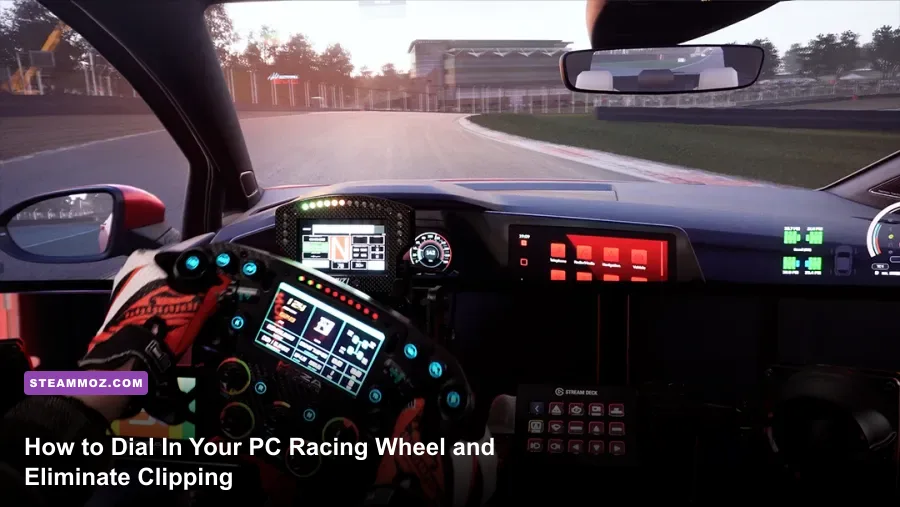
A brand-new racing wheel won't magically knock two seconds off your lap times if your force feedback feels like a broken paint mixer. Setting up a PC racing wheel properly comes down to three non-negotiable steps: anchoring your hardware to eliminate physical flex, dialing in your wheel's driver software to prevent signal clipping, and matching your in-game steering rotation 1:1 with real-world rack telemetry. Whether you're wrestling a gear-driven Logitech G923, spinning a belt-driven Thrustmaster T300RS, or unleashing a 15Nm direct drive motor from Moza or Fanatec, this guide shows you how to calibrate every layer of your hardware so you feel every curb, slide, and lockup exactly as the physics engine intended.
Mounting, Ergonomics, and Rig Rigidity: The Physical Foundation
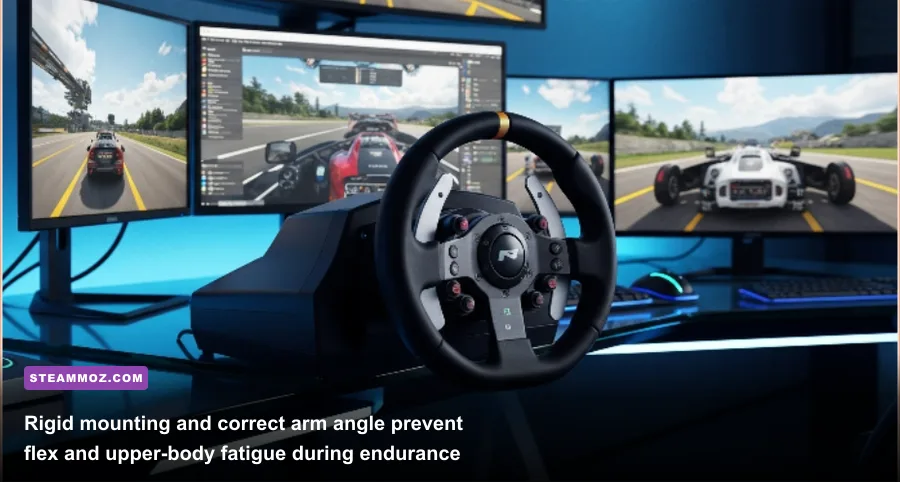
Before you touch a software slider, you have to stabilize your physical gear. Force feedback is mechanical torque transferred directly into your hands; if your desk flexes or your clamp slips mid-corner, your motor wastes energy bending your furniture instead of transmitting tire scrub into your palms. Heavy desk flex also disguises micro-vibrations, tricking you into cranking up in-game gain until your hands go numb.
If you're clamping to an office desk, ditch the hollow-core particleboard tops. Standard office desks buckle under the sustained 5Nm torque of entry-level wheels and shatter under direct drive motors. If you can't build a dedicated aluminum extrusion cockpit, use solid hardwood, reinforce your desk with metal mounting plates, or pick up a fold-out wheel stand with dedicated pedal anchors. Just as optimizing hardware demands clean airflow and steady delivery—similar to diagnosing bottlenecked systems in our PC settings optimization guides—your wheelbase demands absolute mechanical rigidity.
Positioning your wheel dictates how cleanly you countersteer. Clamp your base so the center of the wheel rim aligns horizontally with your chest, angled upward roughly 10 to 15 degrees toward your throat. When your shoulders rest against your seat, your wrists should drape naturally over the top of the rim without hyperextending your elbows. Your arms need a 90- to 110-degree bend at the elbow joint. If you're reaching too far forward, you lose fine motor control during high-speed countersteers; sit too close, and your forearms crowd your ribcage when crossing hands through tight hairpins.
Pedal Deck Anchoring and Seat Lockout
Your pedals demand even more structural support than your wheel. In budget sets with potentiometer pedals, a plastic base sliding across carpet will ruin your trail-braking consistency. If you run upgraded load-cell pedals—which measure applied pressure rather than pedal travel—you'll push anywhere from 30kg to 80kg of brute force with your left foot into the bulkhead every lap. If your office chair rolls backward on caster wheels, buy rubber caster cups or pop the wheels off entirely and swap in bell glides. Anchor the pedal base flat against a wall or lock it into an extrusion frame so zero downward pressure bleeds into backwards slide.
Driver Software Setup: G HUB, Fanatec Control Panel, and Moza Pit House

Every wheel connects to Windows through manufacturer-specific drivers. Whether you're running Logitech G HUB, the Fanatec Control Panel, Thrustmaster Control Panel, or Moza Pit House, your driver configuration sets the hardware limits before any simulator physics engine touches your hardware. Getting this baseline wrong ruins every subsequent adjustment you make in-game.
The universal baseline rule for your manufacturer software is simple: set overall force feedback strength to 100% (or raw maximum without internal boost scaling), but leave dampening, spring, and friction modifiers as close to raw zero as possible. Modern racing sims calculate tire friction, gyroscopic precession, and caster trail dynamically within their own physics loops. If you leave a 25% artificial spring or damping setting turned on inside your Windows driver, your motor overlays fake artificial resistance on top of the sim's authentic steering rack data, turning razor-sharp force feedback into heavy, rubbery mud.
| Hardware Architecture | Operating Rotation (Driver) | Driver Gain / Strength | Driver Damper & Friction | Recommended Use Case |
|---|---|---|---|---|
| Gear Drive (e.g., G29, G920, G923) | 900° | 100% (Linear) | 0% Damper / 0% Spring | Budget entry, rally, low-torque street cars |
| Dual-Belt Drive (e.g., T300RS, TX, CSW 2.5) | 1080° | 100% (Raw) | 5% Damper / 0% Friction | Intermediate GT3, touring, endurance racing |
| Entry Direct Drive (e.g., CSL DD, Moza R5/R9) | 900° – 1080° | 100% (Base Max) | 10% Damper / 5% Friction / 10% Inertia | Competitive sim racing, high-fidelity sports cars |
| High-End Direct Drive (e.g., Podium DD2, Simucube 2 Pro) | 1080° – 2520° | 70% – 85% Headroom Target | 15% Damper / 10% Friction / Slew Rate Tuned | True-to-life formula, prototype, and historical beasts |
Direct drive users need subtle damping and inertia tweaks to prevent violent oscillation. Because direct drive motors feature lightning-fast response times and zero mechanical gear slack, taking your hands off the wheel down a straightaway can trigger catastrophic harmonic wobbling. Setting your driver's mechanical damper between 8% and 15% adds enough viscous drag to stabilize the motor shaft without masking subtle understeer telemetry.
Degrees of Rotation: Setting 1:1 Dynamic Soft Lock
Set your driver software's degrees of rotation to its maximum mechanical range (900° for Logitech, 1080° for Thrustmaster, and 1080° or higher for modern Direct Drive units). Never artificially restrict your hardware lock to 540° or 360° inside Windows just because you drive GT3 or Formula cars. Modern titles like Assetto Corsa Competizione and iRacing feature automated "Soft Lock" protocols. By leaving your Windows driver at maximum, the simulator automatically restricts your rotation to match the exact real-world steering rack of whichever chassis you jump into—giving you 480° in a modern open-wheeler and 900° in a road-going Porsche without touching your desktop profile.
In-Game Force Feedback Calibration: Killing the Clip
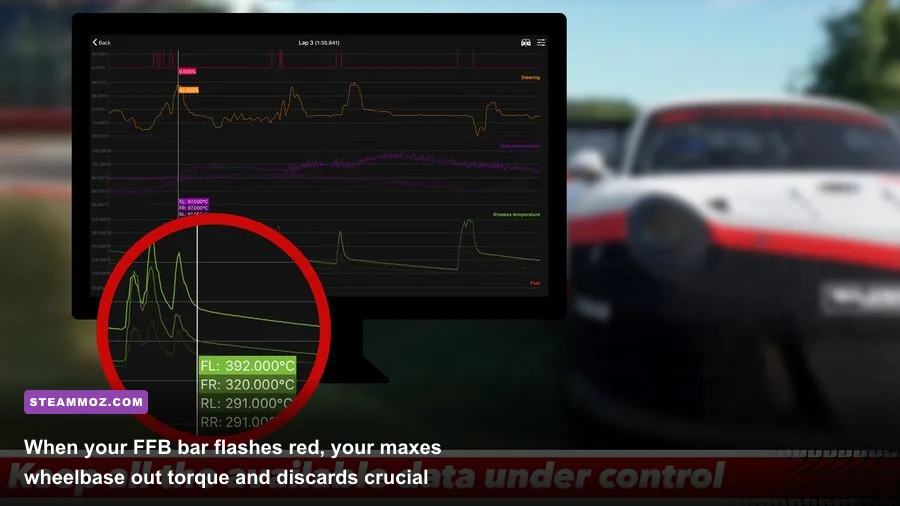
Force feedback clipping is the single biggest performance killer in sim racing. Clipping occurs when the in-game physics engine requests more torque from your wheel than the electric motor can physically produce. When your motor hits its peak output limit, the signal flatlines at maximum resistance. If you enter a corner with your force feedback pinned at 100% capacity, you won't feel sudden weight transfers, kerb strikes, or front-tire scrub. Everything feels uniformly, brutally heavy, blinding your hands to impending understeer.
Every major sim features an in-game telemetry meter showing real-world force feedback output. In Assetto Corsa Competizione, look for the four vertical bars in the bottom-right corner; the rightmost bar represents steering gain. In iRacing, tap the F9 black box to monitor the steering bar. When you hustle your car through high-speed, high-compression sweepers like Eau Rouge or Carousel, that telemetry bar should pulse near 95% of its total range. If it turns solid red, flashes bright yellow, or pins itself to the ceiling, your in-game gain is too high. Dial your in-game gain down until the red spike disappears, leaving the meter flirting with the ceiling only during violent curb strikes or catastrophic wall impacts.
Linearity and Minimum Force Adjustments
Sim racers using entry-level gear-driven wheels face the opposite problem: a dead zone at the center of the wheel where internal gears fail to engage under tiny micro-forces. If your wheel feels loose or unresponsive while driving in a straight line, your base suffers from motor dead-band. Gear-driven hardware benefits from setting "Minimum Force" in your game's force feedback menu to between 8% and 14%. This injects a subtle pre-load torque into the motor, ensuring that minor tire adjustments register instantly in your hands rather than vanishing into gear lash.
Never add minimum force to a direct drive or premium belt wheel. High-torque direct drive motors have zero mechanical dead-band and respond down to a fraction of a milli-Newton meter. Adding minimum force to a direct drive wheel ruins its natural center balance, creating an annoying, notched center notch that makes micro-corrections feel robotic. Keep your force feedback linearity at 1.0 (dead linear) so the torque curve from game engine to motor output remains an uncorrupted 1:1 line.
Pedal Calibration: Mastering Brake Pressure and Load Cells
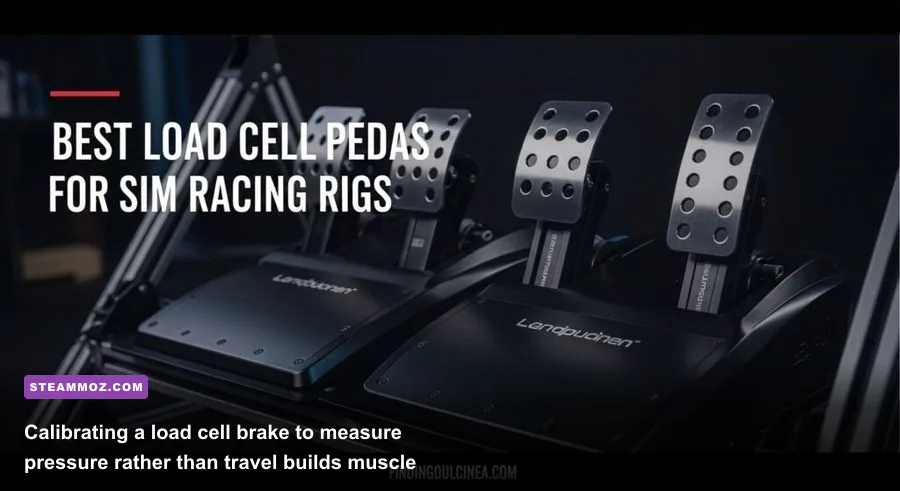
Speed doesn't come from turning the wheel; speed comes from how cleanly you scrub off momentum into the apex. Calibrating your pedals properly separates frantic mid-pack drivers from podium contenders. Unlike real cars with hydraulic fluid lines, sim pedals rely on either potentiometer/Hall-effect angle sensors (which calculate braking by how far the pedal pivots) or load-cell strain gauges (which calculate braking by how hard you physically squash the pedal).
If you're using potentiometer pedals, set your brake linearity or gamma curve between 1.8 and 2.4 inside your game settings. Because angle-based pedals offer little mechanical resistance as they travel through their stroke, a linear (1.0) curve makes locking your brakes unavoidable. A progressive gamma curve forces the game to register braking softly at the start of travel and ramp up exponentially toward the end, mimicking the stiffening feel of actual automotive brake pads clamping a rotor.
| Simulation Title | Recommended Steering Lock | Target In-Game Gain | Dynamic Damper Setting | Brake Gamma Setting |
|---|---|---|---|---|
| Assetto Corsa Competizione | Automatic (Match Driver) | 70% – 75% (DD) / 90% (Belt) | 0% – 10% | 1.0 (Load Cell) / 2.2 (Potentiometer) |
| iRacing | Custom Calibration Wizard | Use Auto-Button (Black Box) | Linear Mode Checked | 0.0 (Load Cell) / 1.8 – 2.0 (Potentiometer) |
| EA Sports WRC | 540° (Manual Soft Lock) | 65% – 80% | 15% – 25% (Stabilize Kick) | 1.0 (Linear Target) |
| Automobilista 2 | Automatic (Profile Matched) | 55% – 60% (Default+ Profile) | 10% Low-Speed Damping | 1.0 (Load Cell) / 2.0 (Potentiometer) |
If you've upgraded to load-cell pedals, lock your brake gamma curve strictly to 1.0 (Linear). Human muscle memory excels at remembering pure physical pressure, not pedal travel distance. When your pedal firmware translates your leg's physical pressure directly into stopping power without non-linear software math, your trail braking becomes an instinctive reflex rather than a guessing game.
Eliminating Ghost Inputs with Deadzones
Always calibrate a 2% to 4% deadzone at the resting top of both your throttle and brake pedals, alongside a 2% deadzone at the absolute bottom (100% threshold). If your brake pedal has zero top deadzone, resting the dead weight of your left foot on the pedal plate will subtly drag the pads, robbing you of 5 to 10 km/h of straight-line top speed without triggering a visual HUD light. The bottom deadzone guarantees you register genuine 100% brake pressure even when you don't bottom out the rubber bump stops on your rig.
System Latency and Frame Timing: The Hidden Optimization
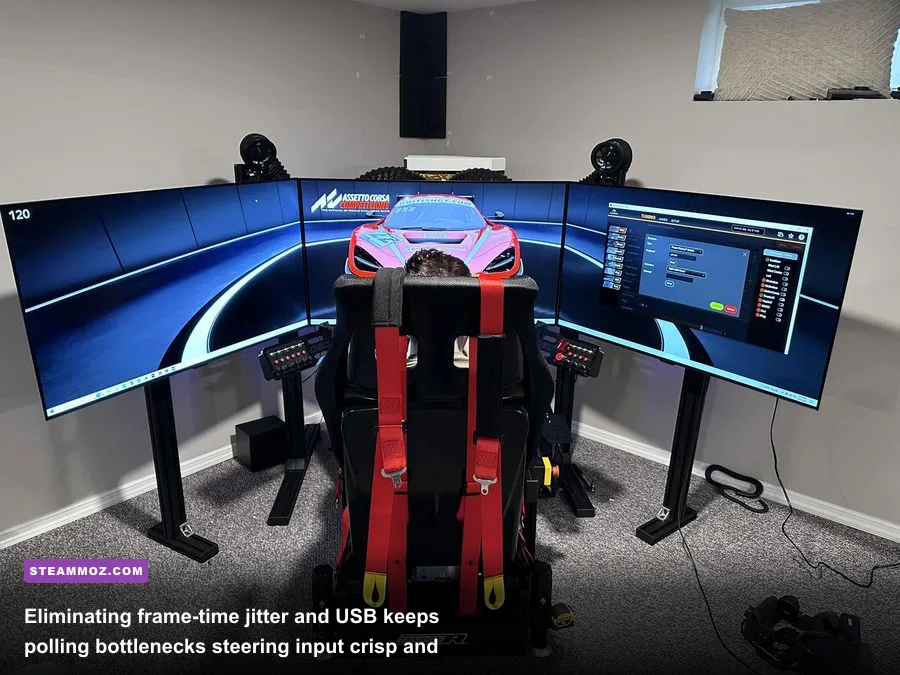
You can buy the most expensive wheelbase on the planet, but if your PC struggles with erratic frame pacing or input lag, your brain will constantly lag behind the car's weight transfers. Force feedback physics engines update at blistering polling rates—iRacing runs its telemetry at 60Hz or 360Hz, while titles like rFactor 2 refresh physics at 1000Hz. If your display pipeline stutters, your visual feed falls out of sync with the torque cues delivered to your hands.
Plug your wheel and pedals directly into the rear I/O ports on your motherboard. Avoid unpowered desktop USB hubs, front-case panel headers, or secondary passthroughs on your monitor. Front-panel chassis cables pick up electromagnetic interference from nearby GPU power leads, leading to mysterious USB dropouts, missed paddle shifts, or sudden center-calibration loss mid-race. High-torque direct drive motors generate substantial electrical feedback; connect them strictly to dedicated USB 3.0 or USB 3.2 Gen 1 ports on your motherboard's rear bracket to ensure clean data delivery.
On the software side, maintaining high and rock-stable frame rates is non-negotiable for competitive sim racing. Just as stabilizing your system resolves stutters across demanding games—a topic we explore thoroughly in our guides to stopping PC crashes and rescuing FPS and our breakdown of fixing frame rates before diving in—dialing back aggressive shadow resolutions, volumetric fog, and post-processing mirrors gives your CPU the headroom it needs to run physics calculations without dropping frames. Lock your frame rate using RTSS (RivaTuner Statistics Server) or your GPU driver panel to 3 frames below your monitor's native G-Sync or FreeSync refresh rate, enable low-latency modes (NVIDIA Reflex or AMD Anti-Lag), and disable vertical sync in your game menus. If your system runs smoothly like a tuned engine in our settings guides for higher FPS, your wheel will respond instantly to every slide, letting you catch snap oversteer before your car swaps ends.
Dialing in a PC racing wheel isn't a one-and-done setup task—it's an ongoing process of aligning physical ergonomics, clean driver data, and unclipped physics telemetry. Take twenty minutes to calibrate your deadzones, purge your artificial Windows dampers, and tune your gain sliders to kill clipping. Once your hardware stops fighting the game engine and starts communicating the true limits of mechanical grip, your confidence will soar, your consistency will harden, and your lap times will tumble.