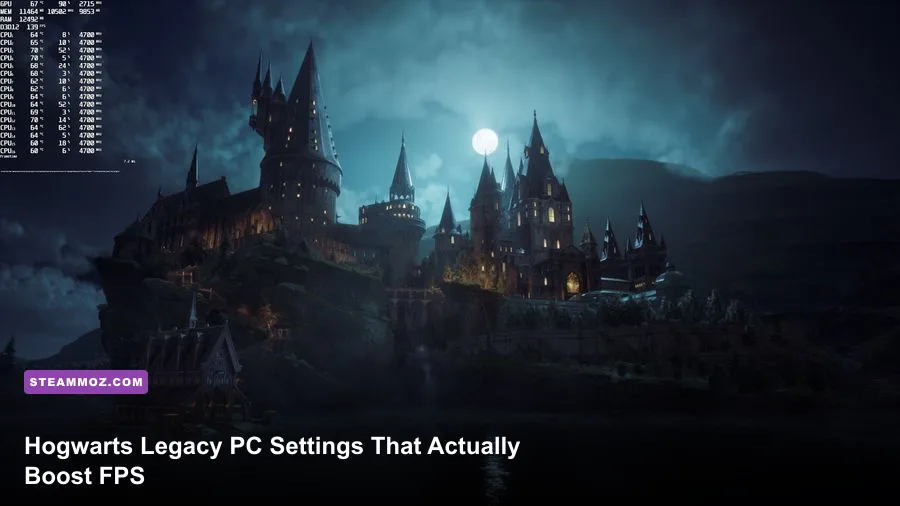
For the best Hogwarts Legacy PC performance, start with High textures, Medium effects, Fog, and Shadows, turn off ray tracing, enable DLSS Quality on an RTX card or FSR 2 Quality on other GPUs, and cap the frame rate slightly below your display refresh rate. That profile preserves Hogwarts’ atmosphere while cutting the settings that cause the worst drops in Hogsmeade, during broom flight, and while entering the castle.
Hogwarts Legacy is unusually sensitive to more than average FPS. A counter can report 70 frames per second while traversal still feels rough because the game is streaming the castle, village interiors, NPCs, and open-world foliage in the background. The target here is not a flashy peak number; it is a stable frame time with fewer hitching spikes. These recommendations apply to the Steam and Epic PC versions, including current patched builds, although driver versions and shader compilation can change results.
Use This Hogwarts Legacy PC Profile First
Before chasing individual options, select the right baseline for your hardware. The presets below are designed around a 1080p or 1440p display and assume the game is installed on an SSD. An SSD is not a luxury for this title: the minimum specification lists a 7200 rpm hard drive, but an SSD greatly reduces the ugly pauses that can happen when Hogwarts Legacy streams new areas.
| Target | Core Settings | Upscaler | Expected Result |
|---|---|---|---|
| 1080p, 60 FPS | High textures, Medium effects, fog, shadows; ray tracing off | DLSS Quality, FSR 2 Quality, or XeSS Quality | Strong image quality with sensible GPU headroom |
| 1440p, 60 FPS | High textures, Medium effects and shadows; foliage Medium | DLSS Quality or Balanced; FSR 2 Quality | Good detail without punishing traversal drops |
| 1440p, 90-120 FPS | Medium textures, effects, fog, shadows, and foliage | DLSS Balanced or Performance | Responsive combat, softer image during movement |
| 4K, 60 FPS | High textures, Medium effects; ray tracing off | DLSS Balanced or Performance | Playable on powerful GPUs with fewer spikes |
| Steam Deck or low-end PC | Low preset, textures Medium if VRAM allows, motion blur off | FSR 2 Balanced or Performance | Best chance of a locked 30 FPS target |
Set the display mode to Fullscreen if your version offers it; otherwise use Borderless Windowed and disable desktop overlays that fight for focus. Choose a frame-rate cap that your machine can actually sustain. A locked 60 FPS is much smoother than a pattern that jumps between 48 and 78. On a 144Hz monitor, try 72 or 90 FPS first. With G-Sync or FreeSync enabled, cap two or three frames below the panel’s refresh rate using the GPU driver or RTSS.
Keep V-Sync on if you do not have variable refresh, because tearing is especially visible while panning across Hogwarts’ tall towers. With VRR, test both the game’s V-Sync and driver-level V-Sync; the cleaner option depends on your display. Also allow the first launch to finish shader preparation, and give a newly updated graphics driver a few minutes of normal play before judging traversal smoothness.

🎮 FORM
Looking to experience this game? Grab your digital key directly on our store for $14.99.
View on Steammoz Store →Which Graphics Settings Cost the Most FPS?
Not every Ultra option deserves the same sacrifice. Textures mostly consume VRAM and affect clarity, while shadows, fog, effects, and ray tracing repeatedly hit GPU and CPU workloads. That is why lowering every setting to Low can look worse without fixing the real bottleneck. The table below ranks the practical impact rather than pretending every PC behaves identically.
| Setting | Recommended Value | FPS Impact | Visual Trade-Off |
|---|---|---|---|
| Ray Tracing Reflections, Shadows, Ambient Occlusion | Off | Very high | Less realistic reflections and shadowing, but far steadier performance |
| Effects Quality | Medium | High | Less density in spell particles, smoke, and magical effects |
| Fog Quality | Medium | Medium to high | Shorter atmospheric detail and simpler distant haze |
| Shadow Quality | Medium | Medium to high | Edges and small shadow details become softer |
| View Distance Quality | High or Medium | Medium | Fewer distant objects and reduced geometry detail |
| Population Quality | Medium | CPU-dependent | Fewer NPCs and less crowd activity, especially in Hogsmeade |
| Foliage Quality | Medium | Medium | Less grass and simpler leaves across the Highlands |
| Texture Quality | High if VRAM allows | Low FPS impact, high VRAM impact | Lower texture sharpness when reduced |
| Material Quality | High | Low to medium | Less detailed cloth, stone, wood, and surface shading |
Ray tracing is the first switch to flip
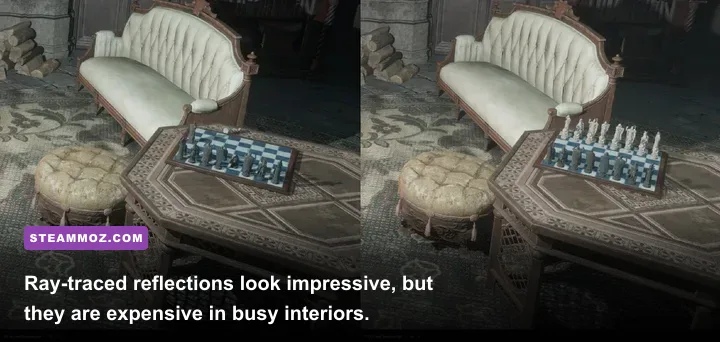
Hogwarts Legacy includes ray-traced reflections, shadows, and ambient occlusion. They make polished floors, windows, and dark corridors look richer, but they are brutally expensive during movement. The reflection option can be especially deceptive: a still screenshot looks stunning, while turning quickly in the Great Hall adds a large frame-time spike. Unless you have a high-end RTX card and a 60 FPS target with spare headroom, disable all three ray-tracing options.
Textures are not your first FPS target
Keep textures on High when your graphics card has enough VRAM. Dropping from High to Medium does not usually deliver the same gain as reducing effects or shadows, and it makes Hogwarts’ stonework, books, robes, and painted portraits look noticeably softer. At 4K, High textures can approach the practical limit of an 8GB card once the game loads the castle and open world together. If you see texture pop-in, severe hitching, or VRAM usage pressed against the limit, use Medium textures before lowering resolution.
View Distance and Population Quality deserve special attention on a CPU-limited system. Population controls the number of active NPCs and simulation work, which is why lowering it can help in Hogsmeade even when GPU usage looks strangely low. View Distance affects distant geometry and objects across the Hogwarts grounds. Keep View Distance High if your GPU has room, then lower Population to Medium when crowded areas remain inconsistent.
DLSS, FSR 2, XeSS, and Resolution Scaling
Upscaling is the biggest clean performance win available in Hogwarts Legacy PC settings. The game renders internally below your output resolution, then reconstructs the image. At 1440p, DLSS Quality typically looks much better than running native resolution with aggressive Low settings, because it preserves the expensive visual features that define the castle while reducing the number of pixels the GPU shades.
| GPU Situation | Best Upscaler | Starting Mode | When to Lower Quality |
|---|---|---|---|
| NVIDIA RTX 20, 30, or 40 series | DLSS | Quality at 1080p/1440p | Use Balanced for 4K or a 90+ FPS target |
| AMD Radeon RX card | FSR 2 | Quality at 1080p/1440p | Use Balanced when GPU usage stays near 99% |
| Intel Arc or supported Intel GPU | XeSS or FSR 2 | Quality | Compare motion clarity and foliage shimmer |
| Older GTX or RX hardware | FSR 2 | Balanced | Use Performance only for a 30 FPS target |
DLSS Quality is the preferred choice on GeForce RTX hardware because its reconstruction tends to keep foliage and distant castle detail stable. DLSS Balanced is a sensible 4K setting, but at 1080p it can look too soft, particularly around hair, thin branches, and iron railings. FSR 2 Quality is the best broad option for Radeon and older NVIDIA cards. If you notice shimmering on grass or ghosting behind moving characters, compare FSR 2 with XeSS rather than immediately lowering every quality setting.
Do not stack multiple forms of scaling without checking the final resolution. Set the game’s output resolution to your monitor’s native resolution, select the upscaler mode, and leave Dynamic Resolution off while benchmarking. Dynamic resolution can rescue a target frame rate, but it may visibly soften the image during spell-heavy combat or broom travel. It is useful for a locked 30 or 60 FPS profile, less appealing if you care about consistent sharpness.
NVIDIA Reflex can help reduce input latency on supported GeForce cards. Enable Reflex if your priority is responsive spell casting, especially at high frame rates. It will not fix traversal stutter or CPU bottlenecks, though. Those are streaming and frame-time problems, not input-lag problems.
Fix Stutter in Hogsmeade and Hogwarts
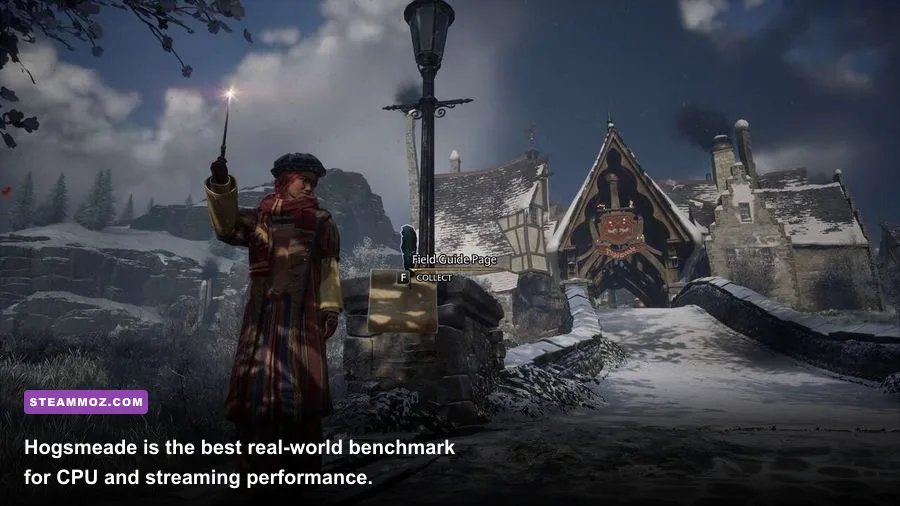
If your average FPS looks fine but the game still hitches, stop lowering resolution first. Hogwarts Legacy’s roughest moments often come from asset streaming, shader compilation, CPU simulation, and background software. Hogsmeade is the classic stress test: it combines dense NPC activity, interiors loading behind doors, detailed architecture, and frequent camera movement through narrow streets.
Use an SSD and protect your CPU headroom
Install the game on an SSD with free space available. An NVMe drive is preferable, but a healthy SATA SSD is still a major step up from a mechanical hard drive. Close browser tabs, RGB utilities, recording tools, and launchers that are scanning files in the background. Windows Game Mode can remain enabled, while overlays from Steam, Discord, GeForce Experience, and AMD Adrenalin should be tested one at a time rather than assumed harmless.
Watch GPU usage, CPU usage, VRAM, RAM, and frame time with an overlay. If GPU usage sits around 95-99% during a drop, reduce resolution, use a lighter upscaler mode, or lower effects and fog. If GPU usage falls while one or two CPU threads spike, lower Population Quality and View Distance, cap the frame rate, and close background processes. Lowering textures will not solve a CPU-limited Hogsmeade dip.
Let shader compilation and traversal settle
After a driver update, the shader cache may rebuild. The first visit to a new region can still be rough, but repeated runs should become more consistent. Avoid judging a setting after sprinting through three areas in a single minute. Test the same route: fast travel to Hogsmeade, walk past the shops, enter a building, exit, then fly from the castle grounds toward the Forbidden Forest. Record the one-percent lows, not just the average.
Use a sensible cap to stop the GPU from bouncing against 100 percent. A stable 60 FPS cap leaves room for streaming spikes, while an uncapped 100 FPS target may produce worse stutter when the engine suddenly needs more CPU or memory. If you are troubleshooting crashes or unusual frame drops, Steamoz’s PC crash and FPS fixes offer useful general checks for drivers, overlays, and game files.
Best Settings for 1080p, 1440p, and 4K

Resolution changes the entire tuning strategy. At 1080p, the CPU can become the limit quickly, especially in Hogsmeade, so reducing GPU-heavy options may barely move the needle. At 1440p, most mainstream gaming PCs find a useful balance between sharpness and workload. At 4K, the GPU is usually the wall, making DLSS or FSR and ray-tracing cuts far more important.
1080p competitive-smooth profile
Use High textures, Medium effects, Medium fog, Medium shadows, Medium foliage, High materials, and Medium Population. Select DLSS or FSR 2 Quality, disable ray tracing, motion blur, depth of field, and chromatic aberration, then cap at 60, 72, or 90 FPS depending on your hardware. This profile keeps combat clear and avoids the smeared camera movement caused by motion blur.
1440p quality-performance profile
Use High textures and materials, Medium effects, fog, shadows, foliage, and Population, with High View Distance. DLSS Quality is the first choice for RTX cards; FSR 2 Quality works well on Radeon hardware. If your average is above the target but the one-percent lows collapse, reduce effects and fog before touching textures. Those settings affect spell particles, smoke, and atmospheric rendering during the scenes where the GPU is already busy.
4K cinematic-but-playable profile
Start with High textures, Medium effects, Medium fog and shadows, Medium foliage, High materials, and High View Distance. Use DLSS Balanced, or FSR 2 Balanced if you do not have an RTX card. Disable ray tracing unless you have substantial GPU headroom. Native 4K with ray tracing is a screenshot mode for most systems, not the best everyday profile for exploring the Highlands.
| Hardware Class | Resolution | Preset Foundation | Important Compromise |
|---|---|---|---|
| GTX 1660 Super, RX 5600 XT class | 1080p | Medium with High textures if VRAM permits | FSR 2 Balanced, RT off, 30-60 FPS target |
| RTX 3060, RX 6700 XT class | 1080p or 1440p | High textures, Medium effects and shadows | DLSS/FSR Quality, RT off |
| RTX 4070, RX 7800 XT class | 1440p | High settings with Medium effects and fog | DLSS Quality or FSR 2 Quality for stable 60-90 FPS |
| RTX 4080, RX 7900 XTX class | 4K | High textures, Medium non-texture settings | Upscaling recommended; RT remains expensive |
These are starting points, not promises. The official Hogwarts Legacy Steam page lists the baseline requirements, but recommended specifications do not guarantee a locked frame rate in every location. A system with 16GB of RAM and a good GPU can still hitch if background apps consume memory or the game is installed on a slow drive.
Final Tweaks for a Smoother Hogwarts
Turn off Motion Blur, Depth of Field, Film Grain, and Chromatic Aberration if you want a cleaner PC image. Motion blur can make a stable 60 FPS feel muddy during camera turns, while film grain hides fine texture detail. Depth of field is a preference setting with a relatively small performance effect, so keep it on if you like cinematic dialogue shots. The same goes for chromatic aberration, though most players will prefer it off.
Use the latest stable GPU driver rather than chasing every optional beta release. Verify the game files through Steam after a crash or failed update, and avoid manually deleting configuration files until you have backed them up. If the game continues crashing after graphics changes, check Steamoz’s crashing and low-FPS troubleshooting guide for a broader diagnostic approach. Our max-FPS settings guide also covers the same useful process of separating GPU, CPU, and streaming bottlenecks.
For laptop players, plug in the charger, select the manufacturer’s performance mode, and confirm the game is using the dedicated GPU. Windows power-saving modes can quietly throttle both CPU and GPU, creating the exact kind of inconsistent frame pacing that looks like a bad graphics setting. Keep temperatures under control, too: a laptop that begins at 70 FPS and drops to 45 after ten minutes is thermally limited, not poorly configured.
Finally, benchmark the places that matter instead of trusting a quiet interior. Test Hogsmeade, the Great Hall, a busy Hogwarts corridor, and a broom flight over the open grounds. If those locations hold your chosen cap with only brief dips, you have a genuinely smooth profile. The winning Hogwarts Legacy PC setup is usually High textures, Medium heavy effects, no ray tracing, a sensible upscaler, and enough frame-rate headroom to survive the game’s streaming spikes.
For official patch information and support, check the official Hogwarts Legacy website, the Portkey Games support portal, and the Steam update feed. Settings can shift slightly after major patches, but the order of operations stays reliable: disable ray tracing, choose the right upscaler, protect VRAM with sensible textures, lower CPU-heavy population settings when needed, and measure frame-time consistency in the busiest parts of the wizarding world.