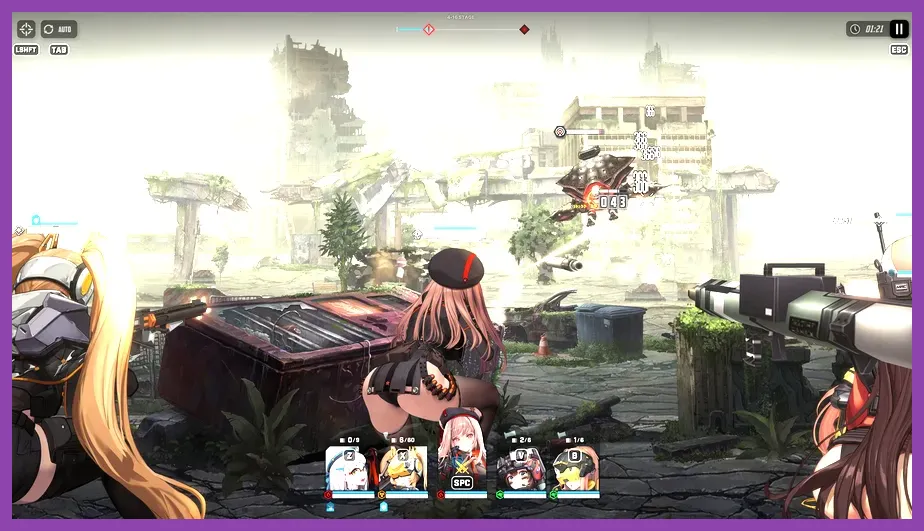
To achieve peak performance, zero stutter, and stable 120 FPS in Goddess of Victory: Nikke on PC, you must configure LDPlayer or BlueStacks with 4 CPU cores, 4GB to 8GB of RAM, and the dedicated GPU rendering engine set to Vulkan or DirectX 11. Running Shift Up's tactical shooter on an emulator requires specific fine-tuning because default player profiles often lock frame rates at 30 or 60 FPS, causing input delay during high-intensity Interception boss fights against Modernia or Alteisen.
Choosing the Right Android Emulator for Nikke
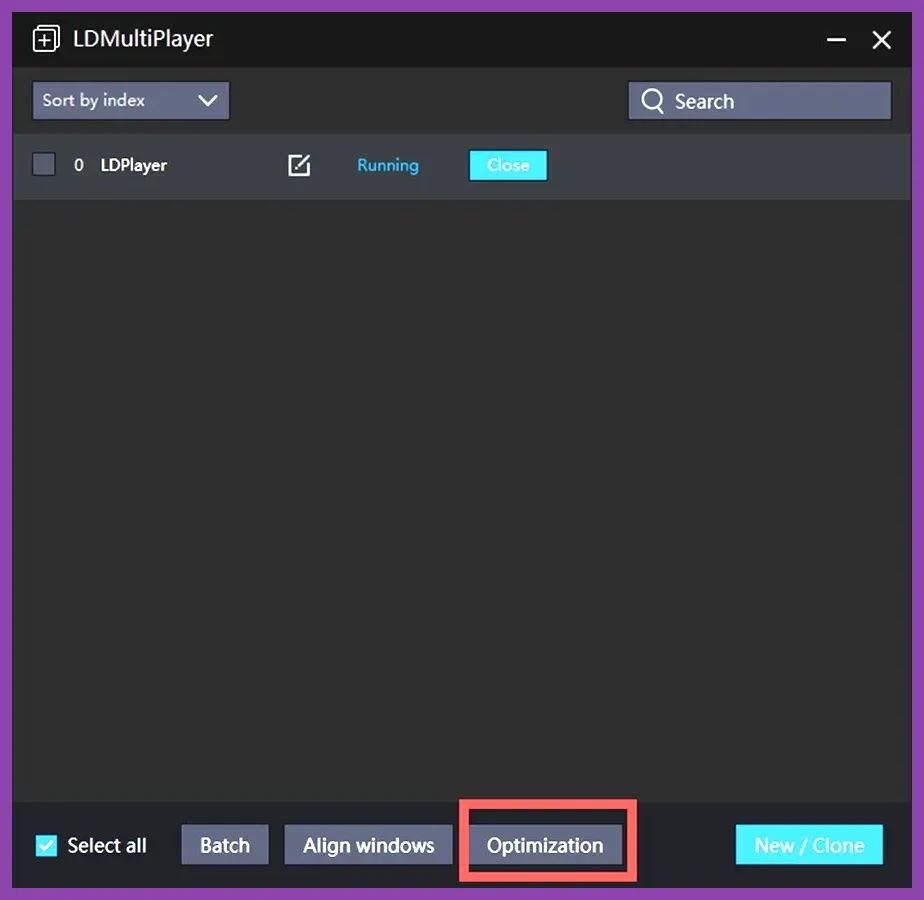
Before adjusting advanced graphics parameters, your choice of software dictates your baseline stability. According to official developer announcements and community testing, LDPlayer (LDPlayer 9) and BlueStacks 5 offer the most reliable optimization profiles for gacha shooters. However, LDPlayer 9 tends to handle the Unity engine used by Goddess of Victory: Nikke with significantly less RAM leakage during extended multi-hour farming sessions in simulation rooms or co-op interception battles.
If you enjoy exploring optimized gaming setups across different genres, check out guides like this Squad Busters strategy overview or review tactical builds found in the Smite solo class breakdown to understand how hardware response times impact high-tier competitive gameplay.
Optimal LDPlayer 9 Configuration Profiles
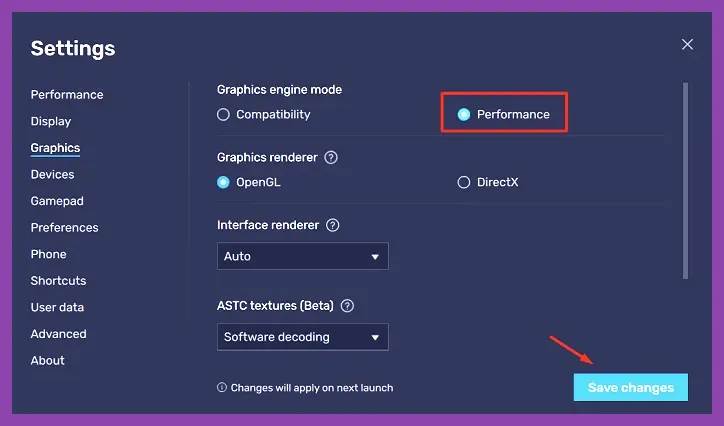
Configuring LDPlayer requires diving deep into the multi-player settings menu to unlock hardware acceleration. If your PC specs feature a modern mid-to-high tier processor (such as an Intel Core i5-12400F or AMD Ryzen 5 5600X) paired with an NVIDIA RTX card, apply these exact parameters:
- CPU Allocation: 4 Cores (or 6 Cores if you have an 8+ core CPU). Never select all cores, as Windows needs processing headroom.
- RAM Allocation: 4096M (4GB) or 8192M (8GB). Setting it lower than 4GB causes texture pop-in during Burst animations.
- Resolution: 1920x1080 (16:9). Avoid 4K emulation unless you possess an RTX 4080 or better, as Android UI scaling can severely bottleneck frame rates.
- Graphics Rendering Mode: Vulkan (Recommended for modern NVIDIA/AMD cards) or DirectX (Best for older hardware).
- ASTC Texture Support: Enabled. This directly prevents visual corruption on complex character sprites like Scarlet, Dorothy, or Red Hood.
Balancing these settings ensures that complex particle effects during full Burst chains do not tank your frame rate. For players exploring optimization in other intensive titles, you can cross-reference hardware demands with our Starfield gear-hunting guide or the Space Marine 2 unlock guide.
Configuring BlueStacks 5 for Smooth 120 FPS Combat
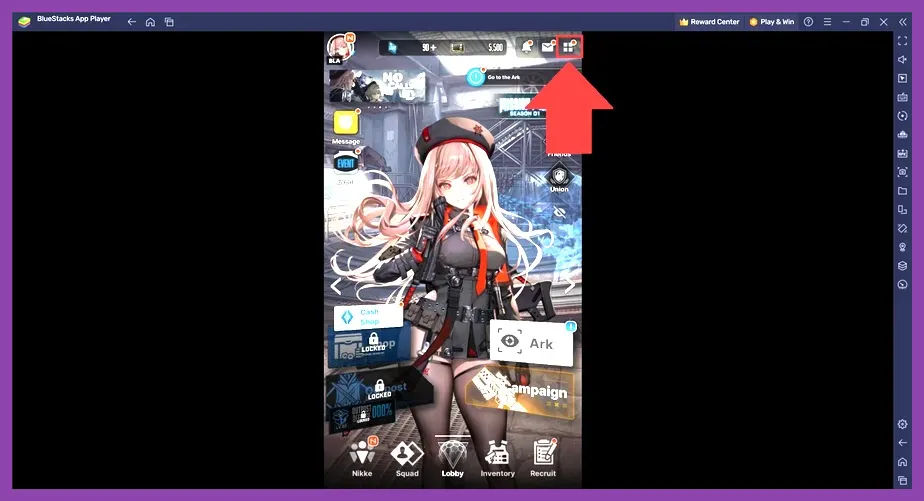
If you prefer BlueStacks 5, the optimization path requires toggling specific performance flags buried within the settings gear icon. Goddess of Victory: Nikke features high-speed crosshair tracking where millisecond inputs dictate whether you successfully destroy missile batteries or miss crucial hit-boxes.
- Navigate to Settings > Performance and assign High (4 Cores) and 4 GB RAM.
- Scroll down to the Frame Rate section, toggle Enable high frame rate, and drag the slider up to 120 FPS.
- Go to Settings > Graphics and switch the Graphics Engine mode to Performance, and the Graphics Renderer to Vulkan.
- Under Interface, ensure that ASTC texture is set to Hardware decoding to offload texture processing to your dedicated graphics card.
Once applied, restart your emulator instance. You can verify your frame rate using external monitoring software or check out general platform tips over at the official Goddess of Victory: Nikke Official Website.
In-Game Settings Adjustments for Maximum Clarity
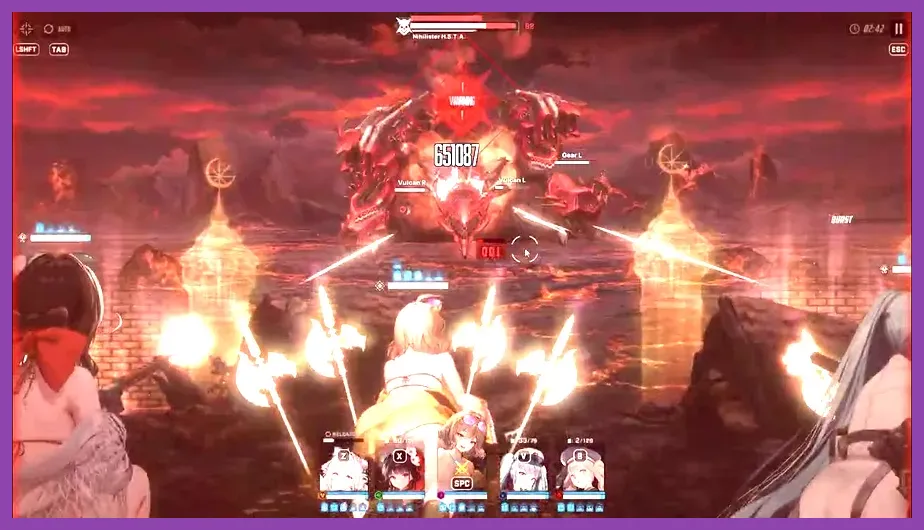
Emulator configurations alone cannot guarantee smooth combat if your in-game visual sliders are maxed out improperly. Launch Nikke, go to the settings menu via the lobby, and adjust the following graphics parameters:
- Graphics Quality: High (Always keep this on High if your PC meets specs; Low settings distort character model outlines and obscure subtle boss telegraphs).
- Frame Rate: 60 FPS or 120 FPS (Select 120 FPS only if your emulator is locked to 120Hz; otherwise, stick to a stable 60 FPS to prevent micro-stutters).
- Background Effect: Medium or Low (Reduces unnecessary clutter on stages like Chapter 24 and 25).
- Damage Font: Simplified (Crucial for end-game Raids where massive numbers clutter the screen and block your crosshair view).
Managing visual clarity is vital for executing clean runs. For fans of progression systems and grinding mechanics, similar optimization mindsets apply when managing resources found in our Roblox crafting material guide or checking active rewards via the Summoners War code list.
Advanced Keymapping and Mouse Sensitivity Tweaks
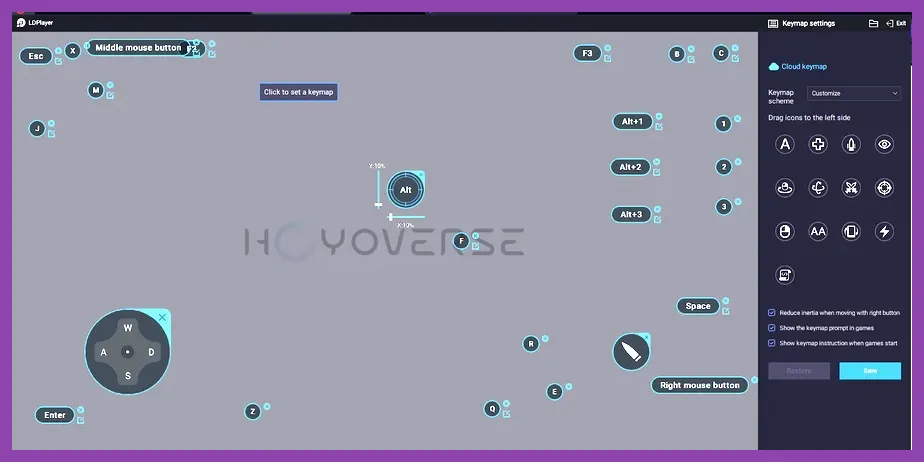
Playing an aim-heavy tactical shooter with a touchscreen layout translates poorly to PC unless you build a precise keymapping profile. Click the keyboard icon on your emulator sidebar to open the Keymapping Editor and set up these critical binds:
- Shoot / Aim: Assign the mouse cursor to a dedicated fire toggle key (such as Right-Click or Mouse Side Button) to quickly lock and release your cursor during menus.
- Burst Skills 1, 2, and 3: Map these to easy-to-reach keyboard keys like
Q,W, andE. During Co-Op or Solo Raids, manual Burst activation is mandatory to beat damage checks. - Reload: Bind reload to
Rfor quick ammunition recovery on low-magazine sniper and rocket launcher units like Alice or Laplace. - Mouse Sensitivity: Lower your emulator's pointer sensitivity to prevent erratic crosshair jumping when tracking moving Raptures across the screen.
Fine-tuning these controls ensures you never misfire your Burst rotation during critical DPS phases. If you appreciate granular control setups and team optimizations, you can compare these strategies with our Tekken 8 team synergy guide or review character tier rankings detailed in the Squad Busters character ranking list.
Troubleshooting Common Performance Drops and Crashes
Even with optimal settings, players occasionally encounter black screens, sudden force closes during loading screens, or graphical artifacts during gacha pulls. To resolve these issues permanently, apply these quick system fixes:
- Enable Virtualization (VT): Verify that Intel VT-x or AMD-V is enabled in your PC's BIOS. Without hardware virtualization, emulators run on a single CPU thread, causing severe lag.
- Graphics Card Drivers: Update your NVIDIA GeForce or AMD Radeon drivers to the latest version. Outdated drivers frequently conflict with Vulkan rendering libraries inside LDPlayer and BlueStacks.
- Clear App Cache: If Nikke freezes on the Shift Up logo screen, open the emulator's Android settings, navigate to Apps, locate Nikke, and clear its cached data before restarting.
- Disable Hyper-V: On Windows 10/11 Pro editions, conflicting hypervisors can cripple emulator performance. Run a quick command prompt check to disable Windows Hyper-V if your emulator refuses to launch past 99 percent.
By enforcing these technical adjustments, your PC setup will deliver a responsive, high-framerate experience that rivals native desktop games, allowing you to dominate every campaign stage, tribe tower floor, and union raid boss with absolute precision.