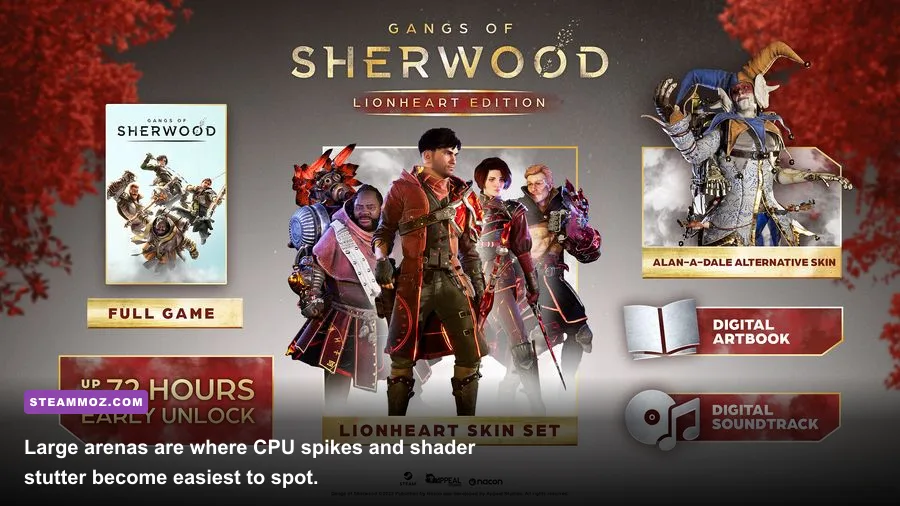
If Gangs of Sherwood - Lionheart Edition keeps crashing or dropping below a playable frame rate on PC, start with a clean graphics-driver install, disable overlays, verify the Steam files, and use a capped 60 FPS settings profile. The Lionheart Edition does not require a separate performance fix: it uses the same PC game build, so the reliable solution is to stabilize the base installation, reduce Unreal Engine shader and effects spikes, and then tune resolution scaling around your hardware.
That order matters. Randomly lowering every setting often leaves the real problem untouched, especially when a crash comes from a damaged shader cache, an overlay hook, or an unstable overclock. Likewise, a counter showing 100 FPS in an empty corridor means very little if a crowded fight in Sherwood collapses to 35 FPS because volumetric effects and enemy simulation hammer the CPU and GPU at the same time.
Start with the fixes that stop most crashes
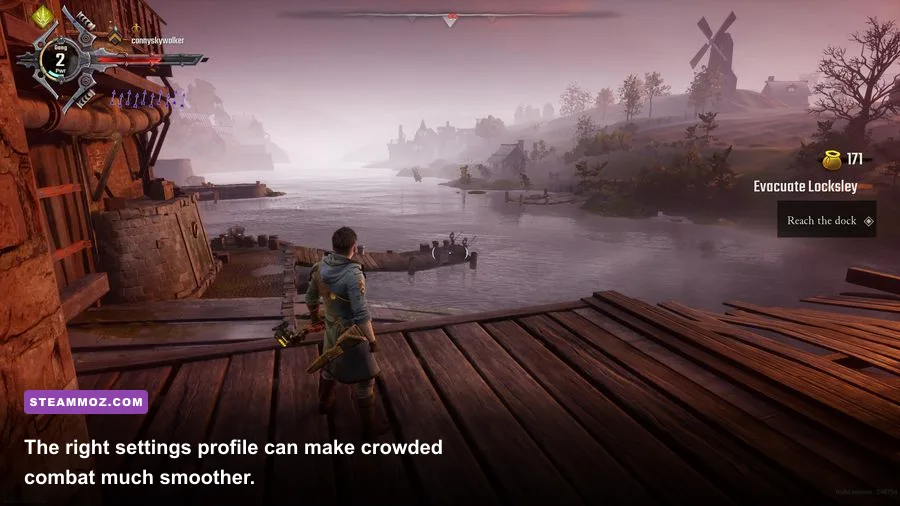
Before changing config files, make sure Windows and Steam are dealing with a known-good installation. Gangs of Sherwood is an Unreal Engine-powered action game, and its crashes can appear at startup, while loading a mission, or several minutes into a fight. Those symptoms point to different suspects, but the first pass is identical.
1. Verify the Lionheart Edition installation
In Steam, right-click Gangs of Sherwood, choose Properties, open Installed Files, and select Verify integrity of game files. Let the process finish completely, then restart Steam. If Steam replaces files, reboot Windows before launching again. A partial update or interrupted download can leave the executable intact while corrupting a package that only gets called when a particular mission loads.
2. Remove overlay conflicts
Turn off the Steam Overlay under the game's Steam properties, then temporarily disable Discord Overlay, Xbox Game Bar, AMD Software overlay, NVIDIA App overlay, MSI Afterburner/RivaTuner's on-screen display, and third-party recording tools. Don't permanently uninstall anything; this is a controlled test. If the crashes stop, re-enable one overlay at a time. RivaTuner is especially worth testing separately because its frame limiter and injection layer can conflict with a game's own presentation mode.
3. Rebuild the shader and GPU caches
Close the game and Steam. Clear the Windows DirectX Shader Cache with Settings > System > Storage > Temporary files, selecting DirectX Shader Cache. NVIDIA users can also clear the contents of the NVIDIA shader cache location through Disk Cleanup or the NVIDIA App; AMD users should use Adrenalin > Gaming > Graphics > Reset Shader Cache. The first launch afterward may stutter while shaders compile again. That is expected. Give the game one complete mission before judging the result.
4. Install the driver cleanly, not just over the top
Use the latest WHQL driver for your GPU. If the crashes began immediately after a driver update, test the previous stable driver instead. A clean installation through the NVIDIA installer or AMD Adrenalin is usually enough; Display Driver Uninstaller is the more aggressive option for persistent DXGI or device-removed errors. Avoid installing a beta driver while troubleshooting. Also remove GPU undervolts and memory overclocks temporarily. A setting that survives a synthetic benchmark can still fail during a rapid sequence of particle effects.
For official patch notes and support context, check the Gangs of Sherwood Steam page and the publisher's official game page. If the crash produces a specific Unreal, DirectX, or driver error, record it rather than guessing.

🎮 Gangs of Sherwood - Lionheart Edition
Looking to experience this game? Grab your digital key directly on our store for $4.99.
View on Steammoz Store →Use this graphics profile before chasing maximum FPS
The game's built-in settings respond differently. Resolution and resolution scale hit the GPU directly; shadows and effects can create large combat-time spikes; view distance and foliage can add CPU work as well as GPU load. Start from a stable baseline, then raise one option at a time.
| Setting | Recommended value | FPS impact | Visual trade-off |
|---|---|---|---|
| Display mode | Exclusive fullscreen or fullscreen | Low | Usually gives the cleanest frame pacing; use borderless if Alt-Tab is unstable |
| Resolution | Native, then reduce only if GPU-limited | Very high | Lower resolution is softer but delivers the biggest gain |
| Resolution scale | 90% at 1080p; 80–90% at 1440p | High | Often less noticeable than dropping native resolution |
| Textures | High with 6–8 GB VRAM; Medium with 4 GB | Medium | Mostly affects VRAM usage, not average FPS |
| Shadows | Medium | High | Softens contact shadows while protecting busy scenes |
| Effects | Medium | High | Reduces explosions, magic, and crowd-combat spikes |
| Post-processing | Low or Medium | Low to medium | Reduces bloom and screen-space effects |
| Ambient occlusion | Medium or Off | Medium | Off looks flatter but can improve consistency |
| Motion blur | Off | Small | Sharper camera movement and easier frame-time testing |
| V-sync | Off while testing; enable if tearing bothers you | Variable | Can add latency or lock behavior depending on the display |
For a typical 1080p machine around the game's recommended class, try High textures, Medium shadows, Medium effects, Low post-processing, and 90% resolution scale. On a GTX 960-class card, use Medium textures, Low shadows, Low effects, and 80–90% scale. The official Steam listing places the minimum target around an Intel Core i5-4460, 8 GB of RAM, and a GeForce GTX 960, while the recommended tier is around an Intel Core i7-7700, 16 GB of RAM, and a GeForce GTX 1070. Those are launch-era targets, not a promise of locked 60 FPS in every arena.
If you own a 1440p monitor and a mid-range GPU, don't reflexively choose 1440p native. A clean 1080p output or an 80% scale can feel substantially better than a beautiful image that repeatedly hitches during group combat. Check our Deadfall Adventures settings guide for the same useful principle: frame-time consistency beats a high average that collapses at the worst moment.
Find out whether your problem is GPU, CPU, or VRAM
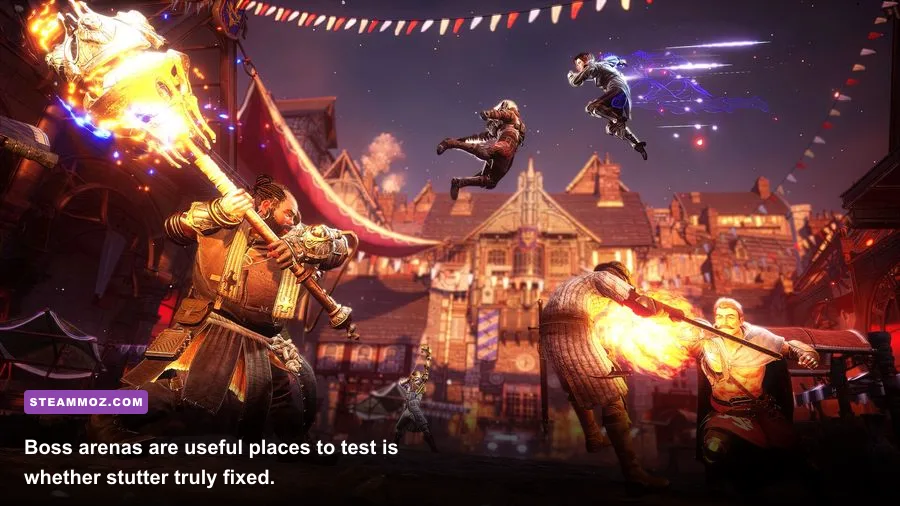
Low FPS is easier to fix once you identify the bottleneck. Use an in-game counter or a tool such as MSI Afterburner, watching GPU usage, VRAM, system RAM, CPU threads, and frame time during the same repeatable section. The best test is a busy encounter, not the title screen or an empty hub.
| What you see | Likely cause | Best first change | What not to do |
|---|---|---|---|
| GPU at 95–99%, VRAM nearly full | GPU or memory bandwidth limit | Lower resolution scale, shadows, and effects | Lower textures first if VRAM is still available |
| GPU below 80%, one or two CPU threads maxed | CPU or game-thread limit | Reduce view distance, background apps, and frame cap | Expecting lower resolution to solve it |
| VRAM full, hitching when entering arenas | Texture streaming pressure | Set textures to Medium and close GPU-heavy apps | Using an aggressive overclock |
| Stable average FPS but severe spikes | Shaders, overlays, asset streaming, or thermal throttling | Rebuild caches and cap FPS below the usual maximum | Chasing a higher peak FPS |
| FPS drops after 20–30 minutes | Heat, memory leak, or unstable driver state | Check temperatures and restart the game after testing | Assuming a stronger GPU automatically fixes it |
For a 60 Hz display, cap at 60 FPS. For 120 or 144 Hz, try 90 or 120 only if the frame-time graph stays flat; a 90 FPS cap is often a smarter target than an erratic 120. Set the limit in the game if its limiter behaves well. Otherwise, use the NVIDIA Control Panel or AMD Adrenalin and test one limiter at a time. An external limiter plus V-sync plus an adaptive-sync mode can create confusing latency and pacing, so keep the stack simple.
CPU-limited players should close browser tabs with video, launchers, RGB utilities, and recording software. Windows Game Mode can remain enabled, but test Hardware-accelerated GPU scheduling both on and off if you see unusual stutter. Don't use process-priority tweaks or random registry “FPS boosters”; they rarely solve a genuine game-thread limit and can make crash diagnosis harder.
Fix launch crashes, black screens, and failed loading
When the game crashes before the menu
Confirm that the game is installed on a drive with several gigabytes free, then launch it once without overlays. If it crashes before displaying a resolution, disconnect unnecessary USB devices and reset any forced GPU profile. A bad fullscreen mode or an invalid custom resolution can be bypassed by using Steam's launch options to test -windowed. Remove the option after testing; it is a diagnostic step, not a universal fix.
Right-click the executable, open Properties > Compatibility, and avoid blindly enabling compatibility modes. They can break modern input, fullscreen behavior, or anti-cheat components. The useful test is Disable fullscreen optimizations if Windows repeatedly reports a fullscreen crash. Apply it only to the game's executable and compare results.
When it crashes during a mission
Verify the files again, rebuild the shader cache, and temporarily lower textures and effects. If one mission consistently crashes at the same doorway or cutscene, note the mission name, difficulty, character, and whether you were playing online. Try launching a private session, then test a different hero. That doesn't mean Robin, Marian, Little John, or Friar Tuck is inherently broken; it helps separate a reproducible asset or network-state issue from a general renderer crash.
Cloud synchronization can also preserve a problematic local state. Back up your saves before testing any reset. Never delete save data as a first move. If the installation and drivers are clean but the same mission still fails, report the reproducible sequence through the official Steam discussions or the developer's support channel, including crash logs and hardware details.
When the screen goes black after changing settings
Wait at least a minute once, since shader compilation can look frozen. If the display remains black, use Alt+Enter to toggle windowed mode, then reset the resolution and scale. Revert HDR, forced sharpening, and third-party color filters while testing. If the game launches only in windowed mode, the problem is usually a display-mode or driver interaction rather than a lack of horsepower.
Get smoother combat without making Sherwood look awful
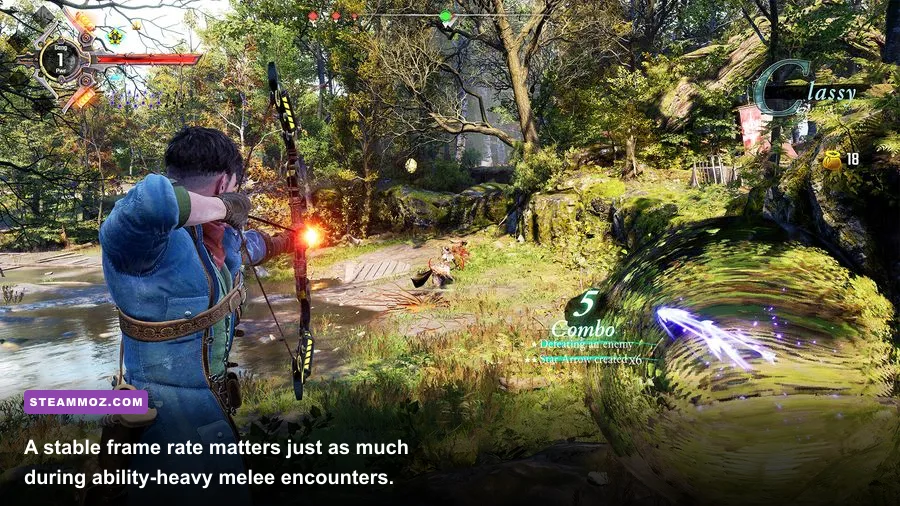
The most valuable performance gains arrive in the fights themselves. Gangs of Sherwood combines melee effects, ranged attacks, destructible scenery, enemy groups, and four-player ability chaos. Shadows and effects are the first settings I lower because they cost a lot when the screen fills with particles but add less clarity than textures and resolution.
Keep textures High if your card has enough VRAM. Texture quality preserves costume detail, stone surfaces, and character readability; it usually doesn't punish the GPU as severely as shadows. Lower effects before textures if explosions or ability-heavy encounters cause the dips. If the game still stutters while GPU usage is low, lowering resolution won't help much. Cap the frame rate, close CPU-heavy applications, and investigate thermal throttling instead.
Players on older four-core CPUs should aim for a stable 30 or 45 FPS rather than forcing 60. A locked 45 FPS on a 90 Hz display can feel surprisingly clean, while a range between 38 and 60 feels constantly unstable. On Steam Deck-class hardware, start at 1280×800, use Low or Medium effects, Medium textures, low shadows, and a 30 FPS cap. Expect compromises in crowded fights; the Lionheart Edition doesn't turn the game into a lightweight handheld title.
For broader PC tuning advice, our BloodRayne 2 PC settings guide covers the same useful distinction between image quality and frame pacing, while our Hunt: Showdown hardware guide explains why minimum specifications shouldn't be mistaken for a locked performance target.
A clean troubleshooting order that actually saves time
Use this sequence rather than changing ten variables at once:
- Record the symptom: note whether the failure is startup, loading, mid-mission, black screen, or a gradual FPS collapse.
- Verify Steam files: restart Steam afterward and reboot Windows.
- Disable every overlay: test Steam, Discord, Xbox Game Bar, GPU overlays, recording tools, and RivaTuner.
- Return hardware to stock: remove GPU, CPU, and RAM overclocks or undervolts.
- Clean-install a stable GPU driver: use the current WHQL release, or roll back if the problem began after updating.
- Clear shader caches: accept a few minutes of first-run shader stutter while the cache rebuilds.
- Apply the baseline profile: Medium shadows and effects, High textures when VRAM allows, 90% scale, motion blur off.
- Cap the frame rate: choose a number your PC holds in the busiest fight, not the quietest hallway.
- Measure one change at a time: test the same mission or combat scenario after every adjustment.
| Hardware profile | Starting resolution | Settings profile | Practical target |
|---|---|---|---|
| GTX 960 / RX 470 class, 8 GB RAM | 1080p at 80–90% scale | Medium textures, Low shadows, Low effects | Stable 30–60 FPS depending on arena |
| GTX 1060 / RX 580 class, 16 GB RAM | 1080p native or 90% scale | High textures, Medium shadows, Medium effects | 60 FPS with dips in heavy encounters |
| GTX 1070 / RX Vega 56 class | 1080p native or 1440p at reduced scale | High textures, Medium-High shadows, Medium effects | 60 FPS baseline; cap for smoother pacing |
| RTX 3060 / RX 6600 or better | 1440p native or 100% scale | High textures, High shadows, Medium-High effects | 60 FPS with headroom after tuning |
Finally, don't confuse normal first-run shader compilation with a permanent fault. A few brief hitches on the first visit to an area can settle after the cache is built. Repeated stutters every time you enter the same arena, crashes after a fixed amount of play, or severe drops with low GPU usage point elsewhere: overlays, drivers, CPU limits, thermals, or corrupted assets.
If the fixes above don't change anything, gather your GPU and CPU model, RAM amount, Windows version, driver number, resolution, graphics preset, crash timing, and any log or error code. That information is far more useful than saying the game is “broken.” For players comparing other demanding PC releases, our PC hardware breakdowns offer the same kind of bottleneck-focused testing. With a clean install, rebuilt shaders, no overlay hooks, and a sensible FPS cap, Gangs of Sherwood - Lionheart Edition is much more likely to deliver the responsive co-op combat it was built around.