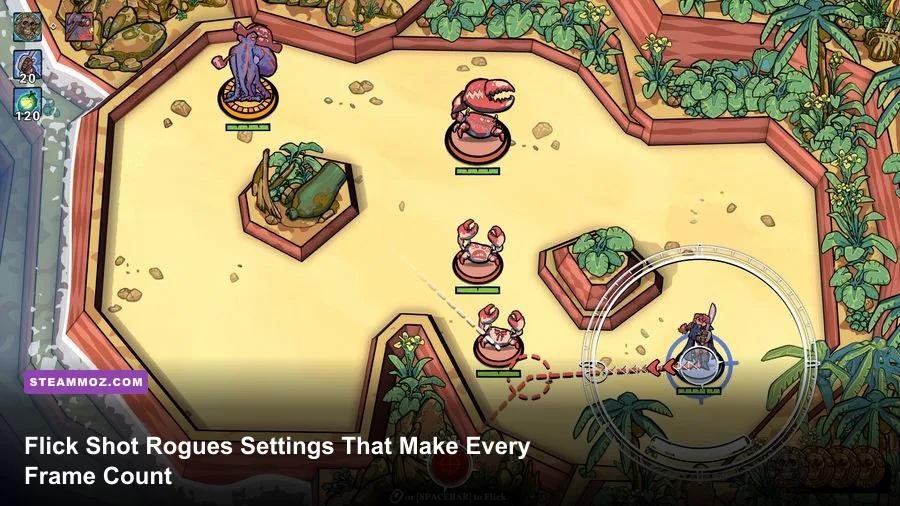
For the best Flick Shot Rogues performance, use exclusive fullscreen, your monitor's native resolution, VSync off, a sensible FPS cap, medium textures, low shadows, low effects, and motion blur disabled. Start at 1080p with a 120-FPS cap if your PC can hold it; otherwise lock to 60 FPS rather than chasing unstable peaks. The important target in this fast, projectile-heavy roguelike isn't a flashy average—it’s consistent frame pacing when a room fills with enemies, particles, and damage numbers.
There’s one important caveat before you copy a preset. Flick Shot Rogues does not appear to expose a built-in benchmark or a universal graphics profile that behaves identically across every PC. Menu labels and available upscalers can also change between builds. Treat the recommendations below as a practical tuning route: use the settings that exist in your installation, verify the result in a busy run, and don’t enable DLSS, FSR, XeSS, or frame generation unless the game actually lists that option.
The best Flick Shot Rogues settings for maximum FPS
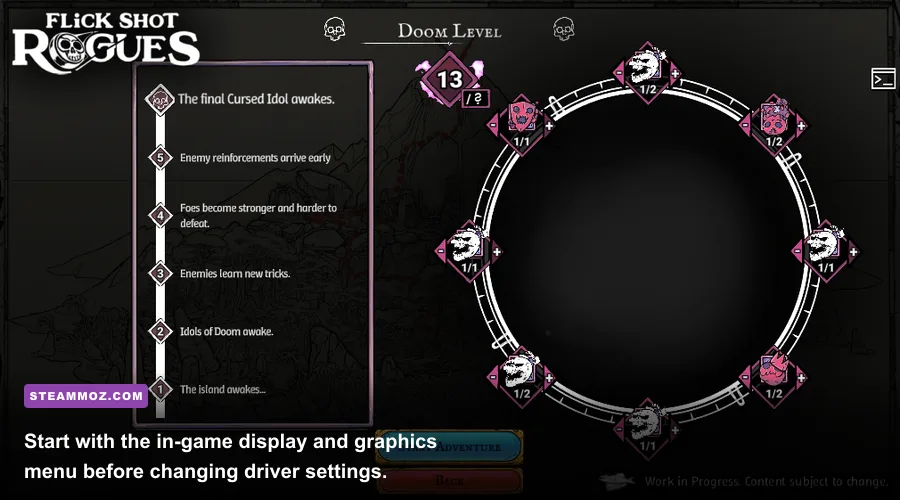
Begin by changing the options that affect the GPU every frame. Resolution, shadows, effects, ambient occlusion, reflections, and post-processing are the real performance levers. Texture quality usually affects VRAM more than raw FPS, so lowering textures first is a poor trade if your graphics card has enough memory.
Use fullscreen if the game offers it. Borderless is more convenient for switching applications, but exclusive fullscreen can reduce desktop-compositor interference and makes it easier to control the exact refresh-rate mode. Set resolution to your monitor’s native output—1920×1080 for a 1080p display, 2560×1440 for 1440p, or 3840×2160 for 4K—then lower resolution only when the GPU is clearly the bottleneck.
For most players, VSync off is the right starting point. It avoids the extra synchronization delay that can make a flick shot feel late. If tearing bothers you, use your GPU control panel’s adaptive sync or FreeSync/G-SYNC-compatible mode and cap the game a few frames below the display’s maximum refresh rate. A 141-FPS cap suits a 144Hz monitor; 117 FPS suits 120Hz; ಾಜ 162 FPS suits 165Hz.
| Setting | Recommended Value | FPS Impact | Visual Note |
|---|---|---|---|
| Display Mode | Fullscreen | Low | Usually gives the cleanest latency and refresh-rate control. |
| Resolution | Native; lower one step only if needed | Very high | Directly changes GPU workload and image sharpness. |
| VSync | Off | Low | Reduces sync delay, but may introduce tearing. |
| FPS Limit | Refresh rate minus 3 FPS | Medium | Improves frame pacing and prevents unnecessary GPU load. |
| Textures | Medium or High | Low to medium | Keep higher if VRAM usage remains comfortable. |
| Shadows | Low | High | Small visual payoff for a sizeable cost in crowded rooms. |
| Effects | Low or Medium | Very high | Controls particle-heavy attacks and explosive room clutter. |
| Post-Processing | Low | Medium to high | Reduces bloom, depth effects, and screen-space processing. |
| Ambient Occlusion | Off or Low | Medium | Low settings keep silhouettes readable while recovering frames. |
| Motion Blur | Off | Minimal | Sharper aim and cleaner projectile tracking. |
| Anti-Aliasing | Medium or the lowest clean option | Low to medium | Balance shimmering against edge softness. |
Keep textures at Medium before dropping them to Low. Texture quality rarely fixes a GPU compute bottleneck, while muddy walls and character surfaces make enemies harder to identify. If your card has 8GB or more of VRAM, High textures are worth testing at 1080p or 1440p. If the game begins hitching when entering new rooms, lower textures one step and retest; that symptom points more toward memory pressure than average rendering speed.
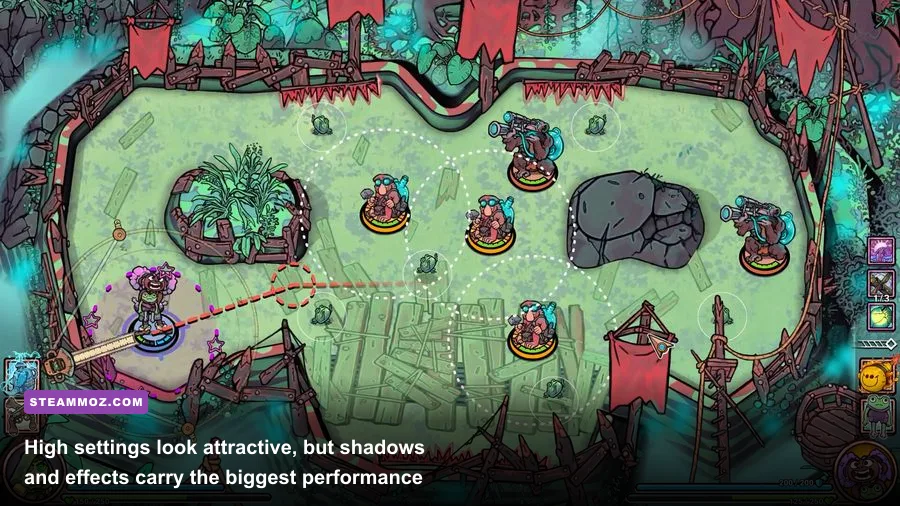
Shadows and effects deserve the harsh treatment. Low shadows remove a lot of soft contact detail, but the arena remains readable, and the saved performance matters during simultaneous enemy attacks. Effects are even more important because they can spike when projectiles, hit flashes, fire, and pickup animations overlap. Turn effects down before sacrificing resolution.

🎮 Flick Shot Rogues
Looking to experience this game? Grab your digital key directly on our store for $5.99.
View on Steammoz Store →Use these three performance profiles
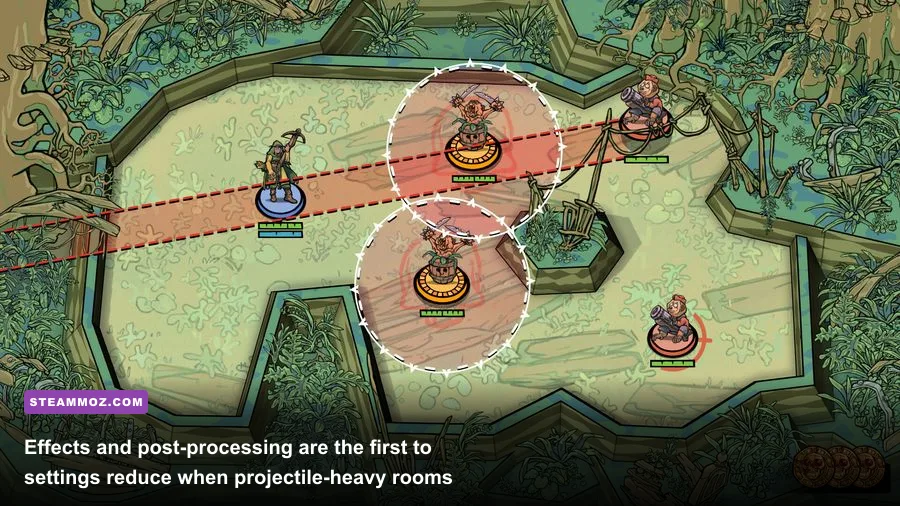
There isn’t one perfect preset for every Flick Shot Rogues player. A 60Hz laptop, a 144Hz desktop, and a 240Hz competitive monitor need different targets. Pick a profile based on the frame rate your system can hold in the worst room of a run, not the empty starting area.
Competitive 120-FPS profile
Use 1080p native resolution, fullscreen, VSync off, a 117-FPS cap, medium textures, low shadows, low effects, low post-processing, low ambient occlusion, medium anti-aliasing, and motion blur off. This is the best starting point for a mid-range gaming PC with a high-refresh monitor.
The 117-FPS cap is intentional. Leaving the GPU uncapped can produce a high counter reading while making frame times uneven, especially when the processor is also handling enemy logic and room spawning. A stable 117 feels better than a graph that swings between 180 and 85. If your machine cannot hold 117 during a hectic encounter, move to the 60-FPS profile instead of sitting permanently on a fluctuating 80–110.
Quality 60-FPS profile
Use native resolution, fullscreen or borderless, VSync on only if you have no adaptive-sync display, a 60-FPS cap, High textures, Medium shadows, Medium effects, Medium post-processing, and low or medium ambient occlusion. This profile keeps the game attractive without prioritizing detail over responsiveness.
It suits integrated graphics and older gaming laptops more than the competitive profile. The key is to watch the one-percent lows. If the game feels smooth in an empty room but pauses during elite spawns, lower effects and shadows before textures. Those two changes usually attack the actual spike.
Low-end stability profile
Choose 1600×900 or 1280×720 only if native 1080p cannot maintain your target, fullscreen, VSync off, a 60-FPS cap, Low textures, Low shadows, Low effects, Low post-processing, ambient occlusion off, the lowest anti-aliasing option, and motion blur off. Disable reflections, volumetric effects, and foliage density if those controls are available.
| Profile | Resolution | Core Settings | Target |
|---|---|---|---|
| Competitive | Native 1080p | Medium textures; low shadows and effects; blur off | 117 FPS on a 120/144Hz display |
| Quality | Native display resolution | High textures; medium shadows and effects | Locked 60 FPS |
| Low-end stability | 900p or 720p if necessary | Low shadows, effects, AO, and post-processing | Locked 60 FPS, or stable 30 FPS |
Don’t jump straight to 720p because the opening room runs well. Flick Shot Rogues’ worst-case load arrives when the screen is busy. Test each profile for at least one complete combat room, preferably during a run with elite enemies and several simultaneous abilities. If your frame counter stays high but the game still feels jerky, the problem is frame pacing, shader compilation, background activity, or a CPU limit—not necessarily a need for lower image quality.
Why effects and shadows cause the biggest drops
Flick Shot Rogues looks simple when the arena is empty, but its performance profile changes dramatically once several systems overlap. Transparent particles, dynamic lights, soft shadows, hit sparks, and screen-space effects can all stack over the same pixels. That creates an overdraw problem: the GPU draws the same area repeatedly instead of processing one clean surface.
Effects quality is therefore not just a cosmetic slider. It can control particle count, particle resolution, light complexity, and the number of simultaneous visual events. Low effects may make a powerful attack less spectacular, but it also prevents an explosive room from becoming a slideshow. Keep your character silhouette, enemy outlines, and projectile trails as clear as possible; those are the visual cues that matter.
Shadows hit performance differently. Shadow maps require the game to render parts of the scene again from a light’s perspective. Multiple moving lights multiply that work. Medium shadows can look attractive in quiet spaces, but they rarely help you react to a projectile. Low is the sensible competitive choice, while Medium is a luxury setting for players already holding their target frame rate.
Ambient occlusion is another easy cut. It adds subtle darkness where surfaces meet, giving rooms more depth, but it won’t reveal an enemy telegraph. Turn it off if your GPU is struggling. Post-processing deserves similar treatment: bloom, depth of field, chromatic aberration, and heavy sharpening can make the image busier without improving gameplay. Motion blur should stay off regardless of hardware. It hides fast movement and makes aiming feel softer.
For more PC tuning ideas, compare this approach with Steamoz’s Dragonkin performance settings guide and the crash-focused advice in ELEX PC fixes. The games differ, but the diagnostic principle is the same: identify whether the bottleneck is rendering, memory, CPU work, or frame pacing before lowering everything.
How to find your real bottleneck
Before changing ten options at once, watch GPU utilization, CPU utilization, VRAM, RAM, and frame-time behavior. MSI Afterburner with RivaTuner Statistics Server is useful for this, while AMD Adrenalin and NVIDIA’s official app provide their own performance overlays. You can also consult NVIDIA’s frame-time guidance and AMD Software: Adrenalin Edition for driver-level monitoring.
If the GPU sits near 95–100 percent and lowering resolution raises FPS, you’re GPU-limited. Drop resolution, effects, shadows, ambient occlusion, or post-processing. If GPU usage is low while one or two CPU cores are busy and FPS barely changes at lower resolution, you’re CPU-limited. In that case, lowering textures won’t help. Cap the frame rate, close browser tabs and recording tools, use a performance power plan, and make sure the game is running from an SSD if room transitions hitch.
VRAM pressure has a distinctive pattern. The average FPS may look acceptable, but entering a new room produces brief freezes or texture pop-in. Lower textures, reflections, and texture-streaming quality if available. System RAM pressure can create similar stalls, especially with a browser, Discord, capture software, and several launchers open at once.
| What You Observe | Likely Limit | First Change | What Not to Change First |
|---|---|---|---|
| GPU at 95–100%; FPS improves at lower resolution | GPU rendering | Effects, shadows, resolution | Textures alone |
| GPU below 80%; one CPU core spikes | CPU or game-thread limit | FPS cap and background processes | Resolution |
| Hitches when entering rooms; VRAM nearly full | VRAM or asset streaming | Textures and reflections | Anti-aliasing alone |
| High average FPS but uneven motion | Frame pacing | Use a cap below refresh rate | Uncapped FPS |
| Image looks blurry after lowering settings | Resolution or aggressive AA | Restore native resolution; reduce effects | Lowering textures further |
Use a repeatable test. Launch the same save, enter a busy room, move through the densest group of enemies, and watch the one-percent-low figure for 60 to 90 seconds. Change one setting, repeat the route, and record the result. This is slower than dragging every slider to Low, but it tells you which option is actually buying frames.
Driver, Windows, and Steam fixes worth trying

Graphics settings can’t solve a broken software environment. Update your GPU driver, reboot after installing it, and check the game’s files through Steam before assuming Flick Shot Rogues is inherently unstable. Steam’s official verify integrity instructions are the correct place to start if assets appear corrupted.
Use the game’s executable rather than a launcher when assigning a high-performance GPU on a laptop. Plug the laptop into power, disable battery-saver modes, and check that Windows isn’t silently using an integrated graphics chip. Windows Game Mode is generally worth leaving on, but test overlays individually. Steam Overlay, Discord Overlay, GeForce Experience, Xbox Game Bar, RGB utilities, and recording software can all add hooks that trigger stutter.
Don’t blindly enable driver features. NVIDIA Image Scaling, Radeon Super Resolution, sharpening filters, forced anti-aliasing, and frame generation may improve a supported game, but they can also introduce softness or latency when the title doesn’t handle them properly. Flick Shot Rogues is a precision-heavy game, so native resolution with reduced effects is often preferable to a blurry upscaled image.
If your monitor supports adaptive sync, enable it on the display and in the GPU driver, then cap FPS below refresh. Keep the in-game VSync off initially. If you still see tearing, test driver-level VSync with the cap retained. The goal is a consistent frame-time line, not a particular combination of toggles.
The final max-FPS setup to copy
For a strong 1080p gaming PC, copy this baseline: fullscreen, native 1920×1080, VSync off, 117-FPS cap, medium textures, low shadows, low effects, low post-processing, ambient occlusion off, medium anti-aliasing, motion blur off, and reflections or volumetrics disabled. If that holds 117 FPS in your busiest room, raise textures first, then shadows one step at a time. Never raise effects before confirming that your one-percent lows remain stable.
For 1440p, keep the same profile but start with a 60- or 90-FPS cap depending on your GPU. Native 2560×1440 will cost substantially more than 1080p, so lower effects and shadows before touching resolution. For 4K, a locked 60 FPS is the realistic quality target on many systems; a clean 1440p image with stable frame pacing is usually better than unstable native 4K.
On Steam Deck or similar handheld hardware, target a locked 40 or 60 FPS based on battery and temperature goals. Use 1280×800, low effects, low shadows, ambient occlusion off, motion blur off, and medium textures if VRAM behavior remains clean. The official Steam Deck page is useful for checking the device’s display limits, but your actual result will depend on the game build and power profile.
Finally, keep an eye on updates. A patch can alter shader compilation, particle counts, resolution scaling, or controller behavior, so recheck the busy-room test after major updates. Steamoz’s FPS-first troubleshooting guide and real PC requirements breakdown offer useful comparisons for diagnosing older hardware.
The short version is simple: protect frame pacing, cut effects before textures, keep motion blur off, and test in the busiest combat room you can find. Flick Shot Rogues rewards a stable image more than a beautiful menu screenshot. Once every projectile stays readable and your input arrives consistently, the settings have done their job.