If The Lords of the Fallen is stuttering, dropping below 60 FPS, or crashing on PC, start with a clean GPU-driver install, verify the Steam files, disable overlays, and switch to a capped 60 FPS profile using DLSS or FSR. The biggest gains usually come from lowering Lumen-quality settings, volumetric fog, shadows, and view distance—not texture quality. The game runs on Unreal Engine 5, so traversal stutter and shader-compilation hitches can still appear even on powerful hardware, but the steps below can make combat and exploration far more consistent.
Before changing anything, check the official Steam page for The Lords of the Fallen and install the latest patch. Hexworks has shipped multiple performance updates, and an old build can behave very differently from the current PC version. If other Unreal Engine games are also misbehaving, our guide to general PC crash and FPS fixes is useful background.

Use This Stable 60 FPS Profile First
Don’t begin by dropping every setting to Low. The Lords of the Fallen is unusually sensitive to resolution scaling and scene complexity, while its texture quality is relatively cheap if your graphics card has enough VRAM. Start at 1080p or 1440p, select the native fullscreen option if available, and cap the frame rate to 60 FPS. A consistent 60 feels dramatically better than a fluctuating 45-90 FPS during parries and dodge timing.
For Nvidia cards, use DLSS Quality at 1440p or DLSS Balanced at 1080p if you still miss the target. AMD users should try FSR 2 Quality first. Intel owners can test XeSS where the option is available. Avoid aggressive Ultra Performance modes: they reduce internal resolution so far that hair, foliage, and Umbral effects become smeared, while CPU-bound stutter remains untouched.
| Setting | Recommended Value | FPS Impact | Visual Note |
|---|---|---|---|
| Resolution | 1080p or 1440p | Very high | Use your monitor’s native resolution when possible. |
| Upscaling | DLSS Quality or FSR 2 Quality | High positive | Best first performance adjustment. |
| View Distance | High | Medium | Keep this high to preserve distant geometry. |
| Shadows | Medium | Medium-high positive | Lowering it saves performance in open areas. |
| Volumetric Fog | Medium | High positive | Large gain in foggy Umbral scenes. |
| Global Illumination | Medium | High positive | One of the most expensive UE5 settings. |
| Reflections | Medium | Medium | High can punish busy water and metal surfaces. |
| Textures | High | Low, unless VRAM is limited | Keep High on GPUs with 8GB or more VRAM. |
| Motion Blur | Off | Negligible | Improves clarity during dodges and camera turns. |
Keep anti-aliasing quality at High unless you need another small gain. Turn off motion blur, chromatic aberration, film grain, and lens flare if you want a cleaner image. These effects don’t solve stutter, but removing them makes frame-time spikes less distracting and lets you see enemy telegraphs more clearly.
🎮 Lords of the Fallen
Looking to experience this game? Grab your digital key directly on our store for $9.89.
View on Steammoz Store →Why Unreal Engine 5 Stutters in Mournstead
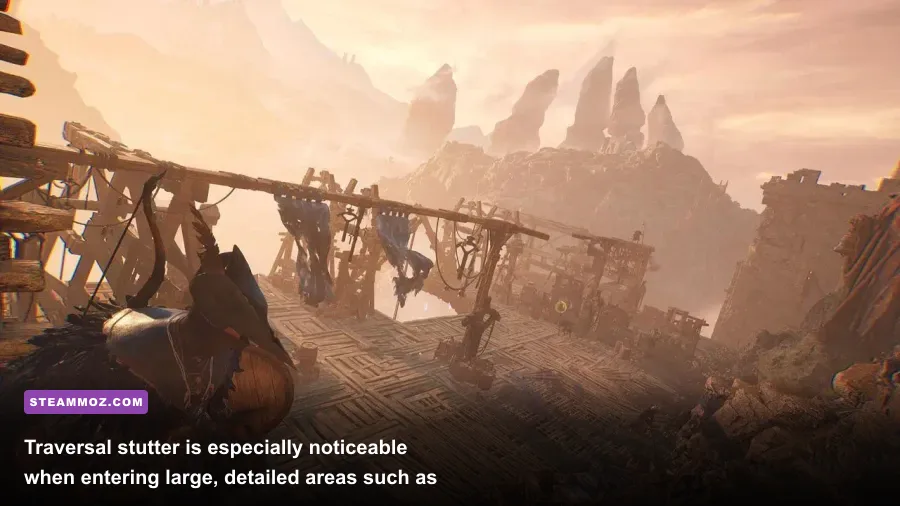
Not every hitch means your GPU is too slow. The Lords of the Fallen streams large areas, Nanite-style geometry, lighting data, and dense particle effects as you move through Mournstead. The first visit to a new zone can therefore produce traversal stutter when the game loads assets in the background. Pilgrim’s Perch, the Forsaken Fen, and transitions involving the Umbral realm are common stress points because they combine long sightlines, complex lighting, water, fog, and enemy encounters.
Shader compilation is another culprit. After a driver update, major game patch, or deleted shader cache, the first encounter with a particular effect can hitch while shaders are prepared. Let the game sit at the main menu for several minutes after an update, then revisit demanding areas. Repeatedly restarting after every hitch can make the experience worse because the cache never gets a chance to settle.
Watch GPU usage while testing. If the GPU sits around 95-99 percent, lower resolution, upscaling quality, global illumination, and volumetric fog. If GPU usage falls to 60-80 percent while the frame rate remains low, you’re probably CPU-limited, streaming-limited, or dealing with a background process. Lowering textures won’t fix that. Close browsers, RGB software, recording tools, and hardware monitors one at a time to find the offender.
Give the shader cache time to rebuild
Update your Nvidia or AMD driver, reboot, and launch the game again. Nvidia users can use the Nvidia App or Control Panel to confirm Shader Cache Size is not disabled; AMD users should use the Adrenalin reset-shader-cache option only when the cache is clearly corrupted. Don’t clear it every week. A healthy cache reduces repeat compilation, while constant deletion guarantees more first-run hitches.
Fix Sudden FPS Drops and Bad Frame Pacing
A high average FPS can still feel awful if frame times bounce between 12ms and 35ms. That uneven delivery is what makes camera movement feel sticky and parries feel late. Use an in-game cap if it behaves consistently; otherwise, cap the game with RTSS or your GPU driver. For a 60Hz display, 60 FPS is the obvious target. For a 120Hz screen, try a locked 60 or 90 before chasing 120. Your goal is a frame-time line that stays flat.
Variable refresh rate can help, but it isn’t magic. Enable G-SYNC or FreeSync, turn on V-Sync in the driver, and cap a few frames below the display’s maximum refresh rate. For a 144Hz panel, a 141 FPS cap is a common starting point. If your hardware can’t hold that range in Mournstead, use a stable 72 or 60 FPS cap instead. A locked profile is especially valuable during bosses such as Pieta, Scourge Sister Delyth, and the Congregator of Flesh, where sudden drops can obscure attack timing.
| Hardware Situation | Resolution and Upscaling | Frame Cap | Priority Settings |
|---|---|---|---|
| GTX 1060 6GB / RX 590 class | 1080p, FSR 2 Balanced | 30-45 FPS | Low shadows, fog, GI, and reflections. |
| RTX 2060 / RX 5600 XT class | 1080p, DLSS or FSR Quality | 60 FPS target | Medium GI and fog; High textures if VRAM allows. |
| RTX 3060 / RX 6700 class | 1440p, Quality upscaling | 60 FPS cap | High textures, Medium GI, Medium fog. |
| RTX 4070 / RX 7800 XT class | 1440p, Quality or native | 60-90 FPS | High view distance; keep GI and fog below Ultra. |
| RTX 4080 / RX 7900 XTX class | 1440p or 4K, Quality upscaling | 90-120 FPS where stable | Use High settings, but avoid assuming Ultra is free. |
The published minimum target is roughly an Intel Core i5-8400 or AMD Ryzen 5 2600 paired with a GTX 1060 6GB or RX 590, while the recommended tier is around a Core i7-8700 or Ryzen 5 3600 and RTX 2080 or RX 6700. Those recommendations are not a promise of flawless 60 FPS in every area. An SSD, 16GB of RAM, and current drivers matter because asset streaming is a major part of the experience.
Stop The Lords of the Fallen From Crashing
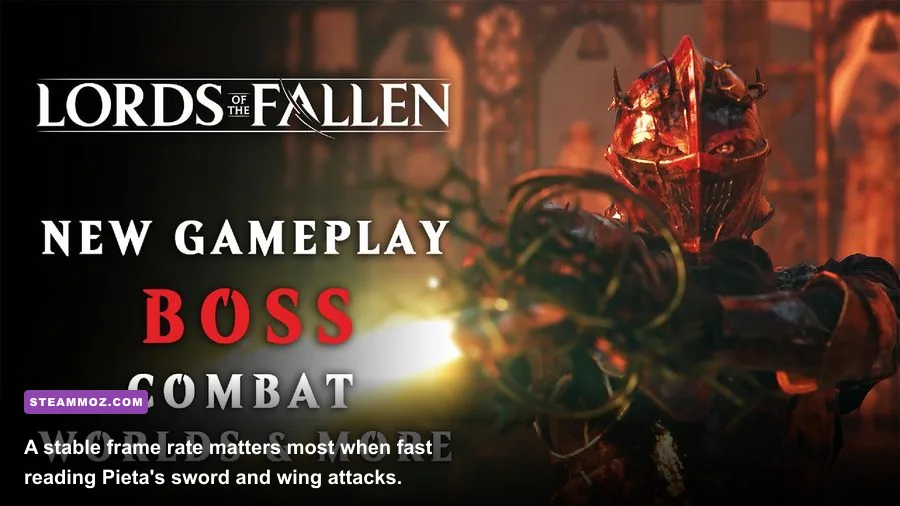
Crashes to desktop usually fall into four buckets: damaged files, driver conflicts, unstable hardware, or an overlay hooking into Unreal Engine. Work through these in order instead of changing ten things at once.
1. Verify the installation
In Steam, right-click the game, choose Properties, open Installed Files, and select Verify integrity of game files. This repairs missing or damaged packages after a failed patch. If verification repeatedly downloads the same files, check the drive for errors and make sure your antivirus is not quarantining the executable.
2. Perform a clean graphics-driver install
Install the newest stable driver for your GPU. If crashes began immediately after a driver update, roll back to the previous release rather than blindly updating again. A clean installation through the driver installer can remove old profiles. Don’t overclock the GPU or CPU while testing; The Lords of the Fallen can expose an overclock that appears stable in lighter games.
3. Disable hooks and overlays
Turn off Steam Overlay, Discord Overlay, GeForce or Radeon recording, MSI Afterburner’s on-screen display, and third-party reshade injectors. Test the game after each change. Overlay conflicts often show up as a crash during startup, loading, or an Umbral transition. If the game becomes stable, re-enable tools one by one and keep only what you actually use.
4. Reset broken configuration files
Close the game and back up its local configuration folder before deleting or renaming it. Corrupt settings can cause a crash before the menu appears, especially after switching between fullscreen modes or changing upscaling options. You’ll need to rebuild your graphics settings afterward, so write down your working values first. Don’t delete save files without a backup: configuration data and saves are not the same thing.
For more broad troubleshooting, compare these steps with our guide to crashing and low-FPS problems in EscapeVR. The exact folders differ, but the verification, driver, overlay, and stability logic is the same.
Hardware Checks That Actually Matter
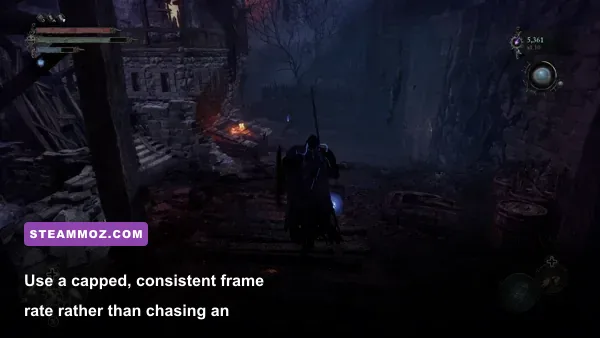
Check temperatures and clocks while playing. A GPU approaching its thermal limit can lower clocks and create what looks like random FPS loss. A CPU hitting 100 percent on several cores can produce stutter even when total usage looks modest. Keep at least 16GB of system RAM, close memory-heavy applications, and install the game on an SSD with free space for Windows and shader caches.
Page-file settings are worth checking if you have 8GB of RAM or crash during zone transitions. Leave Windows virtual memory set to System managed on an SSD rather than disabling it. Also avoid running texture packs or forcing driver-level supersampling on a card with limited VRAM. When VRAM fills, streaming stalls can look like a GPU failure. Lower textures from High to Medium only when the VRAM graph is close to full or you see severe texture pop-in.
Windows Game Mode can remain enabled, but test Hardware-accelerated GPU scheduling if frame pacing is poor. It helps some systems and hurts others. The same applies to frame generation: if your version exposes a supported option, use it only after base FPS is stable. Frame generation can make motion appear smoother, but it cannot repair a 35 FPS simulation or hide severe traversal hitches.
A Clean Troubleshooting Order for Every PC
Use this sequence after every major patch so you can identify the real cause instead of chasing superstition:
- Restart Windows and close overlays, browsers, capture tools, and RGB utilities.
- Verify the Steam installation.
- Update or clean-install the GPU driver, then reboot.
- Launch with a 60 FPS cap, motion blur off, and DLSS or FSR Quality.
- Lower volumetric fog, global illumination, shadows, and reflections before textures.
- Test the same route in Mournstead for five minutes, including an Umbral transition.
- Monitor GPU usage, VRAM, CPU clocks, temperatures, and frame times.
- If crashes continue, reset configuration files and remove all injectors or mods.
Finally, report reproducible crashes through the official Lords of the Fallen website or the developer’s support channels. Include your GPU, CPU, RAM amount, driver version, resolution, upscaler, and the exact location or action that triggers the failure. A crash at the Skyrest Bridge vestige is more useful to developers when it’s tied to a repeatable Umbral transition than described only as the game being unstable.
The best result for most players is a locked 60 FPS profile with Quality upscaling, Medium global illumination, Medium volumetric fog, High textures, and overlays disabled. You won’t eliminate every UE5 traversal hitch, but you can remove the avoidable stutter, protect boss fights from sudden frame drops, and turn random crashes into a much rarer problem. If you’re tuning several PC games at once, our graphics-settings performance guide offers the same frame-time-first approach.