To fix Call of Duty stuttering, low FPS, and crashing on PC, start with shader preloading, update or clean-install your GPU driver, reduce texture streaming and shadows, cap FPS below your monitor’s refresh rate, and repair the game files. For Warzone and the current Call of Duty HQ launcher, also disable overlays, close background recording apps, and keep the game on an SSD. These changes tackle the usual causes: shader compilation, VRAM saturation, CPU spikes, corrupted files, unstable overclocks, and inconsistent frame pacing.
The menus vary slightly between Black Ops 6, Modern Warfare III, Modern Warfare II, and Warzone, but the underlying fixes are remarkably similar. Don’t throw every setting to Low immediately. The goal is a stable frame time, not a pretty FPS number that collapses every time smoke, explosions, or a busy downtown area enters view.
Start With a Clean Baseline
Before changing ten settings at once, establish what is actually failing. Launch a private match or the firing range, not a live battle royale lobby, and watch the FPS counter while moving through a dense area. NVIDIA users can enable the in-game telemetry under the Interface settings; AMD users can use Adrenalin’s performance metrics. MSI Afterburner with RTSS is even better because its frame-time graph exposes sudden spikes.
A smooth 100 FPS game can feel worse than a locked 75 FPS game if the frame time jumps from roughly 10 milliseconds to 40 or 60 milliseconds. That is stutter. Low average FPS, by contrast, usually means the GPU or CPU cannot complete frames quickly enough. A repeatable crash points elsewhere: driver conflicts, damaged files, overheating, unstable memory, or an application hook interfering with Call of Duty.
| Symptom | Likely Cause | First Fix to Test | What Success Looks Like |
|---|---|---|---|
| Short hitches when turning | Shader compilation or asset streaming | Finish shader preloading; lower On-Demand Texture Streaming | Frame-time spikes largely disappear |
| FPS falls in smoke and large fights | GPU limit, shadows, particles, or VRAM pressure | Lower shadow quality, volumetrics, and texture resolution | GPU usage stays high without VRAM warnings |
| Low FPS with GPU below 90% | CPU limit, background task, or high simulation load | Close browsers and recording tools; lower CPU-heavy options | More consistent minimum FPS |
| Crash during launch or menus | Driver, overlay, damaged file, or shader cache issue | Disable overlays and run Battle.net or Steam file repair | Game reaches the main menu repeatedly |
Record your resolution, render resolution, GPU usage, VRAM usage, CPU usage, and temperature. If your GPU sits at 98–99% while VRAM is full, this is a graphics-limit problem. If one or two CPU cores are pinned while the GPU idles, lowering textures will barely help. That distinction saves hours of random tweaking.
Fix Shader Stutter Before Lowering Graphics
Call of Duty builds and loads a large shader library for weapons, surfaces, lighting, and effects. The first match after a driver update can stutter while those shaders are prepared. Open the graphics menu and let Shader Preloading finish completely. Keep the game open until the progress indicator reaches 100%; launching a match early can interrupt the process and force more compilation later.
After a major game patch or GPU driver change, repeat the process. If preloading freezes, cancel it, restart the game, and let it run with no other demanding application open. A corrupted shader cache can also create endless hitching. Close Call of Duty, then use Windows Disk Cleanup to remove DirectX Shader Cache. NVIDIA users can also clear the NVIDIA shader cache through the NVIDIA App or by deleting the relevant cache contents after closing games. AMD users should use the “Reset Shader Cache” option in Adrenalin.
Don’t clear caches every day. A healthy cache improves loading and reduces compilation work. Clear it after a driver update, a large Call of Duty patch, or when stutter suddenly appears despite unchanged settings. This is one of the most effective fixes for the classic “the game was smooth yesterday, then started hitching after an update” problem.
For a deeper look at the same troubleshooting logic in another demanding PC game, see Steamoz’s Elex crash and FPS fixes. The games differ, but shader caches, overlays, and unstable drivers cause the same headaches.
Use a Competitive Graphics Profile
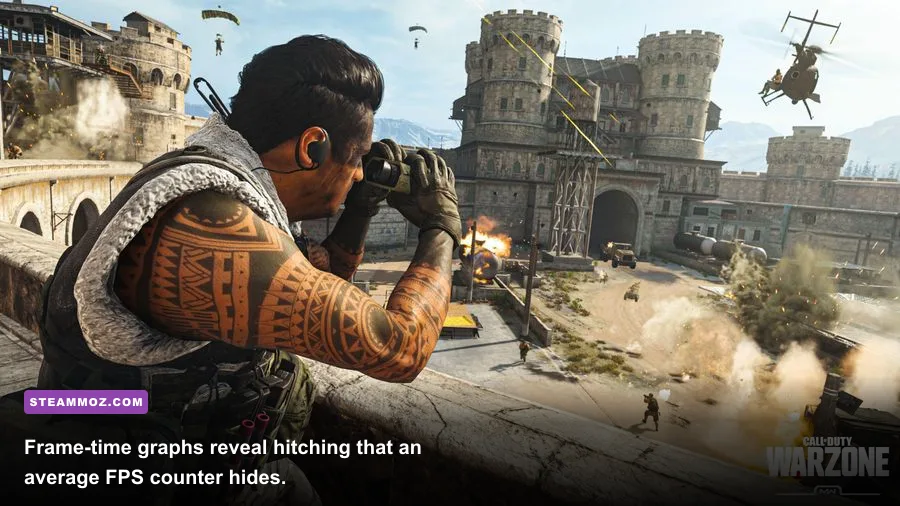
Start from the game’s custom graphics preset rather than blindly selecting the lowest preset. Texture quality affects VRAM and image clarity more than raw GPU performance, while shadows, volumetric effects, screen-space reflections, and particle quality can hammer minimum FPS during explosions. Use DLSS, FSR, or XeSS only when you need extra performance; at 1080p, aggressive upscaling can make distant operators and head glitches look mushy.
| Setting | Recommended Value | FPS Impact | Visual Trade-Off |
|---|---|---|---|
| Display Resolution | Native monitor resolution | Very high | Lowering it is powerful but visibly softer |
| Upscaling / Sharpening | DLSS Quality, FSR Quality, or FidelityFX CAS | High | Quality modes preserve target clarity better |
| Texture Resolution | Normal if VRAM allows; Low on 6GB cards | Medium | Lower settings reduce surface detail |
| On-Demand Texture Streaming | Off or Minimal | Medium | Less data streaming and fewer hitching spikes |
| Shadow Quality | Low or Normal | High | Edges and indoor lighting look less refined |
| Screen Space Reflections | Low or Off | Medium | Reflections become simpler or disappear |
| Volumetric Quality | Low | Medium to High | Smoke, haze, and shafts of light lose detail |
| Particle Quality | Normal | Medium | Explosions remain readable without excess cost |
| Variable Rate Shading | On, if available | Low to Medium gain | Small quality reduction in less important areas |
| Depth of Field and Motion Blur | Off | Small | Sharper target tracking while moving |
Set the VRAM Scale Target conservatively. A setting near 70–80 is safer than pushing it to 90 or 95, particularly on 6GB and 8GB cards. Call of Duty can appear to fit inside VRAM until a map loads extra geometry, a killstreak triggers, or a texture stream arrives. That last-minute pressure causes hitching and sometimes a driver timeout. If the menu displays a VRAM warning, lower textures and shadow maps first.
For NVIDIA GPUs, test NVIDIA Reflex Low Latency on. Use “On + Boost” only if your GPU frequently drops into low clock speeds; Boost can increase power draw and temperature. AMD users should test Radeon Anti-Lag, but don’t stack several latency tools from third-party software on top of the game’s own option.
Cap FPS for Better Frame Pacing
Unlimited FPS is not automatically faster in a useful way. If your system swings from 160 FPS to 82 FPS, aiming feels inconsistent and the 1% lows feel rough. Cap frames to a number your PC can sustain in the hardest scene. With a 144Hz display, 120 or 135 FPS is often a better target than an unstable 180. With a 60Hz screen, a locked 60—or 58 with VRR—can feel exceptionally clean.
Use the in-game Custom Frame Rate Limit first. Set Gameplay Custom Frame Rate Limit to your sustainable target, Menu Custom Frame Rate Limit to 60, and Out of Focus Custom Frame Rate Limit to 30. If you use G-SYNC or FreeSync, cap two to three frames below the refresh rate—for example, 141 FPS on a 144Hz display—to keep the display inside its variable-refresh window.
V-Sync is best handled carefully. Competitive players commonly disable in-game V-Sync and use VRR with an external cap, while players who see tearing may prefer V-Sync enabled. Test one configuration at a time. The important result is a flat frame-time graph, not a benchmark screenshot with the highest peak FPS.
Warzone’s large maps stress CPU streaming more than a small multiplayer map. If multiplayer feels perfect but Warzone stutters, lower the streaming and CPU-heavy options before assuming your GPU is broken. Steamoz’s Far Cry 6 FPS settings guide also explains why stable caps and sensible volumetric settings beat chasing maximum averages.
Stop Call of Duty Crashes at Launch
First, disable every overlay temporarily: Discord, Steam, Xbox Game Bar, NVIDIA ShadowPlay, AMD recording, MSI Afterburner’s OSD, Overwolf, and motherboard monitoring utilities. Call of Duty’s anti-cheat and fullscreen rendering pipeline can react badly to hooks, even when those programs work flawlessly in other games. If the crashes stop, re-enable tools one at a time until you identify the offender.
Repair the installation next. In Steam, open Library, right-click Call of Duty, choose Properties, Installed Files, and “Verify integrity of game files.” In Battle.net, use the gear icon beside Play and select “Scan and Repair.” Restart the launcher afterward. If the crash happens only after a patch, this step is especially important because a single incomplete archive can break a map or shader bundle.
Perform a clean GPU driver installation when ordinary updating doesn’t help. NVIDIA users can choose Custom Installation and “Perform a clean installation”; AMD users can use AMD Cleanup Utility before installing a stable Adrenalin package. Don’t automatically grab a beta driver for a competitive shooter. If crashes began immediately after a driver update, rolling back to the previous stable release is a valid test.
Remove CPU, GPU, and RAM overclocks, including aggressive XMP or EXPO profiles, for testing. Call of Duty may be the first game to expose borderline memory instability because it streams assets while running a high-frequency multiplayer simulation. Check temperatures too: sustained GPU temperatures in the mid-80s Celsius or CPU temperatures near their thermal limit can cause clock drops, driver resets, and sudden exits.
For more launcher-level troubleshooting, Steamoz’s crashing and low-FPS repair checklist is useful. If Call of Duty still crashes, note the exact moment: startup, shader loading, map transition, killcam, or post-match menus. That pattern is more valuable than a generic crash report.
Check Windows, Storage, and Network Pressure
Install Call of Duty on an SSD with at least 100GB of free space beyond the game’s own requirement. Warzone constantly streams map data, textures, and audio; a nearly full or heavily throttled drive can turn asset loading into visible hitching. Avoid running the game from an old mechanical hard drive or an external USB disk.
Use Windows Game Mode, but test Hardware-Accelerated GPU Scheduling rather than assuming it helps. On some modern systems it improves latency; on others it introduces odd frame pacing after a driver update. Change it under Settings, System, Display, Graphics, Default graphics settings, then reboot. Also set Call of Duty’s executable to High performance if Windows has assigned it to integrated graphics.
Close Chrome tabs, RGB control panels, cloud-sync clients, and recording software before playing. A browser spike during a Warzone match can steal enough CPU time to hurt 1% lows even when average FPS looks fine. Pause large downloads and make sure Windows Update is not installing in the background. Network lag does not usually cause rendering stutter, but packet loss can look similar because players and effects appear to freeze. Check the in-game telemetry for latency and packet burst before blaming your GPU.
| Hardware or Use Case | Practical Profile | Target | Priority Upgrade or Change |
|---|---|---|---|
| Older 4-core CPU | Low textures, low shadows, capped FPS | Stable 60–90 FPS | CPU upgrade; close all background apps |
| 6GB VRAM GPU | Low textures, 70 VRAM Scale Target, streaming off | 1080p stable play | More VRAM for higher texture settings |
| 8GB VRAM midrange GPU | Normal textures, Quality upscaling, low shadows | 1080p 90–144 FPS | Use a sensible frame cap |
| 12GB+ modern GPU | Normal or High textures, Quality upscaling | 1440p high refresh | Watch CPU limits in Warzone |
| Game on HDD | Reduce streaming and background disk use | Fewer asset hitches | Move Call of Duty to an NVMe SSD |
Apply the Fixes in the Right Order
For the fastest troubleshooting pass, restart the PC, close overlays, verify the game files, update or clean-install the GPU driver, and let shader preloading finish. Then apply the custom settings profile: On-Demand Texture Streaming off, VRAM Scale Target around 70–80, shadows and volumetrics low, motion blur off, and a frame cap your system can sustain. Test the same map or firing-range route after each major change.
If the game still stutters, compare GPU usage and VRAM usage during the hitch. High GPU usage means lower resolution, upscaling quality, shadows, or volumetrics. Low GPU usage with a busy CPU points toward a processor limit or background task. If neither changes and the game crashes, focus on RAM stability, driver rollback, file repair, and overlays rather than lowering graphics further.
Finally, check Activision Support for current crash codes and known issues, the official Call of Duty patch notes for post-update problems, and the Call of Duty Steam listing for platform-specific updates. Driver notes from NVIDIA and AMD can also reveal a known fix or regression.
Call of Duty runs best when you treat frame pacing as the target, not the headline FPS number. Finish the shaders, control VRAM, cap the frame rate, remove software hooks, and test stability at stock settings. Those steps fix the majority of stuttering, low-FPS, and crashing problems without turning the game into a blurry, lifeless version of itself.