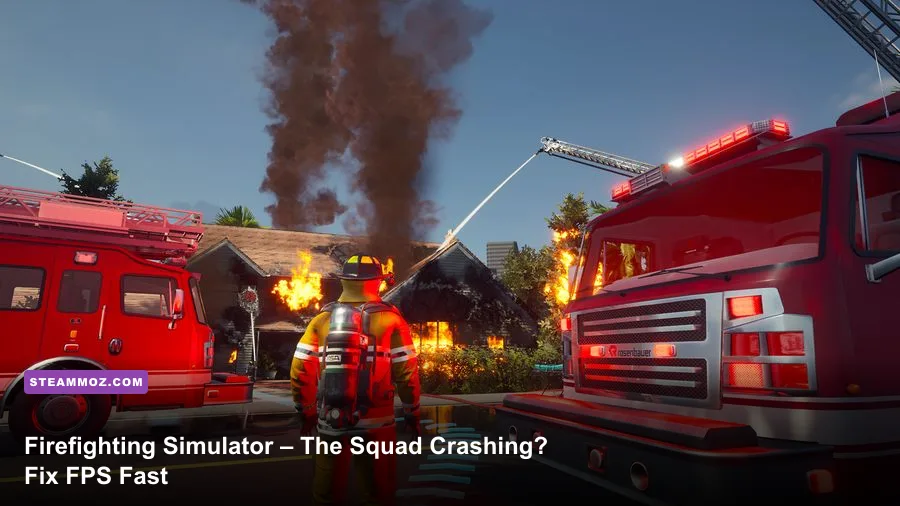
Firefighting Simulator – The Squad usually stops crashing and gains a much steadier frame rate after three fixes: update the GPU driver, verify the Steam installation, and lower volumetric effects, shadows, and post-processing before touching texture quality. Start at 1080p with a 60 FPS cap, disable overlays, and use the game’s upscaling option if your GPU still drops frames around heavy smoke and multi-engine incidents.
This isn't a lightweight simulator. The Squad streams large urban environments, animated fire, smoke, water effects, vehicle interiors, AI firefighters, and destructible-looking scene elements at the same time. That combination can expose both borderline hardware and unstable software. The good news is that you don't need to make the game look like a 2010 PC title. A few targeted changes preserve the important visual cues—flames, hose streams, doors, victims, and building geometry—while cutting the effects that chew through frame time.
Check the real PC requirements first
Before chasing a mysterious crash, compare your system against the requirements listed on the official Steam page. The listed minimum target is a 64-bit Windows 10 PC with an Intel Core i5-6600 or AMD Ryzen 5 1600, 16 GB of RAM, and a GeForce GTX 1060 or Radeon RX 580-class GPU. The recommended tier moves to an Intel Core i7-9700 or Ryzen 7 3700X and an RTX 2070 or Radeon RX 5700 XT-class graphics card, again with 16 GB of memory.
Those figures are a starting line, not a promise of locked 60 FPS. A GTX 1060 or RX 580 can handle a sensible 1080p profile, but it has little headroom when a mission fills the screen with smoke, fire, reflections, and multiple emergency vehicles. On an eight-core recommended CPU, the biggest city incidents can still produce brief stutters if the game is compiling or streaming assets. Install the game on an SSD if possible; an SSD won't magically increase average FPS, but it can reduce traversal hitching and texture-streaming pauses.
| Component | Minimum listed target | Recommended listed target | Practical expectation |
|---|---|---|---|
| Operating system | Windows 10 64-bit | Windows 10 64-bit | Keep Windows and DirectX components current |
| CPU | Core i5-6600 / Ryzen 5 1600 | Core i7-9700 / Ryzen 7 3700X | CPU headroom matters during co-op and large calls |
| Memory | 16 GB RAM | 16 GB RAM | Close browsers and launchers before playing |
| GPU | GTX 1060 / RX 580 | RTX 2070 / RX 5700 XT | 1080p is the sensible starting resolution |
| Storage | About 45 GB available | SSD strongly preferred | Leave free space for updates and shader caches |
If you are below the minimum GPU or CPU, no driver trick will turn every mission into a smooth 60 FPS experience. Target a stable 30 or 45 FPS instead. Consistency matters more here than a high menu benchmark because camera movement, hose control, and vehicle driving all feel worse when frame pacing collapses.
🎮 Firefighting Simulator - The Squad
Looking to experience this game? Grab your digital key directly on our store for $9.99.
View on Steammoz Store →Use this FPS profile before lowering everything
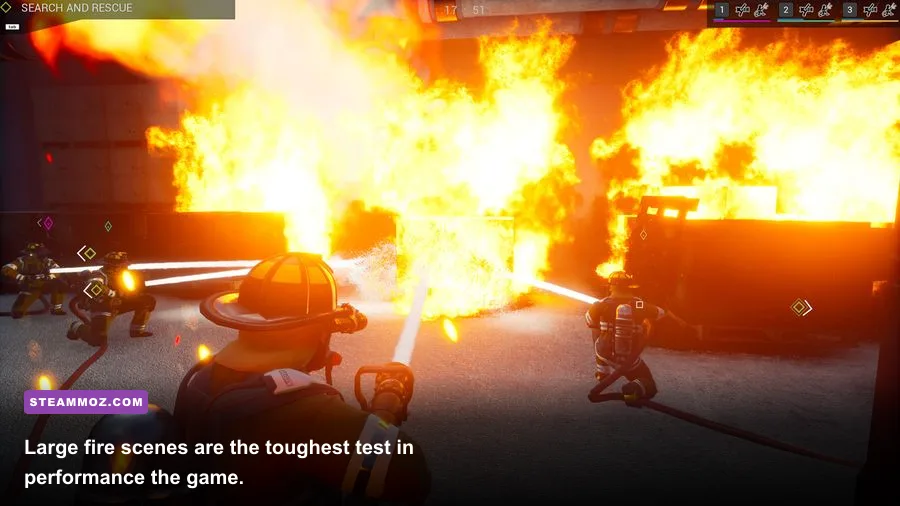
Load into a mission rather than judging performance from the main menu. Stand near a burning structure, rotate the camera toward the smoke column, and watch the frame rate while operating a hose. That is the stress case that matters. Start with 1080p, exclusive fullscreen if available, VSync off for testing, and a frame cap matching your monitor or a realistic target. Once the game is stable, turn VSync back on if tearing bothers you.
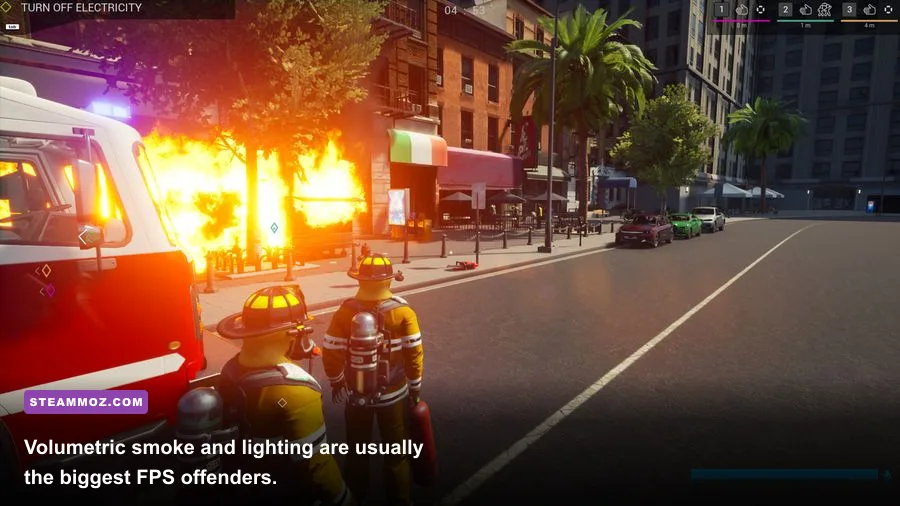
Prioritize volumetric smoke, shadows, effects, and post-processing. Textures are usually the safest setting to keep high when you have enough VRAM. Blurry textures don't solve a GPU bottleneck caused by smoke; they only make fire trucks and building materials look worse. If the game exposes TSR, FSR, or another resolution-scaling option, begin with Quality. Move to Balanced only when demanding scenes still fall below your target.
| Setting | Recommended value | FPS impact | Visual trade-off |
|---|---|---|---|
| Resolution | 1920×1080 | High at 1440p and 4K | 1080p gives mid-range GPUs useful headroom |
| Upscaling | Quality, then Balanced | Medium to very high | Balanced can soften distant details |
| Volumetric effects or fog | Medium | Very high during interior fires | Smoke becomes less dense and more uniform |
| Shadows | Medium | High in streets and large scenes | Less contact detail around vehicles and walls |
| Effects | Medium | High during active fire suppression | Fewer secondary particles and water details |
| Post-processing | Low or Medium | Medium | Less bloom, blur, and cinematic treatment |
| Textures | High if VRAM allows | Low average impact | Sharper surfaces and equipment |
| View distance | Medium or High | Medium CPU impact | Lower values simplify distant buildings and props |
| Motion blur | Off | Small performance gain | Cleaner camera turns and driving |
On a GTX 1060 or RX 580, try Medium effects and shadows, Low post-processing, Medium volumetrics, High textures, and Quality upscaling at 1080p. On an RTX 2070 or RX 5700 XT, High textures and view distance are reasonable, but keep volumetrics at Medium if your goal is a reliable 60 FPS. The visual loss is modest, while the gain during smoke-heavy calls can be substantial.
Fix crashes before changing advanced settings
First, close Firefighting Simulator – The Squad and restart Steam. Open the game's Properties, choose Installed Files, and select Verify integrity of game files. This repairs missing or damaged packages after an interrupted update. If verification reports a problem, restart Steam once more before launching. You can also consult astragon Entertainment's official publisher channels for current patch information.
Next, perform a clean GPU driver update. Download the current driver directly from NVIDIA or AMD, choose the clean-install or factory-reset option where offered, and reboot. Don't stack this with an overclock test. Return the GPU and CPU to stock settings first, because an undervolt that survives a benchmark can still crash when the game rapidly loads smoke and lighting assets.
Disable every overlay for the first test: Steam Overlay, Discord, GeForce Experience or AMD Adrenalin overlay, Xbox Game Bar, MSI Afterburner/RivaTuner's on-screen display, and recording software. Overlays hook into the render pipeline; they aren't always the cause, but removing them gives you a clean baseline. If the crashes stop, re-enable one overlay at a time rather than turning everything back on at once.
For recurring crashes, check whether the failure happens at startup, during loading, or after several minutes in a mission. Startup failures often point to drivers, corrupted configuration files, or missing runtime components. Loading failures suggest damaged files or storage problems. Crashes after extended play can indicate VRAM exhaustion, overheating, unstable memory, or a background utility conflict. Windows Event Viewer can confirm whether the faulting module is the GPU driver, but don't treat its generic application error as a complete diagnosis.
Reset configuration files without deleting saves
A broken graphics configuration can make the game crash before you reach the settings menu. Back up your save folder first, then locate the game's local configuration under your Windows user profile and rename the Firefighting Simulator configuration folder rather than deleting it. The exact path can vary by build and launcher, so search File Explorer for folders containing the game's configuration files and use the modified date to identify the active one. Launching afterward forces fresh settings; if the crash disappears, restore options gradually.
Don't copy the entire old configuration back immediately. Reintroduce resolution, quality preset, and controller preferences separately. The useful test is whether one specific setting brings the crash back. Avoid random launch commands from forum posts unless the developer documents them. Unsupported DirectX switches and aggressive shader-cache deletions can create a second problem while hiding the first.
Keep at least 10–15 percent free space on the installation drive and the Windows drive. A nearly full drive can interfere with temporary files, shader caches, and patching. If verification repeatedly fails, move the installation to another library or test the drive's health. An SSD with a damaged or exhausted controller can look like a game crash when the real issue is failed asset streaming.
Stop stutter caused by CPU limits and background load
Low FPS isn't always a GPU problem. The game has to simulate traffic, emergency vehicles, AI squad members, fire behavior, collision checks, and mission logic. If GPU usage sits below roughly 90 percent while one or two CPU threads are maxed, lowering resolution won't help. Reduce view distance, shadows, crowds or traffic options if present, cap the frame rate, and shut down CPU-heavy background tasks.
Use a cap you can actually hold. A locked 45 FPS often feels better than an uncapped range between 38 and 75. On a 60 Hz monitor, 30 or 60 are simple targets; on a 120 Hz display, 40 or 60 can provide a clean divisor. If frame pacing is uneven, try the in-game limiter first, then your GPU driver's limiter. Don't run both until you know which one produces the smoother result.
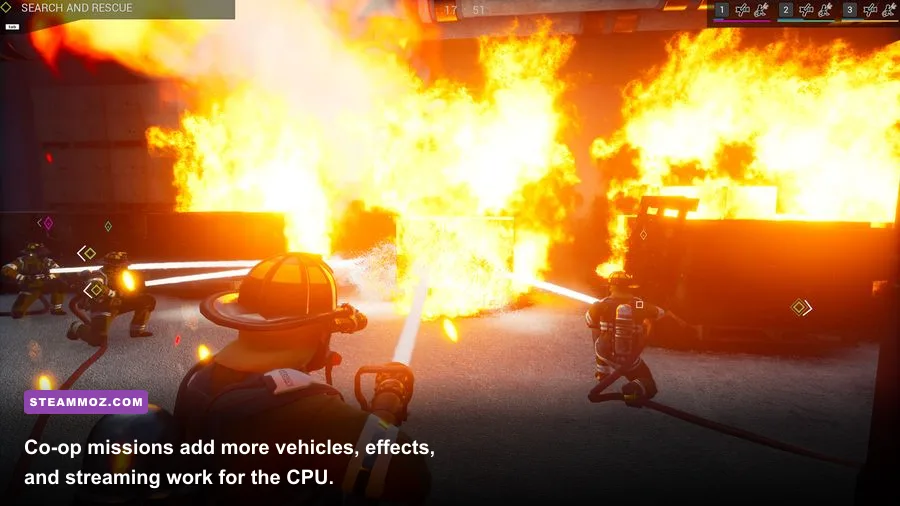
Co-op can magnify stutter because the host is handling additional network and simulation work. If solo play is smooth but a four-player call is not, let the strongest CPU host, lower view distance and effects, and avoid running a browser stream or video capture session in the background. Network rubber-banding is not the same as low FPS: watch the counter and camera motion separately before changing graphics settings.
Handle overheating, VRAM pressure, and shader stutter
Monitor GPU temperature, CPU temperature, clock speed, RAM use, and VRAM use with a tool such as HWiNFO or your graphics driver's overlay—but disable that overlay afterward when testing crashes. A sudden clock-speed drop during a fire usually means thermal throttling or a power limit. Clean dust from filters, confirm fans are spinning, and make sure a laptop is plugged in and using its high-performance profile.
VRAM pressure tends to show up as texture pop-in, hitching, or a crash after moving through several large areas. Lower textures one step, restart the game, and test again. Texture quality changes may not fully apply until a restart. On an 8 GB card, High textures are often comfortable at 1080p, but higher resolutions and other applications can consume the margin. Close Chrome tabs, image editors, and video tools before launching.
Some first-run hitching is shader compilation rather than a permanent FPS defect. Let the game sit at the menu for a minute after a driver update, then play the same mission twice. If the second run is smoother, the cache was doing work in the background. Constant stutter in the exact same location after several runs points more strongly to CPU streaming, storage, or an unstable frame cap.
Apply a clean troubleshooting order
Work through changes one at a time so you know what fixed the problem. This order avoids wasting an evening reinstalling a game when a single overlay or damaged file was responsible:
- Restart Steam and the PC. This clears stuck driver, overlay, and file-lock states.
- Verify game files. Do this before deleting folders or reinstalling.
- Update the GPU driver cleanly. Test at stock clocks after rebooting.
- Disable overlays and capture tools. Re-enable them individually later.
- Reset the configuration. Rename the local settings folder and let the game rebuild it.
- Use the 1080p performance profile. Medium volumetrics, shadows, and effects are the key changes.
- Check temperatures and drive health. Hardware instability often appears only in large incidents.
- Reinstall or move the game. Reserve this for repeated verification failures or storage errors.
If the title still crashes after this sequence, record the mission, location, player count, graphics preset, GPU driver version, and whether overlays were disabled. Include crash logs if the developer requests them through the Steam community hub. A report saying “it crashes” is difficult to act on; “crashes when entering a smoke-filled second floor in co-op after 20 minutes on driver version X” is useful evidence.
For more PC troubleshooting patterns, Steamoz's guide to stopping crashes and rescuing FPS in ELEX and the Everspace 2 crashing fixes follow the same disciplined baseline-first approach. The broader lesson is simple: stabilize the installation and drivers, then tune the heavy effects instead of blindly dropping every setting to Low.
The best stable profile for most PCs
For a typical gaming PC near the minimum specification, use 1080p, a 30–45 FPS cap, Medium shadows, Medium effects, Low post-processing, Medium volumetrics, Medium view distance, High textures if VRAM allows, and Quality upscaling. For the recommended tier, try 1080p or 1440p with a 60 FPS cap, High textures, Medium shadows, Medium effects, Medium volumetrics, and Quality upscaling. Only raise volumetric effects after the worst fire scene stays above your target.
That profile protects the parts of Firefighting Simulator – The Squad that matter: readable flames, clear building layouts, visible hose streams, and responsive vehicle control. Once crashes are gone and frame pacing is stable, raise one setting at a time and replay the same demanding call. If a single change causes the frame-time graph to spike, undo it. In this game, disciplined tuning beats chasing a flashy average FPS number—and it gets you back to the fire faster.