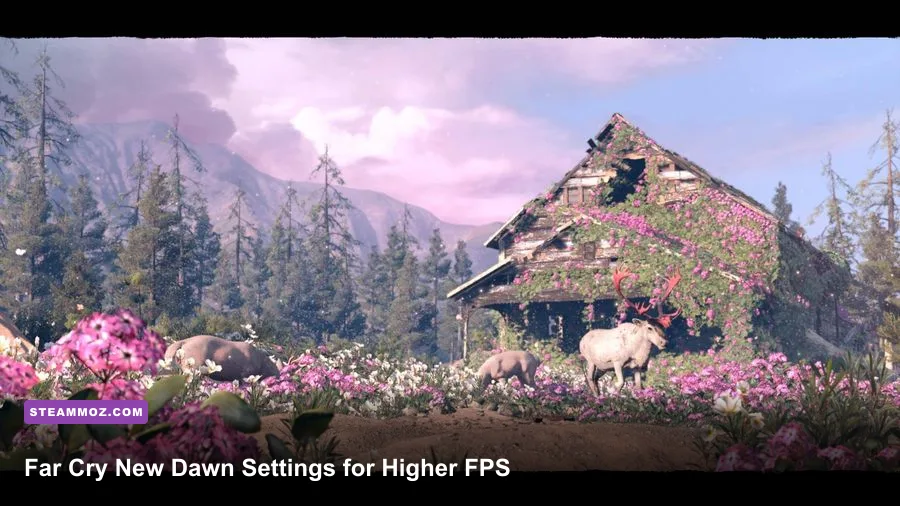
For the best Far Cry New Dawn graphics settings for max FPS, start with High overall quality, turn Motion Blur off, use SMAA, keep Textures on Ultra only if your GPU has enough VRAM, and lower Shadows, Volumetric Fog, Environment, and Geometry before touching resolution. That combination preserves New Dawn’s colorful post-apocalyptic look while delivering a much steadier frame rate than the Ultra preset.
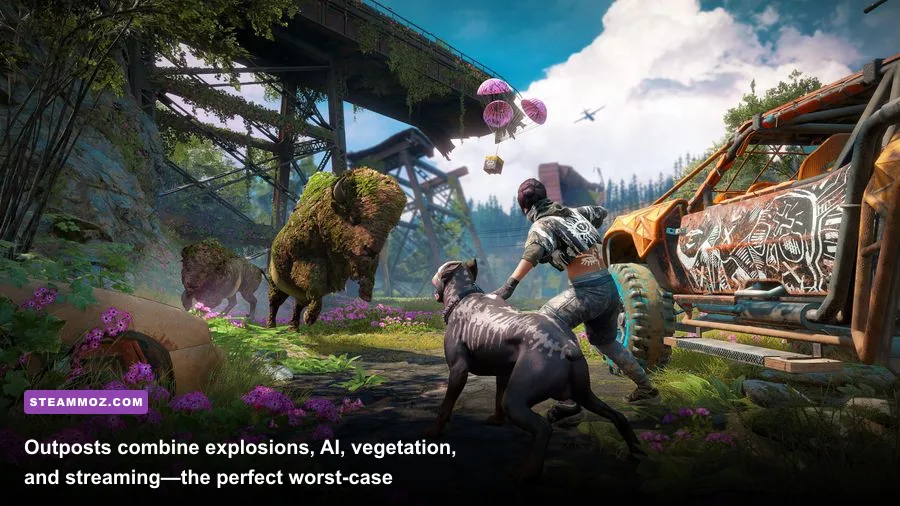
The key is consistency, not a pretty benchmark number. New Dawn runs on Ubisoft’s Dunia engine, and its biggest dips usually appear while driving across Hope County, approaching an outpost, or triggering a large fight with animals, vehicles, fire, and explosives on screen. A setting that averages well in a quiet field can still create nasty one-percent-low drops during an assault.
This guide focuses on practical PC tuning rather than blindly selecting Low or Ultra. You’ll get tested-style performance targets, a setting-by-setting breakdown, separate 60 FPS and high-refresh profiles, plus the Windows and driver changes that help the game stream its open world more smoothly.
Before changing anything, check the official Steam page for Far Cry New Dawn and compare your hardware with Ubisoft’s listed requirements. If another game is stuttering too, our guide to ELEX PC fixes covers several broader Windows troubleshooting steps that also apply here.

The best starting profile for 60 FPS

Start by selecting the High preset, then make a few manual changes. High is a better foundation than Low because New Dawn’s textures, vegetation, and distant scenery lose a lot of character when pushed too far down. The game’s neon-pink foliage, rusty buildings, and long sightlines are part of its identity, so there’s no reason to sacrifice all of that for settings that often save only a small amount of GPU time.
Use your monitor’s native resolution first. At 1080p, a mainstream GPU should have a realistic path to 60 FPS with the profile below. At 1440p, the same settings are still a strong starting point, but you may need to reduce resolution scale or use a lower preset. New Dawn does not offer the same modern upscaling flexibility found in newer releases, so native resolution remains the cleanest option when your graphics card can handle it.
| Setting | Recommended value | Typical FPS impact | Visual trade-off |
|---|---|---|---|
| Resolution | Native monitor resolution | Very high | Best image clarity; lower only when GPU-limited |
| V-Sync | Off for testing, On if tearing bothers you | Low to medium | On can add latency and cap output to refresh rate |
| FPS limit | 60 or 3 FPS below refresh rate | None; improves consistency | Prevents unnecessary GPU spikes |
| Textures | High; Ultra with 8 GB or more VRAM | Low average, high VRAM use | Visible detail on weapons, walls, and terrain |
| Texture Filtering | High or Ultra | Very low | Keeps roads and ground textures sharp at angles |
| Shadows | High or Medium | Medium to high | Lower values soften foliage and character shadows |
| Geometry and Vegetation | High | Medium; CPU-heavy in busy areas | Controls distant objects, plants, and scene density |
| Environment | High | Medium | Reduces distant detail and world richness when lowered |
| Terrain | High | Low to medium | Changes ground and landscape detail |
| Water | High | Low to medium | Lower reflections and surface detail |
| Volumetric Fog | Medium | Medium to high | Less dense light shafts and atmospheric fog |
| Anti-Aliasing | SMAA | Low | Clean edges with less blur than heavier options |
| Motion Blur | Off | Small | Sharper camera movement and aiming |
There’s an important distinction between average FPS and frame pacing. If your system sits at 76 FPS but repeatedly falls to 42 while driving, it will feel worse than a locked 60. Set an in-game cap at 60 for a 60 Hz display. On a 144 Hz monitor, try 72, 90, or 120 depending on what your PC can sustain. A stable cap gives the Dunia engine more breathing room during streaming and reduces fan noise too.
🎮 Far Cry New Dawn
Looking to experience this game? Grab your digital key directly on our store for $7.99.
View on Steammoz Store →Which settings cost the most performance?
Shadows are usually the first major cut. They affect the number and quality of dynamic shadows cast by trees, buildings, enemies, vehicles, and explosions. Ultra shadows can look excellent during sunrise and inside outposts, but the difference between High and Ultra is easy to miss during combat. Medium is the best emergency setting when GPU usage is near 99 percent and you need a quick FPS gain.
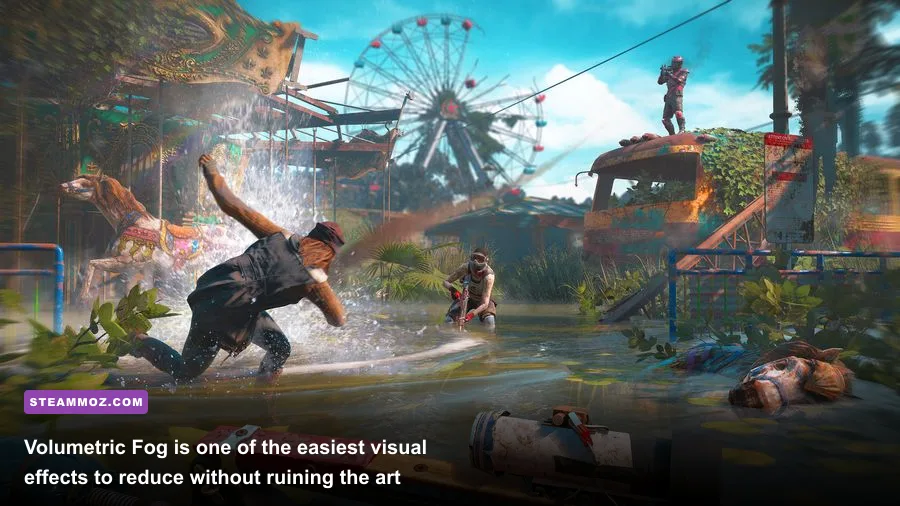
Volumetric Fog is another strong lever. Hope County uses bright haze, smoke, dust, and light shafts to create its distinctive atmosphere. High or Ultra fog can become expensive when several effects overlap during a fire fight. Medium retains the mood while reducing the amount of volumetric work. Low saves more frames, but the world can look noticeably flatter, especially around rivers and sunset scenes.
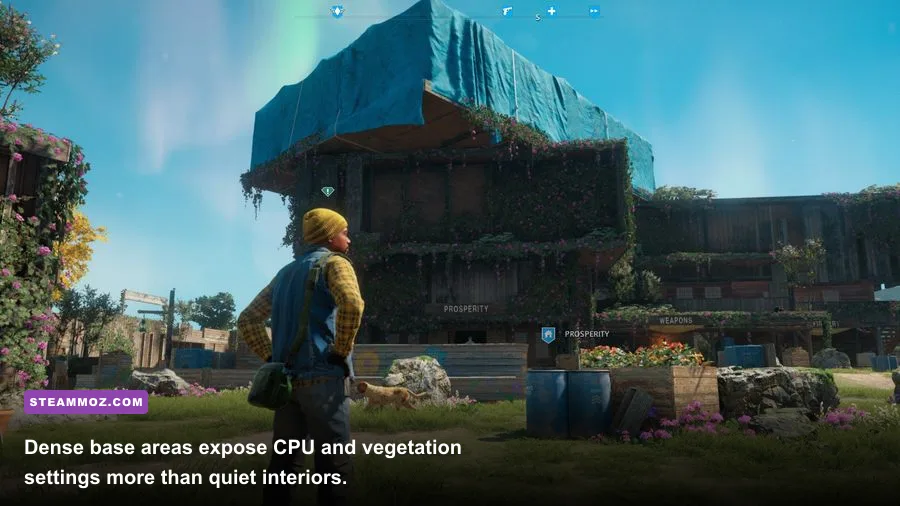
Geometry, Vegetation, and Environment are more complicated because they can pressure both the GPU and CPU. They control how much of the world is drawn, how far objects remain detailed, and how thick the vegetation appears. If GPU utilization stays below roughly 90 percent while FPS drops in forests or near Prosperity, lower these settings rather than reducing anti-aliasing. That pattern points toward a CPU or world-streaming bottleneck, not a pure shader problem.
Textures rarely improve average FPS unless your graphics card runs short of VRAM. They do, however, affect hitching when the game needs to swap assets. Ultra textures are reasonable on an 8 GB card at 1080p or 1440p, provided other applications are not consuming memory. On 4 GB cards, High is safer. If you see sudden pauses when turning quickly or entering a new settlement, textures may be too aggressive even if the FPS counter looks healthy.
| Priority | Setting to change | Why it matters | Recommended move |
|---|---|---|---|
| 1 | Shadows | Heavy dynamic-lighting workload | Ultra to High, then Medium if necessary |
| 2 | Volumetric Fog | Expensive atmospheric lighting and smoke | High to Medium |
| 3 | Geometry and Vegetation | Raises draw calls and world complexity | Ultra to High for balanced play |
| 4 | Environment | Controls distant world detail | High; lower for CPU-limited systems |
| 5 | Resolution scale | Directly changes pixel workload | Reduce only after quality settings |
| 6 | Anti-Aliasing | Edge smoothing and image stability | Use SMAA before lowering resolution |
Anti-Aliasing deserves a warning. New Dawn’s heavier anti-aliasing options can soften foliage and distant wires, while SMAA generally gives the clearest result for its cost. If the image still shimmers, raise resolution or use a mild resolution-scale adjustment before accepting a blurry presentation. Motion Blur should stay off for mouse aiming; it adds visual smear without solving performance problems.
Best profiles for low-end, mid-range, and high-end PCs
There isn’t one perfect preset because Far Cry New Dawn behaves differently at 1080p and 1440p. A six-core processor with a mid-range graphics card can often maintain a better minimum than an older high-end GPU paired with a weak CPU. Use the profile that matches your hardware, then benchmark the same route instead of changing five settings at once.
Low-end 1080p profile
Choose 1920x1080, High textures if you have 4 GB of VRAM, Medium shadows, Medium Volumetric Fog, Medium Environment, and High Geometry and Vegetation. Set Water and Terrain to High, use SMAA, disable Motion Blur, and cap the game at 60. If you still dip below your target, reduce Geometry and Vegetation to Medium before lowering textures.
This profile is aimed at older six-core CPUs and GPUs around the GTX 1060 or RX 580 class. It won’t guarantee 60 FPS in every outpost, but it keeps the world attractive and avoids the muddy look produced by dropping everything to Low. If your system is weaker, a 1600x900 output can look better than severely reduced textures and vegetation at native 1080p.
Mid-range 1080p and 1440p profile
Use High across most categories, Ultra Textures only when VRAM allows it, High Texture Filtering, High Terrain and Water, Medium or High Volumetric Fog, SMAA, and no Motion Blur. At 1080p, this is the profile to try for high-refresh play. At 1440p, start with native resolution and lower Shadows and Fog if GPU usage remains pinned.
This is the sweet spot for many gaming PCs. You keep the dense foliage and impressive draw distance while trimming effects that are expensive mostly because they create subtle lighting differences. Don’t chase Ultra unless you have headroom during an outpost assault, not just while looking at a quiet mountain.
High-end 1440p profile
Run native 2560x1440, Ultra Textures, High or Ultra Texture Filtering, High Geometry, High Environment, High Terrain, High Water, High Shadows, and High Volumetric Fog. Test Ultra shadows and fog separately. If your one-percent lows fall sharply during fire, smoke, or vehicle combat, return those two settings to High.
| Hardware target | Resolution | Core settings | Practical target |
|---|---|---|---|
| Older 4 GB GPU and quad/six-core CPU | 1080p or 900p | High textures, Medium shadows and fog, High world detail | Stable 45-60 FPS |
| Mainstream 6 GB GPU and modern six-core CPU | 1080p | High preset, High textures, Medium fog, SMAA | Locked 60 FPS or higher |
| Mainstream 8 GB GPU | 1440p | High preset, Ultra textures, High world detail | Around 60 FPS with tuned lows |
| High-end GPU and modern eight-core CPU | 1440p | High/Ultra mix, Ultra textures, High fog | 90 FPS-class experience where sustained |
These are sensible targets, not promises. Driver version, RAM speed, background software, and whether you’re playing through Steam or Ubisoft Connect can all affect results. For comparison, our Dragonkin performance settings guide explains why stable frame times matter more than chasing a peak number.
How to benchmark New Dawn without fooling yourself
Far Cry New Dawn doesn’t need a synthetic benchmark to expose weak settings. Use a repeatable in-game route. Load a save near Prosperity, sprint through the base, drive toward a nearby outpost, and trigger a fight involving vehicles or an alarm. Repeat the route twice after each major change. The first pass can include asset streaming, so the second run is usually more useful for judging sustained performance.
Watch GPU usage, CPU usage per core, VRAM allocation, average FPS, and one-percent lows. MSI Afterburner with RivaTuner Statistics Server works well for this, although any trustworthy overlay is fine. A GPU at 95-99 percent means you should lower resolution, Shadows, Fog, or other visual settings. A GPU sitting around 70 percent while the frame rate collapses in a crowded scene suggests a CPU, streaming, or background-process limit.
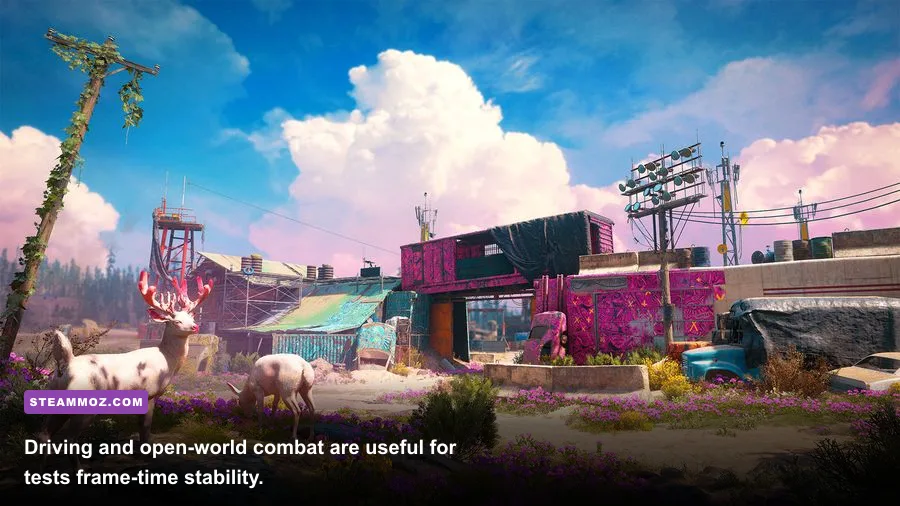
Driving is particularly valuable as a stress test. The game streams new roads, buildings, foliage, and enemy encounters while the camera moves quickly. If hitching happens only when driving, lowering textures may help if VRAM is full, while lowering Geometry, Vegetation, and Environment can reduce the amount of world data being processed. If the hitch appears during explosions, test Shadows and Volumetric Fog.
Don’t judge a setting from a single pause-menu flip. Some changes need a reload before their full impact appears, and the game’s location can matter more than a two-step quality difference. Take a screenshot and note your FPS in the same spot. That turns tweaking into useful evidence instead of endless menu surfing.
Windows, drivers, and stutter fixes that actually help
Install a current graphics driver, but don’t assume the newest driver automatically fixes every issue. If stuttering began immediately after an update, a clean driver installation or rollback is worth testing. Close browser tabs, launchers, RGB utilities, recording software, and overlays you don’t need. Ubisoft Connect and Steam can both run overlays, and stacking them with Discord, GeForce Experience, or Radeon software adds extra hooks to the render path.
Use the High performance power mode in Windows when playing on a desktop, and make sure the game is installed on an SSD if possible. An SSD won’t magically raise average FPS, but it can shorten asset-streaming delays while moving through Hope County. Leave enough free space for the drive to maintain normal performance, and avoid running a large file transfer in the background.
Fullscreen mode is usually the best starting point for latency. If Alt-Tab behavior is poor, borderless can be more convenient, but compare frame pacing rather than relying on how smooth the mouse feels in the menu. Keep V-Sync off while diagnosing performance. Once the game is stable, enable it if you see tearing, or use your monitor’s adaptive-sync feature with a sensible FPS cap.
Far Cry New Dawn also benefits from a clean shader cache after major driver changes, though the first run afterward may stutter while shaders rebuild. Don’t panic if the opening minutes are uneven. Play through the route once, restart, and check whether the second pass improves. If it doesn’t, the problem is more likely a settings, driver, overlay, or hardware bottleneck than ordinary shader compilation.
For crash-prone installations, verify the game files through Steam or Ubisoft Connect and reset any overclock temporarily. An unstable GPU or memory overclock can appear as texture corruption, sudden desktop crashes, or bizarre frame-time spikes long before it fails in other games. Our PC requirements and smooth-performance guide has a useful checklist for ruling out basic system limits.
Final settings checklist for the smoothest ride
For most players, the best Far Cry New Dawn performance setup is simple: native resolution, High preset, SMAA, Motion Blur off, High Textures, High Texture Filtering, High Geometry and Vegetation, High Environment, High Terrain, High Water, Medium Volumetric Fog, and High or Medium Shadows. Cap the frame rate to a number your PC can sustain during a chaotic outpost fight, not the number it reaches while staring at the sky.
If the game still struggles, follow this order. First reduce Shadows. Then lower Volumetric Fog. Next test Geometry, Vegetation, and Environment if the dips happen outdoors or while driving. Only after that should you lower resolution or texture quality. This sequence protects image sharpness and New Dawn’s distinctive scenery while targeting the settings that actually consume the most performance.
Players chasing 120 FPS should be realistic about the engine and the open world. A high-refresh display can feel excellent when the system stays above 90 FPS, but a locked 72 or 90 FPS may feel better than an unstable 120 that repeatedly plunges during combat. Disable Motion Blur, keep the mouse response clean, and prioritize one-percent lows over a flashy average.
Finally, save a screenshot of your working profile. Driver updates, a new monitor, or a change from 1080p to 1440p can invalidate old settings. If you enjoy performance tuning across open-world games, our Everspace 2 FPS troubleshooting guide and ELEX optimization guide offer more practical ways to separate a genuine GPU limit from stutter caused by the wider PC setup.
New Dawn still looks great without every slider pinned to Ultra. Keep the textures and world detail high, cut the expensive lighting effects, and benchmark in the places where the game actually gets busy. That’s the reliable route to a sharper, smoother trip through post-collapse Hope County.