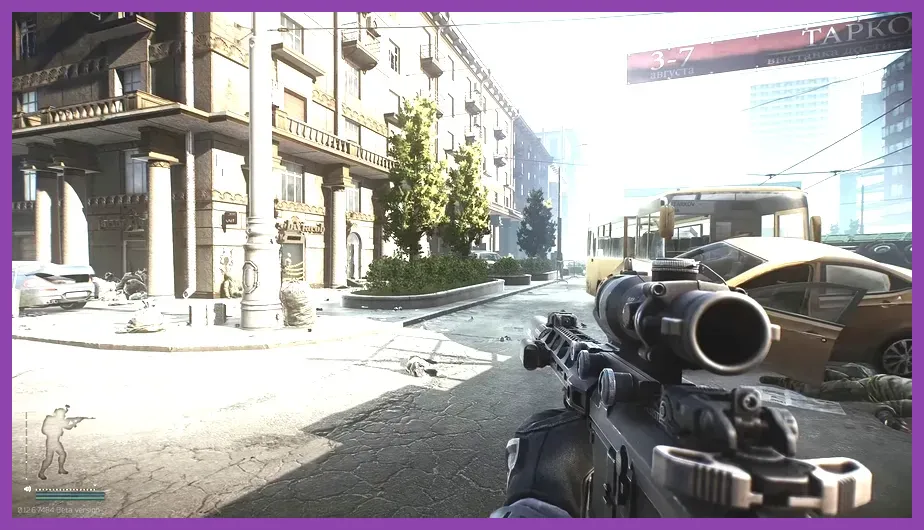
For the best Escape from Tarkov performance, use Textures on High, Shadows on Low or Medium, Object LOD Quality at 2, Overall Visibility at 1,500, DLSS on Quality for Nvidia RTX GPUs, AMD FSR 2.2 on Quality for Radeon cards, HBAO and SSR disabled, and NVIDIA Reflex set to On. This profile prioritizes stable frame times and clear targets while avoiding the blurry image produced by overly aggressive upscaling.
Best Tarkov Graphics Settings for Most PCs
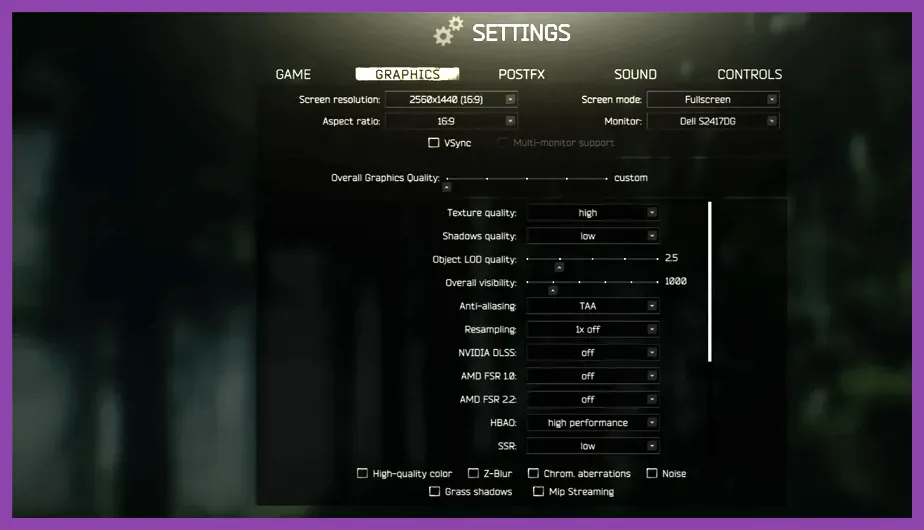
Open Tarkov's Settings menu, select Graphics, and start with this balanced competitive profile. It is designed for 1080p and 1440p systems with at least 16GB of RAM, a modern six-core processor, and a GTX 1660 Super, RTX 3060, RX 6600, or faster graphics card.
- Screen mode: Fullscreen.
- Resolution: Use your monitor's native resolution, such as 1920x1080 or 2560x1440.
- VSync: Off. Enable it only if you deliberately cap FPS and do not use a variable-refresh display.
- Texture quality: High. Use Medium with 8GB-or-less VRAM, especially on Streets of Tarkov.
- Shadow quality: Low for maximum FPS; Medium if your GPU has headroom.
- Object LOD quality: 2.
- Overall visibility: 1,500. Raising it to 2,000 or 2,500 costs performance without guaranteeing useful long-range detail.
- Clouds quality: Low.
- Anti-aliasing: TAA High at native resolution. Use TAA Low only when GPU performance is severely limited.
- Resampling: 1x off.
- HBAO: Off.
- SSR: Off.
- Anisotropic filtering: Per texture.
- NVIDIA Reflex Low Latency: On. Choose On + Boost only if GPU clocks repeatedly drop during raids.
- Sharpness: 0.3 to 0.6. Avoid extreme sharpening, which exaggerates foliage and aliasing.
These values are more useful than copying a single streamer preset because Tarkov performance varies sharply between Factory, Customs, Reserve, and Streets. For broader Windows and hardware advice, compare this setup with Steamoz's performance optimization principles and its guide to optimizing games on low-end PCs.
DLSS, FSR, and Resolution Scaling
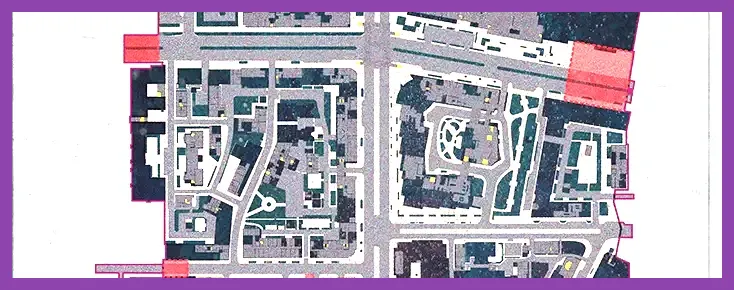
Upscaling is the quickest way to recover GPU-limited FPS, but the correct mode depends on resolution and hardware. On an RTX 2060 or newer Nvidia card, select DLSS Quality at 1440p. At 1080p, DLSS Quality can soften small targets, so native TAA High is usually preferable if the GPU can maintain your refresh rate. DLSS Balanced is a fallback for Streets or Lighthouse, while Performance should be reserved for very weak hardware.
AMD users should select FSR 2.2 Quality at 1440p and test native resolution at 1080p. FSR 2.2 Balanced can help an RX 580, GTX 1070, or similar card, but its lower internal resolution may produce shimmering on wires, railings, and foliage. Do not enable both an upscaler and Resampling; Resampling at 0.75x or 0.5x throws away substantially more detail.
Intel Arc owners should test XeSS Quality where available, but compare it directly with TAA High because image stability can vary by map and driver. Keep the in-game resolution native and let the upscaler handle internal rendering. Nvidia's official DLSS documentation explains why Quality mode preserves more detail than Balanced or Performance.
Settings That Matter Most on Streets and Lighthouse
Streets of Tarkov exposes CPU, RAM, and streaming limitations more aggressively than Factory or Customs. A powerful GPU will not fix stutter caused by a four-core processor, insufficient memory, or background applications consuming RAM. Use the balanced profile above, then make these map-focused changes:
- Lower Textures to Medium if VRAM usage approaches the card's limit or you see sudden hitching while moving through the Concordia and Pinewood areas.
- Keep Object LOD at 2. Values of 3 or 4 increase the number of detailed objects the CPU must process and offer limited combat value.
- Keep Overall Visibility at 1,500. Increasing it mainly adds distant geometry and can reduce minimum FPS near the LexOs and Klimov Street areas.
- Disable HBAO and SSR. These effects add shading and reflections but do not improve enemy identification enough to justify their frame-time cost.
- Use the Streets lower-resolution option if your Tarkov build exposes it in the Graphics menu. It is preferable to lowering the entire monitor resolution when the map remains GPU-bound.
On CPU-limited systems, lower settings do not always increase average FPS. They can instead shift the bottleneck from the GPU to the processor. If Customs runs at 100 FPS but Streets falls into the 50s, monitor GPU utilization: below roughly 90 percent usually indicates a CPU, memory, or asset-streaming limit rather than a graphics-quality problem.
Keep Tarkov on an SSD with at least 20GB of free space and close browsers, RGB utilities, recording tools, and launchers before loading a raid. Battlestate Games publishes updates through the official Escape from Tarkov website, while the Steam listing provides current platform and system information.
PostFX and Visibility Without Extra Input Lag
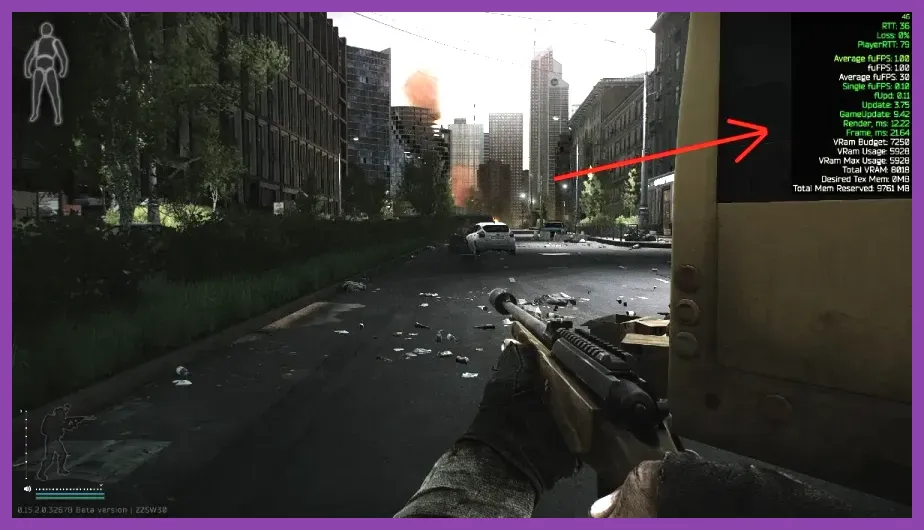
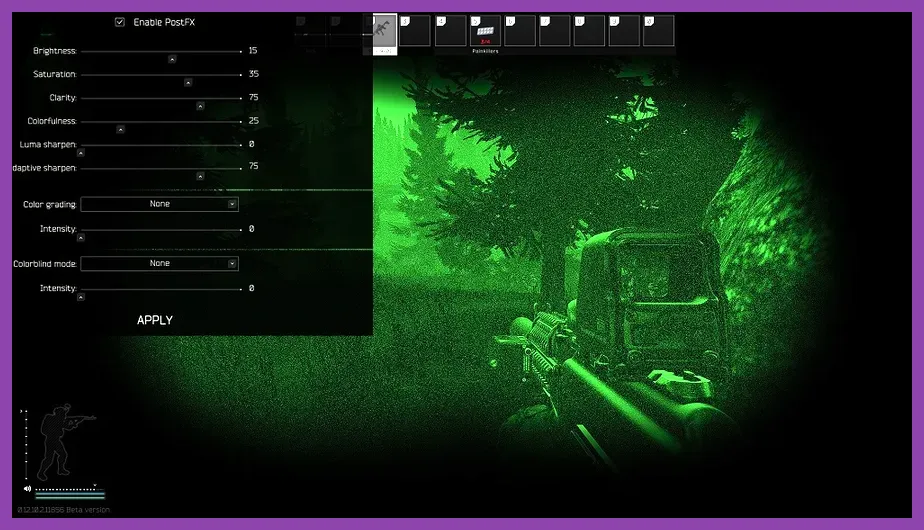
PostFX does not replace proper lighting settings, but a restrained preset can make dark interiors easier to read. Start with Brightness 0, Saturation 0, Clarity 0, Colorfulness 0, and Luma Sharpen 0. Increase Brightness by 5 to 10 points only if your monitor is correctly calibrated. Excessive brightness can flatten shadows and make bright outdoor scenes harder to read.
Do not stack Nvidia Freestyle filters, AMD Adrenalin color adjustments, ReShade, and Tarkov PostFX together. Multiple sharpening passes create halos around door frames and foliage, while third-party overlays can complicate troubleshooting after patches. Turn off Motion Blur, Chromatic Aberrations, Noise, and Z-Blur. These effects reduce clarity and offer no competitive advantage.
For audio-related awareness, Binaural Audio is separate from graphics and should be tested after every major patch rather than changed alongside visual settings. Audio changes can alter perceived positioning, so evaluate it in Offline mode around identifiable locations such as Dorms, Interchange's escalators, or Reserve's underground bunker.
How to Test FPS and Fix Stutter
Test settings in the same place instead of relying on the main menu FPS counter. Load an Offline raid on Streets without AI, sprint from the Pinewood Hotel toward the cinema, and record average FPS plus the one-percent-low result. Repeat the route after each change. Then run a live Customs raid because player, scav, and network activity can expose performance problems that Offline mode misses.
Use a Stable Frame-Time Target
A locked 60 FPS with consistent frame times feels better than an unstable 90 FPS that repeatedly drops to 35. Cap FPS through your GPU driver or a reliable frame limiter several frames below your display's refresh rate: 141 FPS for 144Hz, 162 FPS for 165Hz, or 237 FPS for 240Hz. If your PC cannot hold that target, use 60, 72, or 90 FPS rather than chasing an inconsistent maximum.
Update your graphics driver, enable XMP or EXPO in the motherboard firmware, and confirm that Tarkov is using the dedicated GPU. Set Windows power mode to Best Performance while plugged in, but avoid blindly changing process priority to Realtime. Finally, check the developer's official channels after patches, since shader compilation, map streaming, and visibility behavior can change between Tarkov versions.
For portable PCs, the same principle applies: preserve native resolution, reduce shadows and visibility first, and keep temperatures under control. Steamoz's guide to optimizing demanding games on Steam Deck covers the thermal and frame-cap logic that also benefits compact gaming PCs. Apply the settings in order, measure Streets and Customs separately, and prioritize minimum FPS over a flashy screenshot-quality preset.