
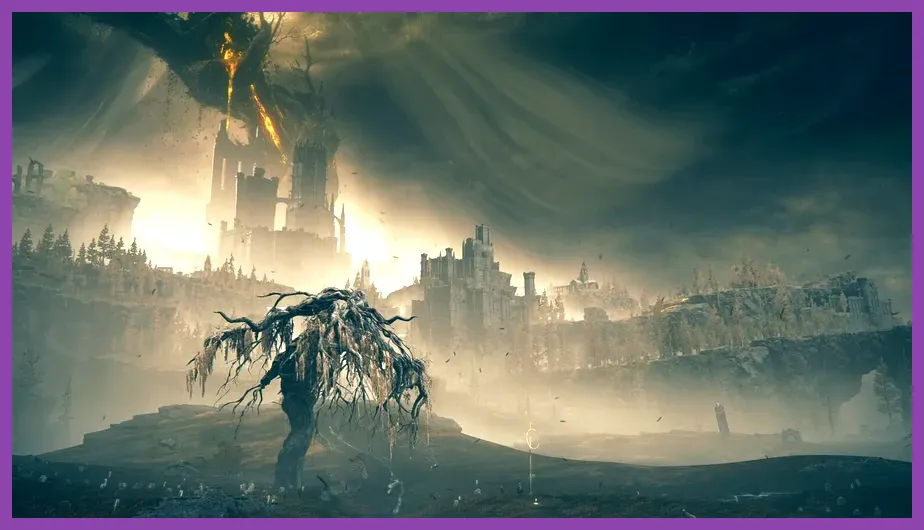
To run Elden Ring: Shadow of the Erdtree at minimum settings, your PC requires at least an Intel Core i5-8400 or AMD Ryzen 3 3300X processor, 12 GB of RAM, an Nvidia GeForce GTX 1060 (6 GB) or AMD Radeon RX 580 (8 GB) graphics card, and 80 GB of available storage space. For the recommended 1080p 60 FPS experience on High settings, FromSoftware specifies an Intel Core i7-8700K or AMD Ryzen 5 3600X, 16 GB of RAM, and an Nvidia GeForce GTX 1070 (8 GB), AMD Radeon RX Vega 56 (8 GB), or Intel Arc A750 (8 GB). Shadow of the Erdtree demands significantly more hardware optimization than the 2022 base game due to dense volumetric lighting in areas like Belurat, expanded draw distances in Gravesite Plain, and complex particle effects during boss fights like Messmer the Impaler.
Official Elden Ring: Shadow of the Erdtree Minimum System Requirements
The minimum system requirements for Shadow of the Erdtree are designed to deliver playable frame rates (averaging 30 to 45 FPS) at 1080p resolution on Low-to-Medium graphics presets. While the specs match the original 2022 release baseline, real-world testing reveals that the expansion puts a substantially higher load on both memory bandwidth and GPU compute shaders. Below are the official minimum specifications provided by Bandai Namco and FromSoftware:
| Hardware Component | Minimum Specification Requirement |
|---|---|
| Operating System | Windows 10 64-bit |
| Processor (CPU) | Intel Core i5-8400 (6 Cores / 6 Threads) or AMD Ryzen 3 3300X (4 Cores / 8 Threads) |
| Memory (RAM) | 12 GB DDR4 RAM |
| Graphics Card (GPU) | Nvidia GeForce GTX 1060 (6 GB VRAM) or AMD Radeon RX 580 (8 GB VRAM) or Intel Arc A380 (6 GB VRAM) |
| DirectX Version | DirectX 12 (Feature Level 12_0) |
| Storage Space | 80 GB available space (Solid State Drive strongly recommended) |
| Sound Card | DirectX-compatible audio device |
Minimum Hardware Benchmark Expectations
Running the DLC on a system matching these exact minimum specs will yield functional gameplay, but performance drops are frequent. Entering dense landmark zones such as Castle Ensis or the Shadow Keep causes frame rates to dip below 30 FPS if graphics presets remain at Default. Furthermore, the mandatory 12 GB RAM minimum means that running background applications like Web Browsers or Discord alongside the game will trigger aggressive Windows pagefile swapping, leading to hitching during fast movement. Installing the game on a standard mechanical Hard Disk Drive (HDD) causes severe asset streaming stuttering when entering new sub-regions, making a Solid State Drive (SSD) virtually mandatory for fluid gameplay.
Official Recommended System Requirements for 60 FPS Performance
To experience the Realm of Shadow as intended by FromSoftware—holding a steady 60 FPS at 1080p resolution with High graphics settings—you will need hardware that comfortably exceeds the bare minimum baseline. Because the DLC introduces complex volumetric atmospheric effects and dense foliage density, a modern hex-core CPU and an 8 GB VRAM GPU are essential. If you are preparing your character for the expansion, review our guide on how to level up fast in Elden Ring Shadow of the Erdtree before tackling its toughest encounters.
| Hardware Component | Recommended Specification Requirement |
|---|---|
| Operating System | Windows 11 / Windows 10 64-bit |
| Processor (CPU) | Intel Core i7-8700K (6 Cores / 12 Threads) or AMD Ryzen 5 3600X (6 Cores / 12 Threads) |
| Memory (RAM) | 16 GB DDR4 Dual-Channel RAM |
| Graphics Card (GPU) | Nvidia GeForce GTX 1070 (8 GB) or AMD Radeon RX Vega 56 (8 GB) or Intel Arc A750 (8 GB) |
| DirectX Version | DirectX 12 (Feature Level 12_0) |
| Storage Space | 80 GB SSD available space |
Real-World Analysis of Recommended Specs
While the official recommended GPUs list older legacy hardware like the GTX 1070 and RX Vega 56, modern open-world areas in the expansion strain these older architectures heavily. In demanding combat encounters against fast bosses like the Divine Beast Dancing Lion or Bayle the Dread, alpha particle effects and dynamic lighting push 8 GB VRAM cards to their limits. For absolute frame time stability without micro-stutters, modern equivalent graphics cards such as the Nvidia GeForce RTX 3060 (12 GB), RTX 4060 (8 GB), or AMD Radeon RX 6600 XT (8 GB) provide a far smoother experience. If you need to reallocate your character build to match new weapon scaling specs, consult our walkthrough on how to respec in Elden Ring Shadow of the Erdtree.
Ray Tracing System Requirements & Performance Impact
FromSoftware integrated DirectX Ray Tracing (DXR) into the proprietary engine driving Elden Ring. Ray Tracing in Shadow of the Erdtree enhances Ray-Traced Ambient Occlusion (RTAO) and Ray-Traced Shadows. However, it does not add Ray-Traced Reflections or Ray-Traced Global Illumination. Despite the limited scope of the ray-tracing features, enabling them incurs a massive performance hit—often cutting overall frame rates by 35% to 50% without a proportional increase in visual clarity.
| Ray Tracing Preset | Target Resolution / FPS | Recommended Processor | Recommended GPU Requirement |
|---|---|---|---|
| Low RT | 1080p / 60 FPS | Core i7-10700K or Ryzen 7 3800X | Nvidia RTX 3060 Ti (8 GB) or AMD RX 6700 XT (12 GB) |
| Medium RT | 1440p / 60 FPS | Core i7-12700K or Ryzen 7 5800X3D | Nvidia RTX 3070 Ti (8 GB) or AMD RX 6800 XT (16 GB) |
| High / Maximum RT | 4K (2160p) / 60 FPS | Core i9-13900K or Ryzen 7 7800X3D | Nvidia RTX 4080 (16 GB) or AMD RX 7900 XTX (24 GB) |
Unless you possess a high-end Nvidia RTX 40-series or AMD RX 7000-series GPU, we strongly advise leaving Ray Tracing Quality set to OFF. Because Elden Ring lacks native support for DLSS, FSR, or XeSS upscaling technology out of the box, ray tracing relies entirely on raw rasterization and shader power. Enabling RT on mid-tier hardware will cause severe frame drops into the low 30s during combat inside dungeons like the Belurat Gaol.
Best Optimized PC Graphics Settings for Shadow of the Erdtree
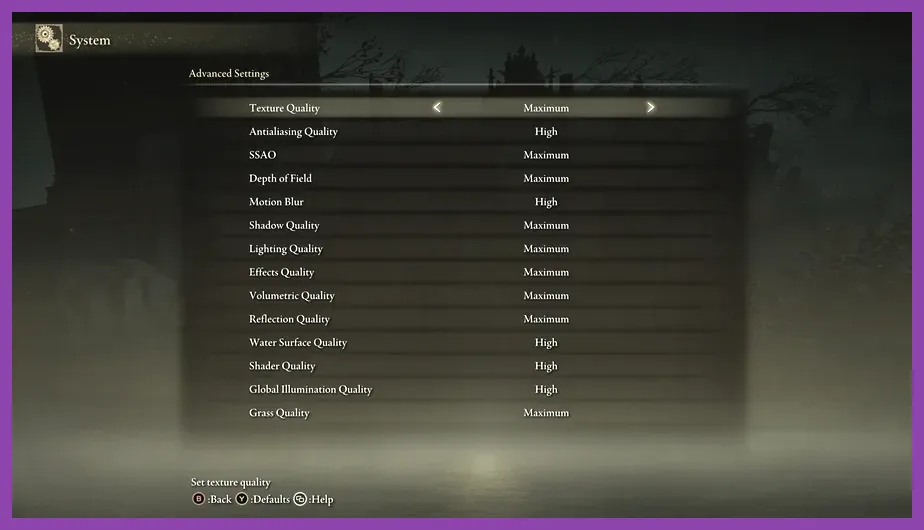
Elden Ring is capped internally at 60 FPS by the engine. The primary goal of optimization is eliminating framerate dips below 60 FPS and stabilizing frame pacing during hectic battles. By adjusting individual settings within the PC Graphics Menu, you can recover up to 30% performance while retaining 95% of maximum visual quality. For hardware tuning concepts in other demanding PC titles, check out our guide on Path of Exile 2 best graphics settings for performance.
Apply the following optimized settings profile inside the game options menu:
- Screen Mode: Fullscreen (Prevents Windows desktop compositing latency).
- Resolution: Native monitor resolution (1920x1080, 2560x1440, or 3840x2160).
- Auto-Detect Best Rendering Settings: OFF.
- Texture Quality: High (Requires 6 GB+ VRAM. Drop to Medium only if using a 4 GB card).
- Antialiasing Quality: High (Negligible FPS cost; cleans up shimmering foliage).
- SSAO (Screen Space Ambient Occlusion): Medium (High settings cost ~5% FPS for minimal shadow detail gain).
- Depth of Field: Low or Off (Personal preference; disabling frees up minor GPU overhead).
- Motion Blur: Off (Reduces visual clutter and improves movement responsiveness).
- Shadow Quality: Medium (High and Maximum settings drastically reduce FPS in open fields).
- Lighting Quality: Medium (Provides excellent dynamic lighting with minimal performance cost).
- Effects Quality: Medium (Critical setting! Reduces frame drops during particle-heavy magic spells and fire breath).
- Volumetric Quality: Medium (High settings crush performance in foggy areas like Fog Rift Catacombs).
- Reflection Quality: Medium (Low degrades water rendering; Medium is the ideal performance sweet spot).
- Water Surface Quality: Low (Saves performance near lakes and flooded ruins).
- Shader Quality: Medium (Controls surface shader complexity; High offers diminishing returns).
- Global Illumination Quality: Medium (Stabilizes light bounce calculations in interior dungeons).
- Grass Quality: Medium (Reduces geometric load on the CPU in Gravesite Plain).
- Ray Tracing Quality: OFF.
How to Fix Stuttering, Micro-Lags, and FPS Drops in the DLC
Even on high-end PCs matching or exceeding recommended specifications, players frequently report micro-stuttering in Shadow of the Erdtree. This issue stems primarily from DirectX 12 shader compilation, engine thread allocation, and GPU driver power states. If your hardware meets the requirements but struggles with frame stability while using your mount, consult our guide on how to unlock mount traversal fast in Shadow of the Erdtree to navigate the map efficiently once your frame rates are stable.
1. Expand the Shader Cache in GPU Control Panels
By default, graphics drivers allocate a restricted shader cache size, forcing the system to recompile shaders during fast combat. Expanding this cache eliminates asset pop-in stutters:
- Nvidia GPUs: Open Nvidia Control Panel > Manage 3D Settings > Set Shader Cache Size to 10 GB or Unlimited. Apply changes.
- AMD GPUs: Open AMD Software: Adrenalin Edition > Gaming > Graphics > Perform a Reset Shader Cache operation if upgrading from an older game patch. Ensure driver version is fully updated from the official AMD Driver Support Page.
2. Enable Hardware-Accelerated GPU Scheduling (HAGS)
Windows 10 and Windows 11 feature HAGS, which offloads VRAM management tasks directly to the graphics processor, reducing CPU overhead in open-world games:
- Press the Windows Key and type Graphics Settings.
- Toggle Hardware-Accelerated GPU Scheduling to ON.
- Restart your PC to apply the system change.
3. Force Maximum Performance Power Management
To prevent your graphics card from downclocking during dialogue transitions or cutscenes, set your global or program-specific power target via driver utilities or Windows Power Options. Ensure your graphics card software is updated via the Official Nvidia Driver Portal to take advantage of game-ready profiles optimized specifically for FromSoftware titles.
Best PC Hardware Specs for 1440p and 4K 60FPS Gameplay
If you plan to play Shadow of the Erdtree on modern high-resolution displays (1440p Ultrawide or 4K UHD TVs), target hardware specs well beyond the official recommended sheet. Because the engine is locked at 60 FPS without third-party modifications, your primary goal is maintaining a 99% Low Frame Rate metric near 60 FPS, eliminating micro-stutters during intense boss combos.
Target Specs for 1440p (2560x1440) High Settings at 60 FPS
- Processor: Intel Core i5-13400F / AMD Ryzen 5 7600X
- Graphics Card: Nvidia GeForce RTX 4060 Ti (16 GB) / AMD Radeon RX 7700 XT (12 GB)
- System Memory: 16 GB DDR5 5600MHz (Dual Channel)
- Storage: NVMe M.2 PCIe 4.0 SSD
Target Specs for 4K Ultra HD (3840x2160) Maximum Settings at 60 FPS
- Processor: Intel Core i7-14700K / AMD Ryzen 7 7800X3D (3D V-Cache CPUs perform exceptionally well due to massive L3 cache buffer for draw calls)
- Graphics Card: Nvidia GeForce RTX 4070 Ti Super (16 GB) / AMD Radeon RX 7900 XT (20 GB)
- System Memory: 32 GB DDR5 6000MHz CL30
- Storage: High-speed NVMe PCIe 4.0/5.0 SSD with 5000 MB/s+ read speeds
By matching your hardware to these practical targets and tuning your in-game graphics profile according to our benchmarks, you will achieve smooth, low-latency 60 FPS performance throughout your journey across the Realm of Shadow.