
The best Edge of Eternity settings for max FPS are a high texture profile with shadows, foliage, effects, and post-processing reduced to medium or low. Start at 1080p, use exclusive fullscreen if available, disable V-Sync, set the frame limiter to your monitor refresh rate, and leave resolution scale at 100%. On a mid-range gaming PC, that combination usually delivers a far steadier result than the Ultra preset while preserving the game’s sharp environments, character detail, and colorful science-fantasy lighting.
Edge of Eternity is built on Unreal Engine 4, and its performance behavior is fairly predictable: wide outdoor zones stress the CPU and foliage systems, while combat scenes punish effects and post-processing. The game also has occasional traversal stutter that no graphics preset can completely erase. The goal, then, isn’t simply to chase the highest average number. It’s to remove the settings that create ugly frame-time spikes without flattening the visual identity of Daryon’s journey.
Best Edge of Eternity graphics preset for most PCs
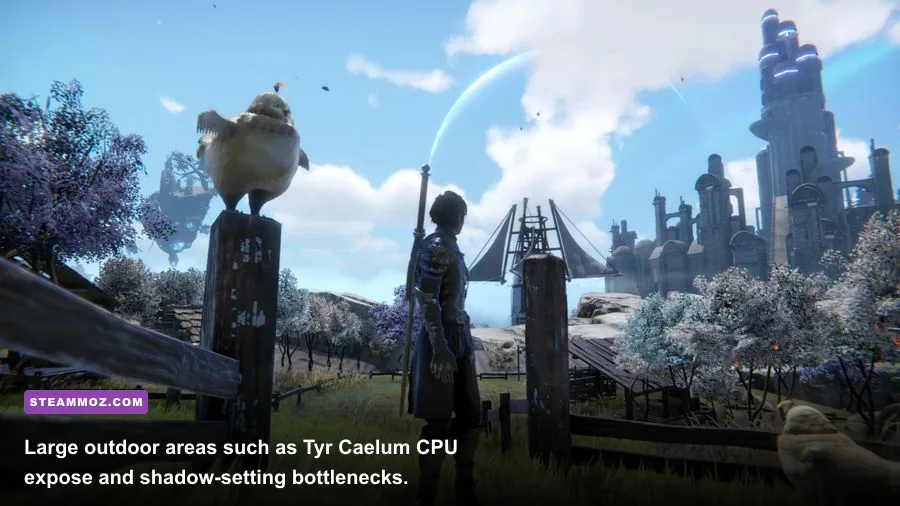
Before changing individual options, turn off every launcher or overlay you don’t need. Steam Overlay, Discord, Xbox Game Bar, Radeon recording, GeForce Instant Replay, and browser video tabs can all add small interruptions during area transitions. Edge of Eternity streams sizeable environments as you move through locations such as Tyr Caelum, Herelsor, and Junion, so background activity is more noticeable here than in a compact arena game.
Use the game’s native resolution whenever possible. At 1920x1080, 100% resolution scale is the sensible starting point. Dropping scale to 90% can rescue a struggling GPU, but going much lower makes thin foliage, distant structures, and tactical-grid edges look noticeably soft. At 1440p, a 90% scale is a reasonable compromise; at 4K, 70-80% may be necessary on mainstream hardware.
| Setting | Recommended Value | FPS Impact | Visual Note |
|---|---|---|---|
| Resolution | Native 1080p or 1440p | Very high | Lower only after cheaper settings are adjusted |
| Resolution Scale | 100%; 90% at 1440p if needed | Very high | Directly changes image sharpness and GPU load |
| Texture Quality | High | Low to medium | Needs adequate VRAM, but offers excellent image quality |
| Shadow Quality | Medium | High | Large gain in outdoor areas with limited visual loss |
| View Distance | Medium or High | Medium to high | High helps landscapes but can expose CPU limits |
| Effects Quality | Medium | Medium to high | Reduces combat bursts and spell-particle load |
| Post Processing | Low or Medium | Medium | Reduces blur, bloom, and distracting image treatment |
| Anti-Aliasing | High or Medium | Low to medium | Keep High if shimmering bothers you |
| Foliage Quality | Low or Medium | Medium to high | One of the best outdoor FPS cuts |
| V-Sync | Off | None directly | Use a frame cap to control tearing instead |
That profile is the sweet spot for a six-core processor paired with a GTX 1660, RTX 2060, RX 5600 XT, or newer graphics card. If you’re running a laptop GPU, don’t assume the desktop name tells the whole story; sustained heat can reduce clocks after 15 to 20 minutes. Test the profile in a large outdoor zone rather than only inside a menu or quiet interior.

🎮 Edge Of Eternity
Looking to experience this game? Grab your digital key directly on our store for $2.99.
View on Steammoz Store →Which settings actually cost the most FPS?
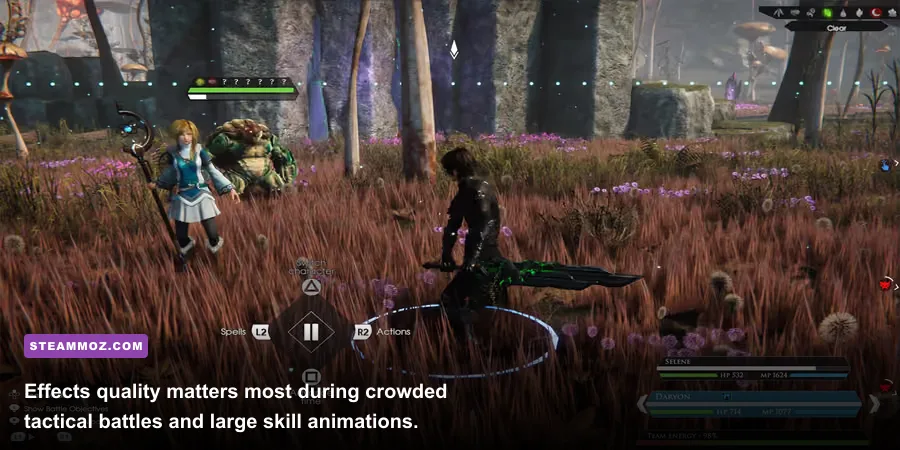
Shadows are the first setting to cut. They affect more than the quality of a character’s silhouette. Higher shadow levels increase the number and resolution of shadow maps drawn across terrain, buildings, vegetation, and moving characters. In Tyr Caelum and other open areas, the result can be a significant GPU hit with only a subtle improvement while you’re moving.
Set shadows to Medium before touching textures. Low shadows can look harsh, particularly around Daryon and Selene during exploration, but Medium retains a convincing grounding effect. Ultra shadows are difficult to justify unless you have substantial GPU headroom and care more about screenshots than consistent combat performance.
Foliage is the sneaky outdoor killer. It increases vegetation density and the number of alpha-tested surfaces on screen. Those surfaces are expensive because they create overdraw: the GPU processes layers of partly transparent leaves even when much of the scene is visually insignificant. Low or Medium foliage usually looks fine during normal movement, and the FPS improvement is more meaningful in wide zones than in cities.
Effects quality controls combat spikes. Edge of Eternity’s turn-based battles are not mechanically fast, but skill animations can fill the screen with glows, particles, impacts, and elemental color. When Daryon, Selene, and other party members trigger abilities in the same turn, Effects on High can produce short dips that feel worse than a lower average frame rate. Medium keeps attacks readable while reducing those peaks.
View Distance is partly a CPU setting. Lowering it reduces distant geometry and scene complexity, but it won’t always fix a GPU-bound machine. If your GPU usage sits around 95-99%, lower shadows, effects, or resolution scale. If the GPU is underused while the frame rate remains poor in outdoor areas, try Medium View Distance and Foliage. That distinction matters more than blindly choosing Low everywhere.
| Performance Problem | First Setting to Change | Second Adjustment | What to Watch |
|---|---|---|---|
| GPU at 99% in combat | Effects to Medium | Resolution scale to 90% | Particle-heavy skills and camera shake |
| GPU at 99% outdoors | Shadows to Medium | Foliage to Low or Medium | Large valleys and distant terrain |
| GPU below 90%, low FPS outdoors | View Distance to Medium | Foliage to Low | CPU usage and one-core saturation |
| Sharp dips during area streaming | Keep visuals stable | Close overlays and background apps | Frame-time spikes, not average FPS |
| Blurry image at acceptable FPS | Restore 100% scale | Lower shadows or effects instead | Fine detail on distant objects |
For more general Unreal Engine troubleshooting, compare the approach in our ELEX PC performance fixes. The games aren’t identical, but the same GPU-versus-CPU diagnosis prevents a lot of wasted tweaking.
Three profiles for low-end, mid-range, and high-end PCs
There’s no single best profile because Edge of Eternity scales differently depending on resolution, VRAM, and processor speed. Texture quality is the exception: keep it as high as your video memory allows. Lowering textures rarely fixes a GPU compute bottleneck; it mainly helps when the card is short on VRAM and starts swapping assets, which appears as hitching and sudden texture pop-in.
Low-end 1080p profile
Use 1920x1080 with 90% resolution scale if your GPU struggles, or stay at 100% if performance is already close to your target. Choose Medium textures when the card has 4GB of VRAM, Low or Medium shadows, Low foliage, Medium effects, Low post-processing, and Medium view distance. Cap the game at 30 or 40 FPS if your system cannot hold 60. A stable cap feels much better than a wild 38-60 FPS swing during exploration.
Mid-range 1080p or 1440p profile
Choose High textures, Medium shadows, Medium foliage, Medium effects, Medium post-processing, and High anti-aliasing. At 1440p, begin with 90% scale and test 100% in a crowded outdoor area. This is the profile I’d recommend for most players because it protects the game’s rich surface detail while trimming the settings that cause the biggest frame-time damage.
High-end 1440p and 4K profile
Use High or Ultra textures, High shadows, High foliage, High effects, and High view distance. Keep post-processing at Medium unless you genuinely like its bloom and blur. At 4K, don’t be stubborn about native rendering: a clean 80% scale can look better in motion than native resolution with aggressive shadow and effects compromises. Edge of Eternity does not need every slider at maximum to look impressive.
| Hardware Target | Resolution Profile | Core Settings | Recommended Cap |
|---|---|---|---|
| Older 4-core CPU plus GTX 1060/RX 580 | 1080p, 90-100% scale | Medium textures, Low foliage, Medium shadows and effects | 30 or 40 FPS |
| 6-core CPU plus GTX 1660/RTX 2060/RX 5600 XT | 1080p native or 1440p at 90% | High textures, Medium shadows, foliage, and effects | 60 FPS |
| Modern 8-core CPU plus RTX 3060/RX 6700 XT | 1440p native | High textures, Medium-High shadows, High view distance | 60 or 75 FPS |
| Modern high-end CPU and GPU | 1440p native or 4K at 80-100% | High textures and effects; adjust shadows to taste | Monitor refresh rate |
These are practical targets, not promises. Driver versions, patches, laptop power modes, and the exact area you test can move results considerably. The official Edge of Eternity Steam page lists the developer’s baseline requirements, but those requirements are not a 60-FPS guarantee. Treat them as a boot-and-play floor, not a performance benchmark.
Frame pacing, V-Sync, and stutter fixes
Average FPS can look healthy while Edge of Eternity still feels uneven. That usually means frame pacing rather than raw rendering power. Start with V-Sync Off in the game. If you have a FreeSync or G-SYNC-compatible display, enable adaptive sync in the driver and cap the game a few frames below refresh rate: 58 FPS for 60Hz, 72 for 75Hz, or 141 for 144Hz.
If you don’t have adaptive sync, use the in-game limiter if it behaves consistently. A 30-FPS cap is perfectly valid for a slower tactical RPG, especially on a low-end system. A locked 30 with even frame delivery is preferable to an unstable 45 that repeatedly falls into the 20s whenever the camera sweeps across a large settlement.
Expect some traversal stutter when entering new areas or turning quickly toward unexplored geometry. Texture streaming and shader compilation can cause brief hitches, especially on a hard drive or a system with limited memory. Installing the game on an SSD is one of the few upgrades that can improve loading and streaming behavior without changing image quality. It won’t magically raise your average FPS, but it can reduce the severity of pauses.
Also check Windows power settings. Use your PC’s performance mode, plug in gaming laptops, and make sure the game is using the dedicated GPU rather than integrated graphics. Don’t stack multiple frame limiters at once; conflicting caps from the game, driver, RivaTuner, and a vendor control panel can create odd latency or uneven pacing. Pick one limiter and judge the result with a frame-time graph.
Steamoz’s Dragonkin graphics settings guide covers the same practical frame-time mindset, while our Everspace 2 FPS-first troubleshooting guide is useful if stutters arrive alongside crashes or driver resets.
How to test your settings properly
Don’t benchmark Edge of Eternity by staring at the opening menu or walking through an empty interior. Use a repeatable route that includes exploration, camera movement, and combat. A good test starts in an outdoor zone, turns the camera across dense scenery, enters a settlement such as Junion, then loads a tactical battle with several party members and active effects. Record average FPS, the one-percent low, and the worst frame-time spikes.
- Apply one profile. Change several settings only when establishing the initial baseline. Record resolution, scale, preset, and frame cap.
- Walk the same route. Use the same camera direction and movement speed so each run produces comparable streaming behavior.
- Test one category at a time. Change shadows, then foliage, then effects. If you alter everything together, you won’t know what delivered the improvement.
- Run a combat pass. Trigger several skills during a tactical encounter and watch for one-percent lows. This catches effects-related dips that exploration misses.
- Keep the profile that feels stable. If High adds only a few average frames but creates obvious dips, Medium is the better setting.
For image quality, take screenshots at the same location with textures, scale, shadows, and anti-aliasing changed independently. You’ll quickly see why textures deserve priority: they preserve armor surfaces, rocks, structures, and environmental detail, while Ultra shadows often amount to softer edges that disappear during normal movement.
Finally, update your GPU driver only when you have a reason, such as a game-specific fix or corruption after a major update. If performance suddenly changes after a driver installation, use a clean reinstall rather than endlessly lowering settings. The official Midgar Studio website and the game’s Steam community discussions are the best places to check for patch-specific reports.
The final max-FPS setup
For a clean, high-performance starting point, use native 1080p or 1440p, 100% scale, High textures, Medium shadows, Medium view distance, Low-to-Medium foliage, Medium effects, Low post-processing, High anti-aliasing, V-Sync Off, and a frame cap matched to your display. Lower resolution scale only after reducing shadows and effects. Lower textures only when VRAM usage causes hitching.
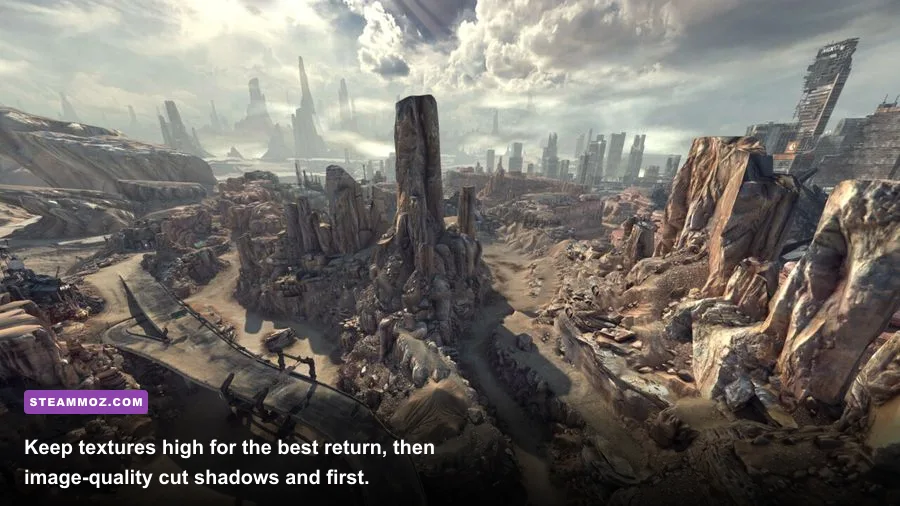
That order matters. Edge of Eternity’s best-looking assets survive a performance-focused profile, while the expensive settings are mostly the ones that add distant shadow detail, dense foliage, or extra particles. Tune for consistent frame times, not a screenshot-friendly Ultra label. Once Daryon’s party is crossing a broad wasteland or unleashing skills in a crowded tactical encounter, a stable frame rate will do more for the experience than barely visible improvements to shadow resolution.
If you enjoy optimizing demanding RPGs, you can also browse our Dungeon Siege RPG coverage and PC performance guides. For Edge of Eternity specifically, the winning move is simple: keep the world detailed, cut the background rendering costs, and protect frame pacing whenever the game starts streaming its biggest environments.