If Dusty Revenge: Co-op Edition crashes, freezes, or crawls below a playable frame rate on PC, start with a clean Steam file verification, disable every overlay, run the game in a fixed 60 Hz windowed profile, and reconnect controllers only after the main menu appears. Those four changes solve the most common launch, black-screen, stutter, and local co-op problems without downloading dubious DLL files.
Dusty Revenge is an older, deliberately fast 2D action game. That sounds easy for modern hardware, but older PC releases can react badly to unusual refresh rates, fullscreen scaling, injected overlays, virtual controllers, and Windows compatibility layers. The result is often misleading: the FPS counter looks high, yet attacks feel delayed, animations hitch, or the game closes as soon as a second player joins.
This guide focuses on fixes that are safe, reversible, and useful for both solo play and local co-op. Before changing anything, check the game's official Steam listing for the current executable, controller notes, and any publisher updates. Also keep Steam's cloud synchronization enabled until your save files are backed up.
Fix Dusty Revenge crashes before changing graphics
Start with the boring fix because it has the highest success rate. In Steam, open Library, right-click Dusty Revenge: Co-op Edition, select Properties, choose Installed Files, and click Verify integrity of game files. Let the process finish, then restart Steam rather than launching immediately from the verification window.
A damaged archive, interrupted update, or antivirus quarantine can remove one small file that the game needs at launch. Verification restores official files, but it won't repair a third-party DLL dropped into the installation folder. If you previously installed a widescreen patch, ReShade preset, frame limiter, controller wrapper, or fan-made launcher, move those files out temporarily and test the untouched Steam install.
Next, turn off overlays one at a time. Steam Overlay is the first test: open Properties, stay on the General tab, and disable Enable the Steam Overlay while in-game. Also disable Xbox Game Bar, Discord Overlay, AMD Software's overlay, NVIDIA's in-game overlay, MSI Afterburner/RivaTuner injection, and recording tools such as OBS Game Capture. Old 2D games are particularly sensitive to multiple programs hooking the same presentation layer.
If the crash happens when loading a level, not at startup, reset the local configuration rather than deleting your save. Close the game and Steam, then search Windows for the title's configuration folder inside %APPDATA%, %LOCALAPPDATA%, and Documents\My Games. Rename a matching Dusty Revenge folder to DustyRevenge_backup, launch once, and test. Renaming is safer than deleting because you can restore your keybinds and progress if the folder was misidentified.
When Windows blocks the game immediately, right-click its executable, choose Properties, open Compatibility, and test Windows 7 compatibility mode. Don't enable every checkbox at once. Begin with compatibility mode alone; then try Disable fullscreen optimizations if fullscreen causes a black screen. Leave Run this program as an administrator off unless the game specifically fails to write settings, because elevated launches can create separate save and configuration paths.

🎮 Dusty Revenge: Co-op Edition
Looking to experience this game? Grab your digital key directly on our store for $2.99.
View on Steammoz Store →Use a stable 60 FPS profile for low FPS
Dusty Revenge doesn't need a powerful GPU. What it needs is consistent frame pacing. A stable 60 FPS is preferable to a fluctuating 144 FPS if animation timing, input response, or scrolling becomes uneven. Set your Windows desktop and monitor to a standard refresh rate first, then use the game's lowest-risk display mode: borderless or windowed at your monitor's native resolution.
If the game only offers fullscreen, test 1280×720 before returning to 1920×1080. Lowering resolution won't dramatically help a modern graphics card, but it can reveal whether the problem is GPU scaling, a driver presentation issue, or the game itself. If 720p is no smoother than 1080p, stop reducing resolution; the bottleneck is probably frame pacing, CPU scheduling, overlays, or a broken refresh-rate handshake.
| Setting or profile | Recommended value | Expected performance effect | Visual or input note |
|---|---|---|---|
| Display mode | Borderless or windowed | Usually improves stability | Best first test for black screens and alt-tab crashes |
| Resolution | Native, then 1280×720 | Small to moderate GPU reduction | Lower only if native mode stutters |
| Refresh rate | 60 Hz test profile | Reduces timing conflicts | Useful when a 120/144 Hz monitor feels uneven |
| V-Sync | Off first, then test on | Depends on driver and display | Compare input latency against tearing |
| Background recording | Off | Removes capture overhead | Important on laptops and older CPUs |
| Frame limiter | 60 FPS if available | Improves frame consistency | Don't stack multiple limiters |
V-Sync deserves a controlled test. With it enabled, some older games lock correctly to 60 FPS; on other systems, a missed refresh can produce a visible drop or sluggish input. Try V-Sync off for one complete stage, then on for another. If an external limiter is available through your GPU driver, cap the game at 60 FPS and disable any second limiter inside an overlay. Two competing caps can create uneven frame delivery.
Laptops need one extra check. In Windows Settings, go to System > Display > Graphics, add the Dusty Revenge executable, and select High performance. Then plug the laptop into AC power and choose a performance power mode. On desktop systems, use the GPU control panel to assign the dedicated GPU, but don't force unusual anti-aliasing, sharpening, integer scaling, or low-latency overrides. Those features add variables without making this sprite-based game look meaningfully better.
Stop stutter caused by controllers and local co-op
Co-op is the stress test. Dusty Revenge: Co-op Edition can receive duplicate signals when a physical controller, Steam Input, Xbox Game Bar, and a virtual device all expose the same buttons. That can make menus skip, cause a character to attack repeatedly, or crash when player two joins. Build a clean input chain before blaming the frame rate.
Close the game, unplug every controller, and launch to the main menu with keyboard input. If the solo game is stable, connect one controller and test movement, attack, pause, and a complete level transition. Only then connect the second controller. This sequence identifies whether the fault belongs to the game, the first device, or the second device's driver.
In Steam's controller settings for the game, test Steam Input both enabled and disabled. Xbox-compatible XInput pads generally behave best with a simple configuration, while older DirectInput pads may need Steam Input to translate them. Don't use a third-party XInput emulator at the same time as Steam Input. If the game sees two copies of one pad, remove the emulator first and restart the PC.
For wireless controllers, replace or recharge batteries and test with a USB cable. Bluetooth power management can briefly suspend a device during a loading transition, which looks like a game freeze. Open Windows Device Manager, expand Human Interface Devices and Bluetooth, and avoid aggressive power-saving changes unless the disconnect is repeatable. A wired test is faster and more reliable than changing several driver settings at once.
| Symptom | Likely cause | Best first action | Co-op-safe solution |
|---|---|---|---|
| Player two cannot join | Wrong input API or inactive device | Test Steam Input on and off | Connect the second pad at the main menu |
| Menus move twice | Duplicate virtual controller | Close emulators and wrappers | Keep one input layer active |
| Game freezes on controller disconnect | Bluetooth sleep or driver reset | Test a wired pad | Use USB for both players |
| Random attack inputs | Stick drift or remapped bindings | Reset the Steam layout | Use a standard gamepad template |
| FPS drops when player two joins | Overlay or capture overhead | Disable overlays and recording | Restart with both pads already connected |
For the cleanest session, connect both controllers before launching, disable Discord and Steam broadcasting overlays, and avoid changing display mode after player two has joined. If the title accepts keyboard plus controller more reliably than two controllers, use that combination as a temporary workaround. It isn't glamorous, but it isolates the second-device problem and keeps the campaign playable.
Repair black screens, freezes, and launch loops
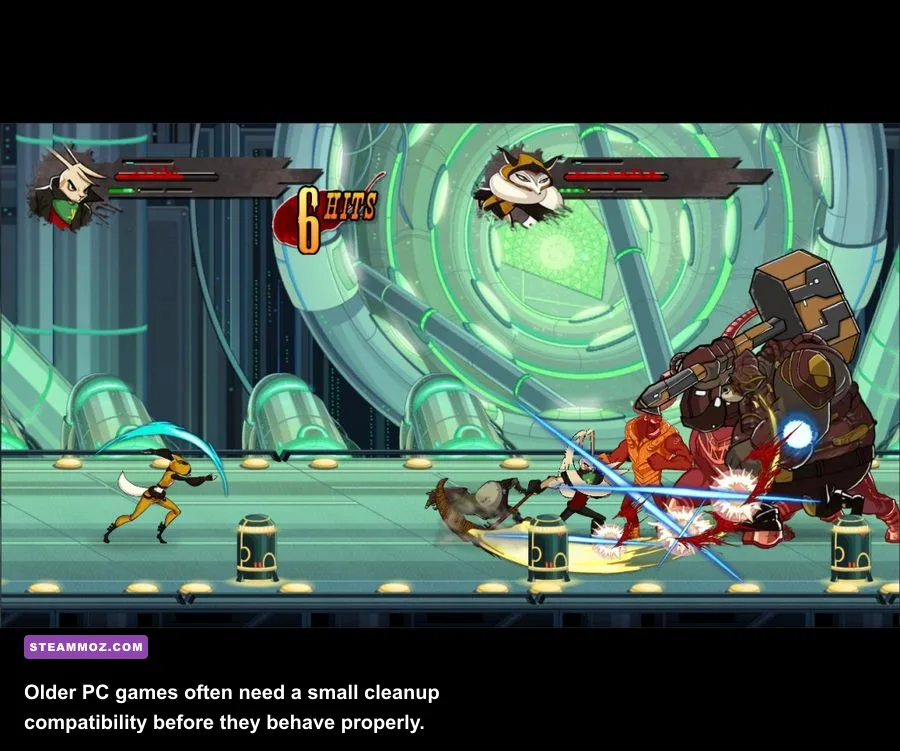
A black screen with sound usually points to a display-mode or resolution problem, not a dead GPU. Press Alt+Enter once to switch between fullscreen and windowed mode. If the picture returns, keep the game windowed while you test. Don't repeatedly force-close it during a save or level transition; older games may leave a bad configuration value behind when terminated that way.
Disconnect secondary monitors, HDR displays, capture cards, and unusual refresh-rate panels for the first test. Set the primary monitor to 1920×1080 at 60 Hz, launch the game, and create a stable baseline. Once it works, reconnect the second display and restore HDR or high refresh one setting at a time. Multi-monitor scaling can make an old fullscreen executable open outside the visible desktop even though Windows reports that it is running.
Windows Security can also interfere with older games that write settings beside the executable. Check Windows Security > Virus & threat protection > Protection history for a quarantine event. If a legitimate file was blocked, restore it only after confirming the path belongs to the Steam installation. Never download a replacement DLL from a random “fix” site. Verify the installation first, and use the official Steam troubleshooting guidance when the client itself is misbehaving.
For crashes after a driver update, test the previous driver profile only if other games show the same issue. Dusty Revenge should not require a special driver version. Reset per-game GPU overrides to their defaults, especially forced anti-aliasing, enhanced sync, shader injectors, and custom scaling. If the game launches after that reset, add only a 60 FPS cap back into the profile.
Keep an eye on Windows Event Viewer if the crash remains stubborn. Open Event Viewer > Windows Logs > Application, find the error at the crash time, and note the “faulting module.” A game executable points toward compatibility or corrupted data; a graphics driver module points toward overlays, drivers, or display mode; an audio or controller module points toward a peripheral. The log won't hand you a perfect answer, but it stops blind guesswork.
Recommended profiles for old and modern PCs

Use the profile that matches the symptom, not the age of your hardware. A current gaming PC can still produce worse results than an older laptop if it runs a 144 Hz desktop, three overlays, HDR, and a virtual controller stack. The goal is predictable delivery: fixed refresh, one input layer, no injection, and a verified installation.
| System or problem | Display profile | Background software | Controller setup |
|---|---|---|---|
| Modern desktop, stutter | Borderless, native resolution, 60 FPS cap | Overlays and capture off | Steam Input tested once |
| Gaming laptop, low FPS | 1280×720 windowed, 60 Hz | AC power, High performance GPU | Wired controller preferred |
| Black screen at launch | Windowed, 1920×1080, 60 Hz | All overlays off | Launch keyboard-first |
| Co-op crash on join | Do not change mode in-session | No virtual controller tools | Connect both pads before launch |
| High FPS but bad feel | 60 Hz with V-Sync comparison | Disable external limiters initially | Use one active input API |
After each successful test, change one thing and replay the same section. The opening stages are ideal because you can repeat movement, attacks, enemy groups, and a level transition quickly. If performance collapses only during a crowded encounter, capture software or background CPU spikes are more likely than resolution. If every section feels equally slow, check the refresh rate, frame cap, and power profile first.
For broader PC troubleshooting habits, Steamoz's ELEX PC crash and FPS fixes cover the same driver, overlay, and configuration logic, while the Edna & Harvey PC requirements guide is useful for diagnosing older-game compatibility. Those fixes won't change Dusty Revenge's code, but the testing discipline carries over perfectly.
Final troubleshooting order that actually works
Run the fixes in this order: verify Steam files; remove unofficial patches and DLLs; disable every overlay; reset the local configuration by renaming its folder; launch windowed at 60 Hz; test V-Sync; assign the dedicated GPU on a laptop; then connect controllers one at a time. This sequence matters because it creates a known-good baseline before you add co-op, high refresh, or visual enhancements.
If Dusty Revenge now runs smoothly alone but crashes only when player two joins, focus on Steam Input, virtual devices, Bluetooth stability, and overlays rather than graphics quality. If it launches but feels sluggish, compare 60 Hz with your normal refresh rate and use a single frame limiter. If it never opens, compatibility mode, a reset configuration, antivirus history, and Event Viewer will usually reveal the next move.
Finally, check the official Steam Community discussions for title-specific reports, and look for publisher information through the game's developer social channel before installing community “fix packs.” Dusty Revenge: Co-op Edition is small and old, but its combat rewards clean input and steady timing. Once the PC setup stops fighting you, the game itself becomes the fast, punchy co-op brawler it was meant to be.