If Drox Operative 2 crashes, freezes during sector generation, or drops below a playable frame rate, start with a clean configuration reset, verify the Steam installation, disable overlays, and lower the simulation-heavy effects before touching Windows. The game is an older-looking 2D space RPG, but its procedural sectors, faction diplomacy, projectiles, loot, and background world simulation can hammer the CPU harder than the visuals suggest. The best fix is usually a targeted combination of borderless or windowed mode, reduced particles and lighting, a sensible FPS cap, and a fresh user-settings file.
This guide separates three problems that often get lumped together: a true crash, GPU-bound rendering slowdown, and simulation stutter caused by a crowded galaxy. That distinction matters. Drox Operative 2 can look smooth while the world pauses briefly as it processes ships, monsters, colonies, quests, and faction changes. If you want a broader reference for PC troubleshooting, our Final Vendetta crash and FPS fixes cover many of the same Windows-side traps.
First, identify what is actually failing
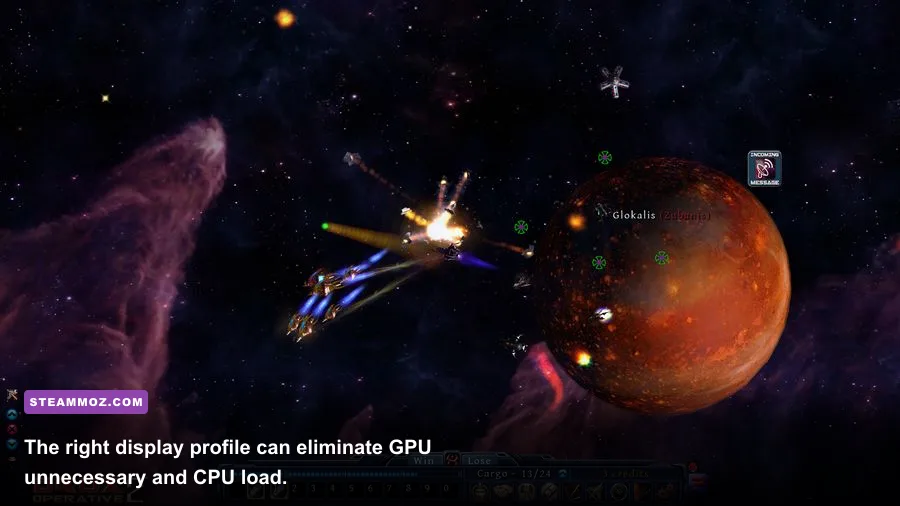
Before changing ten settings at once, reproduce the problem and note when it happens. A crash at launch points toward a bad configuration, missing runtime, overlay conflict, or driver issue. A crash only when entering a newly generated sector suggests corrupted local data or a graphics edge case. A repeatable hitch when several factions fight usually indicates CPU simulation load rather than a weak graphics card.
Use Steam's overlay counter or a tool such as MSI Afterburner to watch GPU usage, CPU usage, and frame time. High GPU usage with a full graphics queue means the renderer is the bottleneck. Low GPU usage paired with one or more CPU cores spiking means the galaxy simulation is winning the fight. A 60 FPS counter can also hide ugly frame pacing: look for frame-time spikes, not just the headline number.
| Symptom | Most likely cause | Best first action | What success looks like |
|---|---|---|---|
| Crash before the main menu | Bad settings, overlay, driver, or permissions | Reset settings and disable overlays | The menu loads consistently |
| Crash while loading a sector | Damaged local data or unstable display mode | Verify files and try windowed mode | The same sector opens twice |
| Low FPS everywhere | Resolution, lighting, particles, or driver profile | Apply the performance profile below | GPU usage and frame time stabilize |
| Brief freezes during huge fights | Procedural simulation and entity count | Lower effects and cap FPS | Hitches become shorter and less frequent |
Also check the official Drox Operative 2 Steam page for current build information and system requirements. Patches can change which rendering option behaves best, so avoid assuming a fix from an old forum post still applies unchanged.

🎮 Drox Operative 2
Looking to experience this game? Grab your digital key directly on our store for $9.99.
View on Steammoz Store →Use this low-FPS settings profile first
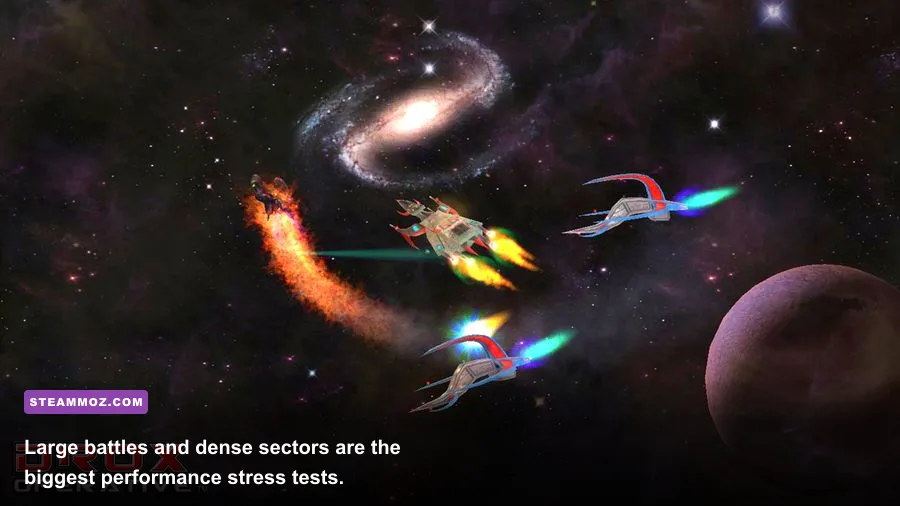
Open the game's video or graphics options and begin with a profile designed to protect frame time rather than chase maximum image quality. Drox Operative 2's ship sprites are not expensive; the costly moments come from lighting, particles, explosions, missiles, beams, and a crowded view filled with objects. Lowering resolution helps, but it should not be your first move if the game is CPU-limited.
| Setting | Recommended value | FPS impact | Visual trade-off |
|---|---|---|---|
| Display mode | Fullscreen first; borderless if alt-tabbing causes trouble | Low to medium | Borderless is more convenient but can add compositor overhead |
| Resolution | Native desktop resolution, then 1920×1080 or 1600×900 | Medium to high | Lower resolution softens text and ship outlines |
| VSync | Off for testing; on only if tearing is distracting | Low | Off can expose tearing but reduces synchronization delay |
| Particles and effects | Medium or Low | High in combat | Fewer explosions, projectiles, and impact effects |
| Lighting, glow, and shadows | Low or Medium | Medium to high | Less atmospheric lighting around planets and ships |
| Anti-aliasing | Off or the lowest available option | Low to medium | Diagonal edges look slightly harsher |
| FPS limit | 60 FPS, or 30 FPS on an older laptop | Stability gain | A cap reduces unnecessary bursts and heat |
Apply one change at a time in a busy sector. A quiet starting system is a poor benchmark because Drox Operative 2's load changes as you meet hostile ships, open quests, trigger faction events, and fill the screen with combat effects. If lowering resolution barely changes FPS, restore it and concentrate on effects, lighting, and background applications. That result tells you the CPU or simulation is the limiting factor.
Don't immediately force a 144 or 240 FPS target. The game is built around a slower, information-dense space-RPG rhythm, and a stable 60 is a better goal than an unstable 120. If your laptop is thermally limited, a locked 30 FPS can feel considerably better than a fluctuating 45-70 FPS because it eliminates constant frame-time swings.
Stop crashes with a clean PC-side reset
Start with Steam's built-in repair pass. Right-click Drox Operative 2 in your library, choose Properties, open Installed Files, and select Verify integrity of game files. This replaces missing or damaged installation data without deleting your saves. If the verification reports a file replacement, launch the game once before restoring overlays or custom driver tweaks.
Next, close Steam and back up your saves. Soldak games commonly keep user data outside the installation folder, but the exact path can differ by Windows setup and game version. Search Windows for a folder or file containing Drox Operative 2, and copy the entire save/config directory to your desktop. Do not delete files blindly. Rename the suspected configuration file or folder to something like DroxOperative2_backup, then launch the game and let it create fresh defaults.
A reset is especially useful after changing monitors, moving from integrated graphics to a dedicated GPU, switching between fullscreen and borderless mode, or importing an old configuration. If the clean profile fixes the crash, restore only key bindings or other small preferences manually. Copying the entire old configuration back defeats the test.
For launch crashes, turn off Steam Overlay, Discord Overlay, GeForce Experience or NVIDIA App overlay, AMD overlay, Xbox Game Bar, and hardware-monitoring overlays temporarily. Then update the dedicated GPU driver using a clean installation option. On a notebook, force the game's executable to use the high-performance GPU in Windows Graphics Settings; running it on integrated graphics can produce both low FPS and unstable presentation modes.
Keep Windows' compatibility settings mostly untouched. Compatibility mode, forced administrator launches, and random DLL downloads often create new problems. The official Soldak Entertainment Drox Operative 2 page and Soldak forums are safer places to check for version-specific reports than an unknown download site.
Fix stutter caused by busy sectors
Not every hitch is a graphics failure. Drox Operative 2 continuously simulates a living sector: factions expand, ships travel, races negotiate, enemies spawn, and quests update. A sector with several active factions and multiple simultaneous battles can produce a short CPU stall even when the GPU is barely working. This is why a powerful graphics card alone may not cure the problem.
Test the same sector from a save made before a major fight, then compare it with a quiet sector or a new game. If the quiet sector is smooth and the crowded one stutters, lower particles and lighting, cap the frame rate, and close CPU-heavy programs such as browsers with video tabs, game launchers, RGB utilities, and recording software. A cap gives the CPU and GPU more breathing room; it won't remove simulation work, but it can stop rendering from competing with it.
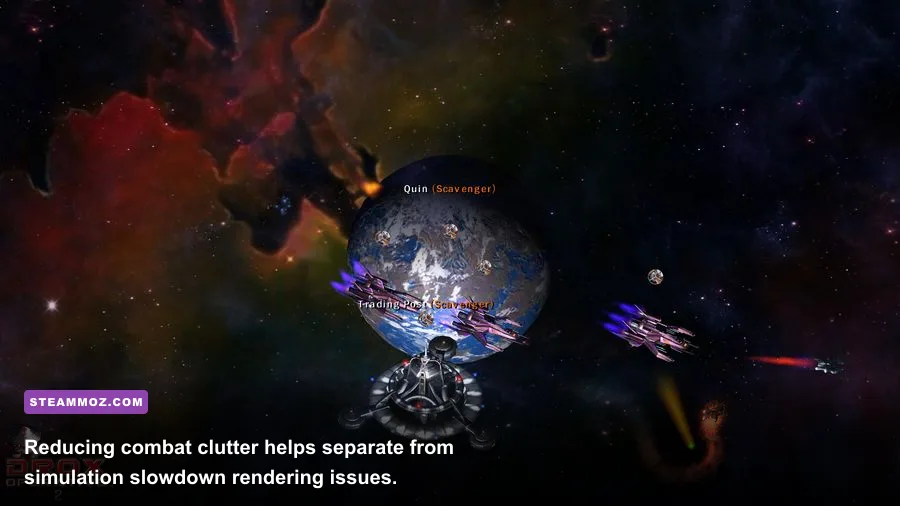
Large battles also create a visibility problem. Explosions, beams, missiles, loot drops, and dozens of ship sprites make it harder to identify the source of a hitch. Pause combat if possible, move away from the densest cluster, and check whether performance immediately recovers. If it does, the sector is overloaded rather than permanently broken. Save after escaping the hotspot instead of repeatedly reloading the exact frame where the simulation bogs down.
| Test | Result | Diagnosis | Next move |
|---|---|---|---|
| Lower resolution by 25% | FPS rises sharply | GPU-limited | Keep lower resolution or reduce lighting |
| Lower resolution changes almost nothing | FPS remains similar | CPU or simulation-limited | Cap FPS and reduce effects |
| New sector is smooth | Old sector hitches | Entity or faction density | Leave the battle area and save a new position |
| Only alt-tab causes a freeze | Gameplay is otherwise stable | Fullscreen or overlay conflict | Use borderless and disable overlays |
For comparison, our Ghost Recon Breakpoint stutter guide deals with a different engine but makes the same important point: monitor frame time and identify the bottleneck before lowering every setting. You can also use the For the King II FPS settings guide when troubleshooting CPU-heavy strategy and RPG workloads.
Last-resort fixes that are still worth trying
If the game still crashes after verification and a clean configuration, install pending Windows updates, reboot, and check that your page file is enabled on the system drive. You don't need an exotic memory tweak: Windows-managed virtual memory is usually the safest option. Make sure the drive has free space, especially if the game generates large logs or temporary sector data.
Try a different display path next. Switch fullscreen to windowed, test a lower resolution, and then try borderless if the first two work. Disable HDR, forced driver sharpening, integer scaling, and third-party frame-generation tools while testing. These features are unnecessary for a sprite-based title and can complicate presentation on older DirectX systems.
If one specific save always crashes while other saves load, treat it as a potentially damaged save rather than a global PC failure. Back up the save, test an earlier autosave or manual save, and avoid repeatedly overwriting the only copy. If every save crashes but a fresh game works, the issue is likely tied to sector data or the user profile. If even a fresh game crashes at launch, return to drivers, overlays, permissions, and the configuration reset.
Finally, report reproducible failures through the Drox Operative 2 Steam discussions or Soldak's forums. Include your Windows version, CPU, GPU, RAM, game build, display mode, resolution, the exact sector or action that triggers the crash, and whether a clean configuration changes anything. “It crashes” is hard to action; “it crashes when opening a newly generated sector after enabling fullscreen and particles” gives the developer something useful.
The winning setup for most PCs is straightforward: verified files, fresh settings, no overlays, current GPU drivers, fullscreen or stable borderless mode, medium lighting, low-to-medium particles, and a 60 FPS cap. If the remaining hitch appears only when a galaxy-wide war fills the sector with ships and effects, that is a simulation ceiling rather than a sign your installation is ruined. Preserve your saves, benchmark in comparable sectors, and change one variable at a time. That approach fixes the real Drox Operative 2 problem instead of merely hiding it.