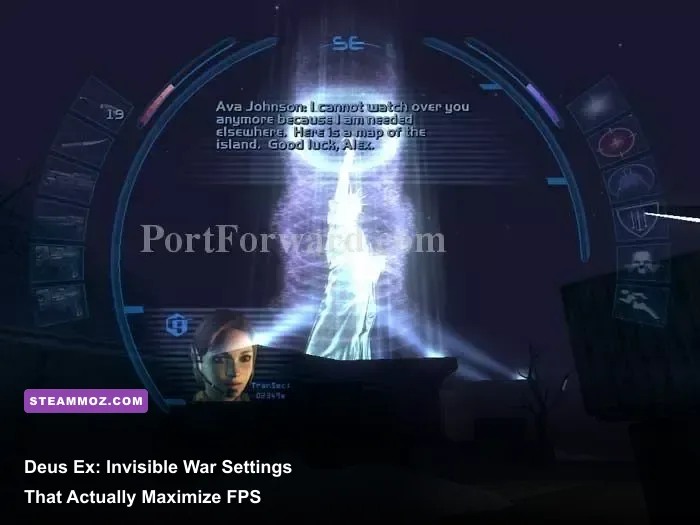
For the best Deus Ex: Invisible War performance, use 1280x720 or 1920x1080 with Texture Detail and World Detail on High, Character Detail on Medium, Dynamic Shadows and Volumetric Lighting off, Detail Textures off, and a stable 60 FPS cap applied externally. The game is light by modern standards, but its aging Unreal 2 renderer can stutter, misbehave at extreme resolutions, and lose smoothness in crowded hubs even when average FPS looks excellent.
That makes Invisible War a slightly different optimization job from a modern PC release. You aren't chasing ultra settings for visual spectacle; you're removing the effects that create frame-time spikes while preserving the game's surprisingly strong textures, colored lighting, and readable character models. This profile works well on current desktops, laptops, and handheld PCs, with a few important tweaks depending on your display.
The Best Invisible War Graphics Profile
Start with a clean baseline before changing individual options. Set the game to your monitor's native aspect ratio if the display behaves correctly, but don't feel obligated to run 4K. Invisible War was designed around 4:3-era resolutions, and 1920x1080 can expose interface scaling and field-of-view quirks that aren't visible at 1280x720.
| Setting | Recommended Value | FPS Impact | Visual Note |
|---|---|---|---|
| Resolution | 1280x720 or 1920x1080 | Medium to high | 1080p is the best quality-to-performance compromise |
| Color Depth | 32-bit | Negligible | Keep modern color output enabled |
| Texture Detail | High | Low on modern GPUs | Preserves walls, props, and weapon surfaces |
| World Detail | High | Medium | Improves geometry and distant hub detail |
| Character Detail | Medium | Low to medium | Medium avoids wasting resources on low-poly NPCs |
| Dynamic Shadows | Off | Medium to high | The biggest quality cut for crowded scenes |
| Volumetric Lighting | Off | Medium | Removes fog-light spikes and muddy interiors |
| Detail Textures | Off | Low to medium | Usually adds noise rather than useful clarity |
| Coronas | On | Low | Keep for lamps, signs, and neon highlights |
Texture Detail is the easy win: leave it High unless you are using an exceptionally weak integrated GPU. The original assets are small by today's standards, so lowering textures rarely solves a CPU-side hitch. World Detail is more interesting. High adds environmental geometry and makes hubs feel less stripped down, but it also increases draw calls. If your system dips below 60 FPS in Liberty Island or Cairo, lower World Detail before touching textures.
Character Detail on High is not harmful on most modern machines, yet Medium is the smarter max-FPS choice. Invisible War frequently puts civilians, guards, bots, and faction NPCs in the same space. Their animation and AI already pressure the CPU; reducing model complexity gives you a little more headroom without making conversations look dramatically worse.

🎮 Deus Ex: Invisible War
Looking to experience this game? Grab your digital key directly on our store for $1.74.
View on Steammoz Store →Why Shadows and Volumetric Lighting Hurt Smoothness
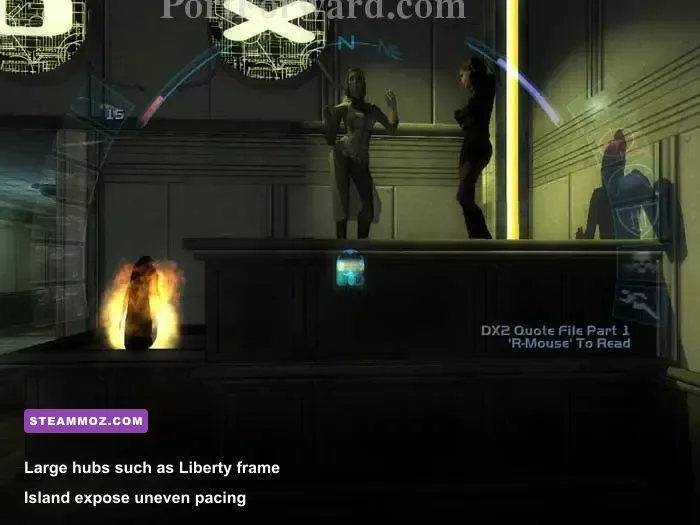
Dynamic Shadows are the first setting to disable because they create a poor trade. They add atmosphere around lamps and characters, but the shadow pass can become expensive when several lights overlap in Seattle interiors, Cairo markets, or the Liberty Island hub. The result isn't always a low average frame rate. More often, you'll feel brief stalls while turning toward a lit doorway or a group of NPCs.
Volumetric Lighting has a similar problem. It makes beams and hazy interiors look richer, especially around vents and bright fixtures, but Unreal 2's effect is soft and noisy at high resolution. On a 60 Hz display, the improvement is subtle; the frame-time spikes are not. Switch it off first, then test a busy indoor area rather than an empty corridor.
| Performance Profile | Core Settings | Expected Result | Best For |
|---|---|---|---|
| Quality 1080p | High textures, High world, Medium characters, shadows off | Stable 60 FPS on modern hardware | Desktop and gaming laptop play |
| Competitive Smooth | Medium world, Medium characters, lighting effects off | Higher headroom and fewer spikes | 120 Hz displays and weak CPUs |
| Handheld Balanced | 1280x720, Medium textures, Medium world, effects off | Better battery life and consistent pacing | Steam Deck-class hardware |
| Legacy PC | 1024x768, Medium textures, Low world, effects off | Lowest renderer load | Older integrated graphics |
Don't confuse a high refresh-rate display with a requirement to run Invisible War at 144 or 240 FPS. The game can become less predictable when forced far beyond its original target, and menu, physics, or animation timing may feel strange depending on the renderer and wrapper. A capped 60 FPS is the sensible starting point. If you want more, test 120 FPS in a controlled save and watch for mouse, physics, and cutscene behavior rather than trusting a counter alone.
Resolution, Widescreen, and Modern Renderer Fixes
Resolution is where many players waste performance. At 1080p, Invisible War looks considerably cleaner than it did on original hardware while retaining its intended proportions. At 1440p, the GPU cost is still trivial for most current systems, but UI scaling, stretched menus, and old post-processing artifacts become more noticeable. At 4K, the game may remain fast, yet the presentation isn't automatically better.
Use the highest resolution that keeps the interface comfortable and frame pacing consistent. For a handheld, 1280x720 or 1280x800 is usually the sweet spot. On a 16:10 screen, expect some scaling or black-bar decisions depending on your launcher and display mode. If widescreen behavior looks wrong, try windowed mode or a community-tested renderer wrapper rather than repeatedly changing every graphics option.
Before installing any fix, back up the game's configuration files and test the unmodified build. The official Steam listing is the right place to confirm your installation, while the GOG version page can help if you are comparing a separately packaged release. Community DirectX wrappers can improve compatibility with modern Windows, but they may also alter gamma, input, or shader behavior. Add one change at a time.
For broader troubleshooting habits, Steamoz's ELEX PC fixes guide has a useful crash-and-frame-time mindset, while the Drawful 2 PC requirements breakdown explains why old games can still need sensible compatibility testing.
How to Test FPS in Real Invisible War Scenes
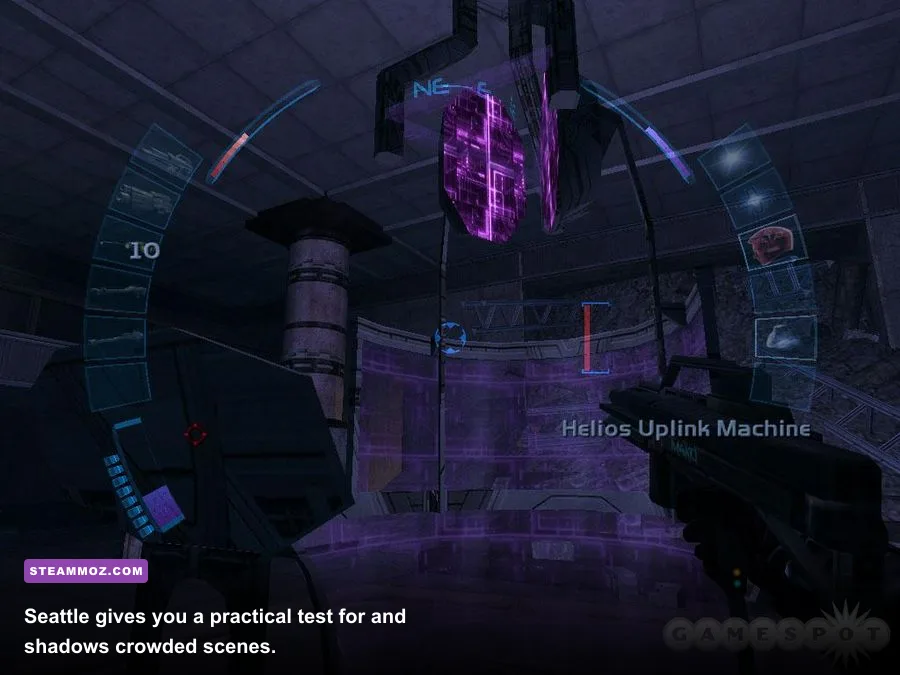
A benchmark run through an empty corridor tells you almost nothing. Invisible War's worst moments come from transitions between exploration, AI, lighting, and scripted events. Use a repeatable save and test three locations: Liberty Island for open-hub streaming, Cairo for NPC density and neon lighting, and a Tarsus Academy interior for shadows and enclosed effects.
- Load the same save: Stand still for 20 seconds so textures and ambient effects finish loading.
- Walk a fixed route: Move through a doorway, turn toward the busiest group, then return to the starting position.
- Record frame time, not just FPS: A steady 60 FPS feels better than a counter swinging between 90 and 35.
- Change one setting: Test shadows, volumetric lighting, and World Detail separately.
- Repeat after a restart: Old PC games can cache assets differently between launches.
Pay special attention to the first second after entering a new hub. A small pause can be normal asset streaming, but repeated hitching as you rotate the camera usually points to renderer compatibility, excessive resolution, or a shadow and lighting combination that your system handles poorly. If the game is smooth indoors but uneven outside, lower World Detail before lowering Texture Detail.
The same principle applies to other classic PC games. Our Dungeon Siege performance discussion covers why older engines often feel limited by frame pacing and CPU behavior rather than raw GPU power.
Windows and Steam Settings That Prevent Stutter
Once the in-game profile is right, fix the environment around it. Disable unnecessary overlays first. Steam Overlay, Xbox Game Bar, Discord, GPU recording tools, and aggressive monitoring utilities can all introduce small presentation problems in a game that already relies on an old input and rendering path. You don't need to close every background application, but remove anything hooking the game while troubleshooting.
Run the executable with compatibility options only when you have a specific symptom. If alt-tab causes a black screen, borderless windowed mode or a modern wrapper may help. If mouse movement feels delayed, disable extra synchronization layers and test again. Avoid stacking Windows compatibility modes, wrapper settings, driver-level frame caps, and third-party overlays all at once; that makes the cause impossible to isolate.
| Symptom | First Change | Second Change | What Not To Do |
|---|---|---|---|
| Stutter near NPC groups | Disable Dynamic Shadows | Lower World Detail to Medium | Don't immediately lower texture quality |
| Black screen after alt-tab | Try windowed or borderless mode | Test a renderer wrapper | Don't stack multiple wrappers |
| Blurry image | Use native resolution | Turn off unwanted scaling | Don't enable Detail Textures blindly |
| Uneven 60 FPS | Apply one external cap | Disable overlays | Don't combine several frame limiters |
| Missing or broken effects | Verify files and reset config | Test another renderer | Don't edit every INI value at once |
Keep one external frame limiter at most. A driver cap, RTSS cap, and wrapper cap together can create more latency instead of less. For most players, 60 FPS with ordinary V-Sync is enough. If V-Sync produces obvious input lag, test a driver-level cap slightly below the display refresh rate, but only after confirming that the game itself remains stable.
The Final Max-FPS Checklist
For a modern desktop, use 1920x1080, 32-bit color, High Texture Detail, High World Detail, Medium Character Detail, Dynamic Shadows Off, Volumetric Lighting Off, Detail Textures Off, and Coronas On. Cap at 60 FPS, disable overlays, and test Liberty Island before adding visual effects back. This profile keeps the art direction intact while cutting the settings most likely to cause spikes.
For a handheld or low-power laptop, use 1280x720, Medium textures, Medium World Detail, Medium Character Detail, and every expensive lighting effect off. Lock the display to 60 Hz or use a lower target only if battery life matters more than responsiveness. Invisible War's combat is built around deliberate movement, aiming, and augmentation use, so consistent frame pacing matters more than a flashy peak number.
Finally, remember that this is an immersive sim, not a benchmark. The best settings are the ones that let you move through Liberty Island, Cairo, Seattle, and Antarctica without distracting stalls or broken presentation. If you want another old-school optimization reference, Steamoz's Far Cry 2 PC performance guide makes the same crucial distinction between average FPS and how a classic engine actually feels during play.
For background on the series and its world, the official Deus Ex website remains a useful reference. With the profile above, Invisible War can deliver a clean 60 FPS experience on almost any current PC without flattening its lighting, textures, or distinctive late-2003 atmosphere.