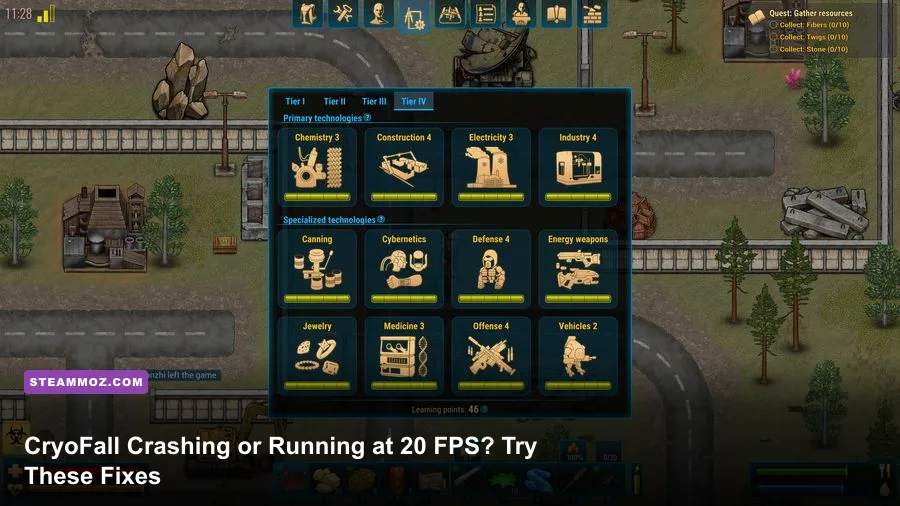
If CryoFall crashes on startup or crawls at low FPS, the fastest reliable approach is to verify the Steam installation, reset corrupted local settings, update your GPU driver, then use a low-overhead graphics profile. Start by disabling VSync, lowering shadows and effects, switching to fullscreen, and closing overlays; if the game still crashes, rename its local configuration folder and let CryoFall rebuild it.
CryoFall is not a technically demanding game by modern standards, but its top-down view hides a lot of work. The client draws large player-built bases, crafting stations, storage objects, creatures, dropped items, lighting effects, and other survivors at once. A quiet forest can run perfectly while a crowded faction settlement tanks your frame rate. That difference is important: a low average FPS problem needs different treatment from stutter caused by asset loading, server activity, or a damaged configuration file.
Before changing anything, close background launchers and note your baseline FPS in the same location for five minutes. Check whether the problem happens in a new single-player world, on one multiplayer server, or everywhere. Also compare windowed and fullscreen modes. Those three tests quickly tell you whether you're dealing with local hardware, a broken client install, or a server-side problem.
Start With the Fixes That Stop Most Crashes
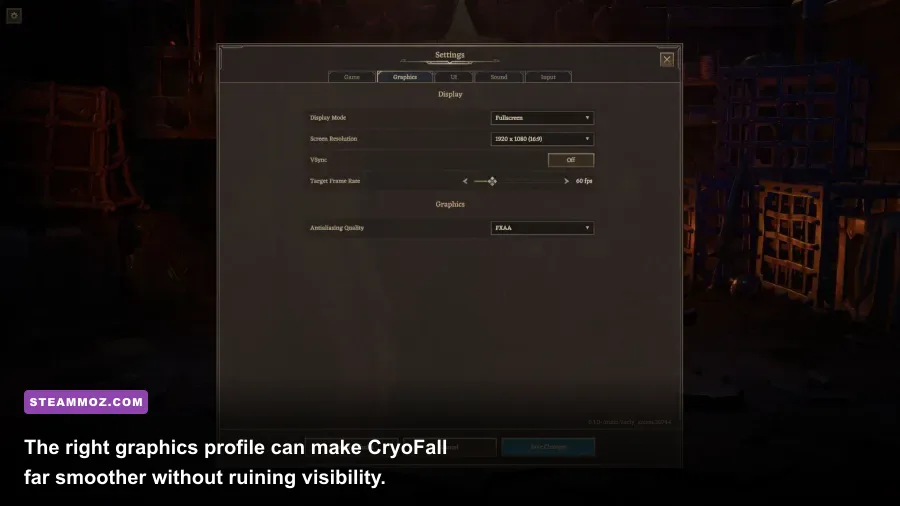
Do the simple checks in order rather than changing ten variables at once. CryoFall runs through Steam, so a failed update, partially downloaded asset, or interrupted patch can produce anything from an immediate crash to a freeze after the loading screen.
1. Verify CryoFall's installation
In Steam, right-click CryoFall, choose Properties, open Installed Files, and select Verify integrity of game files. Steam will redownload missing or damaged files. This is particularly useful after a power cut, an unstable update, or moving the game between drives. It won't repair every graphics problem, but it should be your first step because it is safe and reversible.
2. Reset local settings without deleting your saves
A corrupted resolution, display mode, or graphics value can crash a Unity-based game before the main menu appears. Close Steam and rename CryoFall's local configuration folder rather than deleting random files. Look in %USERPROFILE%\AppData\LocalLow\AtomicTorch Studio\CryoFall and make a backup copy first. Folder names can vary between builds, so don't remove your world saves unless you know exactly where they are stored. Restart the game; it should create fresh settings files.
If CryoFall launches after the reset, reapply settings one at a time. Avoid immediately restoring an old configuration file. A bad fullscreen resolution or an unsupported refresh-rate combination can simply bring the crash back.
3. Remove overlays and test a clean launch
Disable Steam Overlay, Discord Overlay, Xbox Game Bar, NVIDIA App or GeForce Experience overlay, AMD overlay, MSI Afterburner monitoring, and RivaTuner temporarily. Overlay hooks can conflict with older Unity rendering paths, especially when the game changes resolution or loses focus. This is a test, not a permanent rule. Once CryoFall is stable, re-enable each overlay individually to identify the offender.
4. Update Windows and the graphics driver
Install the current driver directly from NVIDIA or AMD, depending on your GPU. Laptop owners should also check the manufacturer's driver package because some hybrid graphics systems need the vendor version. If the crashes began immediately after a driver update, use the previous stable driver instead of assuming the newest package is always better.
| Symptom | Most Likely Cause | First Action |
|---|---|---|
| Crash before the menu | Corrupt display configuration or driver conflict | Rename the local CryoFall settings folder, then update or roll back the GPU driver |
| Crash after joining one server | Server-specific asset, mod, or synchronization issue | Test a new single-player world and another official server |
| Freeze during loading | Damaged files, overlay hook, or background disk activity | Verify files and disable overlays |
| Black screen after changing resolution | Unsupported fullscreen mode or refresh rate | Reset local settings and relaunch in windowed mode |
For a broader Windows troubleshooting mindset, our ELEX crash and FPS fixes covers the same driver, overlay, and configuration traps in another Unity-era PC game.

🎮 CryoFall
Looking to experience this game? Grab your digital key directly on our store for $1.99.
View on Steammoz Store →Use This CryoFall Settings Profile for Higher FPS
Once the game launches consistently, tune it for frame pacing rather than chasing a headline FPS number. CryoFall's combat and inventory interactions feel better at a stable 60 FPS than at 90 FPS with constant drops to the 30s. If your monitor is 60 Hz, cap your target around 60. On a weaker machine, a locked 30 or 45 FPS can feel considerably smoother than an unstable uncapped result.
Recommended low-end profile
Use fullscreen mode at your monitor's native resolution first. If GPU usage stays near 100 percent and frames remain low, reduce resolution one step. Resolution is the most direct GPU lever, but it also makes CryoFall's small inventory text and item icons less comfortable to read. Don't start there unless the less intrusive options fail.
Set shadows to Low or Off, reduce effects and post-processing, and turn off VSync while testing. Shadows and lighting can become expensive around dense bases, where numerous structures and light sources overlap. Effects are less important in quiet areas but can hurt during combat, fire, explosions, and busy industrial scenes. If disabling VSync removes the sensation of input delay but introduces tearing, use your GPU control panel's frame limiter instead.
| Setting | Recommended Value | Expected FPS Impact | Visual Trade-Off |
|---|---|---|---|
| Display Mode | Fullscreen | Low to medium benefit | Usually reduces desktop compositing and improves focus stability |
| Resolution | Native; lower one step only if needed | High GPU impact | Lower image clarity and smaller-looking UI |
| VSync | Off while testing; cap externally if needed | Removes synchronization delay | Possible tearing without a frame cap |
| Shadows | Low or Off | Medium to high in bases | Flatter lighting and less depth around buildings |
| Effects | Low or Medium | Medium during combat | Less dramatic flashes, smoke, and impact feedback |
| Post-processing | Low or Off | Low to medium | Cleaner, less cinematic image |
| Texture quality | Medium, then High if VRAM allows | Low on most GPUs | Lower object and terrain detail at reduced values |
| Frame rate | Stable 60, or stable 30/45 | Improves consistency | Lower peak FPS but fewer sudden drops |
Why shadows usually beat textures as the first cut
Textures mostly consume video memory and affect how surfaces look. Shadows and effects require more repeated scene processing, so they tend to punish the GPU when the screen fills with structures and moving objects. Keep textures at Medium or High if you have enough VRAM, then cut shadows first. If stutter appears when opening the inventory or moving through a new area, lower textures one step and close browser tabs that may be competing for memory.
Players with integrated graphics should also disable Windows background capture and hardware-accelerated overlays. On Windows 11, test Settings > Gaming > Captures with background recording off. Laptop users should connect the charger, select a high-performance power mode, and assign CryoFall to the dedicated GPU under Settings > System > Display > Graphics.
Fix Stutter From Bases, Servers, and Background Load
Not every FPS drop is a graphics-card limitation. CryoFall's online world can feel sluggish when a server is busy, when you enter a heavily developed base, or when your CPU is handling many simulation objects. The useful clue is the pattern: if your FPS falls only near one faction's enormous compound, lowering resolution may barely help because the bottleneck is object processing rather than raw pixel rendering.
Separate client performance from server lag
Watch what actually happens when the game slows. If the image becomes choppy and inputs feel delayed, it's likely local frame-time trouble. If your character rubber-bands, attacks register late, containers take a long time to open, or other players teleport while your camera remains smooth, that points toward network or server performance. Try a different server and a new local world before rebuilding your PC settings.
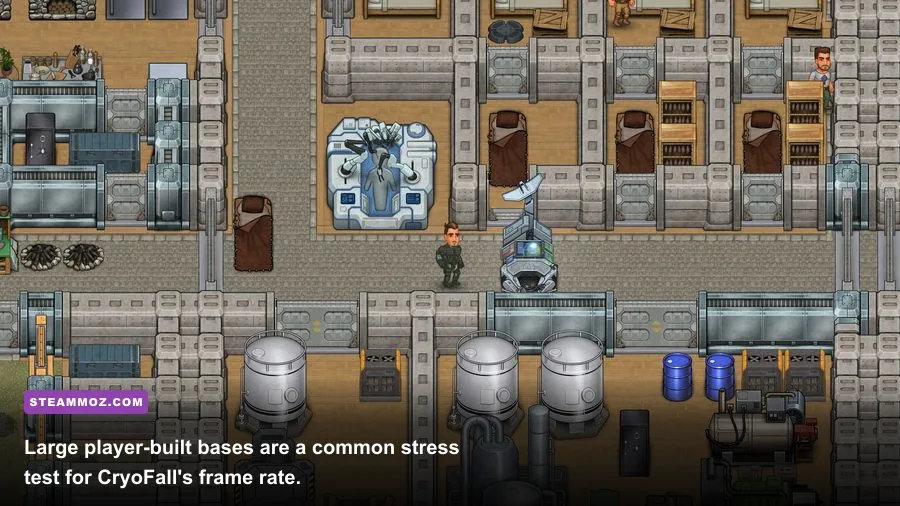
Large bases are expensive because they combine walls, floors, machines, lights, storage, crops, decorations, items, and active players. A faction settlement can therefore run worse than a visually open wilderness area. Keep your own base compact, avoid unnecessary decorative lighting, and don't scatter dropped items across production rooms. These won't magically fix a struggling server, but they reduce the object load you create.
Control CPU and memory pressure
Open Task Manager while CryoFall is running and check CPU, memory, disk, and GPU columns. A browser with dozens of tabs, game launchers, RGB software, and video recording can cause hitching even when the game itself is lightweight. The goal isn't to kill every background process; close obvious heavy workloads and leave security software alone.
Install CryoFall on an SSD if possible. An SSD won't raise your maximum FPS much, but it can reduce loading pauses and asset-streaming hitching. Keep several gigabytes free on the drive and avoid playing while another launcher is downloading. Windows' power-saving mode can also throttle laptop CPUs, so test performance while plugged in.
| Performance Pattern | Likely Bottleneck | Best Test | Best Fix |
|---|---|---|---|
| GPU at 95–100 percent | Resolution, shadows, or effects | Lower resolution and shadows | Use the low-end profile and cap FPS |
| One CPU core spikes while GPU usage falls | Object simulation or crowded base | Move to an empty biome or new world | Reduce background load and avoid dense settlements |
| RAM nearly full | Browser, recording tools, or low system memory | Sort Task Manager by memory | Close heavy apps and reduce texture quality |
| Rubber-banding with smooth camera motion | Server or network latency | Try another server | Use a closer server and report persistent issues |
Our Everspace 2 FPS troubleshooting guide explains why frame-time consistency matters more than average FPS, while the real PC requirements breakdown for Drawful 2 shows how to judge hardware without trusting vague minimum specifications.
Steam Launch Tests for Black Screens and Instant Crashes
If normal fixes fail, use launch options as temporary diagnostic tools rather than stacking random commands from old forum posts. In Steam, open CryoFall's Properties and type one option at a time into Launch Options. Test the game after every change, then remove options that don't help.
Try windowed startup first
A windowed launch can bypass an invalid fullscreen resolution. Use -screen-fullscreen 0 as a test. If that works, open the game's settings and choose a supported resolution and refresh rate before returning to fullscreen. Some systems behave better with borderless windowed mode, though exclusive fullscreen may deliver slightly cleaner frame pacing on older PCs.
Don't rely on undocumented Unity commands unless you have a specific reason. Arguments such as forcing a graphics API can help one driver and break another. CryoFall's official Steam page is the safest place to check current platform details, while AtomicTorch Studio provides developer news and support information. If a crash produces an error window, record the exact wording instead of guessing from the symptom.
Check permissions and security software
Windows Defender or third-party antivirus can quarantine a file after an update. Check protection history and add the CryoFall installation folder as an exception only if you trust the files and the official Steam installation. Avoid downloading replacement DLL files from random websites; that “fix” is more likely to create malware or a new crash than solve the original problem.
Run Steam itself as administrator only as a short test. Permanent administrator mode can create ownership problems in save and configuration folders. If the game works only with elevated permissions, inspect folder permissions and controlled-folder-access notifications instead of treating administrator mode as the final answer.
A Clean Recovery Plan That Saves Your Progress
When CryoFall keeps crashing, use this recovery order and stop as soon as the problem disappears:
- Back up saves and screenshots. Copy the CryoFall folder from its local save location before resetting anything. Don't assume every world is stored in the Steam installation directory.
- Verify game files. Let Steam finish completely, then restart the client.
- Disable every overlay and recorder. Re-enable them later one by one.
- Reset local settings. Rename the AtomicTorch Studio/CryoFall configuration folder rather than deleting it.
- Install or roll back the GPU driver. Choose a clean installation when the driver installer offers that option.
- Launch windowed at a conservative resolution. Once stable, return to fullscreen and tune one setting at a time.
- Test a new world and another server. This identifies whether the issue belongs to your client, save, or server.
If the problem survives all seven steps, collect your GPU model, CPU, RAM amount, Windows version, driver version, CryoFall version, crash time, and the relevant log or error text. Post that information through the game's official Steam community or developer support channels. “It crashes” is difficult to diagnose; “it crashes only when entering a crowded base after changing to fullscreen at 144 Hz” is actionable.
For a final sanity check, compare your results with the official CryoFall Steam discussions and community documentation at the CryoFall Wiki. The most important takeaway is simple: lower shadows and effects for GPU limits, reduce background load for CPU or memory pressure, and reset local settings for startup crashes. Once you identify which of those three categories you're fighting, CryoFall usually stops feeling mysterious and starts running like the lightweight survival game it should be.
And if you're comparing fixes across PC survival games, Steamoz's guides to Far Cry 2's PC requirements and Dungeon Siege performance on modern systems are useful next reads.