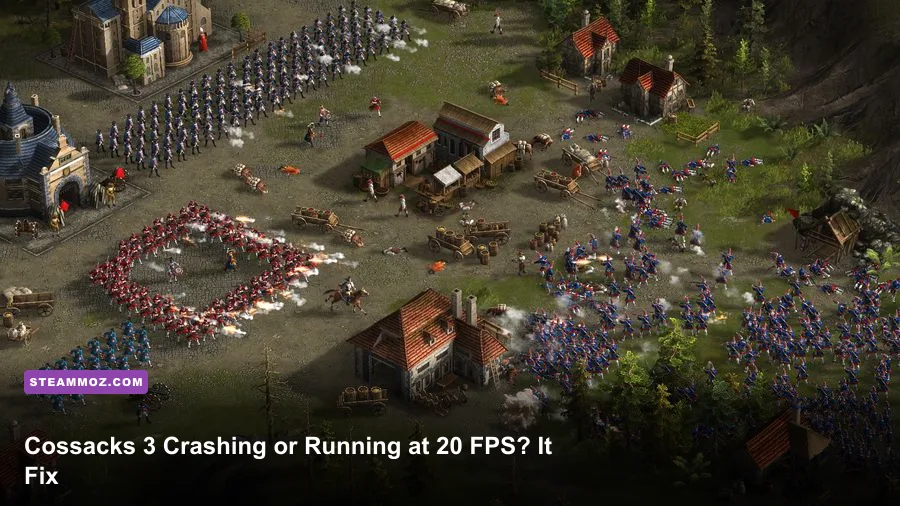
If Cossacks 3 crashes on startup or collapses into single-digit FPS during huge battles, the reliable fix is to repair the installation, reset its local configuration, run the game on the dedicated GPU, and lower CPU-heavy options before touching resolution. Cossacks 3 is an older 64-bit RTS, but its enormous armies still hammer one main simulation thread, so a modern graphics card alone won't prevent stutter.
This guide targets the complete Cossacks 3 PC experience: startup crashes, black screens, freezes after loading, sudden desktop exits, unstable campaign saves, and low FPS when hundreds of units collide. The fixes are ordered from safest to most invasive, and they work whether you own the base game or expansions such as Days of Brilliance, Path to Grandeur, and The Golden Age.
Start with the fixes that stop most crashes
Before changing Windows compatibility settings, close MSI Afterburner, RivaTuner Statistics Server, Discord overlay, GeForce Experience overlay, Xbox Game Bar, and any recording tool. Cossacks 3 can launch perfectly and then crash when an overlay hooks into the renderer or when the game changes resolution. Test from a clean Steam launch first.
1. Verify every installed file
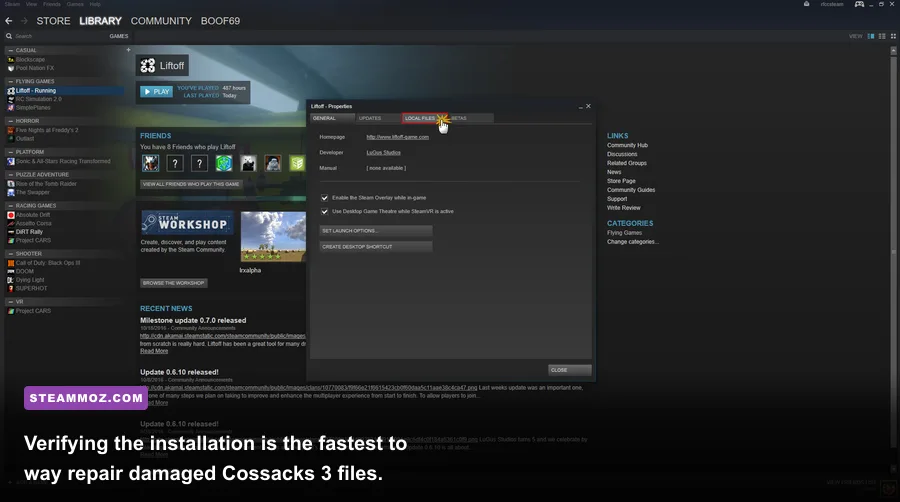
Open Steam, right-click Cossacks 3, choose Properties, select Installed Files, and click Verify integrity of game files. Steam may reacquire more than one file after a failed update. Restart Steam when the scan finishes rather than launching directly from the verification window.
This is especially important after installing a community translation, modifying a scenario, moving the game between drives, or adding a DLC pack. A broken map or missing asset can produce what looks like a random crash during loading.
2. Reset the local configuration
A damaged graphics profile can crash before the main menu appears. Back up your saves first, then open File Explorer and paste %USERPROFILE%\Documents\Cossacks 3 into the address bar. Rename the configuration folder to Cossacks 3 backup, launch the game, and let it create a clean profile. Don't delete the backup until your campaign saves are confirmed safe.
If that folder isn't present, search Windows for Cossacks and inspect the Documents and AppData locations. The goal is to reset settings, not erase your progress. Copy save files back one at a time if a particular campaign suddenly causes loading crashes.
3. Stop Windows from using the wrong GPU
On a laptop, open Settings > System > Display > Graphics, add the Cossacks 3 executable, choose Options, and select High performance. In NVIDIA Control Panel, use Manage 3D settings > Program Settings and assign the NVIDIA processor. AMD users should add the executable to the Adrenalin gaming profile and select the high-performance GPU.
Also plug in the laptop, switch Windows to a performance power mode, and update the graphics driver with a clean installation if the crash began immediately after a driver update. The game does not need a brand-new driver; it needs a stable one that correctly exposes DirectX features.
| Symptom | Most likely cause | First fix | What to test next |
|---|---|---|---|
| Crash before menu | Corrupt config or overlay hook | Rename the Documents config folder | Disable overlays and verify files |
| Black screen with sound | Invalid resolution or display mode | Reset local settings | Use borderless windowed mode |
| Crash while loading a map | Damaged map, save, or DLC file | Verify files and test a new skirmish | Load an older save |
| Desktop exit during battles | Overlay, driver, or unstable overclock | Disable overlays and return hardware to stock | Lower shadows and effects |
For reference, compare your setup with the official Cossacks 3 Steam page. Its listed requirements are modest, but those numbers describe whether the game can launch, not whether a 1,000-unit battle will remain smooth.
🎮 COSSACKS 3 EXPERIENCE
Looking to experience this game? Grab your digital key directly on our store for $12.35.
View on Steammoz Store →Use a graphics profile that protects frame pacing
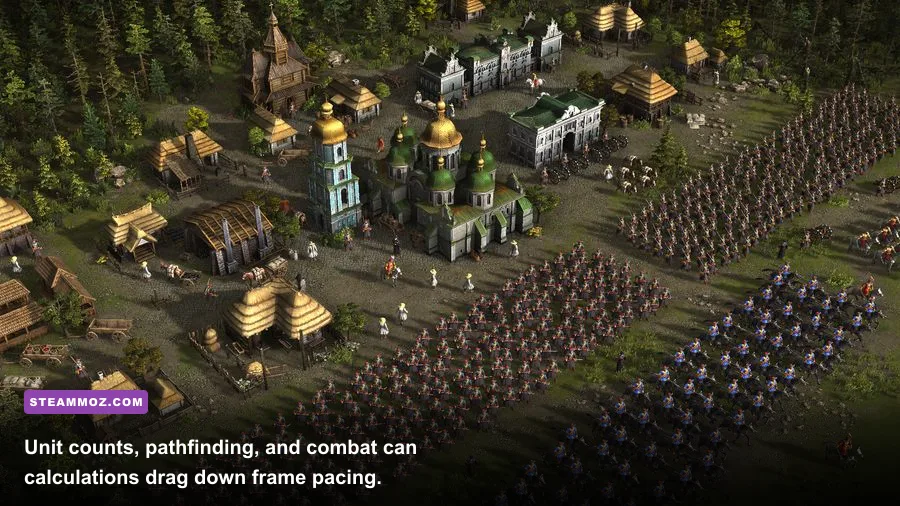
Low FPS in Cossacks 3 has two different causes. A GPU limit appears everywhere, including the menu and an empty skirmish. A simulation limit appears when armies grow, workers gather resources, artillery fires, and the pathfinding system gets busy. Lowering texture quality won't cure the second problem. The table below is a sensible starting profile for 1080p.
| Setting | Recommended value | FPS impact | Visual trade-off |
|---|---|---|---|
| Resolution | Native 1080p, then 1600x900 if needed | High on GPU-limited PCs | Lower resolution is softer but immediately effective |
| Shadows | Medium or Low | Medium to high | Less depth around buildings and units |
| Anti-aliasing | Off or the lowest option | Medium | More jagged unit silhouettes |
| Water quality | Medium | Low to medium | Reflections and surface detail are reduced |
| Particles and effects | Medium | Medium during artillery volleys | Less smoke, fire, and impact clutter |
| Textures | High if VRAM allows | Low for most systems | Keep high for sharper uniforms and buildings |
| V-Sync | Off for testing; cap externally if needed | Variable | Off can cause tearing, but removes sync stalls |
Change one group of settings at a time. Start a small skirmish with the same faction, map, and starting resources, then record FPS while zoomed into a town and while selecting a large army. If the frame rate stays similar after dropping resolution, your graphics card isn't the main problem; the simulation thread is.
Why massive battles feel worse than the benchmark
Cossacks 3 can place thousands of units on a map, and each unit has to consider movement, formation spacing, firing, morale-related behavior, collisions, and orders. Musketeers and artillery also create bursts of calculations when a line fires together. A scene with 60 FPS at the opening minute can fall to 25 FPS after several factions have built economies and packed the screen with formations.
That behavior isn't always a rendering failure. A faster CPU with strong single-core performance usually helps more than upgrading from one modern mid-range GPU to another. Avoid huge background tasks, browser tabs playing video, and CPU-heavy recording modes while testing. If your motherboard offers an aggressive automatic overclock, return it to stock; long RTS sessions can expose instability that short benchmarks miss.
Our related A Year of Rain FPS settings guide covers a similar RTS problem: reducing the options that matter instead of blindly selecting the lowest preset.
Fix Windows compatibility, permissions, and display conflicts
If verification and a clean configuration don't work, tackle Windows compatibility. Find the executable through Steam's Browse local files command, right-click it, open Properties > Compatibility, and enable Disable fullscreen optimizations. Test this before forcing an older compatibility mode. Windows 7 compatibility can help a very specific legacy setup, but it can also introduce a new problem on Windows 10 or Windows 11.
Use Run this program as an administrator only as a diagnostic step. If administrator mode fixes the crash, a permissions or security tool is blocking access to the Documents profile. The cleaner solution is to allow the executable through Windows Security and your antivirus rather than permanently running every game elevated.
Eliminate fullscreen and refresh-rate traps
Black screens and instant exits often happen when the game requests a mode your display no longer accepts. Disconnect a second monitor temporarily, set Windows to a standard refresh rate such as 60 or 120 Hz, and launch in windowed or borderless mode after resetting the config. Once the game survives several minutes, return to exclusive fullscreen only if you prefer it.
Turn HDR off for the test, disable GPU driver image sharpening, and avoid forced anti-aliasing or anisotropic filtering in NVIDIA Control Panel or AMD Adrenalin. Driver-level overrides are useful for newer games, but older engines can respond with corrupted menus, flicker, or crashes when their expected render path is replaced.
Repair or install the Microsoft Visual C++ Redistributable packages offered by Microsoft, especially the x64 package, and run Windows Update. Don't download random DLL files from third-party sites. If an error names a missing system library, use Microsoft's official Visual C++ Redistributable download page instead.
Separate a broken save from a broken game
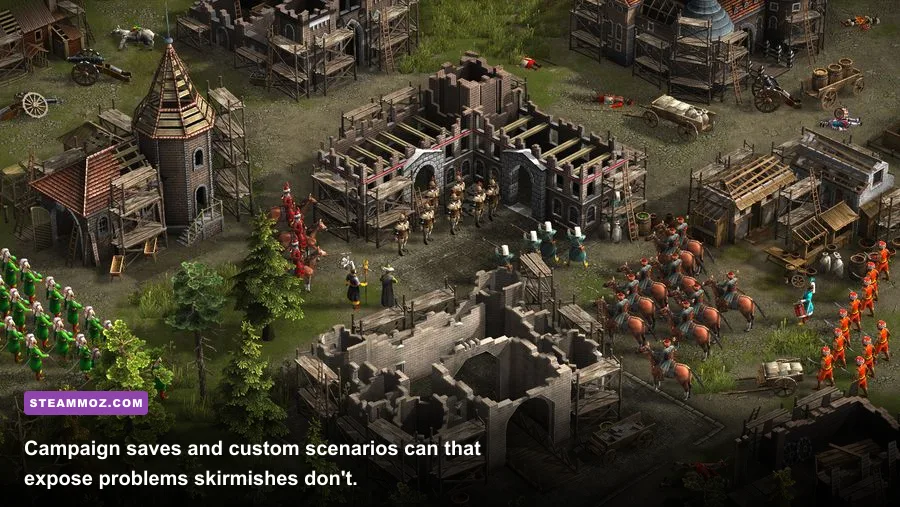
When Cossacks 3 crashes only on one campaign or scenario, create a fresh skirmish before reinstalling anything. Choose a small map, one opponent, and a familiar faction. If that loads, your base installation and renderer are probably healthy. The damaged item is more likely a save, custom map, mod, or expansion asset.
A safe save-file test
Close the game and back up the entire Cossacks 3 Documents folder. Move only the newest save out of the save directory, then test an older save. If the older file works, the newest save may have been created during a crash or after a mod changed unit data. Don't overwrite the backup while experimenting.
Custom scenarios deserve special suspicion. A map that loads on one machine can still fail after a game update if it depends on an altered script or missing asset. Disable workshop content, verify files, and test an official campaign mission. Re-enable maps individually so you know which file brings the crash back.
Large late-game saves can also behave differently from a new match because they preserve enormous armies, production queues, and AI states. If the game crashes while unpausing rather than while loading, start from an earlier save and immediately reduce the number of active orders. Pause before selecting several formations, cancel abandoned build queues, and avoid repeatedly sending huge groups through narrow gates where pathfinding can become chaotic.
Keep the official Steam Community discussions nearby when reporting a repeatable crash. Include the map, faction, approximate unit count, DLC, Windows version, GPU driver, and whether a new skirmish works. “It crashes” is difficult to reproduce; “Ottoman campaign save crashes when unpausing after artillery begins firing” gives other players something actionable.
Build a stable performance profile for huge battles
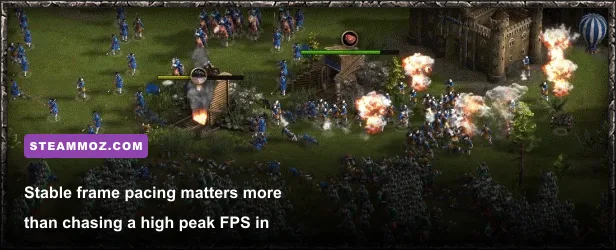
Once the game stops crashing, tune for consistency rather than a flashy opening-minute number. A locked 30 or 60 FPS feels better than a counter bouncing from 75 to 18 whenever a dozen cannons fire. Use your GPU driver's frame limiter if the game has no reliable cap, and leave enough CPU headroom for Windows, audio, and input.
| Hardware situation | Resolution | Graphics profile | Realistic target |
|---|---|---|---|
| Integrated graphics laptop | 1280x720 or 1600x900 | Low shadows, low effects, AA off, borderless | 30 FPS in battles |
| Older dedicated GPU | 1600x900 or 1080p | Medium textures, low shadows, medium effects | 30-60 FPS depending on army size |
| Modern mid-range PC | Native 1080p | High textures, medium shadows, medium effects | 60 FPS early; lower in giant fights |
| High-end GPU with older CPU | Native resolution | High visuals with reduced shadows and effects | GPU headroom won't remove CPU dips |
Measure the right scenario
Test three moments: the empty opening, a developed base with several production buildings, and a battle featuring infantry, cavalry, and artillery. Pan across the busiest part of the map instead of staring at the ground. If only the third test tanks, lower effects and shadows modestly, cap the frame rate, and accept that the engine's simulation ceiling is the limiting factor.
Keep graphics drivers, chipset drivers, and Windows current, but don't update everything on the same day you begin troubleshooting. Change one variable, test twice, and write down the result. That habit reveals whether the problem is a renderer crash, a damaged file, a thermal issue, or simply a late-game simulation bottleneck.
If you regularly troubleshoot older PC games, our guides to Formido crashes and FPS, Knightica performance problems, and Grow: Song of the Evertree settings follow the same evidence-first approach.
For developer information and updates, check the GSC Game World website. The winning Cossacks 3 setup is usually simple: clean files, a reset profile, no overlays, the dedicated GPU selected, stable display mode, and restrained shadows and effects. Once those pieces are in place, the game’s enormous battles become demanding rather than randomly broken.