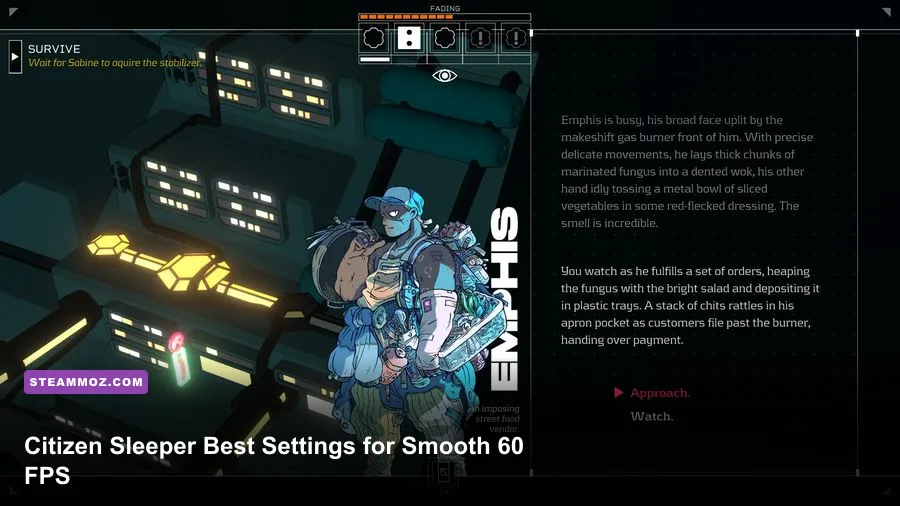
Citizen Sleeper's best performance setup is simple: use your monitor's native resolution, choose fullscreen or borderless fullscreen, disable VSync if you want the lowest input latency, and cap the game at 60 FPS through your GPU software if frame pacing feels uneven. The game is a 2D pixel-art RPG built around dialogue, dice rolls, and station exploration, so expensive effects like shadows or volumetric lighting aren't the problem. Resolution scaling, refresh-rate mismatches, background overlays, and poor frame pacing are the issues worth fixing.
That distinction matters. Citizen Sleeper isn't a game where dropping every quality slider produces a dramatic performance gain. On most modern laptops, integrated graphics, and handheld PCs, it should run comfortably. The goal is a clean image, stable animation, and low power draw rather than chasing an absurd 200 FPS counter. These settings are based on the PC version's lightweight presentation and the practical behavior of Unity-based 2D games. Before troubleshooting, check the current Citizen Sleeper Steam page for the latest build and system requirements.

The Best Citizen Sleeper Settings for Maximum FPS
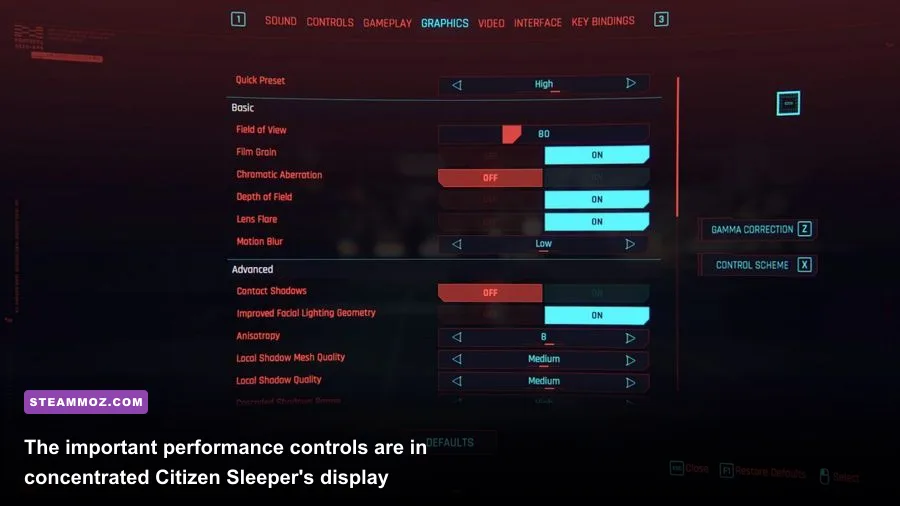
Start with the profile below. It prioritizes stable frame delivery while keeping the game's deliberately sharp pixel art intact. Native resolution is the key recommendation: lowering it can make text and pixel edges look softer, especially when Windows or the GPU scales the image back up to your panel's native resolution.
| Setting | Recommended Value | FPS Impact | Visual Note |
|---|---|---|---|
| Display Mode | Fullscreen | Low to moderate benefit | Usually gives the cleanest presentation and fewer desktop interruptions. |
| Resolution | Native monitor resolution | Highest GPU load | Preserves text clarity and pixel-art sharpness. |
| VSync | Off for lowest latency; On for tear-free play | Doesn't raise average FPS | On can lock output to 60 Hz or your display refresh rate. |
| Frame Limit | 60 FPS | Reduces heat and power use | A sensible ceiling for a turn-based narrative RPG. |
| Window Scaling | 100% or native scaling | Low | Avoids blurry UI caused by uneven scaling. |
| Refresh Rate | Highest stable desktop rate | Low | Prevents a 60 Hz game from being displayed with inconsistent pacing. |
If your version exposes fewer options than this table suggests, that's normal. Citizen Sleeper's visual design doesn't rely on a conventional suite of texture, shadow, foliage, or ambient-occlusion sliders. Don't waste time hunting for a hidden “ultra performance” preset. Set the available display controls correctly, then fix the operating-system factors that can interrupt an otherwise easy 60 FPS target.
🎮 Citizen Sleeper
Looking to experience this game? Grab your digital key directly on our store for $5.99.
View on Steammoz Store →Why Native Resolution Looks Better Than Low Settings
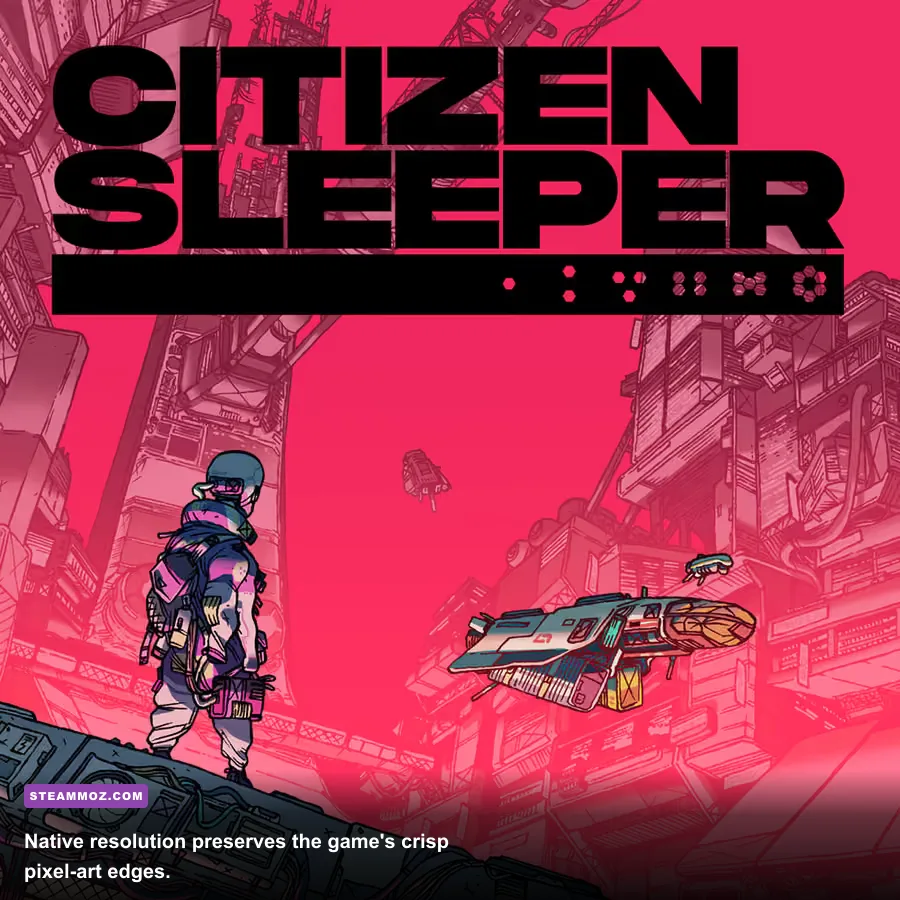
Citizen Sleeper uses small, carefully authored pixel-art details: station signage, character portraits, UI icons, and thin interface borders. Those elements don't respond gracefully to arbitrary resolution reductions. At 1080p, 1440p, or 4K, native output lets the game and display preserve consistent pixel shapes. At a non-native resolution, your monitor may stretch the image unevenly, turning crisp diagonal lines into fuzzy stair steps.
That makes resolution the one setting you shouldn't automatically lower. If you're already maintaining 60 FPS, leave it alone. If performance is genuinely unstable, test one step below native resolution rather than immediately dropping to a very low value. For example, a 1440p laptop connected to a 1080p display should use the display's actual native mode, while a 4K monitor can be tested at 1440p if the game struggles. The visual compromise is more noticeable in text than in the station backgrounds.
Windows scaling can also confuse the result. If the game looks soft despite using native resolution, check Windows Display Scale and your GPU control panel's scaling mode. “Maintain aspect ratio” is safer than stretching. On NVIDIA hardware, the relevant controls are found under Manage 3D Settings; AMD users can check Radeon Software's GPU Scaling options. These changes won't magically add frames, but they can stop a clean image from being ruined after rendering.
VSync, Frame Caps, and Frame-Pacing Fixes

VSync deserves a nuanced recommendation. Turn it off if your priority is the lowest possible input delay while navigating menus and station screens. Because Citizen Sleeper is turn-based, tearing isn't disastrous, and the game doesn't demand twitch reactions. Turn it on if horizontal tearing bothers you or if your monitor runs at 60 Hz. A steady 60 FPS with VSync enabled is preferable to a fluctuating counter that repeatedly collides with the display refresh cycle.
For high-refresh monitors, an external 60 FPS cap is often the cleanest compromise. Set the cap in NVIDIA Control Panel, AMD Adrenalin, Intel Graphics Command Center, or a tool such as RTSS. Don't stack several limiters at once: game cap plus driver cap plus RTSS can create unnecessary latency. Pick one. If VSync is enabled, cap one or two frames below the refresh rate only when you're using adaptive-sync technology; otherwise, a straightforward 60 FPS lock is perfectly reasonable.
| Display Setup | VSync | Frame Cap | Best Result |
|---|---|---|---|
| 60 Hz monitor | On | 60 FPS | Simple, tear-free presentation. |
| 144 Hz monitor without VRR | Off | 60 FPS | Low overhead and predictable frame pacing. |
| 144 Hz monitor with FreeSync or G-Sync | On or adaptive | 58-60 FPS | Very smooth output with minimal tearing. |
| Battery-powered laptop | On | 30 or 60 FPS | Lower heat and longer battery life. |
If the frame counter says 60 but scrolling still looks jerky, the issue may be frame pacing rather than average FPS. Close browser video tabs, disable unnecessary overlays, and test Steam Overlay, Discord Overlay, and Xbox Game Bar individually. This is the same basic principle behind our broader PC crash and FPS troubleshooting guide: isolate one variable instead of changing everything at once.
Low-End PC and Laptop Performance Profiles
Citizen Sleeper's minimum hardware demand is modest, but older systems can still suffer from inconsistent delivery when running a high-resolution desktop, recording software, or a crowded browser in the background. The practical target is a stable 60 FPS at 1080p, with 30 FPS as a perfectly playable fallback on power-limited hardware.
| Hardware Profile | Resolution | VSync and Cap | Expected Focus |
|---|---|---|---|
| Modern desktop or gaming laptop | Native resolution | VSync off, 60 FPS cap | Sharp image and minimal latency. |
| Older integrated graphics | 1080p or one step below native | VSync on, 60 FPS cap | Stable presentation without unnecessary scaling. |
| 4K laptop or desktop | 1440p if native 4K stutters | VSync on, 60 FPS cap | Lower pixel workload while retaining readable UI. |
| Low-power handheld PC | Native handheld resolution | 30 or 40 FPS cap | Better battery life and less fan noise. |
On a handheld, don't blindly select the highest refresh mode. A 40 FPS cap can feel noticeably smoother than 30 FPS on a 120 Hz screen, but it costs more power. A locked 30 FPS is still a strong choice for Citizen Sleeper because turns, dialogue, and dice actions aren't timing-sensitive. Set the game's brightness and UI to comfortable levels, then lower the device's TDP only after confirming that the frame rate remains locked. A performance profile that constantly oscillates between 30 and 60 FPS feels worse than a stable 30.
Windows and GPU Tweaks That Actually Help
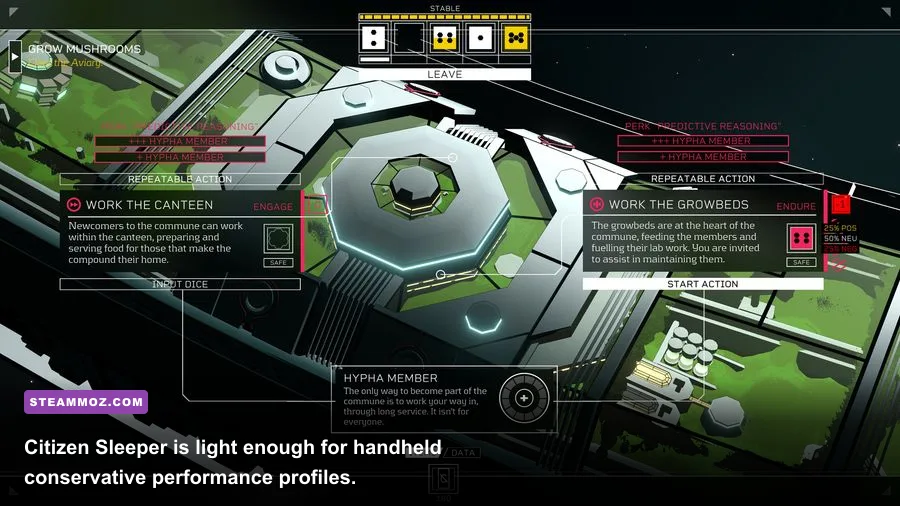
Most “low FPS” reports in this game are really background-load or presentation problems. Start by playing while connected to AC power on a laptop, set Windows power mode to Best Performance, and make sure the game is using the dedicated GPU if your system has one. Windows Settings > System > Display > Graphics lets you assign the executable to High Performance.
Then test these changes one at a time:
- Disable recording tools such as Xbox Game Bar, ShadowPlay, or Radeon Instant Replay if you don't need them.
- Pause cloud-sync utilities while troubleshooting hitching during scene transitions.
- Update your graphics driver, but don't assume the newest driver is automatically the best answer.
- Verify game files in Steam if menus, sprites, or transitions behave unusually.
- Use the in-game resolution rather than forcing a custom GPU scaling mode first.
For troubleshooting examples from other PC games, Steamoz's low-FPS and crashing fixes and higher-FPS settings guide cover the same diagnostic workflow. The important lesson is consistency: change one setting, replay the same station scene, and record whether frame delivery improves.
How to Confirm Your Settings Are Working
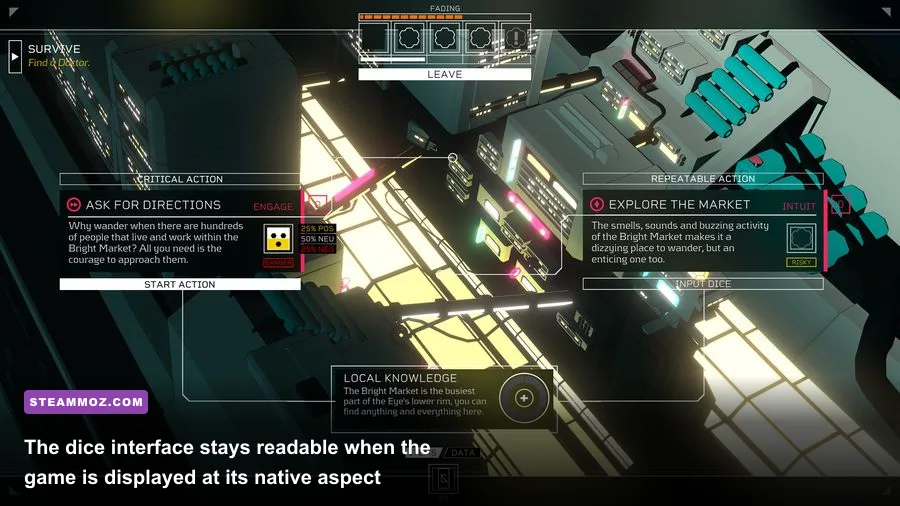
Don't judge performance from a single menu opening. Load a save in Erlin's Eye, move between the main station view and a dialogue-heavy scene, open the dice interface, and watch for stutter during transitions. Those moments exercise different parts of the game: scene loading, UI composition, text rendering, and animation. If all four remain smooth, your profile is doing its job.
Use Steam's in-game FPS counter or your GPU overlay, but pay attention to consistency rather than the highest number. A reading that jumps from 60 to 180 and back can indicate an uncapped game, not better performance. For a quiet laptop or handheld, a locked 30 or 40 FPS may be the smarter result. The game won't reward an expensive graphics card with richer shadows or more detailed textures, so extra frames beyond your display's needs are mostly wasted heat.
Finally, keep expectations realistic. Citizen Sleeper is intentionally minimalist, and its official developer and publisher information reflects that focus on narrative systems rather than cinematic rendering. If you're chasing the maximum possible FPS, use native resolution, one frame limiter, and a clean background. If you want the best overall experience, lock 60 FPS, keep the image sharp, and spend your time exploring the station instead of endlessly tweaking settings.
For reference, the official Citizen Sleeper site remains the best place to follow developer updates, while Steam handles build updates and file verification. Those two resources are more useful than random “optimization” packs that promise dramatic gains in a game this lightweight.