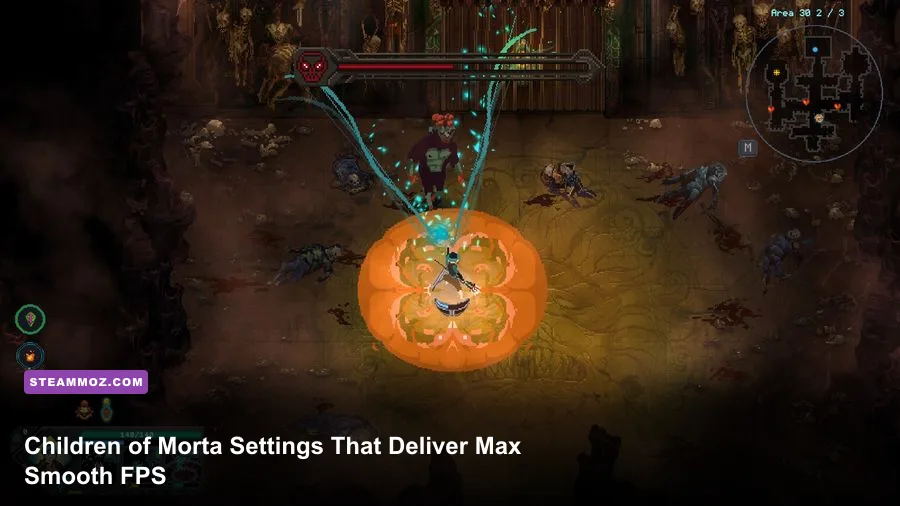
For the best Children of Morta graphics settings for max FPS, run the game at your display's native resolution, use fullscreen, disable VSync if your monitor supports adaptive sync, and set a frame cap just below your refresh rate. On older PCs, lower resolution before chasing tiny visual tweaks: the game is light to run, but resolution and background effects are the settings most likely to matter during crowded rooms, boss attacks, and Lucy's fire-heavy spell effects.
Children of Morta is not a modern 3D showcase that demands an expensive graphics card. Its hand-painted pixel art, layered lighting, particle effects, and scrolling environments are deliberately efficient. That does not mean every PC gets perfect frame pacing automatically. Stutter can appear when a room fills with projectiles, when several enemies die at once, or when Windows, drivers, and VSync disagree about who controls presentation. The right target is not merely a huge number in an FPS counter. It is consistent input response while dashing, blocking, and weaving through enemy telegraphs.
This guide focuses on the Windows PC version and also includes sensible advice for Steam Deck and low-end hardware. Menu names can vary slightly between updates, language settings, and platform builds, so treat the profiles below as practical targets rather than a promise that every port exposes identical switches. Before changing anything, check the game's official Steam listing and keep your display driver current.
Best Children of Morta settings for maximum FPS
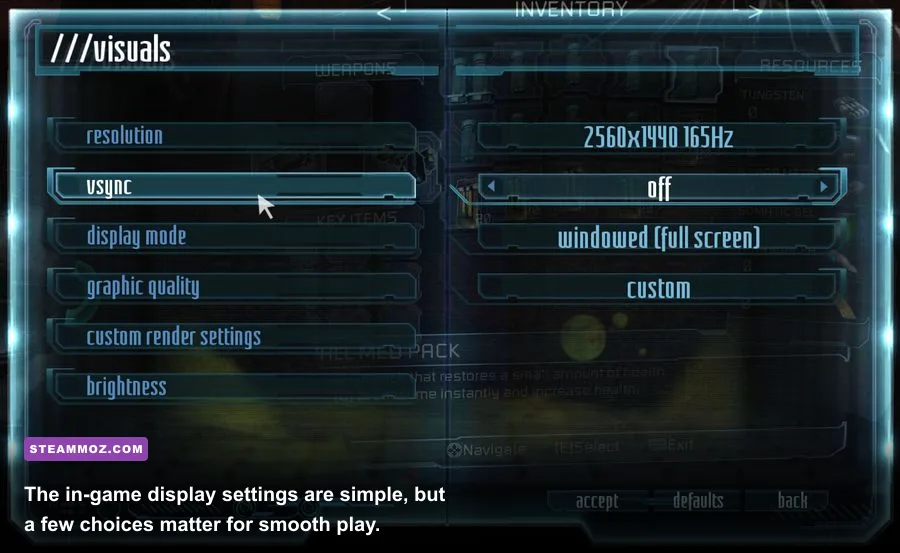
Start with a clean baseline. Select fullscreen rather than borderless or windowed mode if your build offers all three. Fullscreen can reduce desktop compositor overhead and makes it easier for the game to present frames consistently. Set the resolution to your monitor's native value first. If you are already well above your target frame rate, native resolution preserves the sharpness of Morta's pixel art and avoids unnecessary scaling blur.
VSync is the main decision point. With VSync enabled, the game synchronizes presentation to your display and eliminates visible tearing, but it can add latency and may lock you to a lower refresh interval when the PC misses a frame. With VSync disabled, controls usually feel more immediate and the FPS counter can climb higher, but fast scrolling may show a horizontal tear. Players with FreeSync or G-Sync should normally disable in-game VSync, enable adaptive sync in the driver or monitor menu, and cap FPS a few frames below the panel's maximum.
For a 60Hz display, a 60 FPS cap is a sensible starting point. For 120Hz, use 117 or 118 FPS if the game or your driver allows a custom limit. For 144Hz, try 141 FPS. The small gap gives adaptive-sync hardware room to operate instead of repeatedly touching the refresh ceiling. If the game only offers fixed caps, choose the highest stable option rather than an unstable peak number.
| Setting | Recommended value | FPS impact | Visual and input note |
|---|---|---|---|
| Display mode | Fullscreen | Low | Usually gives the cleanest frame delivery and lowest desktop overhead. |
| Resolution | Native; lower to 1600x900 or 1280x720 if needed | Medium to high | The most useful performance lever on weak integrated graphics. |
| VSync | Off with adaptive sync; On for tear-free fixed-refresh play | Low | Off generally reduces latency; On can smooth presentation at a locked refresh. |
| Frame limit | Refresh rate, or 2-3 FPS below it | None directly | A cap improves consistency, heat, fan noise, and frame pacing. |
| Scaling | Keep native where possible | Low | Non-native scaling can soften the deliberately crisp pixel-art edges. |
One important warning: do not judge a setting by standing in the Bergson family house. The hub is far less demanding than a late dungeon room. Test in a run with multiple enemies, burning ground, summoned effects, and rapid movement. John blocking a packed group in the Halls of Corruption or Lucy lighting up a room with fire is a much better stress test than browsing the menu.

🎮 Children of Morta
Looking to experience this game? Grab your digital key directly on our store for $3.29.
View on Steammoz Store →Performance profiles for powerful, mid-range, and older PCs
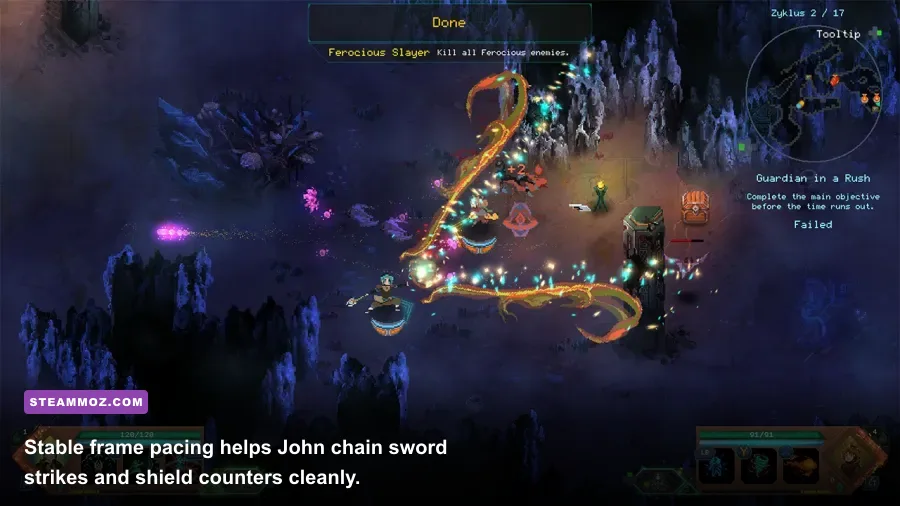
Children of Morta's pixel-art style makes a high-end preset unnecessary for most players. The best profile depends on your monitor and whether you value perfect presentation, low latency, or battery life. A modern desktop should run at native resolution with a stable cap. A mid-range laptop can usually do the same, but a lower-power integrated GPU benefits from reducing resolution and closing background applications before sacrificing every visual option.
High-refresh desktop profile
Use native 1080p, 1440p, or 4K resolution depending on the screen, fullscreen mode, and a cap just below refresh. Disable VSync when FreeSync or G-Sync is active. This is the right setup for a 120Hz or 144Hz monitor, though the practical gain above 60 FPS is felt more in input response and camera movement than in dramatically improved artwork.
Balanced laptop profile
Keep native 1080p if the laptop remains stable, cap at 60 FPS, and use fullscreen. Plug the system into power, select the laptop's performance mode, and make sure the game is using the dedicated GPU rather than an integrated graphics processor. If frame time spikes continue, move to 1600x900 before 1280x720. That intermediate step often preserves the clean look while cutting the rendering workload.
Low-end and integrated graphics profile
Choose 1280x720, fullscreen, a 60 FPS cap, and VSync based on whether tearing bothers you. Close browser tabs, launchers, recording tools, and animated overlays. Children of Morta's minimum PC requirements are modest, but an old CPU, slow storage, or thermal throttling can still create hitching that lowering resolution cannot solve. If 60 FPS is not locked, a stable 30 FPS cap is preferable to a wild 35-60 FPS swing.
| Hardware target | Resolution | Frame target | Profile |
|---|---|---|---|
| Modern gaming PC | Native resolution | 120-144 FPS or display refresh | Fullscreen, adaptive sync, VSync off, cap 2-3 FPS below refresh. |
| Mid-range desktop or laptop | 1080p native | 60 FPS locked | Fullscreen, VSync on for fixed 60Hz or adaptive sync for supported displays. |
| Older dedicated GPU | 1600x900 or 1280x720 | 60 FPS if stable | Lower resolution first, then reduce any available effects or quality options. |
| Integrated graphics | 1280x720 | 30-60 FPS | Use a stable cap, close overlays, and play while connected to AC power. |
| Steam Deck | 1280x800 | 60 FPS or 40 FPS | Start at 60 FPS; use a 40 FPS cap for quieter, longer handheld sessions. |
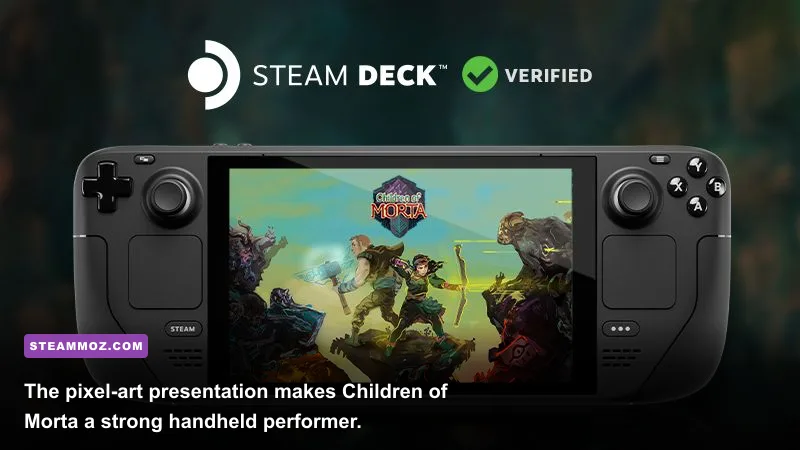
The Steam Deck deserves a separate note. Its 1280x800 screen is close to the game's native handheld target, and the art remains readable without aggressive upscaling. A 60 FPS cap is the obvious choice when plugged in. On battery, 40 FPS can feel remarkably smooth for an action roguelite while reducing power draw. Avoid stacking multiple limiters: if SteamOS is controlling the cap, do not also force an unrelated driver cap unless you are deliberately testing frame pacing.
Why resolution and frame pacing matter in combat
Children of Morta is forgiving compared with a competitive shooter, but poor frame pacing still changes how combat feels. John Bergson's shield timing, Linda's charged bow attacks, and Mark's close-range movement all depend on reading a telegraph and responding immediately. A counter that technically happens at 55 FPS but arrives in uneven bursts can feel less reliable than the same move at a locked 40 or 60.
Resolution affects more than average FPS. When a room contains many enemies and overlapping effects, the GPU has to draw more pixels for every sprite, glow, projectile, and shadow-like layer. Dropping from 2560x1440 to 1920x1080 cuts the pixel workload by roughly 44 percent. Moving from 1920x1080 to 1280x720 cuts it by about 56 percent. Those are much larger changes than the tiny gains available from closing one overlay or toggling a low-impact visual option.
Do not automatically chase 144 FPS, though. Morta's combat is designed around readable animation and deliberate ability timing, not esports-level tracking. If your PC jumps between 80 and 140 FPS, cap it at a number it can hold in the most chaotic rooms. A locked 90 FPS is better than 144 FPS in the hub followed by distracting drops during a boss encounter.
Use a repeatable test route
Test three situations: a quiet room with basic enemies, a crowded room with projectiles and elite enemies, and a boss arena. Record average FPS and, more importantly, the lowest sustained result or frame-time graph. Repeat the same route after each change. Changing resolution, VSync, driver settings, and overlays all at once makes it impossible to identify the actual cause.
Pay attention to hitching when entering a new room. A brief spike can be asset loading rather than a permanent graphics bottleneck. Installing the game on an SSD may reduce those pauses, but it cannot turn an underpowered CPU into a faster one. If performance falls only after ten minutes, monitor temperatures: laptop processors often reduce clock speed once the chassis heats up.
Windows and driver tweaks that actually help
The game itself is usually the first place to tune, but Windows can quietly sabotage a good configuration. In Windows Settings, select the High performance power mode while plugged in. On a laptop with switchable graphics, add Children of Morta's executable to the Windows Graphics settings list and choose the high-performance GPU. Do not assume a game this small will always trigger the dedicated chip correctly.
Disable Xbox Game Bar capture and background recording if you never use them. Test overlays individually rather than blindly disabling everything. Steam Overlay is normally harmless, but Discord, GeForce Experience, Radeon Software, RGB utilities, and third-party monitoring tools can all hook into presentation. If the game runs smoothly until an overlay appears, remove that overlay from the chain.
Use your GPU control panel for a small number of deliberate changes. Set the game's power profile to maximum performance if clock speeds are dropping, leave texture filtering at the application-controlled setting, and do not force exotic anti-aliasing or sharpening onto a pixel-art game. Driver-level image processing can introduce softness, shimmering, or extra latency without solving a genuine bottleneck.
Fix stutter before lowering everything
If average FPS is high but movement feels uneven, test these variables in order:
- Switch between fullscreen and borderless/windowed mode.
- Compare VSync on and off, using only one active frame limiter.
- Disable overlays and recording software.
- Update or clean-install the graphics driver if the problem began after an update.
- Check CPU and GPU temperatures, then verify that the game is installed on a healthy drive.
- Reset the game's configuration and rebuild your preferred profile one setting at a time.
That final step matters because a damaged or contradictory configuration can survive several reinstalls. Back up saves before deleting local files, and consult the game's Steam community discussions if a platform-specific issue persists. For broader PC troubleshooting, our guide to ELEX FPS and crash fixes covers the same driver, overlay, and power-plan problems in more detail.
Graphics settings by character and combat scenario
Every Bergson can expose a different weakness in your setup. John uses close-range sword swings, a shield, and defensive counters, so input latency and stable frame delivery matter more than maximum resolution. Linda's bow attacks and Mark's mobility create fast screen movement, making tearing easier to notice. Lucy's fire magic is the most obvious visual stress test because repeated spell effects and burning enemies fill the arena with bright particles.
Kevin's daggers and speed-focused abilities can also reveal uneven frame pacing. When you dash through enemies, a sudden hitch can make a safe escape feel late even if the game never fully freezes. Joey's heavy attacks are less dependent on rapid movement, but large impact effects are useful for checking whether your worst-case frame rate drops in busy rooms. Keep that in mind when deciding whether a 60 FPS lock is realistic.
| Character or scenario | What to watch | Recommended target | Reason |
|---|---|---|---|
| John in crowded melee | Frame-time spikes during blocks and counters | Locked 60 FPS | Consistent timing makes enemy attack responses easier to read. |
| Linda during rapid movement | Screen tearing and camera judder | Refresh-matched cap | Stable presentation keeps fast repositioning visually clear. |
| Lucy in spell-heavy rooms | Lowest sustained FPS | Reduce resolution if needed | Layered fire and enemy effects can create the heaviest GPU load. |
| Kevin during dash chains | Microstutter and input delay | Consistent frame pacing | Fast movement exposes uneven delivery more than average FPS. |
| Boss arenas | Sudden drops during telegraphed attacks | Conservative stable cap | Predictable response is more valuable than a high menu benchmark. |
For a practical benchmark, take Lucy into a procedurally generated run, trigger several abilities near a group, and watch the frame-time graph rather than only the FPS number. Then repeat with John against a dense pack. If the graph stays flat, native resolution is fine. If it shows repeated spikes, lower resolution and retest before touching anything else.
Graphics tuning will not replace combat fundamentals. Learn the warning animations for projectiles, keep an escape route open, and avoid standing in effects while staring at the performance overlay. If you're still building the family, our other RPG performance coverage—including Everspace 2 FPS troubleshooting—is useful for understanding why stable frame time beats flashy benchmark numbers.
Recommended final profile and troubleshooting checklist
For most PCs, the final answer is pleasantly simple: native resolution, fullscreen, adaptive sync enabled when available, VSync off in-game, and a cap two or three frames below your monitor's refresh rate. On a fixed 60Hz screen, use 60 FPS with VSync on if tearing is distracting. On weaker hardware, lower resolution to 1600x900 or 1280x720 and cap at the highest number the busiest dungeon can hold.
| Symptom | First change | Second change | What not to do |
|---|---|---|---|
| Low FPS everywhere | Lower resolution | Use a 30 or 60 FPS cap | Do not expect VSync alone to create performance. |
| Stutter during room transitions | Disable overlays | Check storage and drivers | Do not keep changing five settings at once. |
| Tearing while moving | Enable VSync | Use adaptive sync and a cap | Do not stack multiple frame limiters. |
| Input feels delayed | Test VSync off | Use adaptive sync with a low-latency cap | Do not force triple buffering without testing. |
| FPS drops after playing | Check temperatures | Use a balanced performance profile | Do not blame resolution before checking throttling. |
Before launching a serious run, verify that the game is updated through Children of Morta's official Steam hub, close unnecessary software, and restart after major driver changes. If files behave strangely, Steam's file verification tool is safer than deleting random folders. The Dead Mage official site is also worth checking for developer news and support information.
The best Children of Morta settings for max FPS are ultimately the ones that make the worst encounter feel as responsive as the quietest room. Start with native resolution and a sensible cap, test the busiest combat you can find, then lower resolution only when the frame-time graph proves you need it. That preserves Morta's gorgeous pixel-art edges while giving John, Lucy, Kevin, and the rest of the Bergsons the reliable timing their combat deserves.