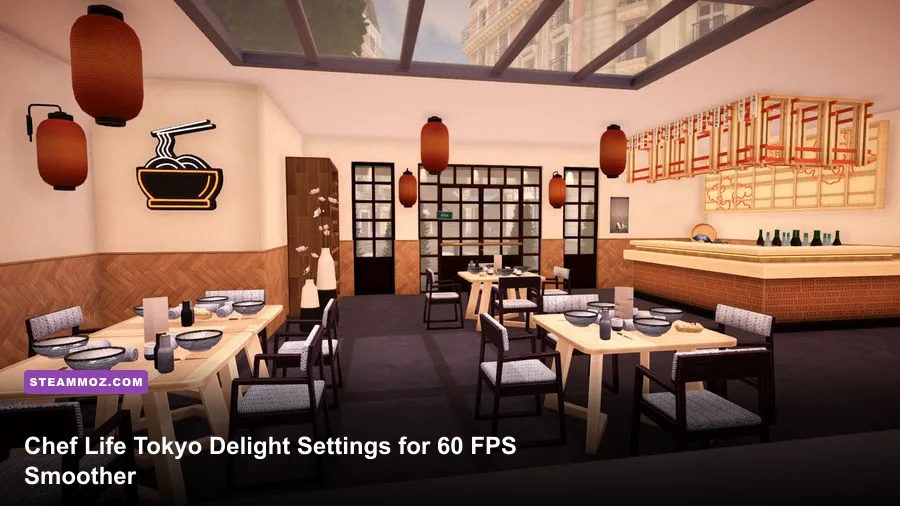
If you want the best Chef Life - TOKYO DELIGHT graphics settings for max FPS and performance, start with 1080p, VSync off, a 60 FPS cap, medium shadows, low-to-medium post-processing, and high textures only when your GPU has at least 6GB of VRAM. Tokyo Delight does not replace the game’s rendering pipeline; it adds Japanese content to Chef Life: A Restaurant Simulator, so the same settings that improve the base game also smooth out hectic services in the expansion.
The goal here isn’t to make the kitchen look like a low-budget spreadsheet. Chef Life benefits from readable ingredients, clean counter edges, and stable frame pacing when you’re juggling prep, cooking, plating, and customer timing. The sweet spot is a locked 60 FPS on a modest gaming PC, while older laptops and Steam Deck should prioritize consistency over a flashy but uneven frame rate.
The Best Chef Life Tokyo Delight Settings at a Glance
Open the game’s video or graphics menu before changing Windows settings. Use your monitor’s native resolution if your system can hold the target frame rate, then work downward in the order that actually matters. Resolution scaling and shadows usually cost more than texture quality in this game because the kitchen contains several reflective surfaces, lights, furniture pieces, and animated characters on screen at once.
| Setting | Recommended Value | FPS Impact | Visual Note |
|---|---|---|---|
| Display Mode | Fullscreen or borderless fullscreen | Low | Fullscreen can reduce background interference; borderless is easier for multitasking. |
| Resolution | 1920×1080 | Very high | Lower this before destroying texture quality. |
| VSync | Off with an FPS cap | Medium | Reduces latency; enable it only if tearing is distracting. |
| Frame Rate Limit | 60 FPS | None when capped | A cap improves frame pacing and keeps laptop thermals under control. |
| Textures | High on 6GB-plus VRAM; Medium on 4GB | Low to medium | Texture quality is one of the safest settings to keep high. |
| Shadows | Medium | High | The first major quality cut for crowded restaurants. |
| Effects and Post-Processing | Medium or Low | Medium to high | Lower values clean up distracting effects and improve consistency. |
| Anti-Aliasing | Medium or the second-highest option | Medium | Keep enough smoothing for counters and table edges. |
| Ambient Occlusion | Low or Medium | Medium | Low removes contact shading but saves useful GPU headroom. |
| Motion Blur | Off | Small | Sharper camera movement makes kitchen interaction easier to read. |
There may be small naming differences between PC builds, so treat “effects,” “post-processing,” and “ambient occlusion” as the same performance family if your menu groups them differently. The important distinction is between settings that consume VRAM and settings that force the GPU to draw more lighting and shadow detail every frame.

🎮 Chef Life - TOKYO DELIGHT
Looking to experience this game? Grab your digital key directly on our store for $3.89.
View on Steammoz Store →Why Shadows and Resolution Matter Most
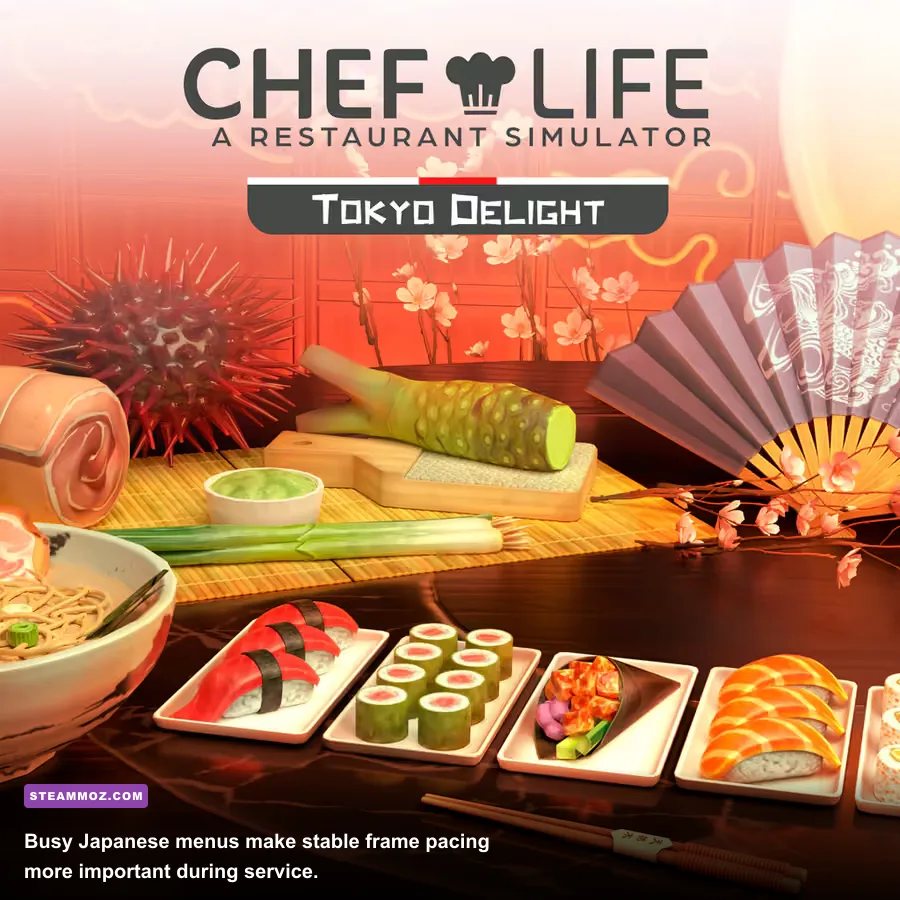
Chef Life’s busiest moments happen when the restaurant is fully populated and you’re moving between stations. Every extra table, chair, decorative object, staff member, and light source gives the game more work to render. Shadows are especially expensive because the engine has to calculate where those objects block light, then update that information as characters move.
Set shadows to Medium first. The difference from High is visible around chairs, counters, and dining-room furniture, but it’s rarely worth the frame-time cost during service. If your GPU still dips below 60 FPS when customers arrive, use Low shadows before touching textures. The kitchen remains perfectly readable, and the gain is usually more noticeable than lowering material detail.
Resolution is the bigger lever. Moving from 2560×1440 to 1920×1080 reduces the number of rendered pixels by roughly 44 percent, which can transform a struggling mid-range GPU. At 4K, 1080p is a much larger visual compromise, so 1440p with Medium shadows may be preferable if your card can hold 45 or 60 FPS. Don’t chase an uncapped number that swings between 48 and 90 FPS; a stable cap feels better while chopping, stirring, and plating.
Textures work differently. They mostly occupy VRAM rather than continuously increasing GPU workload. If you have a modern card with 8GB or more, High textures are reasonable at 1080p or 1440p. On a 4GB card, Medium textures avoid sudden stutters when the game streams restaurant assets. If the game pauses briefly when entering a decorated dining room, texture memory—not your average FPS—is the likely culprit.
Three Performance Profiles for Different PCs
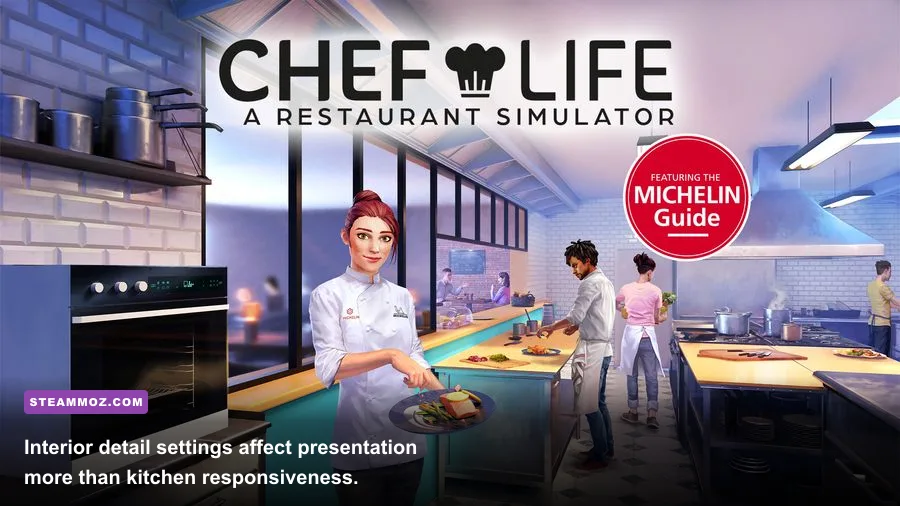
Use the profile that matches your hardware, then adjust one setting at a time. Benchmark in the same situation: load a busy restaurant, enter service, move rapidly between the prep area and dining room, and watch the frame-time graph for at least five minutes. A quiet empty kitchen can produce a misleadingly high FPS reading.
| Profile | Resolution and Cap | Quality Mix | Best Fit |
|---|---|---|---|
| Max FPS | 1920×1080, 60 FPS | Textures Medium, shadows Low, effects Low, AO Low, motion blur Off | Older GTX cards, integrated graphics, entry-level laptops |
| Balanced 60 | 1920×1080, 60 FPS | Textures High, shadows Medium, effects Medium, AO Low, anti-aliasing Medium | GTX 1660, RTX 2060, RX 5600 XT-class systems |
| Quality 60 | 2560×1440, 60 FPS | Textures High, shadows Medium, effects High, AO Medium, motion blur Off | RTX 3060 Ti, RX 6700 XT, and faster GPUs |
| Steam Deck | 1280×800, 30 FPS | Textures Medium, shadows Low, effects Low, AO Off or Low | Steam Deck LCD and OLED when battery life matters |
The balanced profile is the real winner
For most players, the Balanced 60 preset is the strongest starting point. High textures preserve the warm, colorful presentation of Tokyo Delight, while Medium shadows stop the dining room from becoming a frame-time trap. If you see drops only when customers fill every seat, lower ambient occlusion next. If drops happen everywhere, reduce resolution or use a lower render-scale option if your build exposes one.
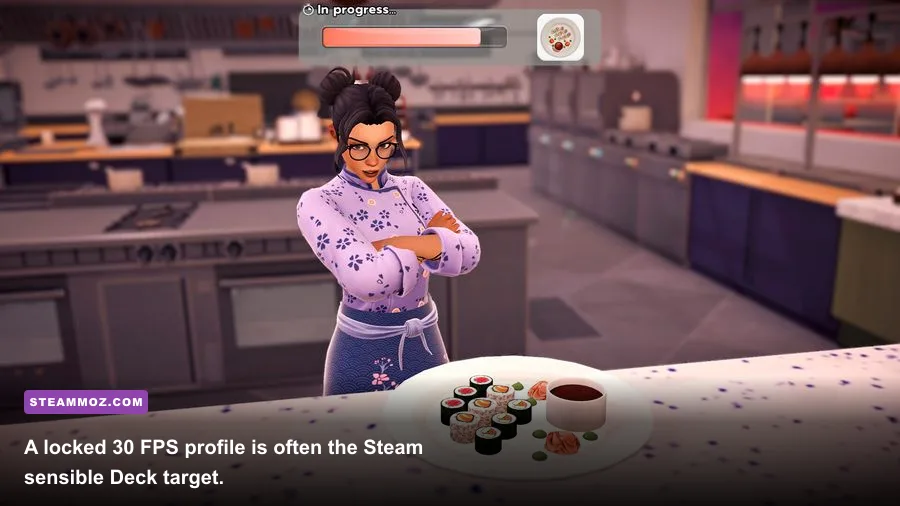
On Steam Deck, 30 FPS is more realistic than chasing 40 FPS with aggressive settings. Set the system refresh rate to 40Hz only if your specific installation genuinely sustains 40; otherwise, uneven delivery can feel worse than a locked 30. The expansion’s kitchen scenes are playable at that target, and a stable handheld experience beats fan noise and battery drain.
Windows and GPU Tweaks That Actually Help
In-game settings should do most of the work, but a few PC-side changes are worthwhile. Install the latest stable driver for your NVIDIA, AMD, or Intel GPU, then restart before testing. Shader compilation and first-time asset loading can cause temporary stutter, so don’t judge performance from the first few seconds after launching a new restaurant.
Close browser tabs, recording software, RGB utilities, and overlays you don’t need. A browser with video playback can steal memory and create hitching on systems with 8GB of RAM. Windows Game Mode is safe to leave enabled. Hardware-accelerated GPU scheduling can help some systems and do nothing on others, so test it rather than treating it as a universal fix.
For NVIDIA users, use the game profile in NVIDIA Control Panel and choose “Prefer maximum performance” only if the GPU is downclocking during play. AMD users can use Radeon Chill with a 60 FPS ceiling, but don’t stack multiple limiters without testing. A single in-game cap is usually the cleanest approach. If you use a monitor with FreeSync or G-SYNC, cap a few frames below its refresh rate and keep VSync controlled by the variable-refresh setup.
Install the game on an SSD when possible. Storage won’t magically increase average FPS, but it can reduce loading delays and asset-streaming pauses as you move between the kitchen and dining room. If Chef Life is crashing or behaving strangely after a driver update, Steam’s file verification is worth trying before reinstalling. Our broader PC crash and FPS fixes guide covers the same driver, overlay, and verification checks for another demanding PC title.
How to Test Your Final Settings During Service
Don’t use the main menu as a benchmark. Start a restaurant day with several tables available, let customers enter, and perform a complete loop through preparation, cooking, plating, and service. Tokyo Delight’s Japanese recipes can make you move constantly between equipment and storage, which exposes stutter far more reliably than standing still in the customization screen.
| Symptom | Likely Cause | First Change | Why It Works |
|---|---|---|---|
| Low FPS everywhere | Resolution or GPU load | Drop from 1440p to 1080p | Pixel count is the fastest broad performance reduction. |
| Drops when dining room fills | Shadows, AO, or effects | Set shadows to Low or Medium | Moving characters and furniture increase lighting calculations. |
| Short freezes entering rooms | VRAM or asset streaming | Lower textures one step and use an SSD | Reduces memory pressure and streaming work. |
| Image tears during camera movement | Unsynchronized frame delivery | Enable VSync or variable refresh | Keeps frames aligned with the display. |
| Blurry movement | Motion blur or low resolution | Disable motion blur; restore native resolution if possible | Improves ingredient and counter readability. |
Watch frame time, not just the FPS counter. 60 FPS corresponds to about 16.7 milliseconds per frame; a sudden spike to 30ms feels like a hitch even if the counter quickly returns to 60. If your average is strong but the graph spikes during customer arrivals, lower shadows and effects before reducing textures. If every frame is consistently too slow, resolution is the correct target.
For more PC optimization ideas, see our low-FPS troubleshooting guide and the max-FPS settings breakdown for Far Cry 6. The principle is the same: establish a repeatable scene, change one variable, and keep the setting that improves frame time without wrecking the picture.
Keep the Kitchen Sharp Without Wasting Frames
Chef Life - TOKYO DELIGHT looks best when you protect the details players actually notice: food textures, ingredient colors, appliance surfaces, and clean silhouettes around the prep counter. Keep textures High when VRAM allows, leave motion blur off, and spend your performance budget on resolution and stable frame pacing. Medium shadows are the best compromise for most desktop PCs, while Low shadows and a 30 FPS cap make sense on weaker laptops and Steam Deck.
Before changing hardware, check the game’s official Steam listing, install the latest updates, and compare your system with the publisher’s Chef Life information page. The expansion’s new recipes and restaurant atmosphere are demanding enough during a full service, but the right profile turns that pressure into smooth, readable gameplay instead of a slideshow at the pass.
If you’re still fighting inconsistent performance after these changes, check Steam’s official game-file verification instructions and your GPU manufacturer’s current driver notes. Once the game holds its target cap through a busy service, stop tweaking and get back to the menu: Tokyo Delight is at its best when your attention stays on the dish, not the frame counter.