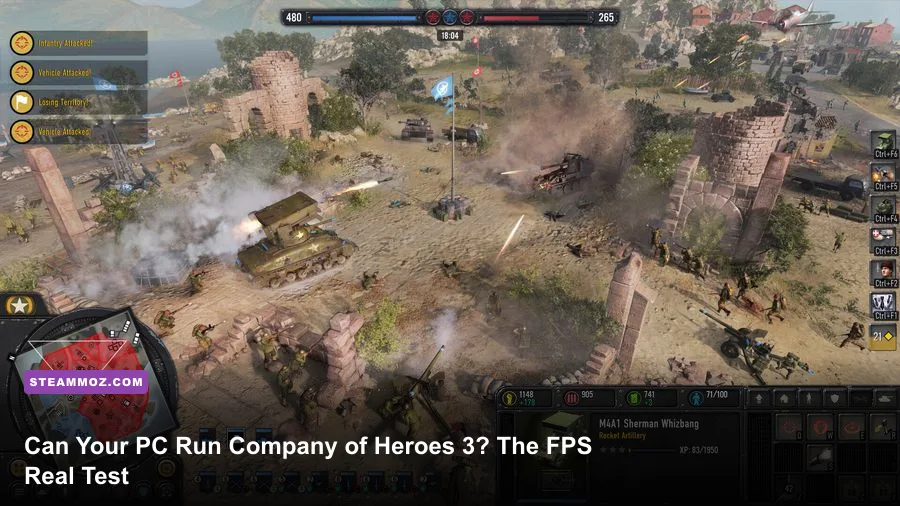
Yes, you can run Company of Heroes 3 on a surprisingly modest gaming PC, but the official minimum is only half the story. A system with 8GB of RAM, a GTX 950-class graphics card, and a six-year-old four-core processor can launch the game, yet it may struggle during artillery barrages, vehicle-heavy battles, and large multiplayer matches. For a genuinely smooth experience, aim for a modern six-core CPU, 16GB of memory, and a GTX 1660 or RX 5600-class GPU. At 1080p, that combination should target a comfortable 60fps with sensible settings; at 1440p, you'll want more graphics horsepower.
Company of Heroes 3 is unusual because its performance isn't controlled by the graphics card alone. Relic Entertainment's battlefield simulation tracks infantry squads, cover states, vehicles, suppression, destruction, pathfinding, and projectiles at the same time. That makes the CPU important during the exact moments when an RTS becomes most exciting. A graphics card upgrade won't fully rescue a weak processor if the frame rate collapses when six players fill the map with armor.
This guide breaks down the official Company of Heroes 3 Steam requirements, realistic performance targets, graphics settings, laptop expectations, and the upgrades that actually make a difference.
Company of Heroes 3 System Requirements Explained

The minimum specification is designed to get you into the game, not guarantee a locked frame rate. The listed entry point includes an Intel Core i5 sixth-generation processor or AMD Ryzen 5 1600, 8GB of RAM, and a GeForce GTX 950, Radeon RX 550, or Intel Arc A310 with 4GB of video memory. You also need Windows 10 64-bit, DirectX 12, and roughly 40GB of storage.
The recommended specification raises the bar to an Intel Core i7 eighth-generation CPU or AMD Ryzen 7 2700, 16GB of RAM, and a GeForce GTX 1660, Radeon RX 5600, or Intel Arc A750. That recommended GPU tier is much more useful for 1080p than the minimum cards, especially because Company of Heroes 3 can punish cards with limited VRAM when textures, shadows, and effects are turned up.
| Component | Minimum | Recommended | What It Really Means |
|---|---|---|---|
| Operating system | Windows 10 64-bit | Windows 10/11 64-bit | Use current Windows updates and GPU drivers |
| Processor | Core i5 6th gen or Ryzen 5 1600 | Core i7 8th gen or Ryzen 7 2700 | CPU speed and cores matter in large battles |
| Memory | 8GB RAM | 16GB RAM | 16GB prevents background-task stutter |
| Graphics | GTX 950, RX 550, or Arc A310 | GTX 1660, RX 5600, or Arc A750 | Recommended tier is the practical 1080p target |
| Video memory | 4GB VRAM | 6GB VRAM | More VRAM helps at 1440p and with high textures |
| Storage | 40GB | 40GB SSD preferred | An SSD improves loading and reduces streaming hitching |
The key warning is the 8GB RAM minimum. It can work, but Windows, Steam, voice chat, and browser tabs leave little breathing room. Paging data to a hard drive or a nearly full SSD creates pauses that look like frame-rate problems. If your PC has 8GB, close background applications and keep the game on an SSD. A move to 16GB is one of the cheapest meaningful upgrades.
Realistic FPS Expectations at 1080p and 1440p
There isn't one universal Company of Heroes 3 benchmark because the result changes dramatically with map size, camera position, weather, destruction, and unit count. A quiet skirmish can run smoothly while a late-game 4v4 match produces a much lower one-percent low. Treat the figures below as realistic target ranges for properly configured systems, not a promise for every patch or scenario.
| Hardware Class | 1080p Preset | Typical Average | Heavy-Battle Result |
|---|---|---|---|
| GTX 950 / RX 550 with older four-core CPU | Low | 30-45fps | 20-30fps, with noticeable stutter |
| GTX 1060 / RX 580 with Ryzen 5 1600 | Medium | 45-60fps | 32-45fps |
| GTX 1660 / RX 5600 with Ryzen 5 3600 | High | 60-85fps | 45-65fps |
| RTX 3060 / RX 6700 XT with Ryzen 5 5600 | High or Ultra | 80-120fps | 55-85fps |
| RTX 4070 / RX 7800 XT with modern eight-core CPU | Ultra | 110-160fps | 75-110fps |
The practical sweet spot is 60fps rather than 144fps. Competitive shooters benefit enormously from a high refresh rate, but an RTS still spends much of its time limited by simulation and camera movement. A 120Hz monitor feels responsive when you are dragging a selection box across the battlefield, yet maintaining 120fps in a massive 4v4 engagement is far harder than reaching it while viewing an empty corner of the map.
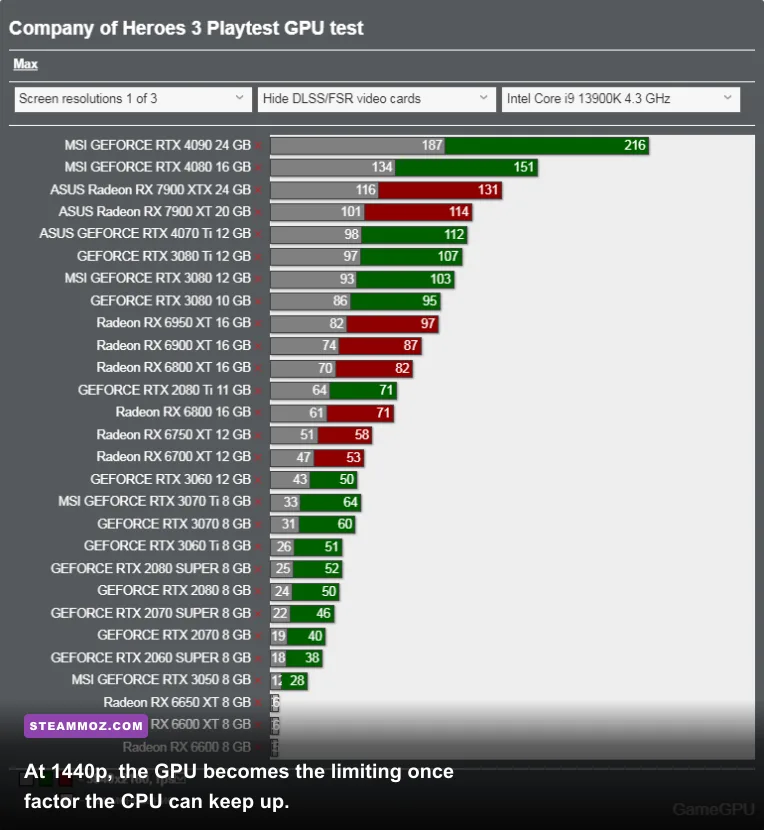
At 1440p, the GTX 1660 and RX 5600 become compromise cards. They can handle medium-to-high settings, but you'll likely need to reduce shadows and effects to preserve consistency. An RTX 3060, RX 6700 XT, RTX 4060, or better is a more comfortable choice. At 4K, the GPU load becomes severe, and even powerful cards can dip during smoke, explosions, and dense vehicle clashes. Use resolution scaling if you prefer a sharp 4K interface without paying the full native-rendering cost.
Don't confuse the average frame rate with responsiveness. Watch the one-percent low, especially if you experience brief freezes while zooming out. In Company of Heroes 3, those lows often point to CPU simulation, memory pressure, shader compilation, or asset streaming rather than a GPU that is simply too slow.
Best Graphics Settings for Smooth Company of Heroes 3

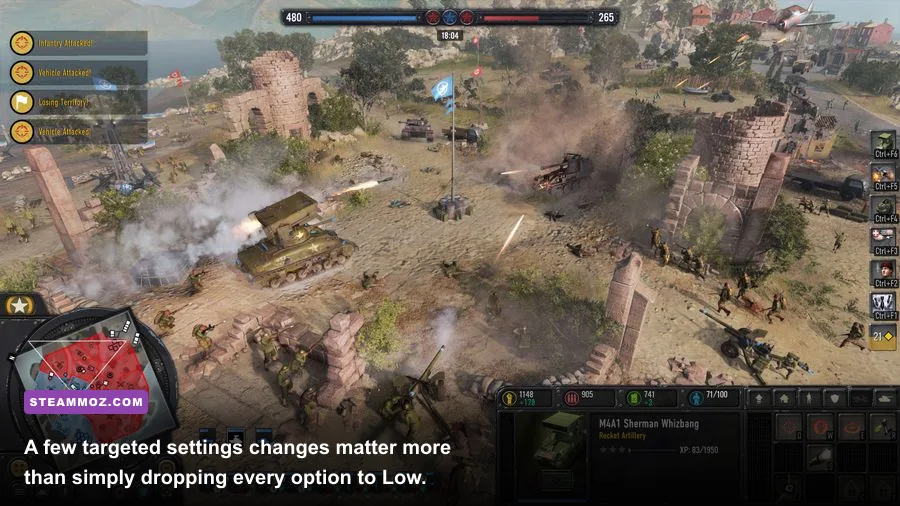
Company of Heroes 3's presets are a useful starting point, but they don't distribute performance perfectly. The highest-impact options are usually shadows, effects, ambient occlusion, and resolution. Texture quality is less expensive when your graphics card has enough VRAM, so don't automatically slash textures before touching effects.
| Setting | Recommended Value | FPS Impact | Visual Trade-Off |
|---|---|---|---|
| Resolution | Native 1080p or 1440p | Very high | Lowering it softens the entire image |
| Resolution scale | 90-100% | High | 90% is a good emergency performance gain |
| Texture quality | High with 6GB+ VRAM | Low to medium | Lower settings make terrain and vehicles blurrier |
| Shadow quality | Medium | High | Reduces soft shadows and battlefield depth |
| Effects quality | Medium or High | High | Lower values reduce smoke and explosion detail |
| Ambient occlusion | Medium | Medium | Less contact shading around buildings and armor |
| Anti-aliasing | Default temporal option | Medium | Lower options create shimmer on fences and foliage |
| Terrain and foliage | High | Low to medium | Lower values make maps look flatter |
| V-sync | Off with VRR, on if tearing appears | Variable | V-sync can add input latency |
The 60fps 1080p profile
For a GTX 1660-class card, set 1080p native resolution, textures to High, shadows to Medium, effects to Medium, ambient occlusion to Medium, and terrain to High. Keep anti-aliasing enabled, but lower resolution scale from 100% to 90% only if heavy effects cause repeated dips. This preserves the important details—unit silhouettes, cover objects, and building damage—without wasting performance on expensive shadows.
The laptop-friendly profile
On a GTX 1650 or RTX 2050 laptop, choose 1080p, a 90% resolution scale, Medium textures, Low-to-Medium shadows, Medium effects, and Low ambient occlusion. Plug the laptop into wall power, select its performance mode, and make sure the game uses the dedicated GPU instead of integrated graphics. Laptop cooling matters: a processor that reaches its thermal limit can lose clock speed halfway through a match.
For more general PC troubleshooting, Steamoz's ELEX crash and FPS fixes covers driver cleanup, overlays, and common Windows-side problems that also apply here. The same principle matters in Company of Heroes 3: fix instability before chasing two extra frames.
Why Company of Heroes 3 Is So CPU-Heavy
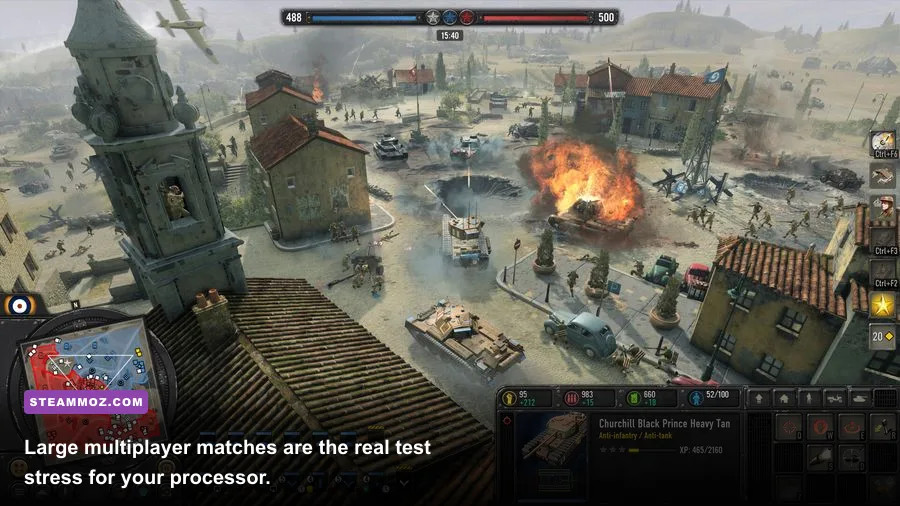
Every squad in Company of Heroes 3 is more than a visual prop. Infantry models occupy formation positions, react to suppression, seek cover, calculate movement, fire weapons, throw grenades, and respond to orders. Vehicles add pathfinding, armor interactions, turret behavior, destruction states, and collision checks. Multiply that across several armies and the processor becomes the gatekeeper.
The Italian Dynamic Campaign is a particularly useful stress test. As you capture towns, establish air and naval support, and move several companies across the strategic map, the game has more state to manage than a small 1v1 skirmish. The North Africa Operation can also hit the GPU harder when open desert battles combine tanks, explosions, smoke, and long sightlines.
A six-core CPU such as the Ryzen 5 3600 or Core i5-10400 is a sensible floor for a consistently pleasant experience. Newer chips like the Ryzen 5 5600, Core i5-12400F, and Ryzen 7 5700X offer stronger single-thread performance and better one-percent lows. Eight cores aren't mandatory, but they help if you stream, record, run Discord, or keep a browser open during matches.
Check CPU usage correctly. Overall utilization can appear low while one or two important threads are saturated. Use a monitoring overlay that shows per-core activity, CPU clock speed, GPU utilization, RAM, VRAM, and frame-time graphs. If GPU usage falls below roughly 90 percent while one CPU core is busy and frame time spikes during large engagements, lowering resolution won't fix the problem. Reduce simulation-heavy battle settings where possible, close background programs, and consider a CPU upgrade.
That is also why a faster GPU doesn't automatically transform a budget system. An RTX 4070 paired with an old four-core processor may deliver impressive menu and early-game numbers, then suffer the same late-battle dips as a much cheaper card. For RTS performance, balanced hardware beats a spectacular graphics card attached to a weak CPU.
Can Laptops, Integrated Graphics, and Steam Deck Run It?
Modern gaming laptops can run Company of Heroes 3 well, but model names hide major differences. An RTX 3060 laptop with a high-wattage power limit can outperform a lower-power RTX 4060 laptop in some situations. Check the laptop's GPU wattage, cooling design, and processor rather than relying on the badge alone. Dual-channel memory is important too; a single 8GB stick can reduce performance and create worse stutter.
Integrated graphics are a different story. Intel UHD graphics and older Vega solutions are below the sensible target, even if the game technically starts. Newer Radeon 680M/780M or Intel Arc integrated graphics may produce playable results at 720p or 900p with Low settings and reduced resolution scaling, but expect compromises. Large battles will still expose the limited graphics bandwidth.
Steam Deck support is not a simple yes-or-no answer. The game can be made playable with low settings and aggressive resolution scaling, but the device's four-core Zen 2 CPU and 15W power envelope make large battles challenging. Expect something closer to a 30fps experience than a locked 60fps one, and use a frame-rate cap to avoid wild swings. The small screen hides some visual reductions, but the simulation load remains.
Handheld owners should also leave room for shader cache and updates, keep the device cool, and avoid running the game from a slow microSD card if possible. If you want a smoother strategy experience on handheld hardware, a higher-power Windows handheld with a Ryzen Z1 Extreme-class chip has more headroom, though battery life will drop quickly in extended matches.
Upgrade Priorities and Fixes That Actually Work
If your PC misses the official minimum, don't buy parts randomly. Start by identifying the limit. GPU usage near 99 percent means the graphics card is working flat out; low GPU usage paired with poor battle FPS points toward the CPU, memory, or game simulation. A frame-time graph is more revealing than an average FPS counter.
| Problem | Likely Cause | Best First Fix | Worthwhile Upgrade |
|---|---|---|---|
| Low FPS everywhere | Weak GPU or high resolution | Lower resolution scale and effects | GTX 1660, RX 6600, or newer |
| Good early game, bad late game | CPU simulation bottleneck | Lower background load and cap FPS | Ryzen 5 5600 or Core i5-12400F class |
| Stutters while zooming | 8GB RAM, storage streaming, shaders | Use an SSD and close overlays | 16GB dual-channel RAM |
| Texture warnings or pop-in | VRAM pressure | Lower textures and effects | GPU with 8GB VRAM |
| Performance drops after 20 minutes | Thermal throttling | Clean vents and select performance mode | Better cooling or a desktop platform |
Install the latest driver from the NVIDIA driver page or AMD support page, then verify the game files through Steam if crashes began after an update. Disable unnecessary overlays one at a time—Steam, Discord, recording software, and GPU performance panels can all complicate troubleshooting.
Use an SSD, but don't expect it to create more raw FPS. It improves launch times, campaign transitions, and asset streaming. Likewise, more RAM won't fix a GPU-bound 1440p setup, but 16GB stops Windows from fighting the game for memory. These distinctions save money: upgrade the part shown by your frame-time data, not the part with the most impressive product name.
If another PC title is crashing or running poorly, Steamoz's guides for EscapeVR low-FPS fixes and Far Cry 6 performance settings offer useful Windows and graphics troubleshooting steps. For official patch notes and technical updates, follow Relic's Company of Heroes website.
The Bottom Line on Running Company of Heroes 3
If your computer matches the official minimum, Company of Heroes 3 should be treated as a low-settings, 30-to-45fps game with dips during major battles. That's playable for campaign experimentation, but it isn't the experience most PC strategy fans want. Eight gigabytes of RAM and an older four-core CPU are the biggest warning signs.
For 1080p, the strongest value target is a Ryzen 5 3600 or Core i5-10400 paired with a GTX 1660, RX 5600, RX 6600, or equivalent card and 16GB of dual-channel RAM. That setup won't guarantee a locked 60fps in every 4v4 battle, but it delivers the right balance for campaigns, skirmishes, and most multiplayer sessions. For 1440p High, step up to an RTX 3060, RX 6700 XT, RTX 4060, or better.
The real benchmark truth is simple: Company of Heroes 3 is easy to launch, moderately demanding to render, and genuinely demanding to simulate. Prioritize a modern CPU and 16GB of memory, keep expectations realistic for huge battles, and tune shadows and effects before sacrificing textures. Do that, and the game becomes far more consistent—and you won't spend an entire match staring at a slideshow just as the artillery starts landing.