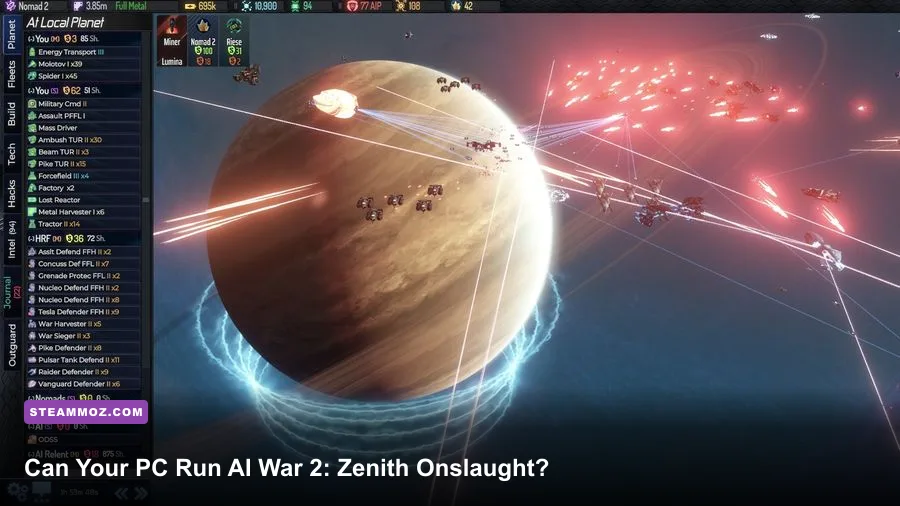
AI War 2: Zenith Onslaught is exceptionally friendly to older gaming PCs. The official Steam minimum is only a 2 GHz processor, 2 GB of RAM, OpenGL 3.0-capable graphics, and roughly 2 GB of available storage. There isn't a demanding, separately published “recommended” specification from Arcen Games, so the sensible target is a modern dual-core or quad-core CPU, 4-8 GB of RAM, a dedicated or recent integrated GPU, and an SSD. That setup won't just launch the game; it will handle the enormous late-game fleet counts and busy galaxy maps with far fewer pauses.
That distinction matters. AI War 2 is not a traditional graphics showcase where the GPU does all the heavy lifting. Its 2D presentation is deliberately clean, but the simulation can track thousands of ships, stations, projectiles, scouting events, defenses, and AI behaviors at once. Zenith Onslaught adds more strategic complexity to that pressure. A machine can pass the minimum check and still feel sluggish when the campaign reaches its most crowded turns.
AI War 2: Zenith Onslaught system requirements at a glance
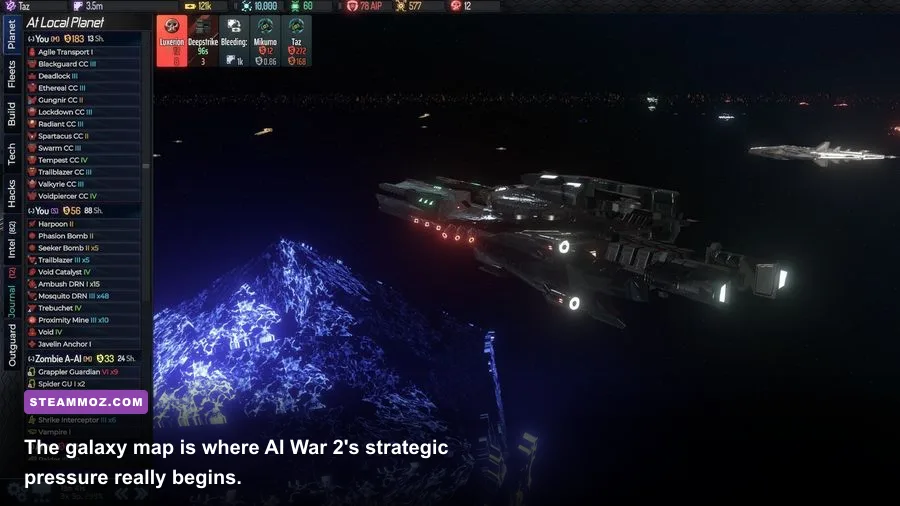
Here are the published baseline requirements alongside a more useful real-world target. The first column reflects the kind of configuration needed to start the game; the recommended column is the hardware profile I'd choose for a comfortable campaign, especially if you're playing on a large map or using co-op.
| Component | Official minimum | Practical recommended | Why it matters |
|---|---|---|---|
| Operating system | Windows 7 or later; SteamOS/Linux supported through Steam | Windows 10/11 64-bit or a current supported Linux distribution | Newer systems generally provide better driver support and smoother windowed play |
| Processor | 2 GHz CPU | Modern 4-core CPU around 3 GHz or higher | Late-game simulation and pathfinding are more CPU-sensitive than the visuals |
| Memory | 2 GB RAM | 8 GB RAM, with 4 GB workable | Large maps, browsers, overlays, and co-op sessions benefit from extra headroom |
| Graphics | OpenGL 3.0-compatible GPU | Recent integrated graphics or an entry-level dedicated GPU | Rendering is light, but old drivers can cause display and scaling problems |
| Storage | About 2 GB available | 2 GB on an SSD, plus spare space for Steam and saves | An SSD reduces launch and save-load friction rather than increasing raw FPS |
| Internet | Broadband connection for online features | Stable broadband for multiplayer and workshop content | Connection quality matters more than bandwidth during co-op |
The storage requirement is tiny by current standards. You don't need a 1 TB gaming rig for this expansion, and Zenith Onslaught doesn't suddenly transform AI War 2 into a 3D hardware monster. If your computer can run a decade-old indie strategy game, it is probably in the conversation. The two areas worth checking are OpenGL support and CPU age.
Linux users should also check the official Steam listing for AI War 2 before installing. Compatibility can depend on your distribution, graphics stack, and whether you're running the native build or a compatibility layer. For the expansion itself, the Zenith Onslaught Steam page is the right place to verify ownership and current platform information.

🎮 AI War 2: Zenith Onslaught
Looking to experience this game? Grab your digital key directly on our store for $3.99.
View on Steammoz Store →What the minimum specs really mean in a campaign
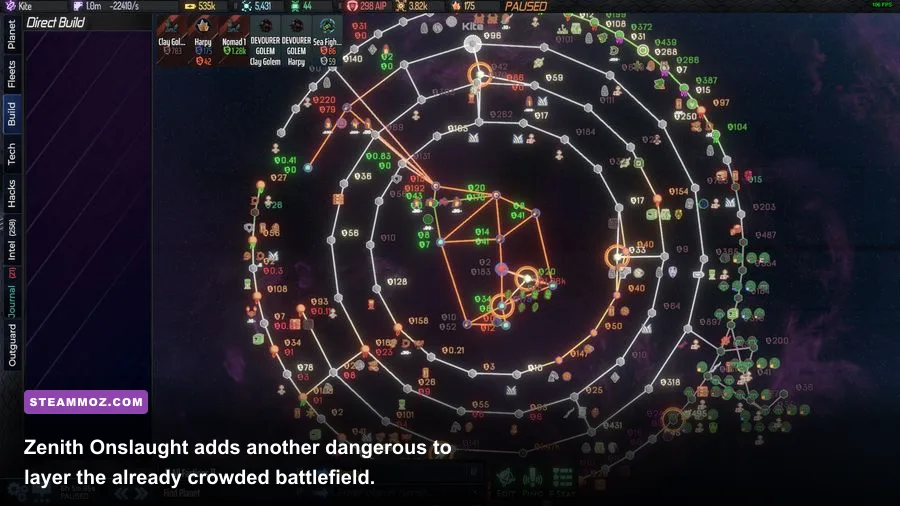
A minimum requirement can be misleading in a game built around escalation. AI War 2 asks you to invade planets, steal technology, manage command limits, redirect fleets, and survive an AI empire that becomes more alert as you expand. The minimum hardware can run that foundation, but it gives you less breathing room when the strategic layer gets busy.
At the start of a campaign, a 2 GHz processor and 2 GB of RAM should be enough for modest maps and a limited number of active fleets. The map is readable, battles are mostly small, and the game spends less time evaluating simultaneous movement and combat. You may see perfectly acceptable performance during the opening hours even on an old office laptop.
The stress arrives later. AI War 2 can place huge numbers of ships and defenses across a galaxy containing dozens of planets. Every additional system adds more potential movement, targeting, reinforcement, scouting, and threat calculations. Zenith Onslaught is most interesting when the campaign is already producing complex fleet interactions, which is exactly when a borderline machine has the most work to do.
That workload usually feels like simulation hesitation rather than a dramatic graphics crash. Menus may open normally while the game takes longer to process a command or finish a pause. A weak CPU can also make the game feel uneven when you zoom out over a packed planet, even though the individual sprites are simple. This is why a basic GPU upgrade won't necessarily solve every performance problem.
RAM is another practical dividing line. Two gigabytes is enough for the game alone, but modern Windows background services, a browser with several tabs, Discord, recording software, and Steam overlays can consume the remaining capacity. If Windows starts paging to disk, save loads and transitions become much rougher. On a minimum-spec laptop, close Chrome, disable unnecessary overlays, and avoid recording software unless you know the system has headroom.
For a useful comparison, the same principle appears in other demanding strategy and simulation games: the nominal graphics requirement often isn't the real bottleneck. Our BioShock Infinite PC specs guide covers a more GPU-heavy example, while the Citizen Sleeper 2 performance fixes show why memory, drivers, and background applications can matter as much as headline hardware.
Who should stick to small maps?
If your PC is close to the official minimum, choose a smaller galaxy and avoid stacking every optional challenge at once. Smaller maps reduce the number of active planets and shorten the distance that fleets must evaluate. You can still experience the campaign's core tension, but you won't be asking an old dual-core laptop to process a sprawling war while streaming video in the background.
Keep the game paused while issuing a long series of commands, then let the simulation run after your orders are set. That habit is useful for strategy regardless of hardware, but it also reduces the feeling that the game is lagging while your computer catches up.
The recommended PC build for large maps and Zenith fleets
For a comfortable experience, prioritize CPU consistency over a premium graphics card. A modern Core i3, Ryzen 3, or equivalent four-core chip is already more sensible than the official 2 GHz baseline. A Core i5 or Ryzen 5 gives you a stronger cushion for large maps, Discord, browser tabs, and multiplayer without turning the purchase into overkill.
Eight gigabytes of RAM is the sweet spot for an inexpensive dedicated machine. Four gigabytes can work if the PC is clean and the game is your main application, but 8 GB is the better long-term choice. It leaves enough room for Steam, voice chat, a wiki tab, and save backups while reducing the chance that Windows starts using the page file during a long session.
You also don't need a high-end graphics card. A recent Intel integrated GPU, AMD integrated graphics, or entry-level NVIDIA/AMD card should be comfortably above the game's OpenGL 3.0 floor. What matters is having a current driver and enough shared memory if you're using integrated graphics. Older GPUs may technically support the required API but still produce odd scaling, flickering, or poor compatibility in unusual resolutions.
| PC profile | CPU and RAM | Graphics target | Best use case |
|---|---|---|---|
| Minimum laptop | 2 GHz CPU, 2 GB RAM | OpenGL 3.0 integrated graphics | Small maps, low background activity, solo play |
| Budget sweet spot | Modern 4-core CPU, 8 GB RAM | Recent integrated GPU | Normal campaigns, large map experimentation, Steam overlays |
| Comfortable desktop | Core i5/Ryzen 5-class CPU, 8-16 GB RAM | Entry-level dedicated GPU or better | Large galaxies, co-op, recording, multiple applications |
| Overkill gaming PC | Modern 6-core CPU, 16 GB RAM | Any current gaming GPU | Streaming and multitasking; not required for image quality |
An SSD is strongly preferable, though it won't magically increase the simulation's frame rate. It makes launching, loading saves, and recovering from a long session feel snappier. If your operating system is already on an SSD, installing AI War 2 there is an easy win. A hard drive is still usable because the game is small, but old mechanical drives add avoidable waiting.
For co-op, network stability is more important than extreme bandwidth. Each player can be managing a different section of the galaxy, and a flaky connection can interrupt an otherwise smooth session. Close downloads, pause cloud-sync tools if they are constantly active, and use wired Ethernet when possible. The official Arcen Games website is also worth checking for current support information and developer updates.
Best settings for smoother late-game performance
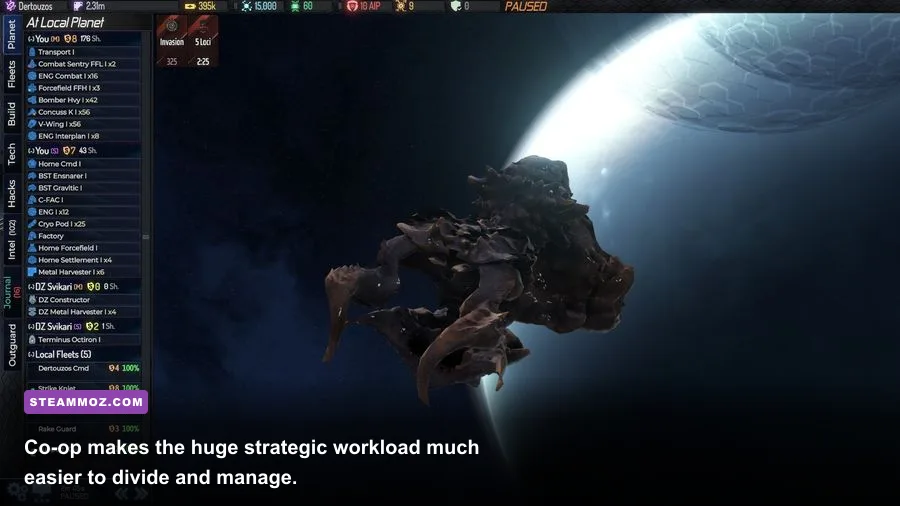
AI War 2 doesn't need a long list of cinematic graphics tweaks. Its interface is dense by design, and turning everything down can make the strategic picture harder to read without fixing the real bottleneck. Start with the game's display options, then test one change at a time during a crowded battle rather than judging performance from an empty planet.
| Setting or habit | Recommended value | Performance impact | Visual or gameplay note |
|---|---|---|---|
| Resolution | Native monitor resolution; reduce one step on weak integrated graphics | Low to moderate GPU impact | Lower resolution can make small ship icons harder to distinguish |
| Fullscreen mode | Use the mode that behaves best with your driver | Usually minor | Borderless is convenient; exclusive fullscreen can help on older systems |
| Effects and particles | Reduce only if large battles stutter visually | Moderate GPU impact in crowded fights | Keep combat feedback readable whenever possible |
| Zoom level | Stay closer during heavy fights | Can reduce draw and interface clutter | Zooming out is strategically useful but visually expensive on busy maps |
| Steam overlay | Disable for troubleshooting | Usually small, occasionally noticeable | Re-enable it if it doesn't cause hitching |
| Background apps | Close browsers, recorders, and launchers | High CPU/RAM benefit on minimum PCs | Often more effective than lowering resolution |
| Save management | Keep several manual saves and clean old files | No direct FPS gain | Protects long campaigns if a system crash or mod issue appears |
If the game looks smooth but pauses between actions, lower visual settings first only as a quick test. The stronger fix is usually reducing campaign scale, closing background programs, or moving to a machine with a faster CPU. If frame pacing is the problem, update your graphics driver and test fullscreen versus borderless. Don't assume a brand-new GPU will fix a processor that is struggling with the simulation.
Mods and workshop content deserve caution on minimum systems. AI War 2's community is one of its strengths, but additional content can change the number of objects, behaviors, and assets active in a campaign. Test a mod in a fresh save before adding it to a long-running game. If performance drops suddenly after installing one, disable it and compare the same map.
How Zenith Onslaught changes the hardware conversation
Zenith Onslaught isn't a visual overhaul that raises the GPU bar. Its impact is strategic: it expands the AI War 2 sandbox with Zenith-related content and gives experienced players another reason to push campaigns into the dangerous, crowded portions of the map. That means the expansion's practical requirement is tied to campaign scale, not texture quality or shader effects.
On a minimum PC, you can still play the expansion if you keep your map and background workload under control. On a recommended PC, you have more freedom to explore the expansion's systems without treating every large engagement as a hardware stress test. That is the difference between “runs” and “runs well.”
Before buying, compare your system against the official AI War 2 Steam community hub and the current store pages rather than relying on an old forum post. Check your CPU model, installed RAM, and graphics API support. On Windows, pressing Win+R, entering dxdiag, and checking the Display tab gives you a quick look at the GPU and driver version. On Linux, your distribution's system information tools can confirm the active OpenGL renderer.
For most players, the verdict is reassuring: AI War 2: Zenith Onslaught is a low-spec strategy expansion with unusually high late-game simulation demands. A 2 GHz CPU, 2 GB of RAM, OpenGL 3.0 graphics, and around 2 GB of storage satisfy the baseline. A modern four-core processor, 8 GB of RAM, current integrated graphics, and an SSD are the smarter recommended target.
Want more PC optimization advice? Steamoz's settings guide for turning stutter into smooth FPS covers the broader Windows-side fixes, while our Eiyuden Chronicle performance guide offers another practical look at balancing image quality and frame rate. For Zenith Onslaught, though, the key rule stays simple: protect CPU headroom, give the game enough memory, and don't judge performance only by how quiet the opening hours feel.