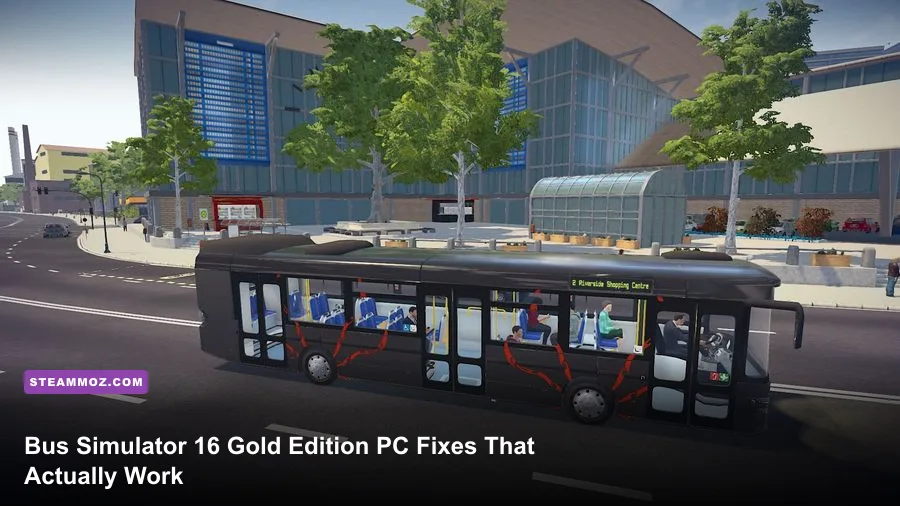
If Bus Simulator 16 Gold Edition crashes on startup or crawls below 30 FPS, the most reliable fix is to repair the installation, disable overlays, run the game on the dedicated GPU, and use a low-to-medium profile with shadows and post-processing reduced first. This older Unreal Engine 4-era simulator often struggles with modern overlay software, hybrid graphics laptops, corrupted configuration files, and CPU-heavy city traffic rather than raw GPU power alone.
The Gold Edition bundles the base game with additional content, but it does not fundamentally change the PC troubleshooting steps. Start with the short sequence below before chasing obscure fixes: restart Steam, verify the game files, update or clean-install your graphics driver, disable Steam and Discord overlays, remove launch tweaks, then reset the local configuration. If the game launches but performance is poor, cap the frame rate to 30 or 60, lower shadows and ambient effects, and make sure Windows is using your Nvidia or AMD graphics card instead of integrated graphics.
Start With the Fixes That Solve Most Crashes
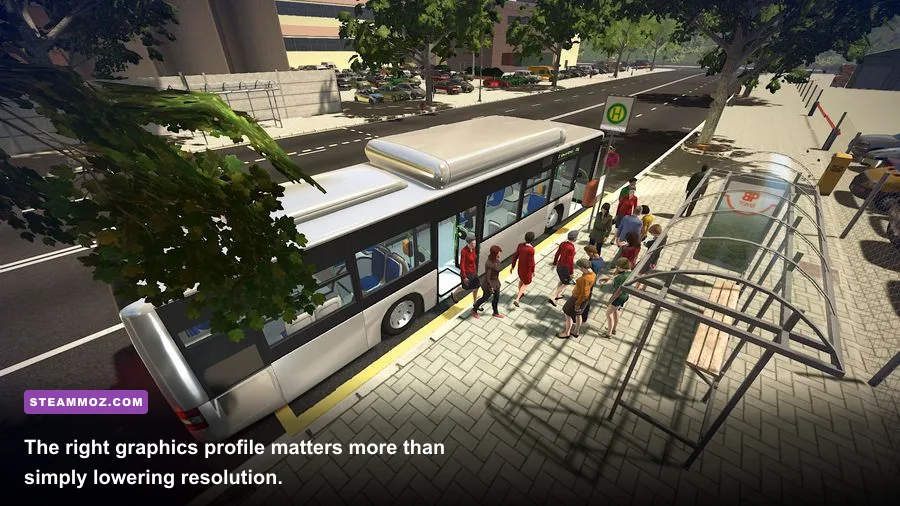
Do these in order. Testing after every step matters because it tells you which change actually helped instead of leaving you with a pile of unexplained tweaks.
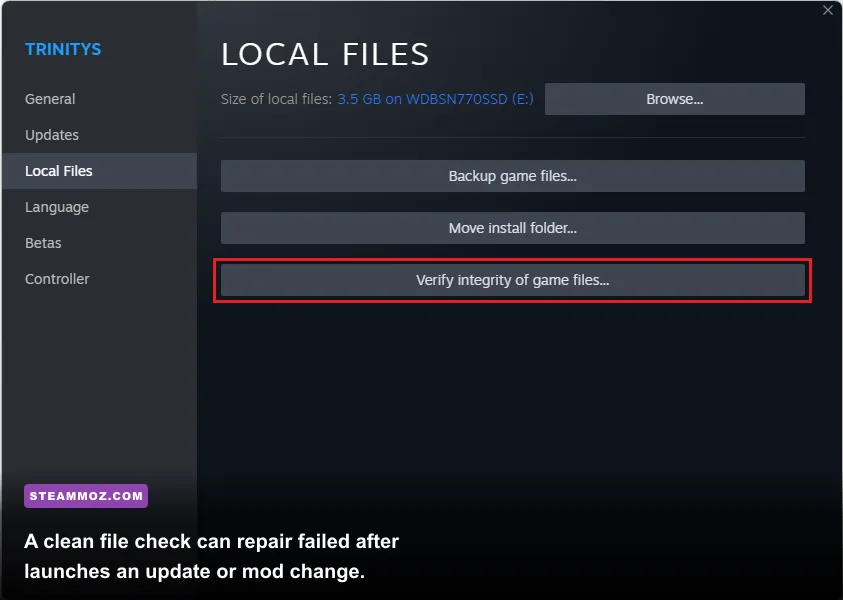
1. Verify Bus Simulator 16's files in Steam
Open Steam, right-click Bus Simulator 16 in your Library, choose Properties, open Installed Files, and select Verify integrity of game files. Steam will replace missing or damaged files. This is particularly useful if the game crashes while loading a route, hangs after selecting a bus, or began failing after moving the installation to another drive.
Don't launch the game repeatedly while Steam is still checking. Once the process finishes, reboot Windows and try a clean launch with no mods, reshade injector, controller remapper, or third-party frame counter running.
2. Turn off overlays and monitoring hooks
Overlay conflicts are a common reason older PC games close without an error message. Disable the Steam overlay under the game's Properties page, then temporarily shut off Discord overlay, Xbox Game Bar, Nvidia GeForce overlay, AMD Software overlay, MSI Afterburner, and RivaTuner Statistics Server. You can restore them one at a time later.
RivaTuner deserves special attention. Its frame limiter and on-screen display inject into the rendering pipeline, and some older Unreal Engine games react badly to that hook. If you need a frame cap, use the in-game option where available or the driver-level limiter instead.
3. Launch the executable with sensible permissions
Find the installation folder through Steam's Browse local files command. Right-click the game's executable, open Properties, select Compatibility, and test Disable fullscreen optimizations. If Windows reports an access or permission error, enable Run this program as administrator only as a test. Administrator mode is not a performance boost and shouldn't be your permanent first choice.
Also check Windows Security's ransomware protection. Controlled Folder Access can block a game from writing save files or configuration data, causing a crash during startup. Add the game's executable as an allowed app if Windows Security shows a blocked event.
4. Reset the local configuration
A damaged resolution, fullscreen mode, or graphics value can crash the game before the main menu appears. Back up your saves first, then rename the Bus Simulator 16 configuration folder in your Windows user data or AppData location rather than deleting it immediately. The exact folder can vary by Windows version and installation setup, so use File Explorer search for Bus Simulator 16 and prioritize folders containing settings, config, or save files.
Renaming the folder to something like BusSimulator16_backup forces fresh settings on the next launch while preserving a rollback copy. If the game starts afterward, reapply settings gradually. Do not copy the old configuration back wholesale; one broken display value may simply recreate the crash.
5. Install current runtime components
Repair or install the Microsoft Visual C++ Redistributable packages supplied by Microsoft, especially the x64 package. Missing runtime files can produce an immediate crash with no useful in-game message. Update DirectX components through Microsoft's official installer as well. These packages are separate from your graphics driver and Windows Update does not always restore every legacy dependency a game expects.
For driver problems, download the correct driver directly from the official Nvidia driver page or official AMD support page. A clean installation is worth trying if Bus Simulator 16 started crashing immediately after a driver update.
| Symptom | Most Likely Cause | First Action | Follow-Up |
|---|---|---|---|
| Crash before the menu | Bad config, overlay, or runtime | Disable overlays and rename config | Repair Visual C++ and DirectX |
| Crash while loading a route | Corrupt game file or driver hook | Verify files | Remove mods and monitoring tools |
| Black screen then exit | Invalid fullscreen or GPU selection | Reset config | Force the dedicated GPU |
| Random desktop crashes | Driver timeout, heat, or overlay | Clean-install driver | Check temperatures and cap FPS |

🎮 Bus Simulator 16 Gold Edition
Looking to experience this game? Grab your digital key directly on our store for $3.99.
View on Steammoz Store →Fix Bus Simulator 16 Low FPS and Stutter
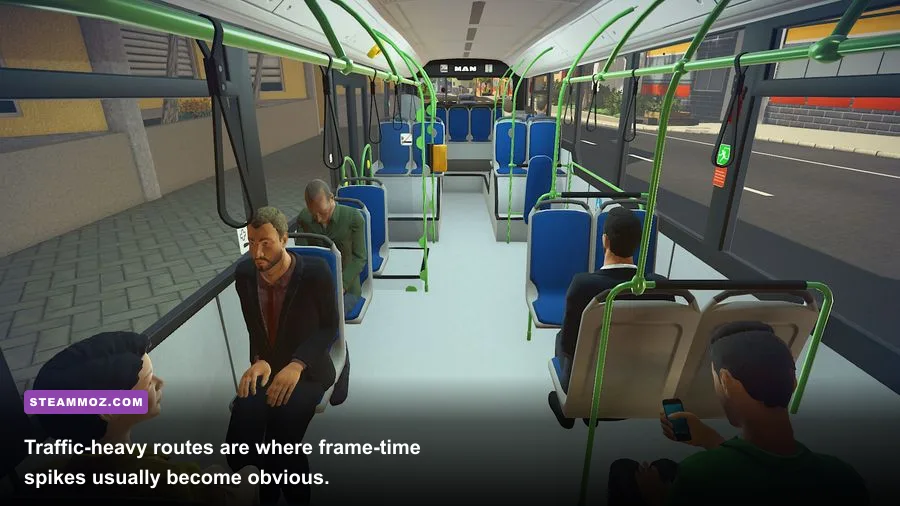
Low FPS in Bus Simulator 16 isn't always a sign that your graphics card is too weak. The simulation also has to update traffic, pedestrians, passenger behavior, route events, and the visible city. That makes the busiest streets more CPU-limited than an empty road. A graphics preset that looks acceptable in the garage can still stutter when several buses and traffic lanes enter view.
First, watch GPU usage while driving. If the GPU sits around 95–99 percent, reduce resolution scale, anti-aliasing, shadows, and screen-space effects. If the GPU is only at 50–70 percent while one CPU core is heavily loaded, lowering resolution won't do much. In that case, reduce traffic or view-distance-heavy settings, close background applications, and use a stable frame cap.
On a 60 Hz display, a locked 30 FPS can feel better than an unstable 37–55 FPS. The simulator's camera movement and steering benefit from consistent frame pacing, especially in first-person cockpit view. If your computer cannot hold 60 FPS in a crowded downtown area, test a 30 FPS cap before turning every setting to its lowest value.
| Setting | Recommended Starting Value | FPS Impact | Visual Trade-Off |
|---|---|---|---|
| Resolution | Native desktop resolution | High if reduced | Lower values look softer; use only when GPU-limited |
| Resolution scale | 90–100 percent | High | Lower scale improves GPU headroom but blurs distant signs |
| Shadows | Low or Medium | High | Less detailed bus and building shadows |
| Anti-aliasing | Medium | Medium | More jagged edges at Low; expensive at the top setting |
| Post-processing | Low | Medium | Reduced bloom, depth effects, and image polish |
| Texture quality | Medium or High | Low to Medium | Keep higher if VRAM allows; textures usually cost less than shadows |
| Effects quality | Low or Medium | Medium | Less visible environmental and weather detail |
| View distance | Medium | Medium to High | Objects and detail appear closer to the bus |
| V-Sync | On for tearing, off for testing | Variable | May add latency or expose uneven frame pacing |
Use a sensible performance profile
For a mid-range PC, begin at 1920x1080, medium textures, low shadows, medium anti-aliasing, low post-processing, medium effects, and medium view distance. Restart the game after changing several options because some older titles do not apply every renderer change cleanly while a route is active.
For an older laptop, use 1600x900 or 1280x720, low shadows, low effects, low post-processing, medium textures, and a 30 FPS cap. Keep textures at medium if the laptop has enough VRAM; dropping textures first often makes the game look worse without fixing a CPU bottleneck.
For a modern gaming PC, don't blindly max everything. Try native resolution, high textures, medium shadows, medium effects, and medium view distance. Bus Simulator 16 is old enough that modern hardware can deliver high average FPS while still producing ugly one-percent-low dips from background processes or a poorly paced frame queue. Stable beats spectacular here.
Stop Crashes Caused by GPUs, Windows, and Steam
Hybrid laptops are a special trap. Windows may launch Bus Simulator 16 on the Intel or AMD integrated GPU even when an Nvidia GeForce or Radeon discrete chip is installed. Open Settings > System > Display > Graphics, add the game's executable, choose Options, and select High performance. Nvidia users can also set the executable to High-performance Nvidia processor in Nvidia Control Panel. AMD users should select the high-performance profile in AMD Software.
Plug the laptop into AC power and select a performance-oriented Windows power mode. Battery-saving modes can cap clocks, disable the dedicated GPU, or create aggressive frame-time spikes. Check the laptop manufacturer's control panel too; silent, balanced, and turbo modes can have a bigger impact than the game's graphics menu.
Watch temperatures and clock behavior
If FPS starts normally and collapses after ten or twenty minutes, check temperatures and clock speeds rather than reinstalling the game. A CPU or GPU that reaches its thermal limit will reduce frequency, causing stutter and sometimes a driver reset. Clear blocked vents, avoid playing on a bed or blanket, and test with a reasonable 30 or 60 FPS cap. The cap reduces unnecessary heat and gives the system more consistent frame times.
Remove aggressive compatibility tweaks
Community fixes sometimes recommend forcing old DirectX modes, adding undocumented launch arguments, or replacing DLL files. Those changes can help a specific machine, but they can also cause crashes after a Windows or driver update. Remove custom launch options from Steam while troubleshooting. If you use ReShade, Special K, DLL wrappers, or texture modifications, move them out of the game directory and establish a clean baseline first.
Don't install random “FPS booster” utilities. They commonly close useful background services, inject another overlay, or alter registry values that have nothing to do with Bus Simulator 16's renderer. A clean driver, a verified installation, and a measured graphics profile are safer and easier to reverse.
Check Windows Event Viewer when the game gives no clue
Press the Windows key, search for Event Viewer, and open Windows Logs > Application. Look for an Error entry at the exact crash time. An entry naming the graphics driver suggests a driver timeout or overlay conflict; a missing DLL points toward a runtime repair; an application fault with no driver reference makes a corrupted config, game file, or mod more likely. Event Viewer won't always identify the final answer, but it stops guesswork.
For broader PC troubleshooting, Steamoz's ELEX crash and FPS fixes and Everspace 2 performance guide cover similar driver, overlay, and frame-pacing problems in other PC releases.
Use This Clean Reinstall Process
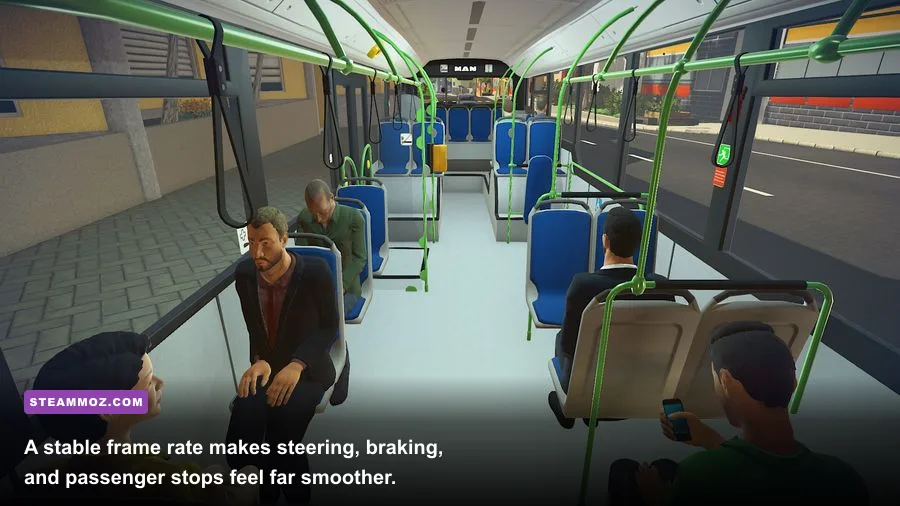
If Bus Simulator 16 Gold Edition still crashes after verification, perform a clean reinstall instead of simply pressing Install again. Uninstall through Steam, then inspect the old installation folder for leftover DLL injectors, reshade files, or mod folders. Back up saves separately, remove the remaining game directory, restart Windows, and reinstall to a short local path with plenty of free space.
After reinstalling, launch the game before restoring saves or custom files. Test the main menu, open a route, drive for ten minutes, and then add your controller software or overlays one at a time. This sequence identifies whether the problem belongs to the installation, the saved data, or an external tool.
| Test Stage | What to Do | Pass Condition | If It Fails |
|---|---|---|---|
| Fresh launch | Run with no overlays or mods | Main menu opens reliably | Reset config and repair runtimes |
| Route loading | Start a default route | Loads without a desktop exit | Verify files and test driver rollback |
| Ten-minute drive | Use a busy city route | No crash or severe stutter | Check heat, clocks, and GPU selection |
| Restore saves | Copy back backed-up save data | Progress loads normally | Test an older save or fresh profile |
| Re-enable tools | Add one overlay or utility at a time | Performance remains stable | Remove the last tool added |
Saved data can be the hidden trigger if only one career or route crashes. A damaged save may fail at the moment the game tries to load a specific bus, passenger event, or city state. Compare a fresh profile with your existing one. If a new profile works, keep the backup and restore saves individually rather than copying every file back at once.
The Best Stable Settings for Gold Edition
Once the game is stable, tune for frame-time consistency instead of chasing a benchmark number. The Gold Edition's extra content doesn't require a separate “Gold” performance mode, and there is no magic launch command that turns a CPU-heavy route into a lightweight one. The winning setup is boring in the best way: native resolution when possible, medium textures, conservative shadows, no injection tools, and a cap your PC can hold everywhere.
Recommended 60 FPS profile
Use native 1080p, medium anti-aliasing, medium textures, low-to-medium shadows, low post-processing, medium effects, and medium view distance. Cap at 60 FPS only if the busiest route stays above that target. If the frame rate dips into the 40s, switch to a 30 FPS cap rather than allowing constant fluctuation.
Recommended 30 FPS laptop profile
Use 1280x720 or 1600x900, low shadows, low post-processing, low effects, medium textures, and low-to-medium view distance. Keep the laptop plugged in, force the dedicated GPU, and close browser tabs, recording software, and launchers. A 30 FPS cap can reduce fan noise and prevent the thermal slowdown that feels worse than a lower locked target.
Finally, confirm that Steam itself is updated and check the game's official Steam page for announcements and community reports. The developer's official stillalive studios website is also the right place to confirm developer information rather than relying on suspicious fix downloads.
For comparison, the same troubleshooting logic applies to other older PC games: start with a clean installation, remove overlays, verify the actual GPU in use, and change one setting at a time. Steamoz's Far Cry 2 PC requirements guide and Dungeon Siege coverage are useful reminders that legacy games often need compatibility housekeeping more than expensive new hardware.
Most Bus Simulator 16 Gold Edition crashes disappear after the verify-files, overlay, configuration-reset, and dedicated-GPU sequence. Most low-FPS complaints improve when shadows, view distance, and post-processing are reduced while textures stay reasonable. If the game remains unstable after a genuinely clean reinstall, a fresh Windows profile and Event Viewer log are more valuable than another random tweak: they reveal whether the remaining problem is corrupted user data, a driver fault, or hardware behavior outside the simulator itself.