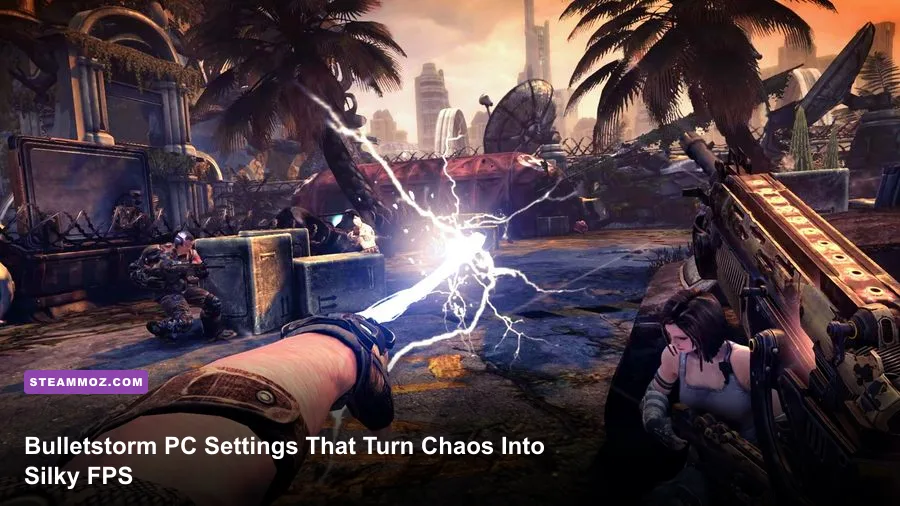
For the best Bulletstorm: Full Clip Edition graphics settings, start at native resolution with V-Sync off, Texture Quality on High, Shadows on Medium, Effects on Medium, Post Processing on High, and Anti-Aliasing on High. That profile preserves the game's sharp Unreal Engine 4 look while cutting the settings that cause the biggest dips during explosions, Leash combos, and heavy enemy waves. Then cap the frame rate to a number your PC can hold consistently rather than chasing a wildly unstable peak.
Full Clip Edition is not a modern live-service shooter with dozens of granular sliders. Its menu is comparatively compact, which is good news: you can find the real performance wins quickly. The tougher part is knowing which options affect ordinary corridors and which ones suddenly punish your GPU when Grayson Hunt turns a room into a fireworks display. This guide targets stable frame pacing, clean aiming, and maximum FPS without turning Stygia into a blurry mess.

🎮 Get Bulletstorm: Full Clip Edition
Ready to dive in? Grab your copy today for just $3.99.
Check OfferThe best Bulletstorm graphics preset for maximum FPS
Use the table below as the starting point for a conventional desktop or gaming laptop. It favors frame-time consistency over screenshot bragging rights. Bulletstorm's most spectacular moments combine explosions, fire, debris, enemy ragdolls, and the Energy Leash, so a setting that looks harmless in a quiet hallway can become expensive during a full Skillshot chain.
| Setting | Recommended Value | FPS Impact | Visual Note |
|---|---|---|---|
| Display Mode | Exclusive Fullscreen | Low | Usually gives the cleanest frame pacing and avoids desktop compositing issues. |
| Resolution | Native monitor resolution | Very High | Lower this before sacrificing textures if the GPU is overloaded. |
| V-Sync | Off; use a driver cap if needed | Low | Removes traditional latency and lets you test the real frame rate. |
| Texture Quality | High | Medium VRAM use | High keeps weapons, walls, and character surfaces crisp. |
| Shadow Quality | Medium | High | The best large-scale cut for GPU-heavy scenes. |
| Effects Quality | Medium | High | Reduces the cost of explosions, smoke, sparks, and elemental chaos. |
| Post Processing | High | Medium | Preserves the game's cinematic finish without maxing every effect. |
| Anti-Aliasing | High | Medium | Controls shimmering around rails, pipes, and weapon silhouettes. |
| View Distance or Detail | High | Low to medium | Keep it high unless you are CPU-limited in open combat arenas. |
If your system is comfortably above the recommended target, raise Effects Quality first and Shadows second. Those upgrades make the biggest difference in Bulletstorm's action scenes. Texture Quality is a poor first target for an FPS boost: dropping it can make the game look noticeably muddy while recovering little performance if your GPU is already handling its VRAM budget.
🎮 Bulletstorm: Full Clip Edition
Looking to experience this game? Grab your digital key directly on our store for $3.99.
View on Steammoz Store →Which settings affect FPS the most?
Resolution is still the heavyweight champion. Moving from 1440p to 1080p can deliver a dramatic gain when the GPU is the limiter, while moving from High to Medium shadows usually produces a smaller but more consistent improvement. If your average FPS looks fine but the game stutters when a Burnout or Flailgun blast fills the screen, Effects Quality is the setting to test.
Shadow Quality
Shadows are expensive because they require the engine to render extra scene information from light sources. High shadows give Stygia's industrial spaces stronger depth, but the difference between Medium and High is much easier to notice in screenshots than during combat. Medium is the sweet spot for 60 FPS systems and a sensible starting point for 120 FPS targets.
Effects Quality
Effects Quality matters most when you use the Peacemaker Carbine's charged shot, the Flailgun, or explosives against clustered enemies. These attacks produce the exact combination that creates frame-time spikes: bright particles, volumetric-looking smoke, physics reactions, and multiple damage effects. If performance collapses only during combat, lower this before Texture Quality.
Post Processing and Anti-Aliasing
Post Processing controls the finishing pass: bloom, color treatment, depth-of-field-style effects, and other cinematic touches. High preserves Bulletstorm's exaggerated action-movie look. Anti-Aliasing is more valuable for image stability, especially at 1080p, where thin geometry and distant rails can shimmer while you sprint through the campaign.
For a genuinely low-end profile, use 1080p or 900p, Medium Textures, Low Shadows, Low Effects, Medium Post Processing, and Medium Anti-Aliasing. That profile sacrifices atmosphere, but it keeps the important combat silhouettes readable. If the game still dips, don't immediately turn everything to Low. Check whether your system is CPU-limited first: lowering resolution will barely help when the processor is struggling with enemy AI, physics, and destruction.
Recommended profiles for 1080p, 1440p, and 4K
Native resolution is preferable because Full Clip Edition's post-process image can soften noticeably when you combine a low internal resolution with aggressive anti-aliasing. The right target is not the highest number your benchmark displays for two seconds; it is the frame rate you can hold while fighting multiple enemies in an arena.
| Hardware Goal | Resolution | Settings Profile | Practical Frame-Rate Target |
|---|---|---|---|
| Entry-level GPU or older laptop | 1080p | Textures Medium, Shadows Low, Effects Low, Post Processing Medium, AA Medium | 60 FPS with fewer combat dips |
| Mainstream 1080p gaming PC | 1080p native | Textures High, Shadows Medium, Effects Medium, Post Processing High, AA High | 60 to 120 FPS depending on GPU |
| Modern 1440p gaming PC | 1440p native | Textures High, Shadows Medium, Effects High, Post Processing High, AA High | 90 to 144 FPS depending on scene |
| High-end GPU | 4K native | Textures High, Shadows High, Effects High, Post Processing High, AA High | 60 FPS or higher with scene variation |
| Steam Deck-style handheld | 1280x800 | Textures Medium, Shadows Low, Effects Low, Post Processing Medium, AA Medium | Locked 40 or 60 FPS profile |
At 1440p, High Textures are generally worth keeping if your graphics card has enough VRAM. At 4K, however, resolution dominates the workload. A 4K player chasing 60 FPS should reduce Shadows and Effects before dropping Texture Quality. If the game offers resolution scaling in your build, a modest 90 percent scale is often less distracting than turning every major quality option down.
For handheld play, a locked 40 FPS can feel better than an unstable 60. Set the refresh rate to 40Hz if available, use a frame-rate limiter, and keep Effects on Low or Medium. Bulletstorm is frantic, but its controls remain comfortable at 40 FPS when frame pacing is steady. Battery life also improves because the GPU is not constantly rendering frames the screen cannot show.
How to remove stutter and input delay
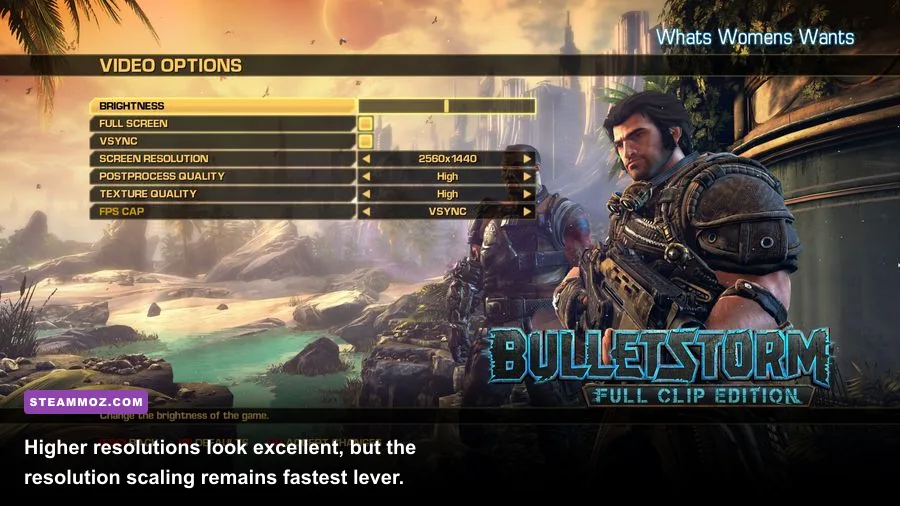
Start with a clean baseline. Disable V-Sync in-game, restart the title after changing major settings, and test the same demanding section for at least five minutes. A quiet checkpoint is useless for comparison. Use a combat-heavy sequence involving explosions, the Energy Leash, and several enemies, then compare one change at a time.
Use a sensible frame cap
If your monitor is 144Hz but Bulletstorm swings between 90 and 170 FPS, a 90 or 100 FPS cap can feel smoother than leaving the frame rate unlimited. For a 60Hz display, cap at 60 if your PC can hold it; if not, a stable 45 or 50 may be preferable to constant drops. Driver-level caps from NVIDIA, AMD, or RTSS are useful when the in-game limiter produces uneven pacing.
Watch VRAM and background load
Texture Quality primarily consumes video memory. If VRAM fills, you may see hitching when entering new areas even though the average FPS looks healthy. Close browsers, recording tools, and overlays while testing. Steam's overlay is normally harmless, but capture software can add latency and steal GPU time during the exact explosions that already stress the renderer.
Don't confuse shader compilation with permanent stutter
The first run after a driver update or fresh installation can feel rougher as shaders and assets settle. Give the game a complete restart and retest the same mission before declaring the installation broken. If stutter persists across every level, verify the installation through the official Steam page, update your GPU driver, and check that the game is installed on an SSD.
For broader PC troubleshooting ideas, Steamoz's ELEX PC fixes guide and Everspace 2 performance guide cover the same useful order of operations: verify files, remove conflicts, then tune graphics.
Final competitive-looking profile for smooth combat
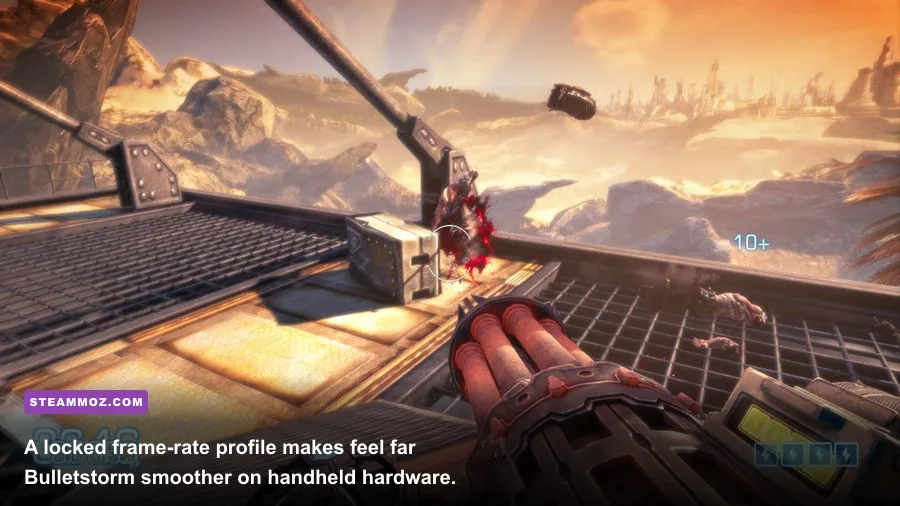
For most players, the best final profile is native resolution, Fullscreen, V-Sync Off, High Textures, Medium Shadows, Medium Effects, High Post Processing, High Anti-Aliasing, and High View Distance. Add a frame cap just below the refresh rate if you use adaptive sync. This keeps Grayson Hunt's weapons detailed, preserves the color and impact of Skillshots, and cuts the two settings most likely to turn a spectacular fight into a stuttery one.
| Priority | Change | Why It Works | When to Use It |
|---|---|---|---|
| 1 | Lower Resolution or Scale | Reduces the number of pixels the GPU must render. | GPU usage is near 99 percent. |
| 2 | Lower Effects Quality | Targets explosions, smoke, sparks, and combat bursts. | Dips happen during heavy Skillshots. |
| 3 | Lower Shadow Quality | Removes costly shadow-map work across the scene. | Performance is weak even outside combat. |
| 4 | Lower Post Processing | Reduces cinematic effects and finishing passes. | GPU load remains high after the first three changes. |
| 5 | Lower Textures | Reduces VRAM pressure, not usually raw shader workload. | You see asset-streaming hitching or VRAM saturation. |
Keep your expectations realistic: Bulletstorm: Full Clip Edition is a remaster of a fast, effects-heavy shooter, and some scenes will always be more demanding than an empty corridor. The goal is consistent delivery, not a benchmark screenshot. If you want more PC tuning ideas, compare the approach in Steamoz's Dragonkin settings guide or the practical hardware notes in Drawful 2's PC requirements breakdown.
Finally, consult Gearbox's Bulletstorm page and People Can Fly's official game page for current platform information. Once your cap is stable, stop chasing tiny menu gains and get back to the important work: kicking enemies into the air, threading a charged shot through a crowd, and making Stygia regret giving Grayson Hunt an Energy Leash.