For the best Blazing Chrome graphics settings, use native display resolution, exclusive fullscreen when available, VSync enabled for a clean locked frame rate, and disable CRT, scanline, and screen-shake effects if your PC shows stutter. Blazing Chrome is a lightweight 2D run-and-gun, so most systems should have no trouble reaching 60 FPS; when performance feels bad, frame pacing, scaling, overlays, or driver behavior are usually the real culprits rather than raw GPU power.
That distinction matters. Blazing Chrome’s combat is built around instant reactions, memorized patterns, and precise jumps through stages such as the Jungle, City, and Factory. A brief hitch during a boss projectile pattern can be more damaging than a lower average frame rate. The goal here isn’t to turn a gorgeous 16-bit-inspired game into a blurry compromise. It’s to keep the pixel art crisp, the controls responsive, and the frame time steady during the busiest fights.
This guide focuses on the PC version available through the official Steam store page. Menu labels can vary slightly between versions, so treat an option such as CRT filter or scanlines as optional if it appears in your build rather than forcing a setting that isn’t present.
The Best Blazing Chrome Performance Profile
If you want a single profile that works for nearly every modern PC, start with the game’s native resolution, fullscreen mode, VSync on, and every decorative filter off. Blazing Chrome was designed around a fixed-feeling arcade experience, and a stable 60 FPS is more valuable here than pushing an unnecessarily high refresh target.
| Setting | Recommended Value | Performance Impact | Visual Result |
|---|---|---|---|
| Display Mode | Fullscreen | Low to moderate benefit | Usually reduces desktop compositor interference |
| Resolution | Native monitor resolution | Low on most systems | Sharpest scaling and cleanest UI |
| VSync | On for 60 Hz; test off for high-refresh displays | Prevents tearing, may add slight latency | Smoother scrolling and movement |
| CRT or Scanline Filter | Off for maximum clarity and lowest overhead | Small GPU impact, possible frame-time cost | Removes simulated display effects |
| Screen Shake | Off if combat feels visually busy | Negligible FPS impact | Cleaner view during explosions and boss attacks |
| Window Scaling | Integer scaling or pixel-perfect option, if available | Negligible | Preserves hard pixel edges |
| Refresh Rate | 60 Hz target, or monitor maximum if stable | Depends on display and system | More responsive presentation at higher refresh rates |
Why native resolution is still the right starting point
Unlike a modern 3D game, Blazing Chrome doesn’t gain much from dropping resolution. The game’s sprites, backgrounds, projectiles, and HUD are deliberately pixel-based. Running a 1080p monitor at 900p or 720p may lower the number of pixels your display has to process, but it can also introduce soft scaling, uneven pixel blocks, or a slightly smeared image. On an entry-level laptop, lower resolution is worth testing. On a desktop that already handles the game comfortably, it’s usually a downgrade with almost no meaningful FPS reward.
Fullscreen is the sensible first choice because it gives the game direct control over presentation and avoids unnecessary desktop composition. Borderless windowed mode is perfectly usable if fullscreen causes alt-tab problems, but it can behave differently depending on Windows, GPU drivers, and overlays. If fullscreen feels less smooth, compare both modes rather than assuming one is universally faster.
Choose VSync based on the problem you actually have
VSync is not automatically a high-performance setting or a bad one. It synchronizes completed frames with your display refresh cycle. With a 60 Hz screen and a machine that can hold 60 FPS, enabling it generally produces the cleanest result. Without it, fast horizontal movement can show a torn line across the image, especially when sliding, jumping, or turning quickly.
The trade-off is latency. VSync can add a small amount of waiting when the game misses its presentation window. That’s rarely dramatic in a controller-focused platform shooter, but highly sensitive players may prefer it off on a 120 Hz or 144 Hz display. If you disable it, use your GPU driver’s frame limiter if available and test for tearing. Don’t stack multiple limiters blindly; an in-game cap, driver cap, and third-party overlay can fight each other.

🎮 Blazing Chrome
Looking to experience this game? Grab your digital key directly on our store for $4.24.
View on Steammoz Store →Every Graphics Setting Ranked by FPS Impact
Blazing Chrome’s low hardware demands mean the settings hierarchy is unusual. Resolution and filtering matter more for image quality than raw performance, while screen shake is mostly a comfort choice. You shouldn’t expect a dramatic jump from disabling one option. Instead, look for the combination that removes presentation stutter without damaging the game’s deliberate retro look.
| Graphics Option | FPS Priority | What to Use | When to Change It |
|---|---|---|---|
| Resolution | Medium | Native resolution | Lower it only on weak integrated graphics or a high-resolution monitor |
| Fullscreen Mode | Medium | Fullscreen | Use borderless if alt-tab or driver compatibility is poor |
| VSync | Frame-pacing priority | On at 60 Hz | Turn off to reduce latency or test tearing on high-refresh displays |
| CRT Filter | Low to medium | Off for a clean competitive image | Disable if the effect causes blur, flicker, or hitching |
| Scanlines | Low | Off unless you prefer the arcade look | Disable during troubleshooting |
| Screen Shake | Almost none | Personal preference | Turn off when explosions obscure enemy telegraphs |
| Post-Processing | Low to medium | Off if separately listed | Disable when effects coincide with stutters |
| Anti-Aliasing | Low | Off or default pixel-friendly option | Change only if diagonal edges look unpleasant |
CRT filters are a style choice, not a free upgrade
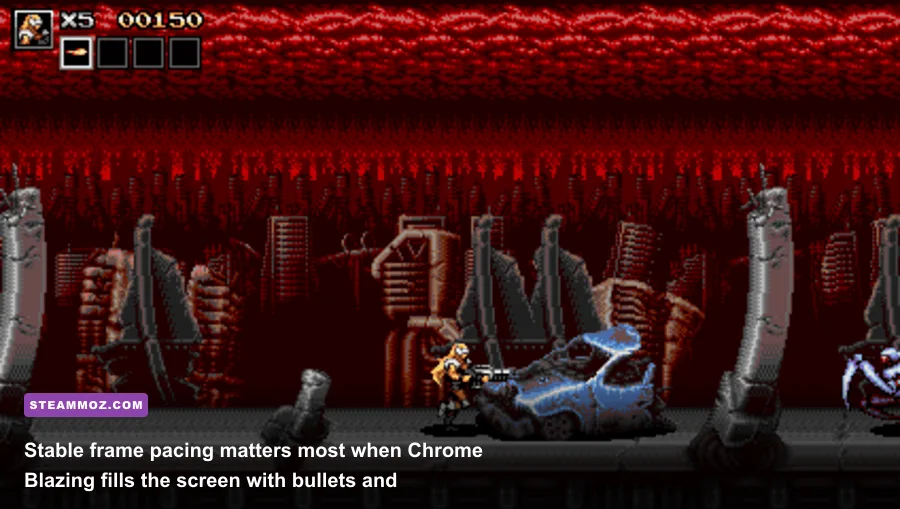
The CRT look can make Blazing Chrome feel closer to an old arcade cabinet, particularly in dark scenes and during the game’s bold red-and-blue explosions. It also adds blur, scanline structure, and sometimes a subtle flicker. Those effects can make individual projectiles harder to read. Since enemy attacks often arrive against busy backgrounds, clarity has a direct gameplay benefit.
Disable CRT and scanlines first when diagnosing an inconsistent frame rate. If the game becomes smooth, re-enable one filter at a time. This tells you whether the filter itself is the problem or whether the original hitch came from something else, such as Steam Overlay or a background process. There’s no need to sacrifice the retro presentation permanently if your system handles the effect cleanly.
Screen shake won’t rescue your FPS
Screen shake is frequently blamed for performance problems because it appears during explosions, large enemy spawns, and boss attacks. In practice, turning it off usually won’t create a major FPS increase. Its value is visual: removing the camera movement makes enemy telegraphs easier to follow, especially during crowded sequences. If you’re learning a stage on Hard difficulty, the cleaner view can feel like a performance upgrade even when the frame counter barely changes.
That’s particularly useful in co-op. A second character adds more bullets, muzzle flashes, hit effects, and movement to an already busy screen. If you’re playing local two-player mode and struggling to read incoming fire, disable screen shake before lowering resolution. You’ll preserve the game’s crisp sprite work while reducing visual noise.
Fix Stutter, Input Delay, and Uneven Frame Pacing
A game can report 60 FPS and still feel uneven. The counter may average every frame over a second, hiding a few long frames that arrive during an explosion or transition. In Blazing Chrome, that unevenness is easy to notice because movement is fast and animations are tightly timed. The following sequence isolates the likely cause without randomly changing every graphics option.
1. Establish a clean baseline
Restart the game after changing display mode, then test the same short section twice. Use a busy area rather than the quiet opening screen: a stage with multiple enemies, destructible objects, and large explosions will expose frame-time problems faster. Keep the resolution native, turn off CRT effects, and leave screen shake off. If the baseline is stable, restore cosmetic effects one by one.
2. Remove overlay interference
Steam Overlay, Discord, Xbox Game Bar, GPU recording tools, and performance monitors can all hook into a small game. They usually work fine, but an overlay update or capture process can produce stutter that looks like a graphics problem. Disable them temporarily, launch Blazing Chrome again, and repeat the same test. If the hitch disappears, re-enable features individually so you can identify the offender.
Also pause cloud synchronization and close browser tabs playing video while testing. This isn’t because Blazing Chrome needs a powerful CPU; it’s because a short background interruption is disproportionately visible in a game aiming for consistent 60 FPS. The same logic applies to other PC games with lightweight visuals, including the fixes covered in Steamoz’s guide to higher FPS in Filament: Marmalade Edition.
3. Compare fullscreen and borderless
Test both display modes for at least one complete stage section. Fullscreen may reduce presentation overhead, while borderless can play more nicely with modern Windows scaling and quick alt-tab behavior. If one mode produces visible hitching, keep the smoother option even if a benchmark suggests the other is theoretically faster.
4. Check controller and frame-rate behavior
If the image is smooth but the controls feel delayed, the problem may not be FPS. Wireless controllers can add intermittent input delay when their signal competes with other devices. Test with a wired pad, verify that Steam Input is using the intended layout, and compare keyboard input. Don’t confuse VSync latency with a failing controller; they require different fixes.
5. Update the right software, not everything at once
Install a current graphics driver if you’re using an older one, but avoid changing several variables in the same test. On laptops, set the game to the high-performance GPU in Windows Graphics settings if the system has both integrated and discrete graphics. Keep the laptop plugged in and use a performance power profile while testing. Battery-saving modes can reduce clocks even when the game appears visually simple.
For broader troubleshooting ideas, Steamoz’s Elex PC crash and FPS fixes and EscapeVR low-FPS troubleshooting guide cover the same overlay, power-plan, and driver checks. The technical details differ, but the diagnostic order is useful: establish a baseline, remove software interference, then adjust graphics.
Resolution Profiles for Different PCs
There’s no reason to chase one universal resolution target. Your monitor, refresh rate, scaling behavior, and GPU all matter. These profiles keep the image intentional instead of dropping settings at random.
| PC Profile | Resolution | Display Setup | Recommended Effects |
|---|---|---|---|
| Modern desktop GPU | Native 1080p, 1440p, or 4K | Fullscreen; VSync matched to display | CRT optional; screen shake based on preference |
| Integrated graphics laptop | Native 720p or 1080p | Fullscreen; plugged in | CRT and scanlines off; lower resolution only if needed |
| High-resolution monitor | Native panel resolution first | Integer or pixel-perfect scaling if available | Disable blur-heavy filters |
| Older PC | 720p or the display’s cleanest supported mode | Fullscreen; VSync on if stable | All optional filters off |
| High-refresh competitive setup | Native resolution | VSync off for testing; driver cap if needed | Effects off for maximum visual readability |
Why 4K can still be reasonable
Blazing Chrome’s underlying artwork remains low-resolution pixel art, but a high-resolution output can provide cleaner presentation on a 4K monitor when the game handles scaling properly. The GPU workload is still tiny compared with a 3D title, so 4K is worth trying on a desktop. If the image looks soft, the issue is scaling rather than insufficient graphical detail. Switch to integer scaling or a lower resolution that maps more cleanly to your panel.
At 1440p and 4K, Windows display scaling can also affect how a small game window is presented. If borderless mode looks oddly soft while fullscreen is sharp, use fullscreen. If fullscreen introduces flicker or makes alt-tab unreliable, borderless is the better practical choice. A perfect benchmark result means little if the image is uncomfortable to play.
Steam Deck and handheld considerations
On a handheld, battery life and frame consistency matter more than maximum output resolution. Use the device’s native panel mode, cap the game at a stable 60 FPS when possible, and avoid adding a second frame limiter unless troubleshooting. Screen shake off is a strong comfort setting on a small display, where a large explosion can obscure a bigger percentage of the action.
Keep the game’s pixel edges crisp rather than relying on aggressive filtering. Blazing Chrome’s appeal comes from its chunky sprites and readable silhouettes, including the resistance soldiers, mechanical enemies, and oversized bosses. A stable native presentation will look better than a higher theoretical frame rate paired with uneven scaling.
How to Verify Your Final Settings
Don’t judge a profile from the title screen. Verify it in motion, during the moments that actually test the game. Start a campaign run, move continuously through a busy section, and pay attention to three things: scrolling smoothness, control response, and projectile readability. If all three are consistent, your settings are doing their job.
The five-minute test
First, play for five minutes with VSync on and cosmetic filters disabled. Watch for repeated hitches at the same visual event. If the stutter occurs at exactly the same explosion every time, the effect or presentation path may be responsible. If it happens unpredictably, suspect overlays, background tasks, power management, or a driver issue.
Next, enable CRT or scanlines and repeat the same route. Then turn screen shake back on. This controlled approach reveals the trade-off clearly. You may discover that the filter has no performance cost at all, while screen shake makes the action harder to read. Or you may find the opposite on an older integrated GPU. The best profile is the one your hardware actually proves stable.
Use the right target
For most players, a locked 60 FPS is the sensible target. Don’t obsess over a reported 120 or 240 FPS if the game’s animation, display timing, or controller response doesn’t feel better at that rate. High-refresh monitors can make scrolling appear smoother, but consistency remains the priority. A clean 60 FPS with no tearing beats a fluctuating number that looks impressive in an overlay.
If your PC still struggles after every effect is disabled, lower resolution one step and retest. If that changes nothing, the GPU probably wasn’t the bottleneck. Revisit fullscreen, overlays, power settings, and background applications instead. You can also verify the installation through Steam and check updates from JoyMasher’s official website or the game’s Steam community and update page.
Finally, remember that performance and visibility are linked in a run-and-gun game. Disabling screen shake, keeping the image sharp, and avoiding blur-heavy filters can make enemy movement easier to read even when the FPS counter never changes. That’s the winning Blazing Chrome setup: native resolution, stable VSync behavior, minimal presentation clutter, and a frame rate that never gets in the way of the next jump, dodge, or burst of gunfire.