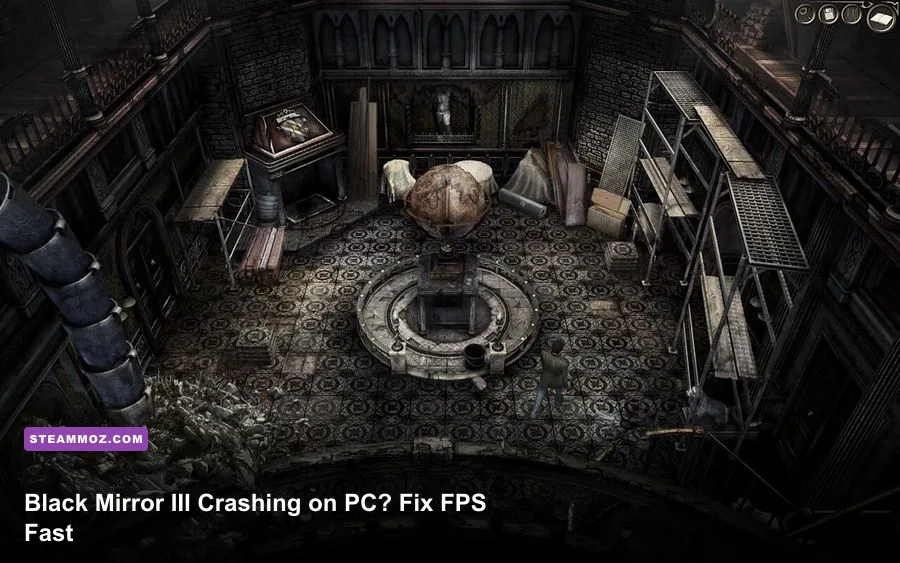
If Black Mirror III keeps crashing, freezing, or crawling at low FPS on PC, start with Steam file verification, disable overlays, run the game in Windows compatibility mode, and use a conservative 1280x720 or 1920x1080 profile. This 2011 adventure game is not demanding by modern standards; its problems usually come from old DirectX 9 behavior, fullscreen handling, video codecs, permissions, or unstable frame pacing rather than weak hardware.
Black Mirror III: Final Fear follows Samuel Gordon through another bleak investigation involving Black Mirror Castle, and the game remains a great fit for players who enjoy slow-burn mystery rather than action. You can check the current Black Mirror III Steam page before changing anything, especially if your installation is from a different storefront. The fixes below focus on the Steam PC release and Windows 10 or Windows 11 systems.
Start With the Fixes That Stop Most Crashes
Don't begin by downloading random DLL files. Old adventure games often appear broken because one external component, overlay, or permission setting is getting in the way. Work through these fixes in order, launching Black Mirror III after each major change so you know what actually helped.
1. Verify the installation
Open Steam, right-click Black Mirror III: Final Fear in your library, choose Properties, open Installed Files, and select Verify integrity of game files. Steam will replace damaged or missing files without touching your save data. This is especially useful after a forced shutdown, a failed update, or moving the game between drives.
2. Remove overlay conflicts
Turn off the Steam Overlay for this title under Properties > General. Also disable Discord Overlay, Xbox Game Bar, GeForce Experience or AMD recording overlays, MSI Afterburner’s on-screen display, and RGB software overlays. Black Mirror III is old enough that injected overlay layers can cause a crash during startup, when a cutscene loads, or when the game switches from a menu to gameplay.
3. Run the executable as administrator
Use Steam's local files option, locate the main Black Mirror III executable, right-click it, select Properties > Compatibility, and enable Run this program as an administrator. If the game closes while saving settings, this is one of the first changes worth trying. Do not enable administrator mode for every Steam game; apply it only to this older title.
4. Test compatibility modes
On Windows 11, try Windows 7 compatibility mode first, then Windows XP Service Pack 3 only if the game refuses to launch. Also tick Disable fullscreen optimizations. The compatibility troubleshooter can help, but manual testing is faster. If the game launches in a tiny window or crashes during a resolution change, compatibility mode combined with borderless windowed play is usually safer than forcing exclusive fullscreen.
For a clean baseline, consult Steam's official file-verification support instructions. If verification reports files repeatedly after every launch, check the drive for errors and make sure antivirus software is not quarantining the executable or a video file.
| Symptom | Most Likely Cause | First Fix | Second Fix |
|---|---|---|---|
| Crash before the main menu | Overlay, permissions, or DirectX startup issue | Disable overlays | Run as administrator and use Windows 7 mode |
| Crash when loading a save | Damaged file or unstable background hook | Verify game files | Disable recording and monitoring tools |
| Black screen with sound | Fullscreen or resolution handshake | Use windowed mode | Disable fullscreen optimizations |
| Random desktop crash | Codec, driver, or compatibility conflict | Update GPU driver | Install current Microsoft runtimes |

🎮 Black Mirror I
Looking to experience this game? Grab your digital key directly on our store for $9.99.
View on Steammoz Store →Fix Black Mirror III Low FPS and Stutter
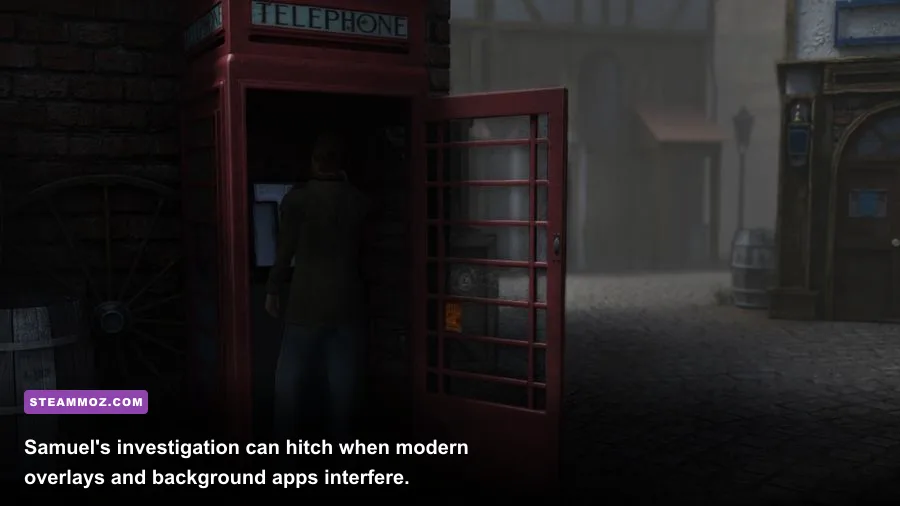
Black Mirror III should run comfortably on modern integrated graphics, but “low FPS” can mean several different things. A steady 30 FPS feels playable in a point-and-click adventure; a 60 FPS counter that constantly jumps between 20 and 60 can feel worse because camera movement and cursor response become uneven. The game also uses pre-rendered and scripted scenes, so a brief hitch during a transition doesn't always indicate a hardware bottleneck.
Use a stable resolution first
Start at 1280x720 if the game is crashing or stuttering, then move to 1920x1080 once the session is stable. Avoid unusual ultrawide resolutions and high-refresh-rate experiments until the game works correctly. Old engines sometimes calculate interface placement or fullscreen timing poorly at resolutions they were never designed to support.
Prefer a frame cap over unlimited output
If your GPU driver offers a per-application profile, cap Black Mirror III at 60 FPS. On a 144Hz or 165Hz monitor, an unlimited frame rate can produce inconsistent pacing even though the GPU is barely working. If 60 FPS remains uneven, use a 30 FPS cap as a diagnostic test. A locked 30 is perfectly serviceable for investigation and lets you determine whether the issue is pacing rather than rendering power.
Check power and driver behavior
On a laptop, connect the charger and set Windows to Best performance while testing. In NVIDIA Control Panel or AMD Software, assign the dedicated GPU to the game's executable, but don't force aggressive sharpening, enhanced sync, or experimental anti-lag features. A normal driver profile is more reliable for an old DirectX 9 game. Download drivers only through NVIDIA's official driver page or AMD's official support page.
| Setting or Profile | Recommended Value | Expected FPS Impact | Visual Trade-Off |
|---|---|---|---|
| Resolution | 1920x1080, then 1280x720 for testing | Medium on integrated GPUs | 720p is softer but easier to stabilize |
| Display mode | Windowed or borderless if available | Low to medium | May add slight desktop compositing overhead |
| Texture and model quality | High, unless memory is extremely limited | Low | Keep the game's atmospheric detail |
| Shadows and effects | Medium or the game's lowest stable option | Medium | Less depth in manor interiors |
| V-sync | Off for testing, then on if tearing appears | Variable | On can smooth output but may add latency |
| Frame rate | 60 FPS cap, or locked 30 FPS | Improves consistency | Lower peak performance for steadier motion |
For more practical PC tuning ideas, Steamoz's ELEX crash and FPS fixes and Dragonkin performance settings cover the same useful principles: establish a stable baseline before chasing maximum visual quality.
Repair DirectX, Runtimes, and Cutscene Problems
A crash during a cinematic points toward a different problem than low FPS in Black Mirror Castle. Older PC games can depend on legacy DirectX components and Microsoft runtime libraries even when modern Windows already includes newer versions. Installing current DirectX 9 components does not replace DirectX 12; it adds the older side-by-side files that legacy games may request.
Install the legacy DirectX package
Use Microsoft's DirectX End-User Runtime Web Installer or the official June 2010 DirectX redistributable. Restart Windows afterward. Avoid DLL download sites. They often provide mismatched versions and can turn one launch error into several security and stability problems.
Install the supported Visual C++ packages
Install both x86 and x64 versions of the current Microsoft Visual C++ Redistributable from Microsoft's official VC++ documentation. The x86 package matters even on 64-bit Windows because Black Mirror III is a 32-bit game. Reboot before testing again.
Handle video playback crashes
If the game crashes exactly when a cutscene begins, temporarily disable background capture, HDR, and GPU scaling. Try windowed mode and a standard 60Hz desktop refresh rate. Don't delete random movie files from the installation; that may skip the symptom while breaking story progression. If only one save triggers the crash, test an earlier save after verifying files. The save itself may be damaged.
Use This Stable Windows 10 and 11 Profile
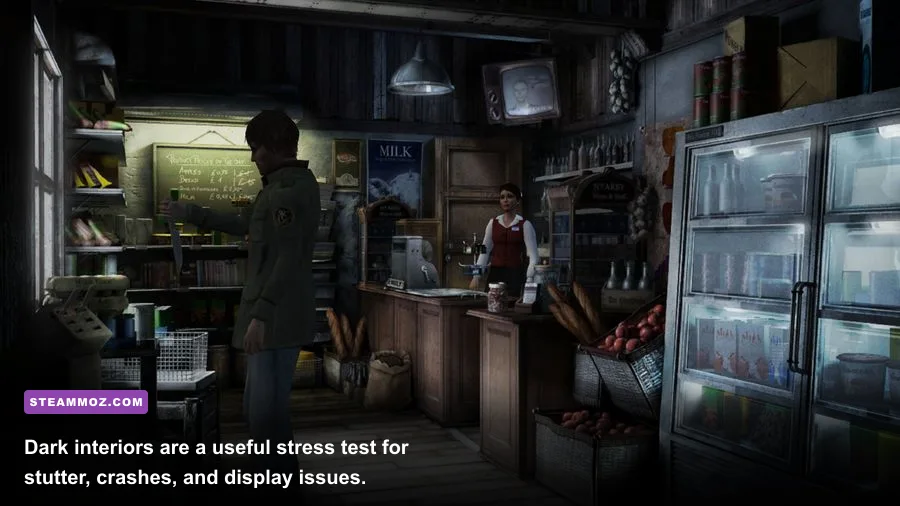
Once the game launches, resist the temptation to stack compatibility tweaks. Black Mirror III is a small, old executable, and five “fixes” enabled at once make troubleshooting impossible. The profile below is intentionally boring: boring is exactly what you want from a mystery game that should let you focus on clues, not desktop crashes.
Recommended baseline
- Install the game on an SSD with at least 2 GB of free space beyond its files.
- Use 1920x1080 windowed or borderless mode at a 60Hz desktop refresh rate.
- Disable Steam, Discord, Xbox Game Bar, GPU recording, and performance overlays.
- Enable Windows 7 compatibility mode only if normal launch fails.
- Enable Disable fullscreen optimizations when fullscreen causes flicker or crashes.
- Keep the GPU driver on a normal per-game profile with no forced enhancements.
- Cap output to 60 FPS; use 30 FPS only when frame pacing remains erratic.
| Component | Minimum Practical Target | Recommended for 1080p | Pro-Tuned Profile |
|---|---|---|---|
| Operating system | Windows 7-era compatibility | Windows 10 or Windows 11 | Windows 7 mode only if needed |
| CPU | Dual-core processor | Any modern 4-core CPU | Disable unnecessary CPU-heavy overlays |
| Memory | 2 GB available | 8 GB system RAM | Close browsers and launchers while testing |
| GPU | DirectX 9-capable graphics | Modern integrated graphics or better | Use the dedicated GPU on laptops |
| Storage | Working game installation | SSD preferred | Exclude the game folder from aggressive scanning only when safe |
Steamoz's Drawful 2 PC requirements breakdown is also useful context: old games generally need less raw hardware than players expect, but modern Windows compatibility is the real variable. Likewise, the Far Cry 2 PC specs guide shows why a game’s age alone doesn't guarantee trouble-free operation.
What to Do When Nothing Else Works
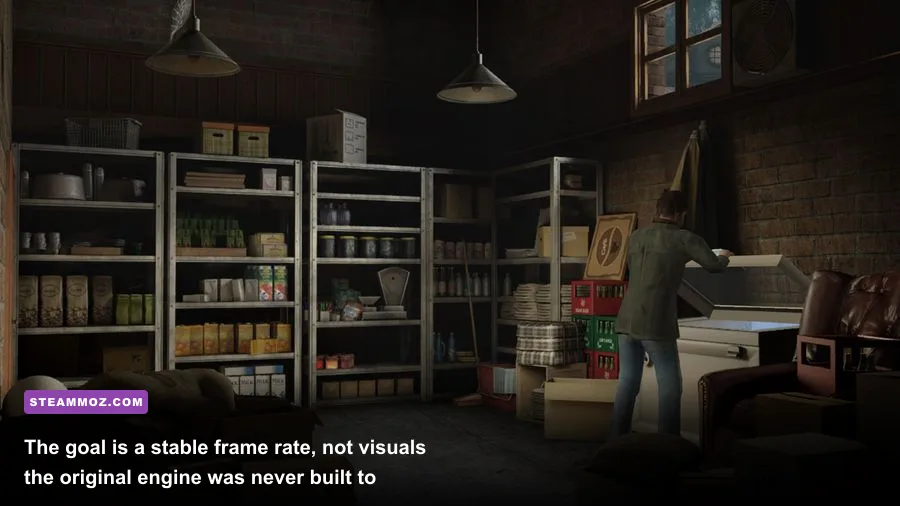
If Black Mirror III still crashes after verification, runtime repair, compatibility testing, and overlay removal, isolate the failure instead of repeatedly reinstalling. Create a new Windows user account and launch the game there. This tests whether a damaged permissions profile or corrupted local configuration is involved. You can also perform a clean boot with non-Microsoft startup services disabled, then restore services in batches.
Check Event Viewer > Windows Logs > Application immediately after a crash. A faulting module mentioning an overlay, audio utility, GPU driver, or codec gives you a much better lead than the generic “Black Mirror III has stopped working” message. If the fault points to the game executable, try an earlier save and a fresh new game. If every save works except one, the problem is likely localized to that save rather than your PC.
Finally, report reproducible failures through the game's official Steam Community discussions, including your Windows version, GPU, display resolution, crash location, and whether the crash happens during gameplay or a cutscene. That detail matters. “It crashes” is hard to diagnose; “it exits when the first manor cutscene starts in fullscreen at 2560x1440, but works windowed” is actionable.
The best Black Mirror III PC setup isn't necessarily the prettiest one. It’s a clean installation, no injected overlays, legacy DirectX components present, a sensible 1080p or 720p resolution, and a capped frame rate. Apply those changes in that order and the game's gothic investigation should stop fighting your operating system long enough for the mystery to take over.
If you're troubleshooting other older PC adventures and RPGs, Steamoz's Dungeon Siege classic PC review offers more context on running legacy games today without overcomplicating the setup.