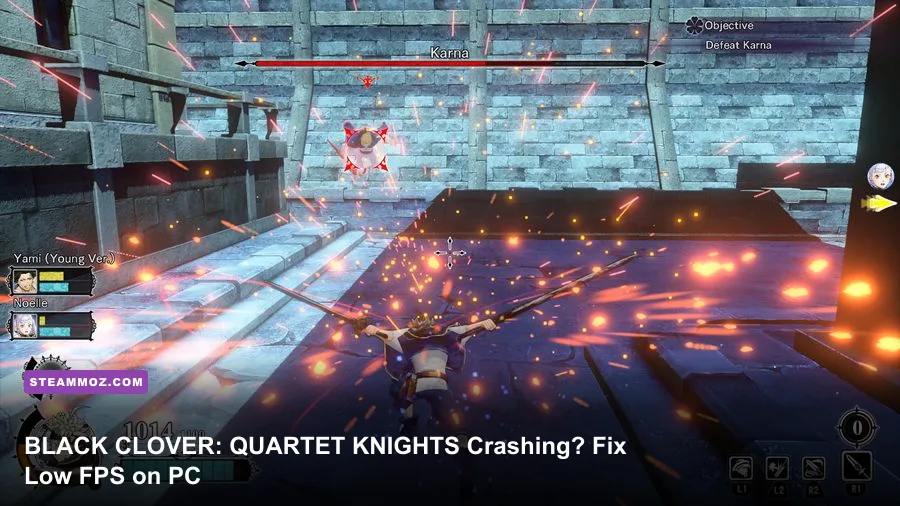
If BLACK CLOVER: QUARTET KNIGHTS crashes, freezes, stutters, or struggles to hold 60 FPS on PC, start with this order: verify the Steam files, install a current graphics driver, disable overlays, use exclusive fullscreen, lower shadows and effects, then cap the game at a frame rate your hardware can actually sustain. The game is built around four-player arena fights, so consistent frame pacing matters more than a flashy but unstable 100 FPS reading.
Most problems come from one of four places: a damaged installation, an old DirectX 11-era driver profile, overlay or controller software hooking into the game, or a GPU that is being pushed by shadows, post-processing, and spell effects. The fixes below target those causes without turning the cel-shaded visuals into a blurry mess.
Fix BLACK CLOVER: QUARTET KNIGHTS Crashes First
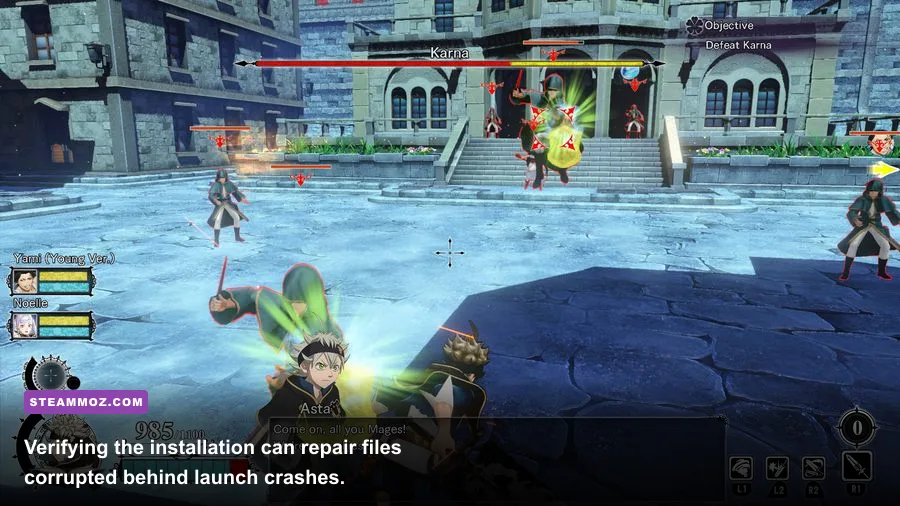
Before changing advanced Windows settings, do the quick repair pass. Close the game completely, including any process that remains in Task Manager, and restart Steam. Then open the game's properties from your Steam library and use Installed Files followed by Verify integrity of game files. A failed download, interrupted update, or replaced DLL can cause a crash before the title screen or when a match loads.
Use this five-minute repair sequence
- Verify the installation. Steam will redownload missing or damaged files. Do not launch the game until the process reports that verification is complete.
- Run Steam and the game from the same privilege level. If Steam is running normally, avoid launching the executable as administrator. Mixed permissions can interfere with overlay hooks and save access.
- Disable overlays. Turn off Steam Overlay, Discord Overlay, Xbox Game Bar, AMD Radeon overlay, NVIDIA overlay, MSI Afterburner or RivaTuner overlay, and recording tools. Test with only Steam running.
- Install the latest GPU driver. Choose a clean installation if your crashes began after several driver updates or after switching between AMD and NVIDIA hardware.
- Reset the configuration. If the game crashes after changing resolution or display mode, move its configuration files out of their folder rather than deleting them. This forces a fresh profile while preserving a backup you can restore.
For the official baseline, check the BLACK CLOVER: QUARTET KNIGHTS Steam page. It lists Windows 7/8.1/10-era requirements, DirectX 11 support, 4 GB of minimum memory, and roughly 30 GB of storage. Those requirements are useful, but they don't account for modern background applications, high-refresh monitors, or driver conflicts.
If the crash happens only when you press Play, test the executable with antivirus real-time protection temporarily paused, or add the Steam library folder as an exception. Re-enable protection immediately after testing. Also remove unofficial ReShade files, DLL injectors, FPS unlockers, and old mod loaders. Quartet Knights is not a good candidate for stacking third-party hooks while you troubleshoot.

🎮 BLACK CLOVER: QUARTET KNIGHTS
Looking to experience this game? Grab your digital key directly on our store for $4.99.
View on Steammoz Store →Best PC Graphics Settings for Stable FPS
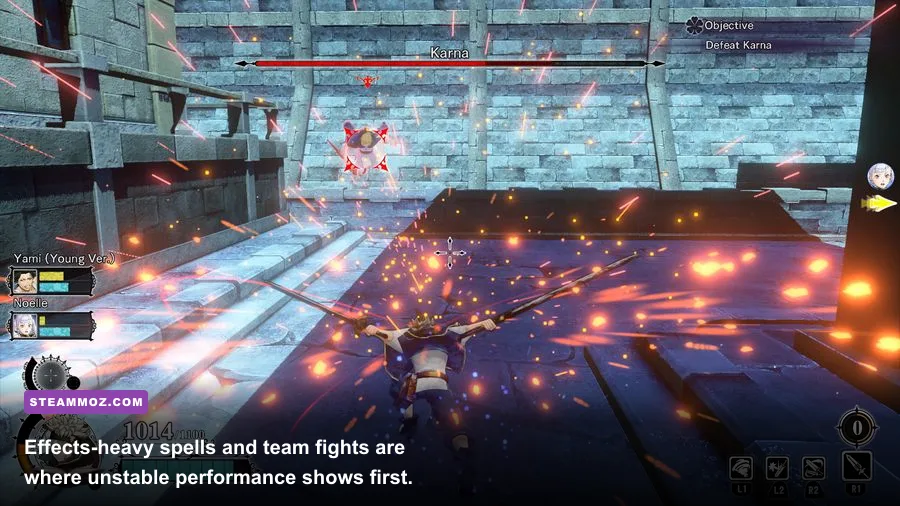
Don't begin by dropping every option to Low. The useful approach is to protect the GPU-heavy settings while keeping the game's sharp anime presentation intact. Start at your monitor's native resolution, use fullscreen if available, and choose a 60 FPS cap. If your PC cannot hold 60 during a four-player spell collision, a locked 30 is better than bouncing between 42 and 60.
| Setting | Recommended value | FPS impact | Visual trade-off |
|---|---|---|---|
| Resolution | Native 1080p, then 900p or 720p | Very high | Lowering this gives the biggest GPU gain but softens the image. |
| Display mode | Fullscreen | Low to medium | Usually improves frame pacing and reduces desktop interference. |
| Anti-aliasing | Medium or High | Medium | Lower it only if edges shimmer or GPU usage stays near 100 percent. |
| Shadow quality | Low or Medium | High | Large arena shadows cost frames; character readability remains good on Medium. |
| Effects quality | Medium | High | Spell flashes and impact effects are the first place to look for combat dips. |
| Post-processing | Low or Medium | Medium | Lower values reduce haze and expensive screen effects without changing geometry. |
| Textures | High if VRAM allows | Low to medium | Texture quality mostly affects memory, not raw FPS, unless VRAM is exhausted. |
| V-Sync | Off for testing, then enable if tearing appears | Variable | Can add latency or lock behavior depending on the display and driver. |
For a GTX 750 Ti-class card or Radeon R7 260X-class GPU, use 720p or 900p, Low shadows, Medium effects, and a 30 FPS cap. A GTX 1060, Radeon RX 480, or newer card should target 1080p with Medium shadows and effects at 60 FPS, provided the CPU is not the bottleneck. Those cards align with the game's published-era recommended hardware, but modern laptops may still throttle under heat.
Choose the cap that matches your worst fight
Use a monitoring tool such as the Steam Performance Overlay or your GPU driver's frame-time graph. Play a busy mission with Asta, Yuno, Noelle, or another effect-heavy character and watch the one-percent lows. If the counter says 60 but frame time repeatedly spikes above 25 milliseconds, the game will feel stuttery. Lower Effects and Shadows before lowering Textures.
Players with 120 Hz or 144 Hz displays should still test a 60 FPS cap first. Quartet Knights' combat was designed around a stable console-era presentation, and an uneven high refresh target can feel worse than a consistent 60. If your system comfortably exceeds 60, try a 120 cap only after confirming that GPU temperature and frame time remain steady during team fights.
Steamoz's Dragonkin settings guide covers the same useful principle: spend performance where you can see it, not blindly on every Ultra option. The same logic applies here.
Driver, Windows, and Steam Fixes That Stop Stutter
Low FPS is not always a weak graphics card. A game can hitch when Windows changes power states, a shader is compiled, an overlay captures a frame, or a laptop silently switches to integrated graphics. Make sure the game is using the dedicated GPU in Windows Settings under System > Display > Graphics. Add the Quartet Knights executable, select Options, and choose High performance.
Remove common performance traps
- Set the power mode to Best performance while testing. On laptops, play connected to AC power; battery modes can cut CPU and GPU clocks dramatically.
- Close browsers and video software. Hardware-accelerated Chrome, Edge, OBS previews, and wallpaper applications can consume VRAM or compete for GPU scheduling.
- Disable Steam shader pre-caching only as a test. If shader processing is causing repeated stutters, allow Steam to rebuild its cache after the test rather than deleting random driver folders.
- Check refresh rate and resolution. A Windows desktop set to an unusual refresh mode can make fullscreen transitions fail or produce black-screen crashes.
- Turn off fullscreen optimizations. Right-click the executable, open Properties, choose Compatibility, and test the fullscreen optimization option. Keep the change only if it improves frame pacing.
Don't use compatibility mode for Windows 7 unless the official support page specifically directs you to. Compatibility layers can create more problems with input, video playback, and online services. Start with a normal Windows 10 or Windows 11 launch and change one variable at a time.
For additional context on diagnosing older PC releases, see Steamoz's ELEX crash and FPS fixes and Everspace 2 crash troubleshooting guide. The games differ, but clean driver testing, overlay removal, and frame-time monitoring are universal tools.
Find Out Why the Game Keeps Crashing
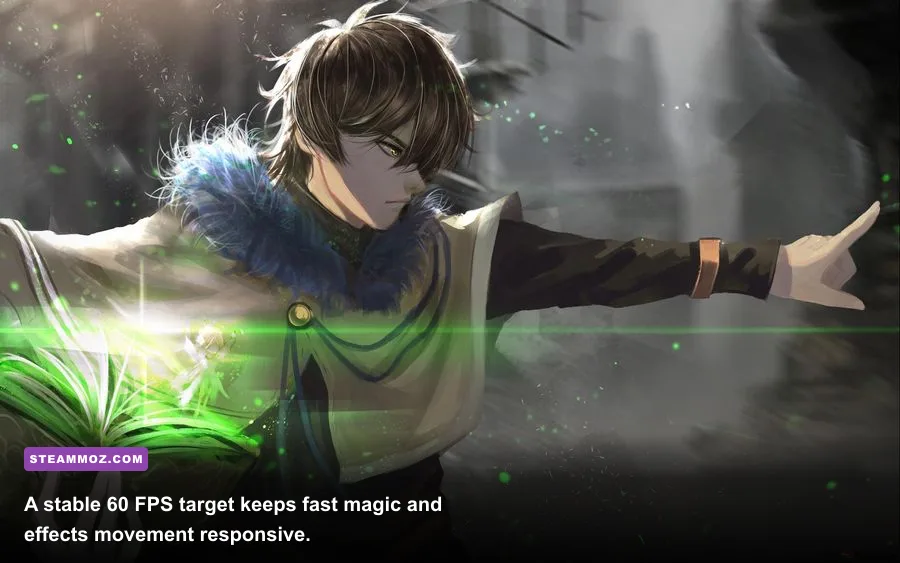
The timing of the crash tells you more than the error message. A crash before the menu points toward files, permissions, drivers, or missing runtime components. A crash while loading a match usually suggests an asset, shader, or memory issue. A crash after ten or twenty minutes often means heat, unstable overclocking, or a laptop power profile.
| Crash symptom | Most likely cause | First test | Next move |
|---|---|---|---|
| Immediate crash after Play | Damaged files, overlay hook, driver conflict | Verify files and disable every overlay | Clean-install the GPU driver and reset configuration. |
| Crash entering a match | Effects shader, corrupted asset, unstable VRAM | Use Low Effects and native or lower resolution | Remove mods and test with a fresh graphics profile. |
| Crash after extended play | Heat, overclock, power instability | Return CPU/GPU to stock clocks | Check temperatures and laptop fan mode. |
| Black screen with sound | Fullscreen transition or display driver reset | Try borderless/windowed mode and another refresh rate | Update the driver and disable fullscreen optimizations. |
| Random disconnect or match failure | Network or service issue, not necessarily GPU | Test another online title and Steam status | Check the publisher's support channels before changing graphics. |
If the game crashes with an Unreal-style or Windows application error, record the faulting module. A graphics-driver module points toward the driver or GPU; a Windows system DLL can still be caused by a bad driver, overlay, or unstable memory. Run Windows Memory Diagnostic if other games also crash, and use sfc /scannow from an elevated Command Prompt only if Windows itself shows corruption symptoms.
Do not assume an overclock is stable because another game works. Quartet Knights can expose marginal GPU memory settings when a match fills the screen with magic effects. Return the GPU, CPU, and RAM to stock settings, including XMP or EXPO as a temporary test. If the crashes disappear, lower the overclock rather than blaming the game.
For official escalation, use Bandai Namco support and the Steam Support portal. Include your GPU model, driver version, Windows build, resolution, crash timing, and whether overlays were disabled. A useful report beats “it keeps crashing” every time.
Hardware Targets and Advanced FPS Tuning
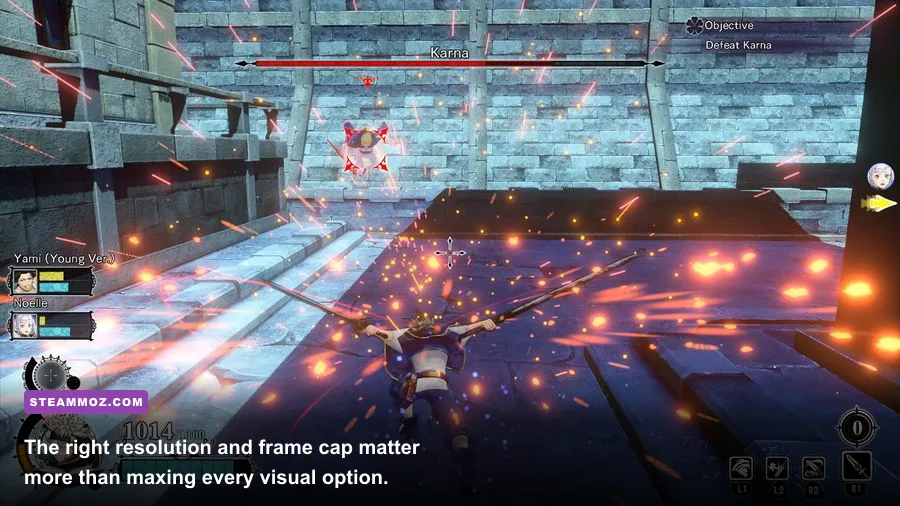
The published requirements are old enough that many current PCs should run the game comfortably. The catch is that minimum hardware targets a basic experience, not a locked 60 FPS in a full 4v4 battle. CPU usage matters when several characters, projectiles, hit reactions, and network events happen together. If lowering resolution barely changes FPS, you are probably CPU-limited rather than GPU-limited.
| Component | Minimum-era target | Recommended-era target | Pro-tuned profile |
|---|---|---|---|
| CPU | Intel Core i3-6100-class | Intel Core i5-6600K-class | Modern 4-core or better CPU with a stable boost clock |
| Memory | 4 GB RAM | 8 GB RAM | 16 GB with background applications closed |
| GPU | GeForce GTX 750 Ti or Radeon R7 260X-class | GeForce GTX 1060 or Radeon RX 480-class | Any modern dedicated GPU with current drivers |
| API | DirectX 11 | DirectX 11 | Use the normal DirectX 11 launch path |
| Storage | About 30 GB available | About 30 GB available | SSD with at least 15 percent free space |
Eight gigabytes of RAM is enough for the game itself, but 16 GB is the comfortable modern target. With 4 GB, Windows may page to disk during online matches, creating pauses that look like GPU stutter. An SSD won't magically raise average FPS, yet it can reduce loading friction and make asset streaming less painful.
Use GPU and CPU metrics instead of guesswork
At the exact moment FPS drops, check GPU utilization, CPU utilization per core, VRAM, system RAM, clock speed, and temperature. GPU usage near 99 percent means lower resolution, anti-aliasing, shadows, or effects. GPU usage below roughly 80 percent with one CPU core maxed points to a processor limit. VRAM exhaustion often appears as sudden hitching rather than a smooth reduction in average FPS.
Cap the game through the driver only after testing its own options. A driver-level cap can improve consistency, but using multiple limiters at once can add latency or create uneven frame delivery. Pick one limiter, keep V-Sync behavior consistent, and test in an actual match rather than the menu.
Finally, don't chase a miracle config file. Black Clover: Quartet Knights is an older PC release, and there is no safe universal launch command that fixes every crash. Change one setting, test the same map or mission, and write down the result. In most cases, file verification, a clean driver, disabled overlays, dedicated-GPU selection, Medium effects, Low-to-Medium shadows, and a realistic 30 or 60 FPS cap solve the problem without sacrificing the game's bold spell effects.
That measured approach is also useful in other demanding PC games; Steamoz's PC requirements guide explains why listed minimum specifications rarely equal a guaranteed smooth experience. Once Quartet Knights holds its target frame rate through a crowded 4v4 fight, Asta's Black Meteorite, Yuno's wind attacks, and Noelle's water magic finally feel as responsive as they should.