For the best Bear and Breakfast performance, run the game at your display's native resolution, use fullscreen, enable VSync if frame pacing looks uneven, and lower shadows or post-processing before touching textures. Bear and Breakfast is not a demanding 3D game, but its hand-drawn isometric resorts can become surprisingly busy once you fill Timber Crossing, Pinefall, or Highlake with rooms, decorations, guests, staff, and pathing activity. A sensible 60 FPS profile is more valuable than chasing an unnecessary 144 FPS number.
The good news is that most PCs should have plenty of headroom. The less obvious issue is consistency: a game can report a high average frame rate while still stuttering when the camera scrolls across a packed resort or when several management panels update at once. This guide breaks down the settings that actually matter, gives separate profiles for desktop PCs and Steam Deck, and explains how to test whether a change improved the game rather than simply making it look blurrier.
If you are checking whether the game will run at all, compare your machine with the official Steam listing for Bear and Breakfast. For broader PC troubleshooting, our guides to real PC requirements and crash and FPS fixes are useful companion reads.
Best Bear and Breakfast graphics settings for max FPS
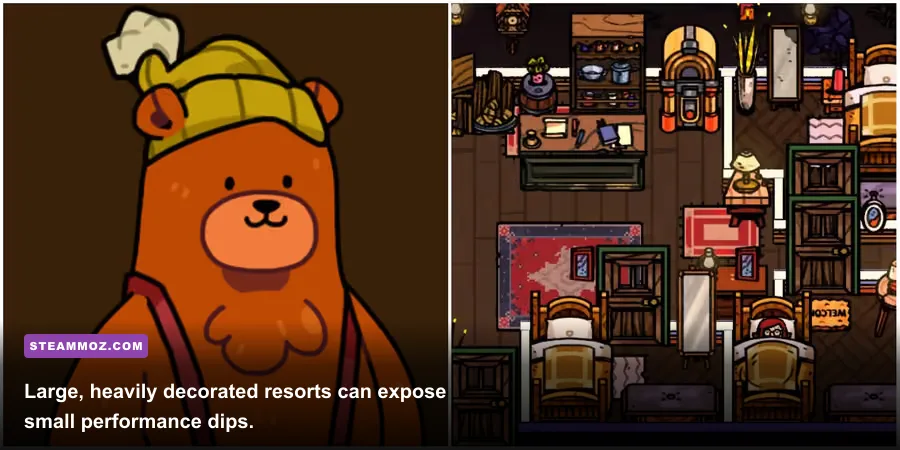
Start with the game's own video menu rather than changing Windows settings at random. Bear and Breakfast's visual style is built around clean 2D artwork, layered scenery, lighting, shadows, and animated resort objects. That means resolution and effects have a bigger practical impact than texture quality. On a modern desktop, maxing the game is usually fine. On an older laptop or handheld, the priority is stable frame delivery while scrolling around a crowded map.
| Setting | Recommended value | FPS impact | Visual trade-off |
|---|---|---|---|
| Display mode | Fullscreen | Low to medium benefit | Usually improves focus and reduces desktop compositor interference |
| Resolution | Native display resolution | Medium to high | Lowering it improves load but softens the illustrated UI and text |
| VSync | On for 60 Hz screens; test off for high-refresh PCs | Low average impact | On removes tearing; off can reduce input delay but may expose uneven pacing |
| Texture quality | High | Low | Keep high unless video memory is extremely limited |
| Shadow quality | Medium on weak hardware; High on desktop | Medium | Lower settings reduce depth and softness around buildings |
| Post-processing | Low or Medium | Low to medium | Reduces glow and visual layering with little loss of gameplay clarity |
| Anti-aliasing | Medium or the highest stable option | Low to medium | Lower values can make diagonal edges look more jagged |
| Frame limit | 60 FPS, or your monitor's refresh target | Improves consistency | Prevents needless GPU usage and fan noise |
There is one important caveat: menu labels and available sliders can differ between PC builds, patches, and controller layouts. If your version does not expose every setting in the table, use the same order of priority: resolution first, then shadows and post-processing, then anti-aliasing. Do not begin by dropping textures. The game is not asking your GPU to stream enormous open-world assets, so texture reductions often produce the smallest gain for the biggest visual hit.
The sensible 60 FPS baseline
Set the resolution to 1920x1080 on a standard Full HD monitor, choose fullscreen, enable VSync, and cap the frame rate at 60 if a limiter is available. This profile is ideal for most entry-level gaming laptops and desktop systems with integrated graphics. It also keeps the game from rendering hundreds of frames in quiet menus where there is no benefit to doing so.
For a 120 Hz or 144 Hz display, try VSync off with a 120 FPS cap only if scrolling feels noticeably smoother and your system can hold that number. Bear and Breakfast is a management game, not a competitive shooter; a stable 60 FPS with clean frame pacing is the better result if the higher target bounces between 75 and 120.

🎮 Bear and Breakfast
Looking to experience this game? Grab your digital key directly on our store for $6.99.
View on Steammoz Store →Which settings cause stutter in busy resorts?
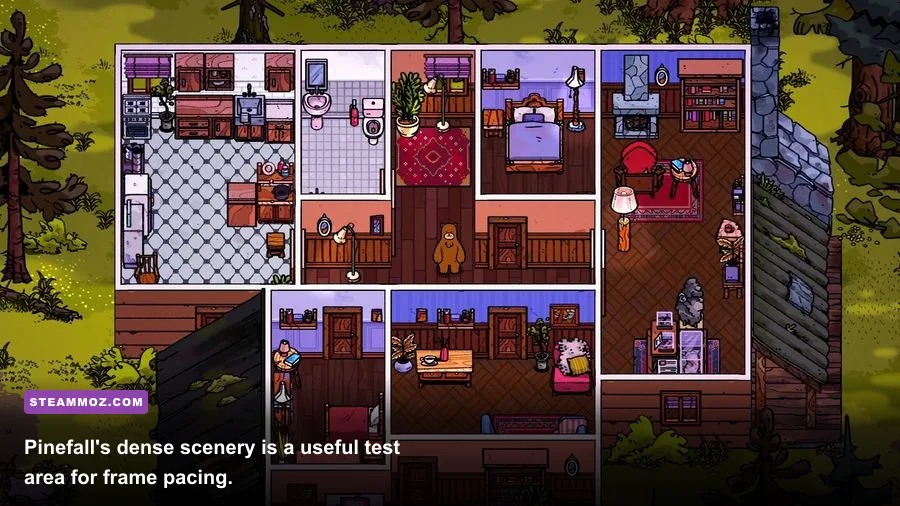
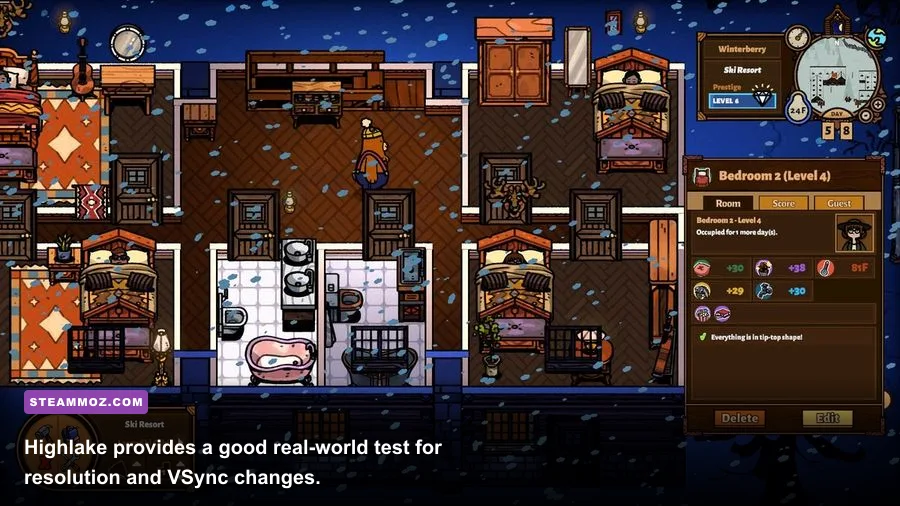
Bear and Breakfast's toughest moments are rarely the opening hours around the first motel. The performance test arrives after you have expanded a resort, placed dense furniture, hired staff, and filled rooms with guests. Timber Crossing is a particularly useful benchmark because it combines the first resort's activity with frequent camera movement and management overlays. Later locations such as Pinefall and Highlake can also feel less consistent when the screen contains layered trees, water, buildings, signs, and decorative objects.
Watch for three different problems. A low average FPS suggests your GPU or CPU is simply overloaded. A brief hitch while panning usually points to asset loading or background activity. Tearing is not a performance collapse at all; it is a synchronization problem, fixed by VSync or a frame cap. Treating all three as “low FPS” leads to bad settings choices.
| Symptom | Likely cause | First fix | What not to change first |
|---|---|---|---|
| Camera stutters over a full resort | Effects, shadows, or background CPU load | Lower shadows and post-processing; close overlays | Texture quality |
| Screen tears while panning | Frames are delivered out of sync | Enable VSync or use a 60 FPS cap | Resolution |
| Text and menus look blurry | Resolution below native | Restore native resolution and lower effects instead | UI scaling, if available |
| Long hitch when entering a new area | Asset or save-related loading | Install on an SSD and close background apps | Anti-aliasing alone |
| Fan noise in menus | Uncapped rendering | Set a 60 FPS limit and enable VSync | Lowering every quality option |
Camera movement is the best test because it reveals frame pacing immediately. Stand in Timber Crossing, zoom to the normal play distance, and pan across the busiest part of your resort for 20 to 30 seconds. Repeat the same route after each change. Do not compare an empty forest to a resort packed with beds, plants, bathrooms, kitchens, and decorative objects; the workload is completely different.
Also close the map, build menu, staff screens, and other overlays when testing. These interfaces are useful but can add extra redraw work, especially on integrated graphics. If the game feels smooth during ordinary play but hitches only while rapidly opening menus, lowering resolution will not necessarily solve it. Reduce background load, verify the game files through Steam, and test again.
Best settings for low-end laptops and integrated graphics
Older Intel UHD, Intel Iris Xe, and entry-level AMD integrated graphics can run Bear and Breakfast well with a restrained profile. The target should be a locked 30 or 60 FPS, not the highest possible number in an empty room. Start at 1920x1080 if the image remains stable. If the resort dips below target, 1600x900 is a better compromise than immediately jumping to 1280x720, because the UI and small furniture details remain much easier to read.
Low-end performance profile
- Use fullscreen mode.
- Keep native resolution if you can sustain 60 FPS; otherwise test 1600x900.
- Set shadows to Low or Medium.
- Set post-processing to Low.
- Use Medium anti-aliasing.
- Keep textures at Medium or High unless the system has very limited shared memory.
- Enable VSync for a 60 Hz screen, or cap at 30 FPS if 60 cannot remain stable.
Why keep textures above Low? Bear and Breakfast relies on crisp illustrated surfaces: wall patterns, furniture silhouettes, signs, and room details carry much of the visual identity. Shadows and post-processing are more expendable because they mainly affect atmosphere and depth. The game still looks like itself when those effects are reduced; it looks noticeably rougher when resolution and texture detail are cut too aggressively.
Windows background processes matter more than many players expect. Before launching, close browser tabs playing video, cloud-sync tools, recording software, and overlays you do not need. Update your graphics driver, but avoid installing several performance utilities at once. If the game is installed on a hard drive, moving it to an SSD can help area transitions and reduce the feeling of a brief freeze when loading a new resort.
For an older dual-core laptop, a stable 30 FPS cap can actually feel better than an unstable 60. It gives the CPU a predictable workload and stops the fan from constantly ramping up and down. That is especially helpful during long decoration sessions, when you are repeatedly switching between construction, management, and guest menus.
Best Steam Deck settings for Bear and Breakfast
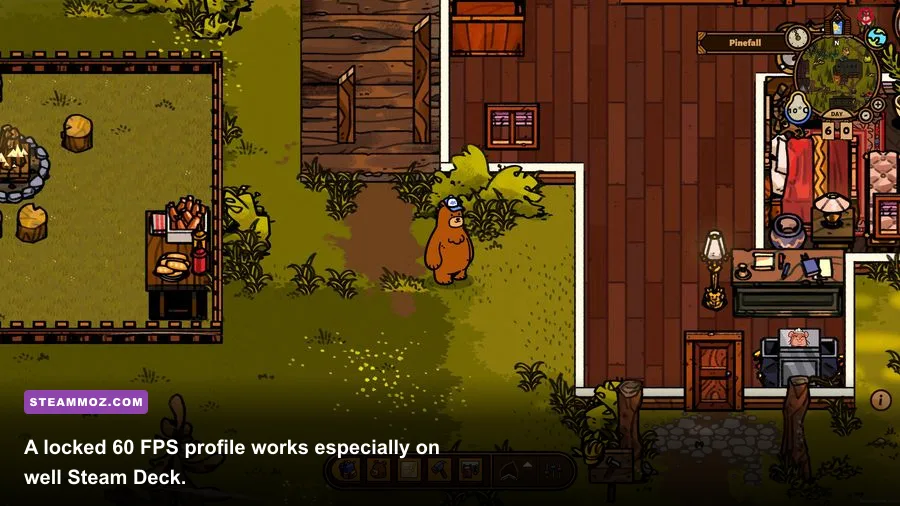
Bear and Breakfast is a strong Steam Deck fit, but the best handheld profile is about battery life and frame pacing rather than brute-force performance. Use the Steam Deck's native 1280x800 resolution, enable a 60 FPS cap, and keep VSync on if you notice tearing during camera movement. A locked 40 FPS profile can be a good middle ground if you want a smoother feel than 30 without pushing the APU as hard as 60.
| Steam Deck target | Resolution | Graphics profile | Expected use |
|---|---|---|---|
| Battery-friendly | 1280x800 | 30 FPS cap, Low shadows, Low post-processing | Long management sessions and quieter fan behavior |
| Balanced | 1280x800 | 40 FPS cap, Medium shadows, Medium anti-aliasing | Best compromise for camera movement and battery life |
| Maximum smoothness | 1280x800 | 60 FPS cap, Medium or High effects | Shorter battery life but the smoothest scrolling |
Do not lower the Deck's resolution below 1280x800 unless you have already reduced effects and still cannot hold your target. Bear and Breakfast displays a lot of small text and narrow icons, and a lower internal resolution makes the management layer tiring to read. If you use an external monitor, create a separate profile instead of assuming the handheld settings will translate cleanly to 1080p or 1440p.
The Deck's 40 FPS mode is worth trying in larger resorts. It divides neatly into a 40 Hz display refresh and can feel substantially more responsive than 30 FPS while demanding less than 60. If a patch or Proton version causes odd frame pacing, switch back to 60 Hz and use a standard 30 FPS cap. You can find current compatibility details on the Bear and Breakfast ProtonDB page, though user reports can vary with SteamOS updates.
How to lock in smooth performance as resorts grow
Graphics settings are only half the job. Bear and Breakfast's resort simulation becomes more demanding as your property gains rooms, staff, guests, appliances, and decorative clutter. You do not need to strip every location bare, but smart layout choices can make the game easier to manage and easier to test. Keep busy guest facilities close to the main paths, avoid scattering huge numbers of decorative items across every tile, and use the normal camera zoom when judging performance.
Save before making a major construction pass, then test the resort with the guest flow active. Walk or pan across the entrance, bedrooms, bathrooms, food areas, and staff facilities. If frame pacing becomes rough only after a large build, identify whether the issue appears during camera movement, menu transitions, or guest activity. That tells you whether to adjust effects, close overlays, or investigate a system-level problem.
A practical tuning order
- Restart the game after a major settings change so the result is not confused by accumulated background activity.
- Set fullscreen, native resolution, and a sensible 60 FPS cap.
- Test a busy resort in Timber Crossing for 30 seconds.
- Lower shadows one step and repeat the same camera route.
- Lower post-processing next, then anti-aliasing if needed.
- Only lower resolution after those changes fail to hold the target.
- Restore one setting at a time to find the highest-quality stable profile.
This process is more reliable than copying a “lowest settings” preset. Bear and Breakfast is visually readable at medium effects, and many systems can preserve high textures while cutting the options that actually affect frame delivery. If your PC still struggles after using the low-end profile, check for thermal throttling, background recording, outdated drivers, or a nearly full system drive.
For comparison, the same troubleshooting mindset applies to other management and strategy games. Our Empires of the Undergrowth performance guide covers how busy simulations can stress a system differently from action games, while our Far Cry 6 settings breakdown shows why resolution and frame caps should be tuned around a specific performance target.
Finally, keep the game updated through Steam and check Gummy Cat's official website for developer information. Bear and Breakfast is charming precisely because its resorts can become busy, messy, and personal. The ideal setup preserves that detail without asking your hardware to render an uncapped frame rate you will never feel. For most players, fullscreen at native resolution, medium shadows, low-to-medium post-processing, high textures, VSync, and a stable 60 FPS cap is the sweet spot.