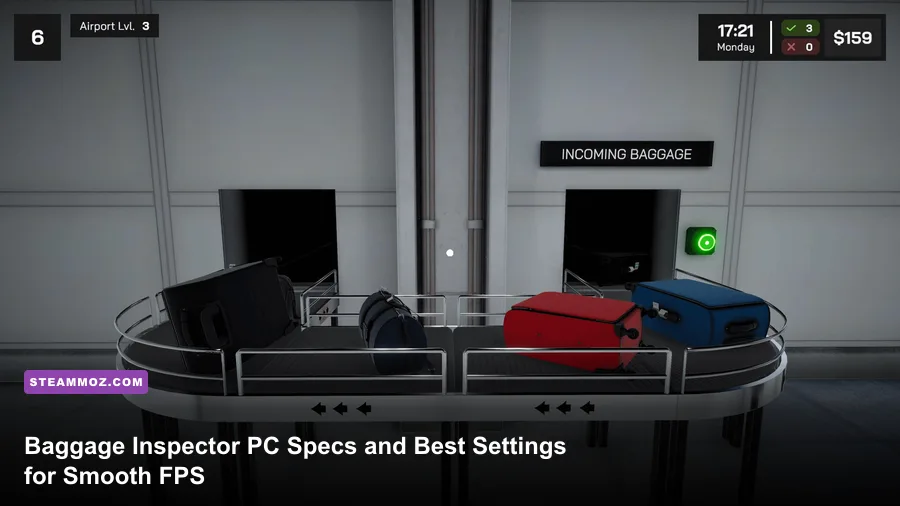
Baggage Inspector is not a demanding PC game by modern standards. For the reliable experience, aim for a 64-bit Windows 10 system with an Intel Core i5-8400 or AMD Ryzen 5 2600, 8GB of RAM, and a GeForce GTX 1060 6GB or Radeon RX 580. The recommended target is 16GB of memory, a Core i7-9700 or Ryzen 7 3700X, and an RTX 2070 or Radeon RX 5700, preferably with the game installed on an SSD. Those parts give you comfortable headroom for crowded terminals, higher image quality, and steadier frame pacing rather than merely scraping past the launch requirement.
That distinction matters here. Baggage Inspector is built around reading visual information: scan shapes, identify prohibited objects, compare passenger details, and make decisions before the queue gets ugly. A game can technically run at 30 frames per second and still feel poor if the image stutters while you are searching a suitcase. The goal of this guide is therefore practical: match your hardware to the real workload, choose settings that preserve readable luggage scans, and avoid spending money on upgrades the game does not need.
The requirements below reflect the current PC listing and should be checked against the live Baggage Inspector Steam search page before buying. Early-access builds and patches can change storage needs, supported operating systems, or graphics presets.
Baggage Inspector minimum PC requirements explained
The minimum specification is best understood as the entry point for 1080p play on low settings, not a promise of locked performance in every situation. The Core i5-8400 and Ryzen 5 2600 are six-core desktop processors from older generations, but both still provide enough CPU capacity for the simulation logic, passenger queues, object checks, and terminal activity. If your processor is an older dual-core chip, the game may launch yet struggle with hitching when several systems update at once.
The 8GB RAM requirement is workable, although Windows, Steam, browser tabs, and recording software can eat into it quickly. Baggage Inspector appears comfortable with 8GB when it is the only serious application running. On a busy desktop, however, 16GB is a meaningful quality-of-life upgrade. It reduces background memory pressure and lowers the chance of short pauses when the game loads a new area or swaps assets.
A GTX 1060 6GB or RX 580 is a sensible minimum graphics class for this type of game. The important detail is the 6GB VRAM target on the GeForce card. Older 2GB and 3GB cards may render the game, but texture streaming and busy scenes can become less consistent at higher settings. Integrated graphics are not a safe recommendation for the minimum tier, even if a recent laptop GPU may perform acceptably after lowering resolution and shadows.
| Component | Minimum target | What it means in practice |
|---|---|---|
| Operating system | Windows 10 64-bit | Use a current 64-bit Windows installation with updated drivers. |
| Processor | Intel Core i5-8400 or AMD Ryzen 5 2600 | Enough CPU muscle for the inspection simulation at sensible settings. |
| Memory | 8GB RAM | Playable, but close background applications before launching. |
| Graphics | GeForce GTX 1060 6GB or Radeon RX 580 | Target low-to-medium 1080p settings rather than maximum quality. |
| DirectX | DirectX 12-compatible hardware | Install the latest Windows updates and GPU driver package. |
| Storage | Keep the listed free-space requirement available | An SSD is strongly preferable for loading and patching consistency. |
Do not confuse the minimum GPU with a guaranteed 60fps card. In a straightforward checkpoint scene, this class of hardware should feel fine. Performance can dip when reflections, shadows, volumetric effects, or dense terminal geometry are all enabled together. If the game offers a resolution scale, keep the display at 1920x1080 and reduce internal scaling only after lowering the expensive effects first. A crisp, native image is valuable when you are trying to spot a tiny object inside a scan.

🎮 Baggage Inspector
Looking to experience this game? Grab your digital key directly on our store for $2.79.
View on Steammoz Store →Recommended Baggage Inspector specifications for 1080p

The recommended specification is where Baggage Inspector should stop feeling like a hardware compromise. A Core i7-9700 or Ryzen 7 3700X gives the game more threads and stronger sustained performance for simulation updates. That does not mean the title suddenly becomes a CPU benchmark; it means you have room for background capture, a voice chat client, and heavier terminal scenes without frame-time spikes becoming the story.
Sixteen gigabytes of RAM is the sweet spot for a modern gaming PC. It also leaves enough space for a browser guide, music, or a second monitor without pushing Windows into aggressive memory management. If your machine already has 16GB in dual-channel mode, a RAM upgrade should not be your first purchase. Move that money toward an SSD or a better graphics card instead.
The RTX 2070 and RX 5700 class is comfortably above the minimum GPU. That extra headroom is useful for high textures, improved shadows, ambient occlusion, and a 1440p monitor, although the game’s visual workload may not justify chasing extreme hardware. A newer RTX 3060, RTX 4060, RX 6600, or RX 7600 is also a perfectly sensible modern equivalent. The key is not the model name; it is having roughly the same or better raster performance and at least 8GB of VRAM for long-term comfort.
| Component | Recommended target | Why it helps | Ideal use |
|---|---|---|---|
| Processor | Intel Core i7-9700 or AMD Ryzen 7 3700X | More CPU headroom for simulation and background applications. | High settings, recording, and busy terminal scenes. |
| Memory | 16GB RAM | Prevents multitasking from competing with the game. | Long sessions with browsers, Discord, or capture software. |
| Graphics | GeForce RTX 2070 or Radeon RX 5700 | Supports high settings and stronger frame-time consistency. | 1080p high refresh or sensible 1440p play. |
| Storage | SSD with comfortable free space | Faster scene loads and less waiting after updates. | Primary gaming installation. |
| Display | 1080p 60Hz or higher | Makes small scan details easier to read without extreme GPU demand. | Best balance of clarity and performance. |
If you are building a PC specifically for Baggage Inspector, do not overspend on a flagship processor. A current six-core Core i5 or Ryzen 5 paired with a midrange graphics card will be more than enough. The recommended parts are useful reference points, not a shopping list. The title is a simulation with visual inspection tasks, not a ray-traced blockbuster.
For comparison, our Drawful 2 PC specs breakdown explains the same important principle: published minimums describe launchability, while a comfortable setup depends on resolution, frame pacing, and what else is running.
Can Baggage Inspector run on a laptop?
Yes, but the answer depends on which laptop GPU is hiding behind the marketing label. A machine with a GTX 1650, GTX 1660 Ti, RTX 3050, RTX 4050, Radeon RX 5500M, or better should have a realistic path to 1080p play. Start with the High or Medium preset, disable demanding shadow and post-processing options, and test a busy checkpoint rather than an empty menu.
Recent integrated graphics are more complicated. AMD Radeon 680M and 780M systems, along with Intel Arc integrated graphics, can be viable at 720p or 900p with reduced settings. Older Intel UHD Graphics and entry-level integrated Radeon chips are a gamble. They may launch the game, but limited shared memory bandwidth can cause blurry texture loading and unstable frame times. For a laptop without a dedicated GPU, 16GB of dual-channel RAM matters enormously because integrated graphics borrow system memory.
Laptop power settings can sabotage performance before the game even starts. Plug the machine into its charger, select the Windows Best Performance power mode, and use the manufacturer’s performance profile if available. Keep the exhaust vents clear. Thin laptops often run a few minutes smoothly before heat limits reduce clock speeds, so judge performance after a full inspection shift rather than after the opening screen.
| Laptop hardware | Starting preset | Resolution target | Expected approach |
|---|---|---|---|
| GTX 1050 Ti / MX-class GPU | Low | 720p to 900p | Reduce shadows and effects; prioritize stable frame pacing. |
| GTX 1650 / RX 5500M | Medium | 1080p | Good entry point with selective lighting reductions. |
| RTX 3050 / RX 6600M | High | 1080p | Comfortable play, with room for texture quality. |
| RTX 4050 or better | High or Ultra | 1080p to 1440p | Use a frame cap to keep temperatures and fan noise under control. |
| Radeon 680M / 780M integrated | Low | 720p to 900p | Dual-channel memory and plugged-in performance mode are essential. |
Cloud gaming is another option if your laptop is weak but your internet connection is stable. Input latency matters less than it would in a competitive shooter, yet a delayed cursor can still make careful inspection work frustrating. A local install remains preferable whenever possible.
Best graphics settings for stable Baggage Inspector FPS
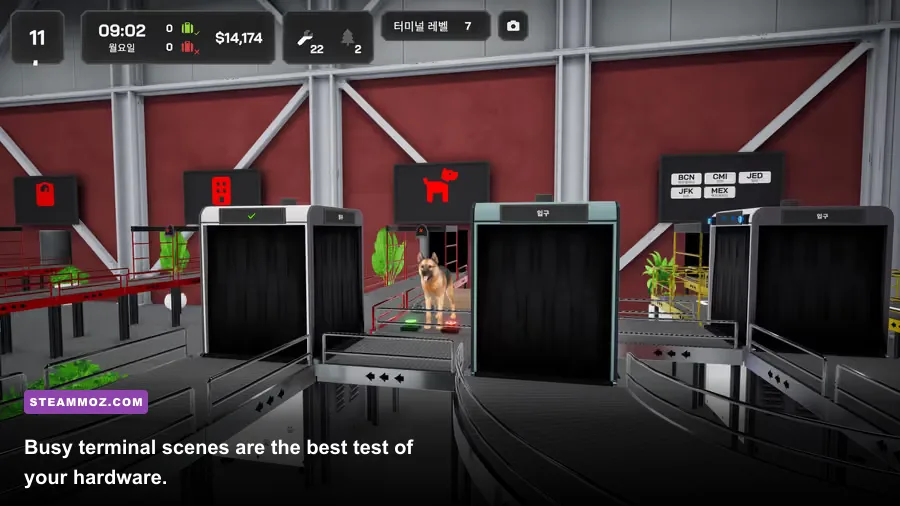
Start by choosing the game’s native monitor resolution and locking the frame rate to a number your PC can hold. A stable 60fps generally feels better than a wildly fluctuating 90fps. If your display is 120Hz or 144Hz, try an 80 or 90fps cap only if the busiest terminal area stays above that number. Consistent frame times make cursor movement and camera checks feel more deliberate, which is exactly what this game needs.
Textures are usually the safest setting to keep high when your GPU has enough VRAM. They improve the readability of luggage surfaces and environmental detail without placing the same constant load on the GPU as shadows or volumetric effects. Lower textures only when you see VRAM-related stutter, muddy asset streaming, or severe hitching during camera movement.
| Setting | Recommended value | FPS impact | Visual trade-off |
|---|---|---|---|
| Resolution | Native 1080p | High baseline cost | Best clarity for small baggage details. |
| Resolution scale | 100%; 85-90% for weak GPUs | Very high | Lower values soften scan edges and text. |
| Textures | High with 6GB or more VRAM | Low to medium | Lowering it makes luggage and surfaces less clear. |
| Shadows | Medium | Medium to high | Medium keeps depth without wasting frames. |
| Ambient occlusion | Medium or enabled | Medium | Adds contact depth around desks and equipment. |
| Reflections | Low or medium | Medium to high | High can be costly in glossy terminal interiors. |
| Volumetric effects | Low | High in busy scenes | Little benefit compared with the performance cost. |
| Motion blur | Off | Small | Sharper cursor movement and easier object reading. |
| Anti-aliasing | Medium or High | Low to medium | Reduces jagged edges around luggage and machinery. |
For a GTX 1060 or RX 580, use 1080p, Medium textures, Low-to-Medium shadows, Low reflections, Low volumetrics, and motion blur off. For an RTX 2070 or RX 5700, use 1080p High, keep textures high, set shadows and ambient occlusion to High if frame times remain stable, and leave volumetrics at Medium. At 1440p, lower resolution scale or reflections before reducing textures.
Do not use a sharpening filter aggressively to compensate for a low render scale. It can make thin baggage outlines shimmer and turn interface text harsh. If the game supports upscaling, a quality mode is preferable to an ultra-performance mode. Also check whether V-Sync, borderless mode, or an external frame limiter produces the smoothest result on your monitor; there is no universal winner because driver behavior differs.
Our separate guide to PC settings that make every frame count covers the same performance-testing mindset, while these PC fixes for crashes and FPS drops are useful if a driver issue is mistaken for weak hardware.
How to test your PC before buying Baggage Inspector
Use the Steam refund window as a performance check, but test intelligently. After installing, set your intended resolution and preset, then play through a section with several passengers, active inspection equipment, and a visible queue. Menus and quiet rooms are poor benchmarks. Watch for sustained frame-rate drops, uneven frame pacing, texture pop-in, and input delay rather than obsessing over a single peak number.
Run the test for at least 20 minutes on a laptop or compact desktop. That gives the processor and GPU enough time to reach normal operating temperatures. A machine that delivers 60fps for three minutes but falls to 38fps after heat builds up needs a lower power profile or better cooling. Use Steam’s built-in FPS counter, Xbox Game Bar, or a trusted overlay, but avoid installing several monitoring tools at once on an 8GB system.
Before troubleshooting the game, update your graphics driver, verify the installation through Steam, and disable overlays one at a time. Discord, GeForce Experience, Radeon Software, MSI Afterburner, and recording tools can all add hooks that occasionally produce stutter. If the game crashes during startup, confirm that Windows is 64-bit, install pending system updates, and make sure the GPU supports the required DirectX feature level.
- Check the CPU and GPU model. Compare the actual parts in Windows Task Manager with the minimum and recommended tiers, not just the laptop’s advertised series name.
- Confirm dual-channel memory. Two matching RAM modules can make a major difference on integrated graphics and budget laptops.
- Install to an SSD. Keep free space available for shader caches, updates, and Windows temporary files.
- Test at native resolution. This exposes whether the display is clear enough for small inspection details.
- Test a crowded scene. Judge the worst regular workload, not the easiest camera angle.
- Cap the frame rate. Choose a ceiling the system can maintain instead of allowing constant swings.
| Symptom | Likely cause | First fix | Next step |
|---|---|---|---|
| Low FPS everywhere | GPU limit or excessive resolution | Lower reflections and resolution scale. | Use the Low preset and retest at native 1080p. |
| Stutter when entering a terminal | Asset streaming, RAM pressure, or slow storage | Close background apps and install on an SSD. | Lower textures if VRAM is nearly full. |
| FPS drops after 15 minutes | Thermal throttling | Plug in the laptop and improve ventilation. | Reduce power mode or clean cooling vents. |
| Blurry luggage details | Low resolution scale or aggressive upscaling | Return scale to 100%. | Lower shadows before lowering image resolution. |
| Crashes on launch | Driver, overlay, or installation problem | Update drivers and verify files. | Disable overlays and check the official Steam discussions. |
If you are still comparing hardware, Steamoz’s FPS-first troubleshooting guide has useful advice on separating performance problems from crashes. For official troubleshooting, consult Steam Support and the game’s live store discussions rather than relying on an old benchmark video.
The best PC target for Baggage Inspector
The smartest target is a balanced 1080p machine with a current six-core processor, 16GB of dual-channel RAM, an SSD, and a GPU in the RTX 3060 or RX 6600 class. That setup sits comfortably above the published minimum without turning a relatively modest simulation into an expensive upgrade project. It should let you keep textures high, shadows sensible, and image quality sharp while maintaining the steady frame delivery that makes careful inspections enjoyable.
On older hardware, prioritize frame pacing over visual spectacle. Use the minimum CPU and GPU tier as a floor, not a performance guarantee; run 1080p Low or Medium, keep textures high when VRAM allows, disable motion blur, and lower reflections and volumetrics first. On a recommended system, begin with High at 1080p and tune only after testing the busiest scene. The game’s core appeal is noticing what does not belong in a suitcase, and a stable, readable image will help more than a handful of extra effects.
Before purchasing, check the current listing on the official Steam storefront for requirement changes, supported operating-system notes, and recent player reports. If your PC clears the recommended class, Baggage Inspector should be an easy, low-maintenance addition to your library. If it only meets minimum, you can still play comfortably with disciplined settings and a clean background process list.