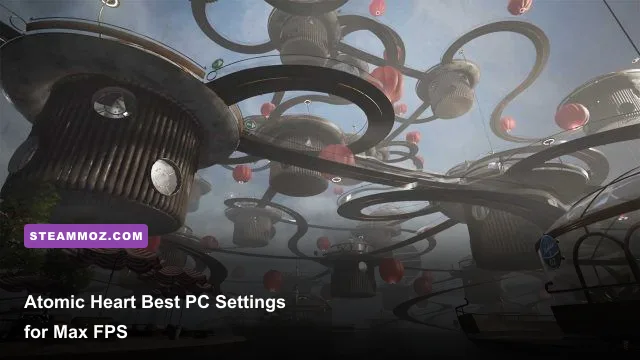
For the best Atomic Heart PC performance, start with High settings, disable ray tracing, use DLSS Quality or FSR 2 Quality, turn motion blur off, and lower shadows, volumetric fog, and reflections before touching textures. That combination delivers the cleanest image-to-FPS balance for most systems running Atomic Heart or its Atomic Pass content, while a few targeted changes can rescue frame rates in Facility 3826's demanding outdoor zones.
Atomic Heart is built on Unreal Engine 4, but its dense Soviet-futurist interiors, heavy volumetric effects, reflective surfaces, and large outdoor areas can make the frame-time graph jump around. A system that holds 90 frames per second inside the Vavilov Complex may dip sharply near the Volga or during robot-heavy encounters. The goal isn't simply a large average FPS number. It's stable frametimes, responsive dodges, and image quality that doesn't turn every distant tree into shimmering mush.
Before changing anything, install the latest GPU driver, let the game finish shader compilation, and test the same save in a repeatable location. The official Atomic Heart Steam page lists the current PC version and requirements, while Mundfish's official Atomic Heart site remains the best place to check major updates. If another PC game is behaving badly after an update, our ELEX PC fixes guide covers the same driver, shader-cache, and background-process basics.

Use These Atomic Heart Settings First
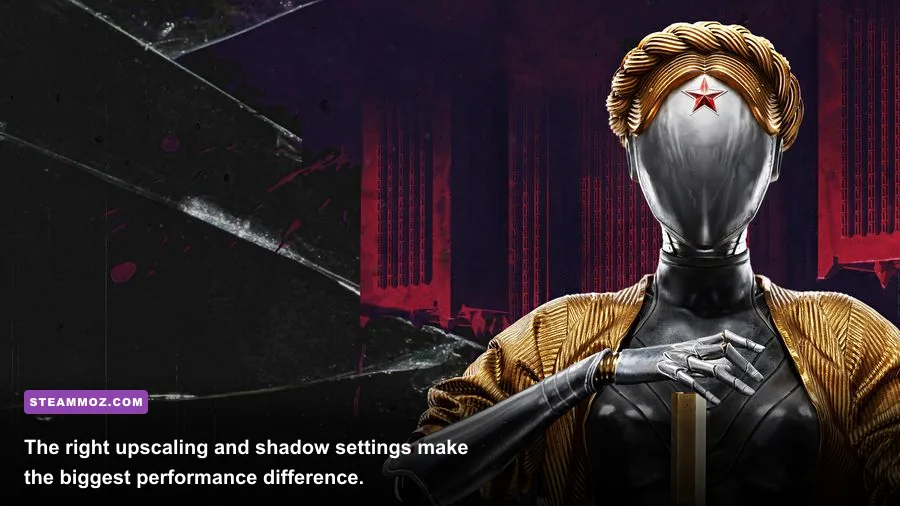
There are two sensible starting profiles. The first is the balanced preset for 1080p and 1440p players who want a sharp picture. The second is a competitive performance profile for high-refresh monitors or weaker GPUs. Both keep textures relatively high because texture quality usually consumes VRAM rather than directly hammering the GPU core. Shadows, reflections, volumetrics, and ray tracing are where the expensive work happens.
| Setting | Recommended Value | FPS Impact | Visual Trade-Off |
|---|---|---|---|
| Overall Quality | High, then customize | Medium | High preserves strong lighting and geometry without Ultra's low-value costs. |
| Textures | High | Low to medium | Keep High with 8GB or more VRAM; use Medium below that. |
| Models | High | Low | Lower only if outdoor CPU and streaming dips persist. |
| Shadows | Medium | High | Medium removes a lot of shadow-map cost with a modest image loss. |
| Reflections | Medium | High | Lower reflections help most in glossy labs and wet outdoor scenes. |
| Volumetric Fog | Medium or Low | High | Low is noticeably flatter, but often gives the best frames per second. |
| Particles | High | Low to medium | Keep High unless combat effects cause GPU spikes. |
| Anti-Aliasing | TAA or game default | Low | Use the cleanest option available at native resolution. |
| Upscaling | DLSS Quality or FSR 2 Quality | Very high gain | Quality mode retains detail while rendering below native resolution. |
| Ray Tracing | Off | Very high | Reflections and lighting improve, but the performance bill is brutal. |
| Motion Blur | Off | Negligible | Sharper camera movement and easier target tracking. |
| Foliage | Medium | Medium | Reduces grass and vegetation density in outdoor zones. |
At 1080p, start with High textures, High models, Medium shadows, Medium reflections, Medium volumetrics, High particles, and Medium foliage. Select DLSS Quality on an RTX card or FSR 2 Quality on Radeon hardware. At 1440p, that same profile is still a strong baseline, but DLSS Balanced may be necessary on an RTX 2060-class GPU. At 4K, use DLSS Balanced or Performance only when you need a locked 60 FPS; Quality mode is preferable whenever the GPU can sustain it.
Don't blindly choose Ultra. Atomic Heart's highest preset spends performance on shadow resolution, reflection detail, and atmospheric effects that are difficult to appreciate during fast movement. The frame-time improvement from dropping those settings is much more valuable than the small boost in distant foliage or corridor shading.
🎮 Atomic Heart - Atomic Pass
Looking to experience this game? Grab your digital key directly on our store for $27.99.
View on Steammoz Store →DLSS, FSR 2, and Resolution Scaling Explained
Upscaling is the biggest single lever in Atomic Heart's graphics menu. DLSS is generally the best choice on GeForce RTX cards because its temporal reconstruction handles fine geometry and particles cleanly. FSR 2 is the universal option for Radeon cards, older Nvidia GPUs, and systems that don't support DLSS. Both render internally below your display resolution, then reconstruct a higher-resolution image.
Use Quality mode when your native resolution is 1080p or 1440p and you want to preserve facial detail, weapon edges, and signage. Quality mode commonly renders around 67 percent of the target resolution. Balanced drops closer to 58 percent, while Performance is roughly 50 percent. Exact internal scaling can vary by implementation, so treat those figures as practical guidance rather than a promise from the developer.
| Resolution | GPU Class | Upscaler Mode | Target |
|---|---|---|---|
| 1080p | RTX 2060 / RX 6600 | FSR 2 Quality or native | 60 FPS with Medium-High settings |
| 1080p | RTX 3060 / RX 6700 XT | DLSS Quality or FSR 2 Quality | 80-120 FPS depending on area |
| 1440p | RTX 3060 Ti / RX 6700 XT | DLSS Balanced or FSR 2 Quality | 60-90 FPS |
| 1440p | RTX 4070 / RX 7800 XT | DLSS Quality or FSR 2 Quality | 90 FPS and above in lighter scenes |
| 4K | RTX 4070 Ti Super / RX 7900 XT | DLSS Balanced or FSR 2 Balanced | 60 FPS with ray tracing off |
| 4K | RTX 4080-class | DLSS Quality | 60 FPS High, depending on location |
DLSS sharpening can make the reconstructed image look crisp, but too much sharpening turns foliage and grates into noisy halos. Keep the slider modest if your build exposes one. FSR 2 can show more shimmer on thin railings and vegetation, especially in the open-world sections. If that bothers you, use FSR 2 Quality rather than Balanced, lower sharpening, and avoid pairing it with an aggressive driver-level sharpening filter.
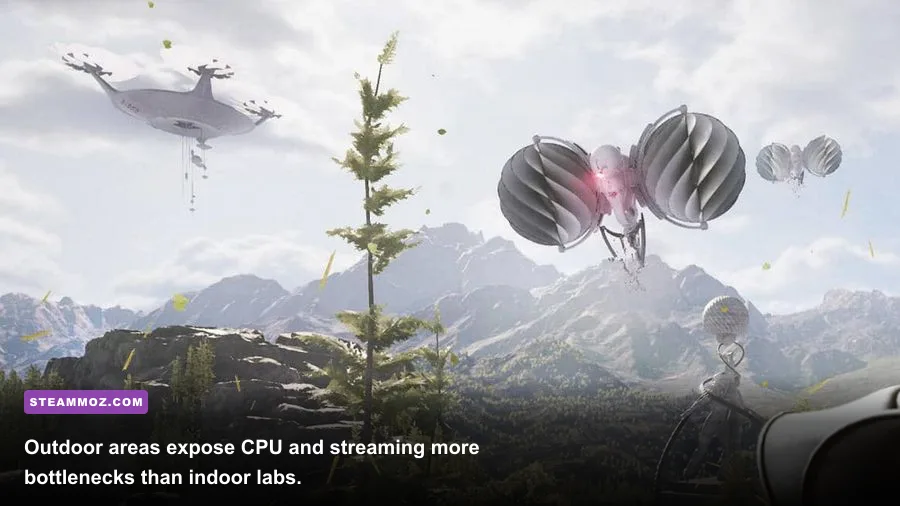
Resolution scaling won't fix a CPU bottleneck. If your GPU usage sits below roughly 90 percent while FPS remains low in a crowded outdoor area, dropping from Quality to Performance may barely help. In that situation, reduce models, foliage, shadows, and the number of background applications instead. A GPU-limited scene responds immediately to upscaling; a CPU-limited scene needs less scene complexity.
Ray Tracing Is Gorgeous—and Usually Not Worth It
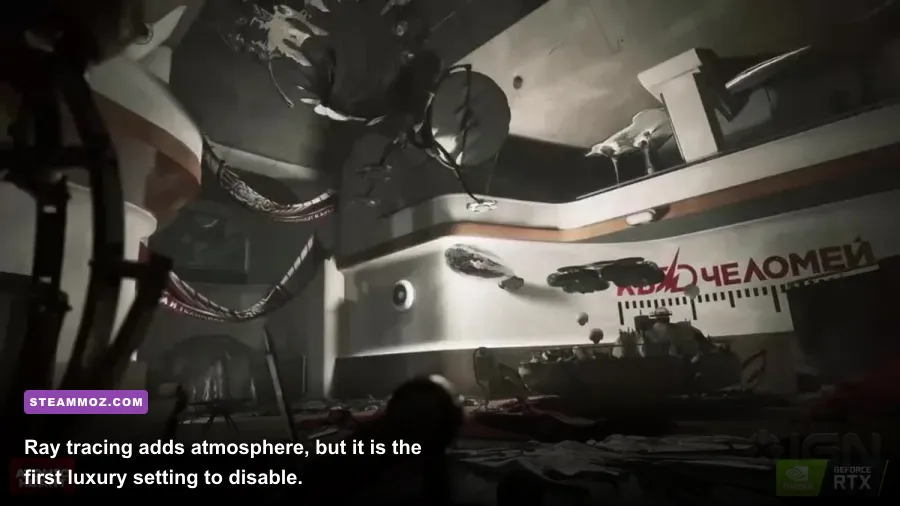
Atomic Heart's ray-traced reflections and lighting add convincing depth to polished floors, glass, water, and metallic machinery. They also impose one of the harshest performance penalties in the entire menu. On mid-range hardware, enabling ray tracing can turn a comfortable 60 FPS experience into the 30s, with additional stutter when new areas stream in.
For a screenshot session, ray tracing is absolutely worth trying. For a normal playthrough, disable it first and spend the saved performance on a higher output resolution or steadier frame cap. A sharp 1440p image at a locked 60 FPS feels better than a soft 1080p image that oscillates between 40 and 70 FPS with reflections enabled.
Ray tracing also makes upscaler artifacts easier to notice. Temporal reconstruction has to track moving reflections and complex lighting, so ghosting behind robots or shimmering on puddles can become more apparent. If you insist on using ray tracing, choose DLSS Quality on RTX hardware, set reflections and volumetrics to Medium, and cap the frame rate below your worst-case performance rather than chasing the highest possible average.
How to Tune Shadows, Reflections, and Volumetrics
Shadows are usually the best conventional setting to lower. High and Ultra shadow options increase shadow-map resolution and the distance at which objects cast detailed shadows. Medium keeps the important contact shadows around characters and machinery while reducing distant precision. Low can make outdoor areas look flat, so use it only when you are chasing a strict FPS target.
Reflections are more complicated. They affect the laboratory floors, pipes, windows, water, and polished machinery that define Atomic Heart's visual identity. Medium is the sweet spot. Low is a useful emergency setting, especially on 4GB and 6GB cards, but the difference is easy to spot in the Vavilov and Chelomey interiors. If you have GPU headroom, raise reflections before shadows.
Volumetric fog and volumetric objects are expensive because the game has to calculate light through atmospheric layers. That cost spikes in rooms filled with haze, industrial steam, or bright shafts of light. Medium preserves most of the mood; Low can produce a surprisingly large gain during combat and exploration. This is one of the first settings to change if your FPS collapses around dramatic lighting rather than during ordinary corridors.
Particles are less consistently expensive, but explosions, electrical effects, and swarms of hostile machines can create short GPU spikes. Keep particles High on a modern card, then test a large combat encounter. If frame pacing becomes uneven only when multiple effects overlap, Medium particles are a safer compromise than dropping textures or models.
Best Profiles for Budget, Mid-Range, and High-End PCs
Atomic Heart benefits from a profile built around your real bottleneck rather than your graphics card's name. A modern six-core CPU helps in the open world, while VRAM matters when high textures, large resolutions, and background applications collide. Close browsers, recording tools, RGB utilities, and launchers you don't need. The game can stream a lot of data while you move through Facility 3826, and leaving memory pressure unresolved can look like a graphics problem.
| Profile | Core Settings | Expected Goal | Best For |
|---|---|---|---|
| Budget 1080p | Medium preset, textures Medium, shadows Low, reflections Low, volumetrics Low, FSR 2 Balanced | 45-60 FPS | GTX 1660, RX 5500 XT, older six-core CPUs |
| Balanced 1080p | High textures, High models, Medium shadows, Medium reflections, Medium volumetrics, DLSS/FSR 2 Quality | 60-100 FPS | RTX 3060, RX 6600 XT, modern six-core CPUs |
| Balanced 1440p | High textures, High models, Medium shadows, Medium reflections, Low-Medium volumetrics, Quality upscaling | 60-90 FPS | RTX 3060 Ti, RX 6700 XT, RTX 4060 Ti |
| High-End 1440p | High-Ultra textures, High models, High shadows, High reflections, Medium volumetrics, DLSS Quality | 90-144 FPS | RTX 4070, RX 7800 XT, faster CPUs |
| 4K Quality | High textures, High models, Medium shadows, Medium reflections, Medium volumetrics, DLSS Balanced | 60 FPS | RTX 4070 Ti Super, RX 7900 XT, above |
For a Steam Deck or similarly constrained handheld, use 1280x800, a 30 FPS cap, Low-to-Medium settings, Medium textures if VRAM allows, Low shadows, Low reflections, Low volumetrics, and FSR 2 Balanced. A locked 30 is the realistic target in the more demanding outdoor areas. A 40 FPS cap can feel excellent in interiors but may not hold during traversal, so don't sacrifice consistency for a number the hardware cannot sustain.
On desktop, cap FPS a few frames below the refresh rate if you use adaptive sync. A 60Hz monitor benefits from a 58-60 FPS cap; a 120Hz display can use 90 or 100 if the system cannot remain near 120. The point is to prevent the GPU from slamming into 99 percent usage and producing uneven frametimes. V-Sync behavior differs by driver and display, so test it with your monitor's FreeSync or G-SYNC-compatible mode rather than assuming one universal combination is perfect.
Fix Stutter and Find the Real Bottleneck
Stutter in Atomic Heart isn't always solved by lowering every setting. First, give the game time to build or update shaders after a driver change. Running immediately after a major patch can produce temporary hitching as new effects appear. Install the game on an SSD, keep several gigabytes free, and avoid streaming or recording to the same drive during testing.
Use an overlay such as FrameView, CapFrameX, or your GPU software to watch GPU utilization, VRAM, system RAM, and one-percent lows. If GPU usage is 95-99 percent, lower resolution, upscaling mode, reflections, volumetrics, or ray tracing. If GPU usage is low but one CPU core is saturated, lower models and foliage, close background programs, and reduce the frame-rate target. If VRAM is full, reduce textures before anything else; texture swapping can cause hitching that looks like ordinary FPS loss.
Don't use launch options copied from an unrelated Unreal Engine game unless you understand what they do. Some tweaks can disable useful streaming behavior or create new visual bugs. Keep a clean baseline, change one setting at a time, and record the result in the same location. The outdoor roads near the Volga are a better stress test than a quiet corridor because they combine traversal, foliage, distant geometry, and enemy activity.
For broader PC troubleshooting habits, Steamoz's PC requirements breakdown explains how to separate minimum specifications from a genuinely smooth experience. Our Far Cry 6 settings guide also covers why outdoor streaming and volumetric effects deserve separate testing.
The Best Final Setup for Most Players
For the majority of Atomic Heart players, the final recommendation is straightforward: use 1080p or 1440p output, High textures, High models, Medium shadows, Medium reflections, Medium volumetrics, High particles, Medium foliage, motion blur off, ray tracing off, and DLSS Quality or FSR 2 Quality. If FPS still dips, change volumetrics to Low, then reflections to Low or Medium, before sacrificing texture quality.
That order protects the details you'll actually notice while playing. Textures preserve the look of weapons, machines, walls, and character outfits. Models protect the silhouette of enemies and the richness of the environment. Shadows and volumetric lighting are beautiful, but they are also much less important when you're sprinting, scanning for a telegraph, or using your glove abilities in a crowded room.
Atomic Heart's combat rewards responsiveness more than cinematic settings. A stable frame rate makes it easier to read a Belyash's wind-up, avoid a Plyusch's lunge, and land a charged axe hit without fighting input delay. Disable ray tracing, choose the least aggressive upscaling mode your GPU can sustain, cap the result sensibly, and benchmark the Volga rather than trusting a quiet indoor hallway. Do that, and Atomic Pass content will look sharp, move smoothly, and stop turning every major encounter into a performance gamble.