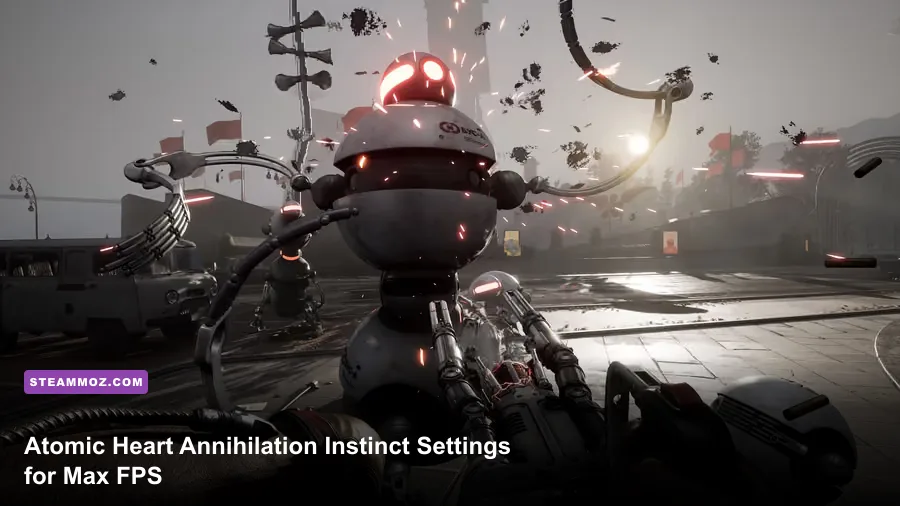
For the best Atomic Heart: Annihilation Instinct performance, use 1080p or 1440p, enable DLSS Quality or FSR 2 Quality, turn ray tracing off, keep textures high, and lower volumetric fog, shadows, reflections, and foliage first. That combination preserves the DLC’s sharp industrial interiors while removing the settings most likely to cause GPU spikes and uneven frame pacing. On a modern six-core gaming PC with an RTX 3060 Ti, RX 6700 XT, or better, it is a sensible starting point for a consistent 60 FPS target.
Annihilation Instinct is built on the same demanding PC foundation as the main Atomic Heart campaign. The expansion’s Mendeleev Complex adds dense laboratories, reflective surfaces, heavy fog, bright lighting effects, and frequent combat encounters. Those scenes can punish a preset that looks fine in a quiet corridor. The important distinction is that texture quality is rarely your first performance problem; volumetric effects, shadows, reflections, foliage, and ray tracing usually cost more frames while delivering smaller gains in clarity.
Before changing anything, update your GPU driver, install the latest game build through Atomic Heart on Steam, and let the shader cache finish building after the first launch. If you are troubleshooting crashes or severe hitching, the broader PC performance advice in our PC fixes guide is useful, although the settings below are tailored specifically to Annihilation Instinct.

The best starting profile for maximum FPS
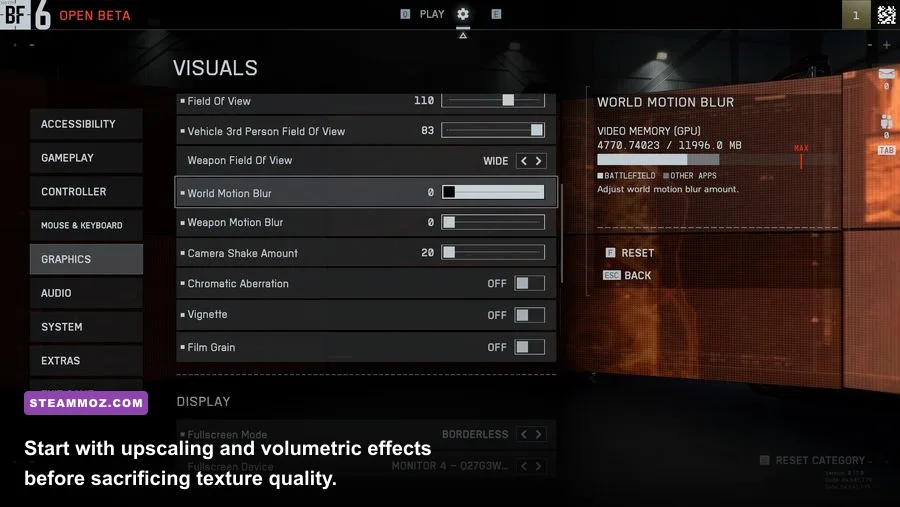
Use the profile below as the baseline, then adjust resolution and upscaling to match your display. The goal is not to slam every option to Low. Atomic Heart benefits noticeably from high textures and decent anti-aliasing, especially when the camera moves across pipes, cables, grated floors, and machinery. Cutting those settings first makes the game look worse without solving the most serious frame-time spikes.
| Setting | Recommended value | Performance impact | Visual trade-off |
|---|---|---|---|
| Resolution | Native 1080p or 1440p with upscaling | Very high | Lower resolution is the fastest FPS gain, but reduces fine detail |
| Upscaling | DLSS Quality; FSR 2 Quality on Radeon | Very high benefit | Quality modes retain sharpness; Balanced can soften distant detail |
| Frame Generation | On only if available and base FPS is stable | High perceived benefit | Can add latency or visual artifacts when the base frame rate is low |
| Textures | High | Low to medium | Use Medium below 8 GB VRAM to reduce streaming hitching |
| Shadows | Medium | High | Lower settings reduce contact detail and shadow distance |
| Foliage | Medium | Medium to high | Less grass and vegetation density in outdoor sections |
| Effects | High | Medium | Lower values simplify explosions, sparks, and power effects |
| Post-processing | Medium | Low to medium | Mostly affects cinematic effects and image treatment |
| Volumetric fog | Low or Medium | Very high | Fog becomes less layered, especially around bright lights |
| Reflections | Medium | High | Reflective floors and wet surfaces lose accuracy |
| Ambient occlusion | High or Medium | Medium | Lower values flatten corners, machinery, and character contact shadows |
| Motion blur | Off | Small | Cleaner image during turns and combat |
| Chromatic aberration | Off | Small | Removes colored fringing at the edges of the screen |
| Depth of field | Off for competitive clarity | Small | Menus and scripted scenes look less cinematic |
| Ray tracing | Off | Very high | Lighting and reflections are less physically accurate |
On an RTX card, DLSS Quality is generally the cleanest route to extra performance. At 1440p, it renders internally below native resolution and reconstructs the image, taking pressure off the GPU without the obvious softness of a more aggressive mode. FSR 2 Quality is the equivalent choice for Radeon hardware and works well when sharpening is kept moderate. FSR 2 Balanced is a useful emergency option, not the default: it can produce shimmering around railings, foliage, and thin cables.
Frame Generation should be treated as a finishing tool, not a cure for poor performance. It can make camera movement feel smoother when the game already holds roughly 55 to 60 base FPS, but it cannot fix heavy traversal stutter or sluggish input at 35 FPS. If your GPU supports DLSS Frame Generation, test it in a busy Mendeleev Complex room rather than in an empty corridor. The difference in frame pacing is much easier to judge during combat.
🎮 Atomic Heart - Annihilation Instinct
Looking to experience this game? Grab your digital key directly on our store for $5.99.
View on Steammoz Store →Which settings actually cost the most frames?
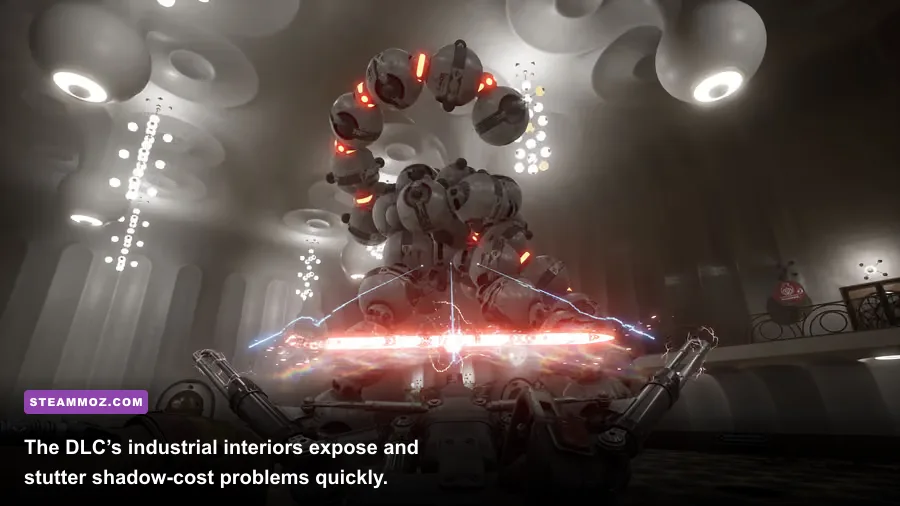
Atomic Heart’s menu does not always make the cost of each option obvious. The most efficient tuning strategy is to change one setting at a time in a demanding area, use the same camera route, and watch the one-percent lows rather than only the headline average. An average of 80 FPS means little if turning toward a foggy laboratory repeatedly drops the game to 42.
Volumetric fog and reflections
Volumetric fog is the first setting I would lower after enabling an upscaler. It affects the number of samples used to represent light traveling through smoke, mist, and atmospheric layers. Annihilation Instinct uses plenty of bright industrial lighting, so fog can become expensive when several light sources overlap. Medium is a good compromise at 60 FPS; Low is worth using on an RTX 2060, GTX 1660 Super, RX 5600 XT, or similar card.
Reflections are also deceptively costly. The DLC’s metal surfaces, polished floors, glass, and wet environments create many opportunities for screen-space reflection work. High reflections can look excellent in a still screenshot, but Medium usually preserves the scene’s character while limiting the number of expensive reflection calculations. If your performance collapses when facing a large reflective room, lower reflections before textures.
Shadows, foliage, and ambient occlusion
Shadows affect both GPU workload and visual stability. High shadow quality adds detail and distance, but the gain is most visible when standing still. Medium keeps major silhouettes readable and removes a significant amount of shadow-map work. Low can make robots and machinery appear strangely disconnected from the floor, so I would avoid it unless you are chasing a locked frame-rate target on older hardware.
Foliage matters primarily in outdoor transitions and areas with vegetation. Medium is usually enough because the player is moving quickly and combat draws attention elsewhere. Ambient occlusion is less expensive than volumetrics, but it gives corridors, stairs, crates, and enemy feet their sense of depth. Keep it on Medium or High unless you are genuinely GPU-limited.
| Priority | Setting to change | Typical FPS effect | Best reason to lower it |
|---|---|---|---|
| 1 | Ray tracing | Large gain, hardware dependent | Use raster lighting for the most consistent frame time |
| 2 | Volumetric fog | Large gain in smoky or brightly lit rooms | Reduces GPU spikes without destroying texture detail |
| 3 | Resolution and upscaling mode | Largest overall gain | Use Quality first, Balanced only when necessary |
| 4 | Reflections | Medium to large gain | Helpful in glossy laboratories and wet areas |
| 5 | Shadows | Medium gain | Improves outdoor and combat lows |
| 6 | Foliage | Small to medium gain | Useful during outdoor traversal |
| 7 | Textures | Usually negligible FPS gain | Lower only for VRAM pressure or streaming stutter |
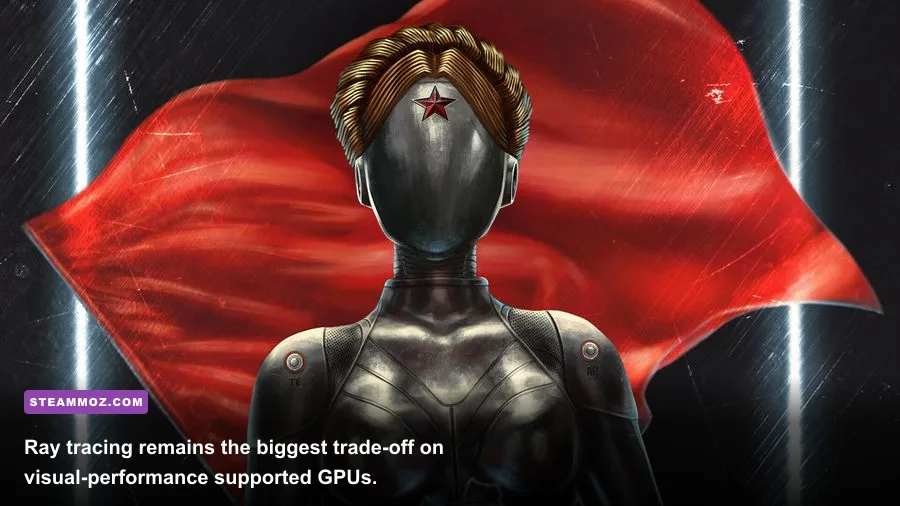
Ray tracing deserves a special warning. Atomic Heart’s ray-traced reflections and lighting can make the Soviet-futurist environments look richer, but the cost is difficult to justify when your priority is max FPS. Even a capable RTX GPU may need aggressive upscaling to maintain smoothness with RT enabled. Turn it on only after the rasterized profile is stable, and expect to lower reflections, volumetrics, and resolution together.
Recommended settings by GPU and target frame rate
Hardware matters more than a single universal preset. The table below assumes a modern Windows PC, current drivers, 16 GB of system memory, and no background recording. VRAM usage varies by resolution and scene, so treat these as practical targets rather than guarantees. Annihilation Instinct can show traversal hitches while assets stream in even when the average FPS looks healthy.
| Hardware class | Resolution and upscaling | Core settings | Realistic target |
|---|---|---|---|
| GTX 1660 Super, RX 5600 XT | 1080p FSR 2 Quality or Balanced | Textures Medium, shadows Low, fog Low, reflections Low, RT Off | 45–60 FPS |
| RTX 2060, RX 6600 | 1080p DLSS or FSR 2 Quality | Textures High, shadows Medium, fog Low, reflections Medium, RT Off | 60 FPS with dips |
| RTX 3060 Ti, RX 6700 XT | 1080p native or 1440p Quality upscale | Textures High, shadows Medium, fog Medium, reflections Medium, RT Off | 60–90 FPS |
| RTX 4070, RX 7800 XT | 1440p native or DLSS/FSR Quality | Textures Ultra or High, shadows High, fog Medium, reflections High, RT optional | 80–120 FPS |
| RTX 4080, RX 7900 XTX | 1440p native or 4K Quality upscale | High or Ultra textures, high shadows, medium-high effects, RT selectively | 90 FPS and above, display dependent |
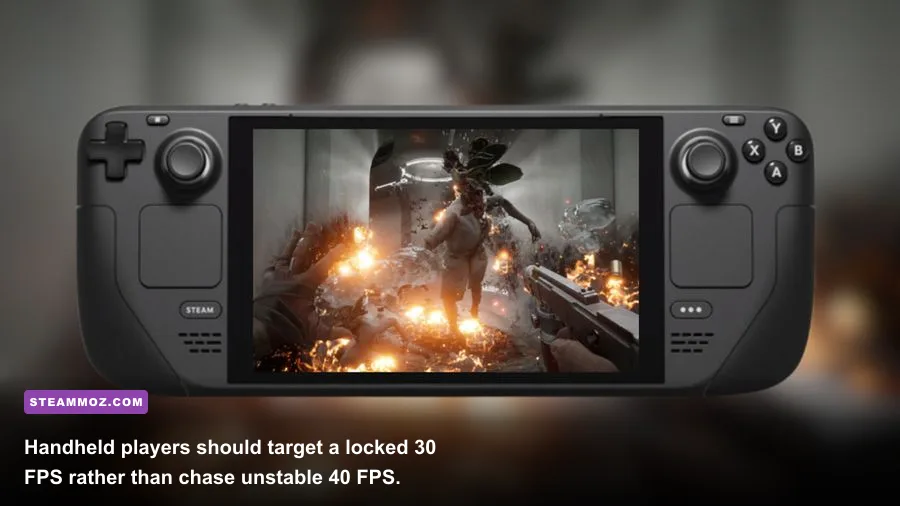
| Steam Deck | 1280x800, FSR 2 Performance or internal 720p | Textures Low/Medium, shadows Low, fog Low, reflections Low, RT Off | Locked 30 FPS |
For a GTX 1660 Super or RX 5600 XT, do not spend time trying to preserve Ultra textures if the game is stuttering. Medium textures reduce memory pressure and may help asset streaming, while Low fog and shadows protect the frame rate during combat. A stable 50 FPS feels much better than a profile that reaches 70 FPS in a corridor and collapses in the next arena.
RTX 3060 Ti and RX 6700 XT owners sit in the sweet spot. At 1080p, native rendering can be viable, but DLSS or FSR 2 Quality gives you more headroom for difficult scenes. At 1440p, use the quality upscaler and keep textures High. These cards generally have enough graphics memory for that setting, whereas Ultra can become less attractive if background applications or higher-resolution texture streaming increase VRAM use.
High-end owners can experiment with ray tracing, but test frame-time graphs rather than relying on the FPS counter. A stable 90 FPS raster profile will often feel better than a 60 FPS RT profile with occasional drops. Players using a 120 Hz display should cap the game below the refresh rate if necessary—for example, 117 FPS on a 120 Hz panel—to reduce unnecessary GPU saturation and improve consistency.
Fixing stutter, input delay, and unstable frame pacing
Low FPS and stutter are related but not identical. If the counter stays above 60 while the camera hitches, the problem may be shader compilation, asset streaming, CPU scheduling, or a saturated VRAM pool rather than a graphics preset alone. The official Mundfish website is the best place to check current patches and support information, while the game’s Steam discussions can reveal whether a new issue is widespread.
Use a sensible frame cap
Unlimited FPS is not automatically better. If your system swings between 67 and 104 FPS, a cap at 60 or 90 can smooth delivery and reduce heat. Use the in-game limiter if it behaves correctly; otherwise, the NVIDIA Control Panel, AMD Adrenalin, or RTSS can provide a more reliable cap. Leave a little GPU headroom—around 5 to 10 percent—so sudden effects do not immediately force a downclock or queue extra frames.
Reduce VRAM pressure before lowering everything
Texture streaming stutter often gets misdiagnosed as a CPU problem. If an 8 GB card is running at 1440p with Ultra textures, RT, and several applications open, lower textures to High and restart the game. A restart matters because some assets remain allocated after repeated setting changes. Close browser tabs, overlays, RGB utilities, and recording tools while testing. Do not use aggressive third-party config edits before checking the normal menu options.
Improve input response
Motion blur, depth of field, and chromatic aberration do not usually transform the FPS counter, but switching them off makes the image easier to read during a fast dodge or melee combo. If you use DLSS Frame Generation, Nvidia Reflex or the game’s low-latency option can help where supported, but the most important factor remains a healthy base frame rate. Never judge responsiveness from generated FPS alone.
CPU-limited players should lower crowd, foliage, and view-distance-related options where available, then watch CPU utilization across individual cores. Atomic Heart can appear to use only moderate total CPU percentage while one or two threads are busy. Lowering resolution will not solve that bottleneck. If your GPU usage sits well below 95 percent during drops, keep the image quality and reduce simulation-heavy settings instead of immediately selecting a blurrier upscaling mode.
For additional troubleshooting habits, compare your results with Steamoz’s PC performance crash guide and hardware requirements breakdown. They cover clean driver installs, background applications, and storage checks that also apply here. Install Atomic Heart on an SSD if possible; a hard drive can make traversal hitching more noticeable as the Mendeleev Complex streams new assets.
The best visual-quality profile without sacrificing smoothness
If you have a reasonably powerful PC and want Annihilation Instinct to retain its atmosphere, use 1440p with DLSS Quality or FSR 2 Quality, High textures, High effects, Medium shadows, Medium fog, Medium reflections, and High ambient occlusion. Leave ray tracing off initially. This is the profile that best balances the DLC’s metallic surfaces and cinematic lighting against the practical need for stable combat performance.
Keep sharpening restrained. Too much sharpening makes thin wires, grated platforms, and foliage shimmer, particularly with FSR 2. If the reconstructed image looks soft, raise sharpening in small steps rather than jumping to the maximum. Native resolution is still preferable when your GPU can maintain the target frame rate, but Quality upscaling is often difficult to distinguish during normal movement and gives valuable headroom for explosions and enemy effects.
Do not lower textures just because a preset recommends it. Texture quality mainly affects VRAM capacity and image detail, not raw rendering speed. High textures are the right choice for most cards with 8 GB or more VRAM. Move to Medium when you see delayed texture loading, severe hitching after entering new rooms, or VRAM usage repeatedly hitting the limit. That change is more targeted than dropping every option to Low.
Finally, test your settings in the real places where the DLC asks the most from your PC: bright laboratories, reflective rooms, fog-heavy passages, and active combat arenas. Walk the same route after every change and record the average FPS, one-percent low, and whether the camera feels consistent. The winning Atomic Heart: Annihilation Instinct setup is not the one with the prettiest screenshot; it is the one that keeps the reticle responsive when the room fills with sparks, fog, reflections, and hostile machines.
For most players, the short version remains simple: disable ray tracing, use DLSS Quality or FSR 2 Quality, keep textures High, set shadows and reflections to Medium, lower volumetric fog when drops persist, turn off motion blur and chromatic aberration, and cap FPS at a level your PC can actually sustain. That profile delivers the sharp, strange, industrial look Atomic Heart is known for without allowing its most expensive effects to dictate the entire experience.